


Pathao’s delivery network covers Bangladesh’s most important commerce corridors — Dhaka, Chittagong, and the growing tier-2 cities. But connecting Pathao to a WordPress store the standard way still means WooCommerce underneath, a separate integration plugin on top, and a manual “Send to Pathao” button you have to click for every order.
The problem with that model is the same one that affects every WooCommerce bolt-on: two systems that need to stay in sync, two update cycles that can break each other, and a manual dispatch step that scales badly past 50 orders a day. What Bangladesh’s ecommerce stores actually need is Pathao dispatch that happens automatically, correctly, and without a second plugin bridging two separate systems.
StoreEngine’s Courier addon integrates with Pathao natively — city and zone selection built in, shipments auto-pushed the moment payment lands, tracking polled every 15 minutes in the background — and none of it requires WooCommerce. For the full picture of how the shipping layer works, see the WordPress shipping plugin guide.
Quick Answer: How Do You Connect Pathao to WordPress?
Why the Existing Pathao-WordPress Integrations All Need WooCommerce
Pathao’s official courier plugin for WordPress WooCommerce is designed to enhance your website’s functionality by providing courier service features, including seamless package tracking and a user-friendly way to manage deliveries. Every Pathao-WordPress plugin that exists — including Pathao’s own open-source plugin on GitHub, which adds a “Send with Pathao” button to the WooCommerce orders list and supports city, zone, and area selection via a modal — is built as a WooCommerce extension.
This creates three compounding problems. First, you’re maintaining WooCommerce and the Pathao plugin separately — when WooCommerce releases a major version, the Pathao plugin may take weeks to patch compatibility. Second, the official free plugin isn’t fully compatible with WooCommerce block checkout pages, which means stores using WooCommerce’s newer block-based checkout need a workaround or downgrade. Third, none of them auto-dispatch — every order still requires a human to open the modal, select city and zone, and click Send.
StoreEngine removes all three of those problems by moving the Pathao integration inside the store engine itself. If you also ship with Steadfast, the same architecture applies — see the Steadfast WordPress integration guide.
How StoreEngine’s Pathao Integration Works
OAuth connection
Pathao uses OAuth for merchant authentication. In StoreEngine’s Courier settings, you enter your Pathao OAuth client ID and client secret, then click Connect. StoreEngine initiates the OAuth flow — redirecting to Pathao’s authorization URL and returning with an access token. The token renews automatically (StoreEngine tracks expiry and refreshes before API calls fail). You authenticate once and don’t manage credentials again.
City and zone-aware dispatch
Pathao requires a city ID and zone ID for every shipment — not free-text city names, but Pathao’s internal IDs for each delivery area. StoreEngine surfaces these correctly.
In the admin shipments UI, when you create a shipment manually against a Pathao order, StoreEngine calls the live Pathao city list and populates a dropdown. When you select a city, StoreEngine immediately calls the zones endpoint for that city (couriers/providers/pathao/cities/{id}/zones) and populates the zone dropdown with the correct options for that city. This is the same city-zone dependency that Pathao’s own official plugin handles — city selection unlocks zone selection — and StoreEngine handles it natively.
For auto-pushed shipments, StoreEngine builds the payload from the order’s stored billing address data. If the billing address already has city and zone data stored against it (via checkout fields or a previous order), that data feeds directly into the Pathao payload.
Auto-push: no manual dispatch step
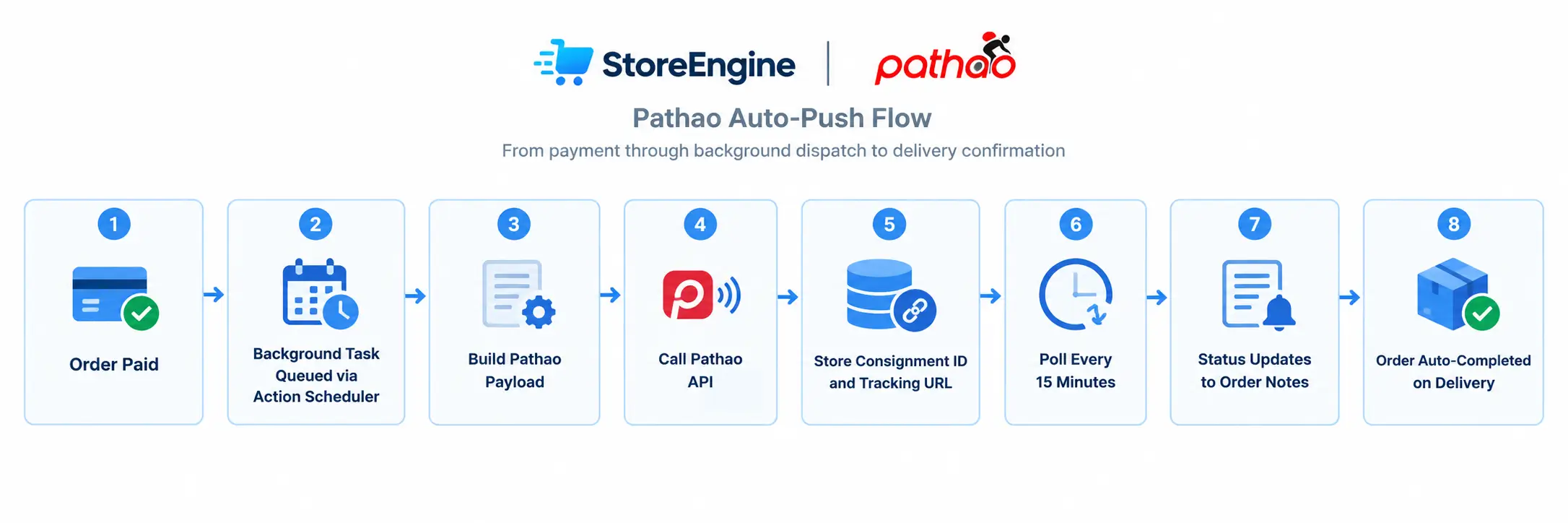
When payment completes, StoreEngine’s auto-push queues a background task. That task:
The whole flow runs asynchronously via Action Scheduler — never blocking checkout, never delaying the payment gateway callback. If the same payment event fires twice (retry behavior on some gateways), the idempotency guard catches the duplicate and skips the second push.
15-minute background status polling
Pathao delivers webhook notifications for some status events but not all, and webhook reliability varies. StoreEngine handles this with background polling: every 15 minutes, Action Scheduler checks the status of all in-flight Pathao shipments (up to 50 per run) by calling Pathao’s tracking endpoint.
Every status change writes an order note with both the StoreEngine internal status and Pathao’s raw status string — so the order history shows exactly what Pathao reported and when. No manual portal checks required.
Normalized seven-state status model
Pathao’s raw API returns its own status terminology. StoreEngine normalizes all of it into seven consistent internal states:
created → picked_up → in_transit → out_for_delivery → delivered → cancelled → returned
Your order notes, admin filters, and auto-completion triggers all work against these normalized states — not against whatever Pathao’s API happened to return in a given response.
Auto-complete on delivery, auto-hold on return
When polling confirms a Pathao shipment is delivered — and all shipments on that order are delivered — StoreEngine automatically marks the order completed. For multi-vendor orders, it waits until every vendor’s shipment confirms delivered before completing the order.
When a shipment returns, StoreEngine can optionally move the order to on-hold. This is disabled by default (opt-in), because returned parcels often need human judgment before the next action.
COD Orders with Pathao
COD is the primary payment method for most Bangladesh ecommerce, and Pathao’s API accepts a cash collection amount on each shipment. StoreEngine handles this transparently.
In the auto-push configuration, you list which payment method IDs count as COD (cod, cash-on-delivery, or whichever method IDs your store uses). For any order using one of those methods, StoreEngine includes the order total as the COD collection amount in the Pathao payload. Prepaid orders send 0. You configure it once and it applies automatically to every shipment from that point.
Multi-Vendor Marketplace: Per-Vendor Pathao Dispatch
For stores running StoreEngine’s Multi-Vendor addon, a single customer order can contain products from multiple vendors — each shipping from a different warehouse. StoreEngine’s auto-push automatically groups line items by vendor and creates a separate Pathao shipment for each vendor.
Each vendor’s shipment gets its own consignment ID, its own tracking, and its own delivery timeline. The customer’s order shows all shipments. The order auto-completes when every vendor’s shipment is confirmed delivered by Pathao.
This is the scenario where all existing WooCommerce-based Pathao plugins break down — they don’t have multi-vendor awareness, because that logic lives in a separate plugin from the Pathao integration.
Setting Up Pathao in StoreEngine
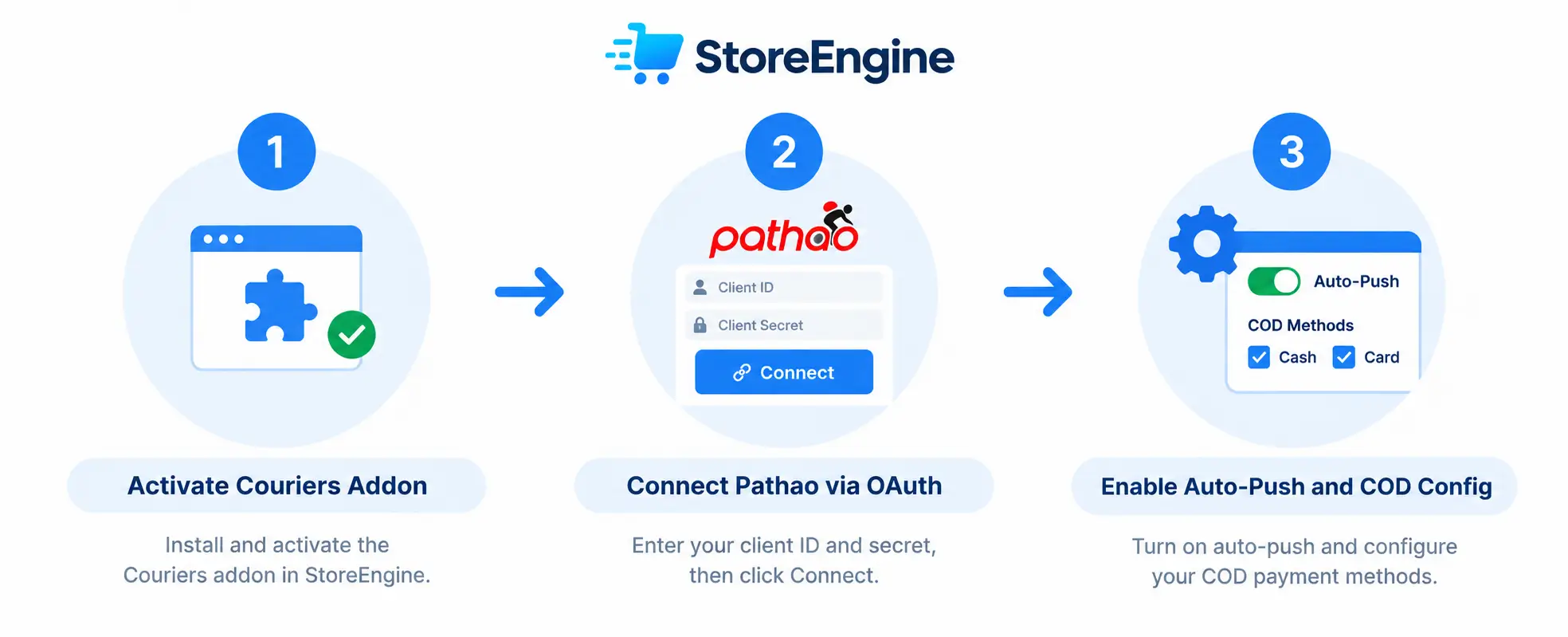
Step 1 — Activate the Couriers addon in StoreEngine Pro and go to Settings → Couriers.
Step 2 — Connect Pathao via OAuth. Find the Pathao provider card, enter your OAuth client ID and client secret (available from your Pathao merchant account), and click Connect. StoreEngine initiates the OAuth authorization flow. Once complete, the Pathao card shows “Connected” and the token renews automatically.
Step 3 — Enable auto-push. In the auto-push settings, select Pathao as the default provider, set your default package weight, configure which payment methods trigger COD amount collection, and save.
From this point, every paid order on your store dispatches to Pathao automatically — in the background, without blocking checkout, and without anyone touching the order manually. For how shipping zones determine which orders route through Pathao, see the shipping zones setup guide.
Is StoreEngine the Right Pathao Integration for Your Store?
Frequently Asked Questions
How do I connect Pathao to my WordPress store?
With StoreEngine, you activate the Couriers addon, connect Pathao via OAuth (enter your client ID and secret, click Connect), and enable auto-push. StoreEngine then dispatches every paid order to Pathao automatically in the background — no manual booking step, no WooCommerce required. Existing Pathao-WordPress integrations are WooCommerce extensions that require a manual “Send to Pathao” click per order; StoreEngine handles dispatch automatically.
Does StoreEngine require WooCommerce for Pathao integration?
No. StoreEngine is a standalone WordPress ecommerce plugin. The Pathao integration is part of the store engine itself — it reads order data, builds the Pathao payload, and calls Pathao’s API from inside the same system that processed the checkout. WooCommerce is not installed or required.
How does city and zone selection work?
StoreEngine calls Pathao’s live city list and populates a city dropdown in the admin shipment UI. When you select a city, StoreEngine immediately loads that city’s available zones from Pathao’s API. For auto-pushed shipments, city and zone data is pulled from the order’s billing address fields if present.
How does Pathao’s OAuth authentication work in StoreEngine?
You enter your Pathao OAuth client ID and secret in the Courier settings, then click Connect. StoreEngine redirects to Pathao’s authorization URL and returns with an access token on success. The token is stored and refreshed automatically before it expires — you authenticate once and the connection stays live without any manual credential management.
Does it handle COD collection amounts correctly?
Yes. In the auto-push settings, you list which payment method IDs count as COD. For those orders, StoreEngine passes the order total as the COD collection amount in the Pathao payload. Prepaid orders send 0. This applies automatically to every auto-pushed shipment.
What happens to returned Pathao parcels?
When polling detects a shipment has returned, StoreEngine can optionally move the parent order to on-hold for your review. This is disabled by default — enable it in the Courier sync settings if you want automatic hold on returns. A return order note is always written regardless of the sync setting.
Can it handle multi-vendor Pathao dispatch?
Yes. If an order contains products from multiple vendors (using StoreEngine’s Multi-Vendor addon), StoreEngine creates a separate Pathao shipment per vendor automatically during auto-push. Each vendor’s items dispatch under their own consignment ID with independent tracking.