

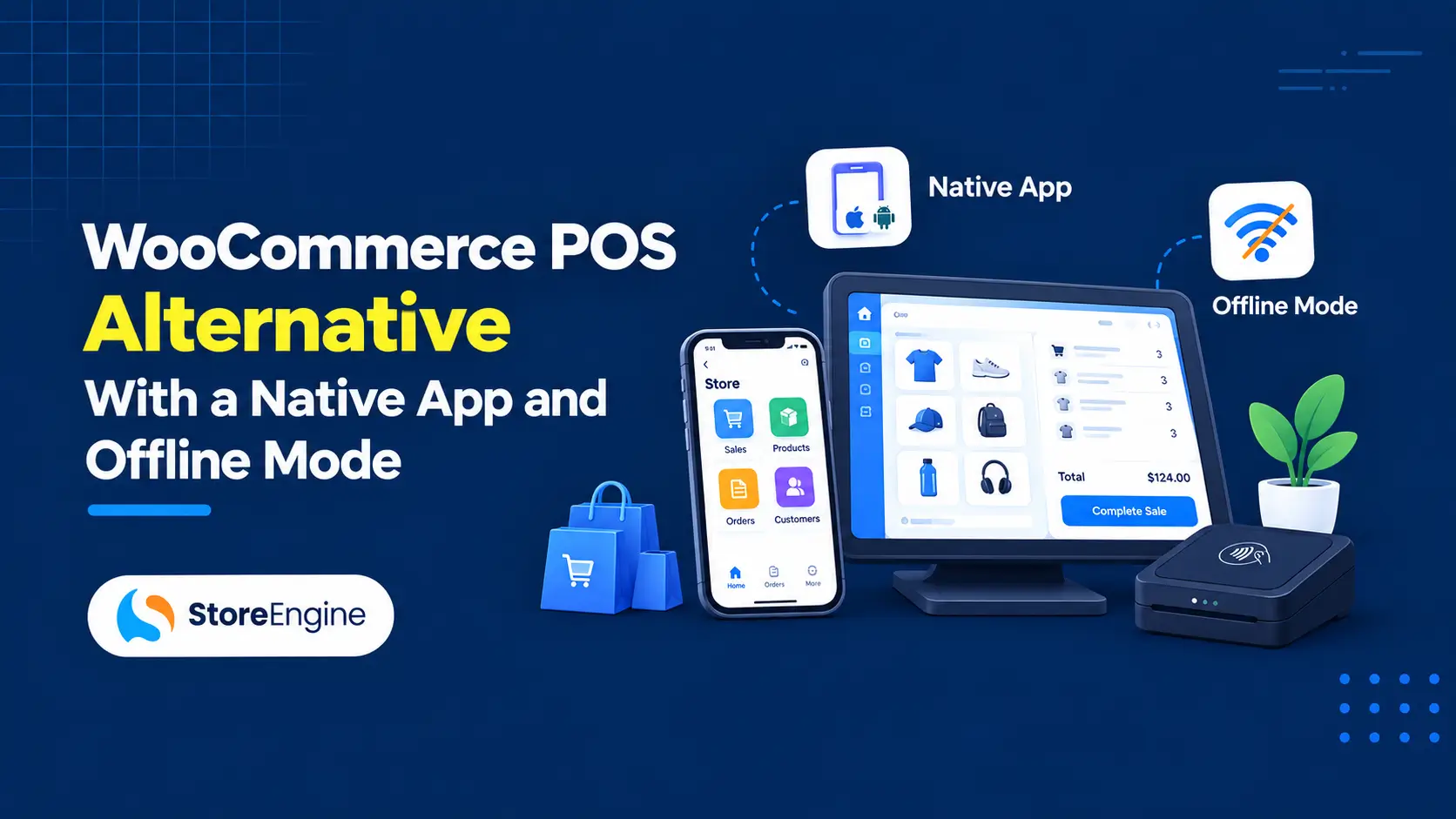

The internet went down at 2pm on a Saturday. The queue was eight people deep. And the WooCommerce POS — running in a browser tab, phoning home to the server on every product lookup — stopped completely. That is not a slow-down. That is a full stop.
This is the sharpest critique of browser-based WooCommerce POS systems, and it is fair. A register that talks to a web server on every keystroke is only as reliable as the connection between those two points. Most WooCommerce POS plugins add offline mode as an afterthought: a cached product list that shows prices but can’t complete a sale, or a PWA that queues one transaction before falling over. Thirty percent of customers abandon a purchase without complaint when they can’t pay, and few return to complete it. Payment disruptions cost US retailers an estimated $44.4 billion annually.
A genuine WooCommerce POS alternative in 2026 needs to solve this at the architecture level, not with a workaround. It needs a native app that treats the device as the primary system and the server as optional. It needs to work on the hardware your staff already carries. And it shouldn’t require WooCommerce underneath to function. This guide covers what that architecture looks like and how StoreEngine implements it across a browser terminal, a cross-platform desktop app, and an Android app — all talking to the same WordPress store, all capable of selling when the internet disappears. For the broader context of running a WordPress POS system, see the complete WordPress POS system guide.
Quick Answer: What Makes a WooCommerce POS Alternative Worth Switching To?
- A real WooCommerce POS alternative is a point-of-sale system that runs on WordPress without WooCommerce as a dependency — the store engine itself handles orders, inventory, and payments natively.
- The offline capability gap is the decisive differentiator in 2026: browser-based POS plugins stop when the internet drops; a native app with a local SQLite database keeps selling and syncs automatically when connectivity returns.
- A complete POS stack now means a native app that runs on Windows, macOS, Linux, and Android — not just a browser tab optimized for tablets.
- Push notifications, camera barcode scanning, and ESC/POS thermal printing through a native app bridge the gap between a WordPress store and the hardware a real retail counter needs.
- The honest tradeoff: a WooCommerce POS plugin inherits WooCommerce’s enormous extension ecosystem. A standalone alternative sacrifices breadth for architecture — one system, one update cycle, no plugin bridges to break.
Why Browser-Based WooCommerce POS Falls Short in 2026
Every major WooCommerce POS plugin in 2026 is fundamentally the same thing: a web application that reads and writes to WooCommerce over its REST API. Products come from the WooCommerce database. Orders write back to it. Inventory decrements happen through it. The browser is the interface; WooCommerce is the engine.
This works until it doesn’t. A POS system that shows a cached product list but cannot complete a sale is not offline-capable — it is just slow to fail. For a register to genuinely survive an internet outage it needs four things: a local copy of the catalog, the ability to complete and record a transaction locally, the ability to handle payment (at least cash), and a queue that syncs everything back when connectivity returns. Most WooCommerce POS plugins deliver two of those four.
The update risk is the other structural problem. A WooCommerce POS plugin that calls WooCommerce’s order creation API depends on that API not changing. WooCommerce 8.0 introduced High Performance Order Storage (HPOS), which moved orders to custom database tables. POS plugins that weren’t HPOS-compatible broke, often silently. The pattern repeats with every major WooCommerce release. A plugin that bridges two systems is only as stable as the bridge between them.
Neither of these problems disappears with a better plugin. They’re structural — built into the architecture of putting a POS layer on top of a separate ecommerce system. The answer is a different architecture.
A Native App Changes What POS Can Actually Do
The distinction between a Progressive Web App (PWA) offline mode and a native app’s offline capability isn’t philosophical — it’s practical and measurable.
A PWA caches code and product data in the browser’s storage. When the internet drops, it can show cached products. What it can’t reliably do is write transactions to disk in a way that survives a browser crash, a forced app close, or a device restart. If a device crashes mid-service and offline data is lost, the offline mode created a worse problem than the outage it was supposed to solve.
A native app built on a local SQLite database doesn’t have this problem. Transactions write to disk before the sale is confirmed to the cashier. A power failure, a forced restart, or a browser crash don’t lose the record — it’s in the database, marked pending, and will sync when connectivity returns.
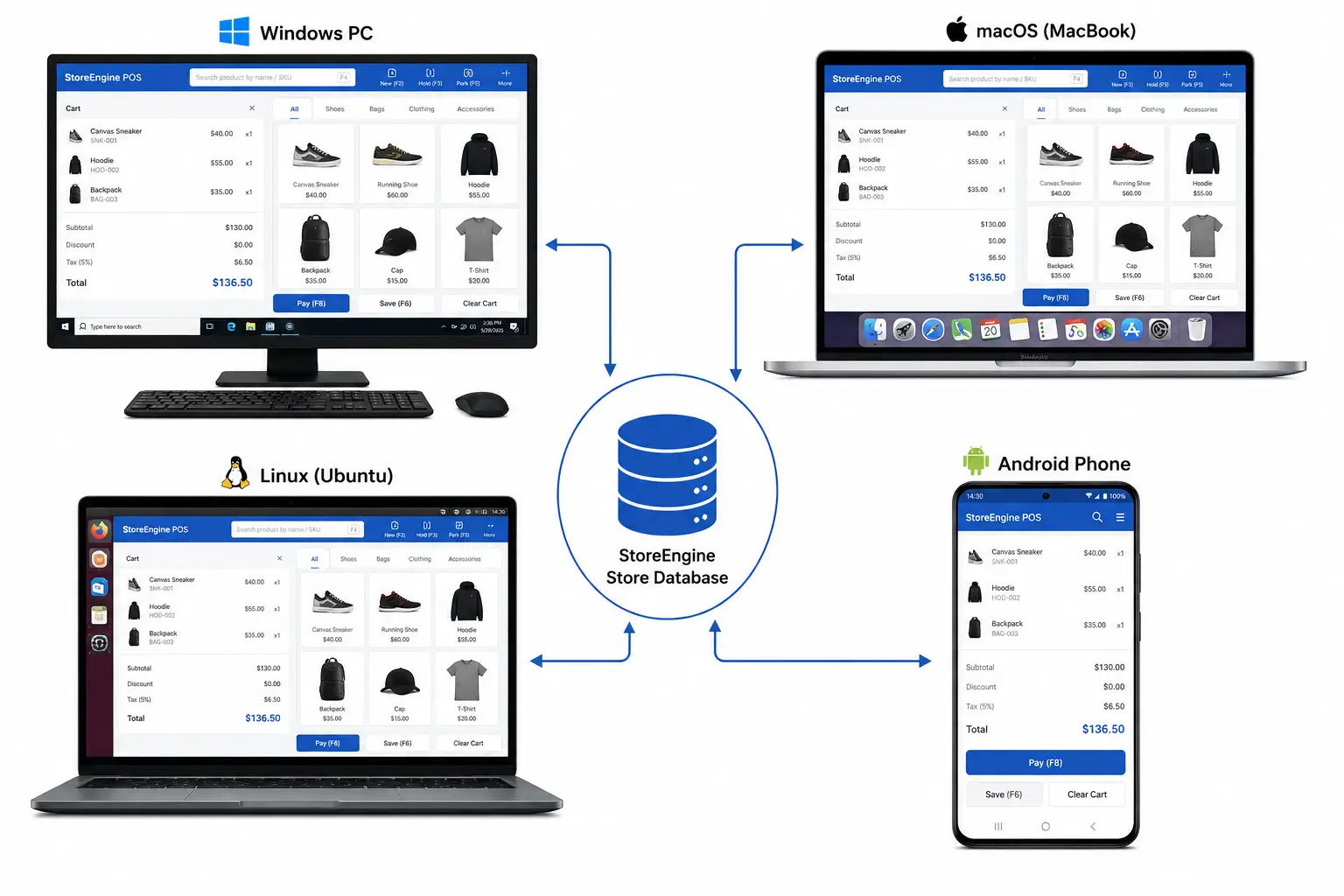
StoreEngine’s POS is available as both a browser-based terminal for any device and a native app — built on Tauri 2, which packages a Rust backend with a React frontend into a real executable. The app identifier is com.storeengine.pos. It installs like any other program on Windows, macOS, and Linux, and like any other app on Android.
How Offline-First Actually Works: The SQLite Outbox
The mechanism that makes StoreEngine’s app genuinely offline-capable is an outbox pattern built on a local SQLite database (storeengine-pos.db) that lives on the device.
When a cashier completes a sale, the transaction is written to the local database first — items, tenders, tip, customer, register ID, session ID, an idempotency key, and the timestamp. That write happens before anything goes to the server. The sale is recorded on disk. If the internet is down, the record sits in the outbox with status = pending. If the device crashes after the write but before sync, the record survives the restart.
When connectivity returns — detected instantly via the browser’s online event — a sync job runs immediately. It reads every pending and failed sale from the outbox and pushes each one to the server’s /pos/sales endpoint. The idempotency key on each sale prevents duplicates: if the same sale was already received in a previous attempt, the server ignores the repeat rather than creating two orders.
The sync also runs on a 120-second background interval while the app is open, so small connection blips don’t require manual action. The app’s sync indicator shows the current state — synced, syncing, offline, or error — so cashiers always know whether their sales have reached the server.
Two failure behaviors are worth understanding. A network failure stops the batch and retries the whole queue next sync. A server-side rejection of a specific sale (a 400 or 409 response about that sale’s data) marks that sale as failed and continues draining the rest of the queue — one bad record doesn’t block every sale behind it.
Camera Barcode Scanning on Android
USB barcode scanners work with the browser terminal on desktop because keyboard-wedge scanners just type the code into the search field. On a phone or tablet, that doesn’t work.
StoreEngine’s Android app integrates camera-based barcode scanning through the @tauri-apps/plugin-barcode-scanner, which uses Android’s ML Kit on the native side. A cashier taps the scan button, the camera opens, they point it at a product barcode, and the product appears in the cart. No USB cable, no separate hardware.
This is how the app turns an Android phone into a mobile POS station. One device handles the product lookup, the cart, and the checkout. The camera handles what a keyboard-wedge scanner handles on a desk setup.
For desktop — where the app runs on Windows, macOS, or Linux — a USB keyboard-wedge barcode scanner works immediately because the search field autofocuses and the scanner types directly into it. The two input methods serve two different hardware setups with no configuration required.
ESC/POS Thermal Printing: Two Transports, One Interface
Most WooCommerce POS guides treat receipt printing as a footnote. StoreEngine’s app treats it as a first-class capability with two physical transports and a full raster rendering pipeline for barcode labels.
Network TCP printing connects to any ESC/POS thermal printer that exposes an IP address on the local network (port 9100 by default, configurable). This transport works on every platform the app runs on — Windows, macOS, Linux, and Android — because it’s a direct TCP socket connection, not a print spooler call. A printer on the shop’s WiFi network is reachable from any device running the app.
Windows Print Spooler printing connects to USB printers through the Windows winspool API. This is desktop-only, Windows-specific, and uses raw ESC/POS byte streams rather than standard print jobs — which is what thermal printers need. The platform-specific native code in the app handles this automatically; cashiers don’t configure anything differently.
Receipts are built in code as raw ESC/POS byte streams, not rendered by the printer’s internal fonts. The receipt includes: store header, order reference and date, register and cashier name, line items with quantities and totals, subtotal, discount, tip, total, tender breakdown, change due, and footer. Logo printing uses a GS v 0 raster command — the logo image is fetched from the store’s URL, scaled to 200 dots wide, threshold-binarized to black and white, and encoded as a bitmap the printer can render. Auto-print on sale is configurable.
Barcode label printing supports both ESC/POS receipt printers and dedicated label printers (TSPL language). Every label is rendered as a canvas bitmap, then wrapped in the appropriate language for the hardware mode. Label content is configurable: logo, store name, product name, SKU, price, and barcode — all optional, order customizable. Font size is 1-10, label dimensions (width, height, gap) are set in millimeters, and an X offset corrects for printers with an off-center origin. Barcodes use Code 128, matching the format the WordPress admin barcode tool generates. A label printed from the app and a label printed from the admin panel scan identically.
Handoff Tickets and Push Notifications
This is the capability that separates a store-scale POS from a single-cashier setup, and it’s the one most WooCommerce POS comparisons skip entirely.
In a real retail environment, floor staff build carts for customers and hand them off to a cashier at a dedicated payment station. The WooCommerce POS plugin model doesn’t have a mechanism for this — it’s designed for one person managing the register from product lookup to payment.
StoreEngine’s handoff ticket system (called “parked carts” in the server architecture, “incoming tickets” in the app) solves this. A staff member builds a cart for a customer on their device and parks it. The cashier’s device shows the ticket in their incoming queue. The cashier taps the ticket, the cart loads, and they take payment.
On Android, this gets a push notification layer. Firebase Cloud Messaging (FCM) delivers a notification to the cashier’s phone the moment a staff member sends a ticket — whether the app is open, backgrounded, or completely closed. The notification shows the staff member’s name and the ticket label. Tapping it opens the app directly to that ticket, ready to recall and charge.
Three states, all handled: if the app is in the foreground, the in-app notification fires and the incoming list refreshes. If the app is backgrounded, the system tray notification appears and tapping it navigates to the ticket. If the app was closed, tapping the notification cold-starts the app and opens it directly to the right ticket.
The incoming queue polls every 15 seconds when the app is open, with filters for all tickets, ready-to-charge tickets, and held sales. Parked carts have a configurable TTL — 1 to 90 days, defaulting to 7 — and are swept daily by a background task. Stock is not reserved while a cart is parked; reservations only happen at the moment of sale.
What the App Manages Beyond the Register
The StoreEngine POS app is not just a checkout terminal. The screens available in the app cover most of what a store manager would need without touching the WordPress admin.
Inventory screen shows all products with stock status (in stock, low, out of stock), supports search and filter by status, allows manual stock adjustments with reason codes, and connects directly to the barcode label printer for printing labels one or in batches.
Analytics screen shows revenue by day, revenue by hour, revenue by payment method, top products, and recent orders — filterable by day, week, or month. All five reports query the server’s unified payments table, which covers both POS and online orders.
Staff screen lets a manager view and add staff members, assign POS tier roles (staff, cashier, senior cashier, manager), and see last-activity timestamps. It’s gated on the storeengine_manage_pos_staff capability.
Catalog screen supports full product browsing, product creation, and category creation directly from the app. A product added from an Android POS terminal appears in the online store immediately.
Refund screen shows recent local sales for quick access (device-local history, no server query needed) and supports order search for any order. Partial refunds per line item are supported.
The OS keychain integration for credentials is a detail worth noting: on desktop (macOS Keychain, Windows Credential Manager, Linux Secret Service), the bearer token is stored in the OS keychain, not in a file. Non-secret metadata like site URL and username go to a local store file. On Android, the token is in the local store file (no native keychain wiring yet on mobile).
WooCommerce POS Stack vs StoreEngine’s Full POS Architecture
|
Capability |
WooCommerce + POS plugin |
StoreEngine POS |
|
Architecture |
Plugin bridges to WooCommerce API |
POS native to the store engine |
|
Offline capability |
PWA cache (limited) or none |
Local SQLite outbox, true offline-first |
|
Offline data durability |
Browser storage (crash risk) |
SQLite on disk (survives crash/restart) |
|
Native app |
Browser-only, or PWA |
Native app: Windows, macOS, Linux, Android |
|
Camera barcode scanning |
Varies (often browser API) |
Android ML Kit via native plugin |
|
ESC/POS printing |
Via browser or plugin-specific |
TCP network (all platforms) + Windows Spooler (USB) |
|
Barcode label printing |
Rarely included |
Code 128 raster, configurable dimensions, ESC/POS + TSPL |
|
Handoff tickets |
Not available |
Parked cart system with incoming queue |
|
Push notifications |
Not available |
FCM on Android — foreground, background, killed |
|
Analytics in app |
Rarely |
5 report types, date-filtered |
|
Stock adjustment from app |
Rarely |
Yes, with reason codes |
|
Product creation from app |
Rarely |
Yes, including category creation |
|
WooCommerce required |
Yes |
No |
Is This the Right Architecture for Your Store?
- If your internet connection is anything less than completely reliable — events, markets, rural locations, unreliable ISPs — an offline-first SQLite architecture prevents the 30% of customers who abandon without complaint when they can’t pay from walking out the door. The difference between a PWA cache and a local database is the difference between losing those sales and keeping them.
- If your staff use Android phones or tablets on the floor — the native Android app, camera barcode scanning, and FCM push notifications turn a phone into a full POS station without separate hardware.
- If you run multiple staff members in a store — the handoff ticket system with push notifications is built specifically for the scenario where floor staff build carts and cashiers take payment. No equivalent exists in any WooCommerce POS plugin.
- If WooCommerce update cycles are breaking your POS — one addon in one plugin has one update cycle. There’s no WooCommerce version to stay compatible with, no HPOS migration to worry about, no API changes to wait for a plugin to patch.
- If the WooCommerce extension ecosystem is central to your operation — switching away from WooCommerce means leaving that ecosystem. Evaluate the specific extensions you depend on before committing. The inventory sync implications for running POS alongside an online store are covered in the sibling guide.
Frequently Asked Questions
What is a WooCommerce POS alternative?
A WooCommerce POS alternative is a point-of-sale system that runs on WordPress without WooCommerce as a required dependency. Instead of a POS plugin that bridges to WooCommerce’s order and inventory APIs, the POS is built into the store engine itself — creating orders, decrementing stock, and recording payments natively. The practical differences show up in offline capability, update stability, and what’s possible with native app features like push notifications and camera barcode scanning.
What’s the difference between PWA offline mode and a native app’s offline mode?
A PWA offline mode caches product data and app code in browser storage. If the device crashes or the browser is force-closed during an offline session, that cached data and any unsynced transactions may be lost. A native app with a local SQLite database writes every transaction to disk before confirming the sale to the cashier. The record survives crashes, restarts, and power failures. If a device crashes mid-service and offline data is lost, the offline mode created a worse problem than the outage it was supposed to solve — which is why the storage model matters.
Which devices does the StoreEngine POS app run on?
The native app runs on Windows, macOS, Linux, and Android. The app identifier is com.storeengine.pos, version 1.0.1. On desktop, it installs as a native executable. On Android, it installs as a standard APK. iOS is listed as a build target in the codebase. The browser-based terminal also remains available for any device with a browser, including iPads and desktop browsers, running on the same backend.
How does the handoff ticket system work?
Floor staff build a cart for a customer on their device and park it, creating a ticket visible in every cashier’s incoming queue. On Android, a push notification (Firebase Cloud Messaging) arrives on the cashier’s device immediately — whether the app is open, backgrounded, or closed. Tapping the notification opens the app directly to that ticket. The cashier taps recall, the cart loads with the items the staff member selected, and they take payment. The queue polls every 15 seconds when the app is open for non-push environments.
How does the thermal receipt printer work from an Android phone?
The StoreEngine POS app prints to ESC/POS thermal printers via a TCP network connection — the app sends raw ESC/POS byte streams to the printer’s IP address and port (9100 by default). Any printer on the same WiFi network is reachable from an Android phone running the app. This is different from USB printing, which is desktop-only (Windows, via the Print Spooler API). For label printing, the same network transport supports both ESC/POS receipt printers and TSPL label printers, with configurable dimensions and content.
Can the app work on an Android phone, or does it need a tablet?
The app is fully functional on an Android phone. The layout adapts to screen size: on narrow screens, the cart and checkout are separate screens that you navigate between; on wider screens (768px and above), they appear side by side. Camera barcode scanning replaces the USB keyboard-wedge scanner that desktop setups use. A phone running the app can handle the full sell, cart, checkout, and receipt flow.
Does switching away from WooCommerce mean losing my existing data?
StoreEngine includes a one-click WooCommerce migration tool that imports products, orders, and customers. For ongoing operations, the store runs entirely within StoreEngine — there’s no WooCommerce layer, so there’s nothing to keep in sync with it. The extension ecosystem you depend on through WooCommerce doesn’t automatically carry over, so inventorying those specific integrations before committing is the honest prerequisite for any WooCommerce migration.