


Every guide to shipping zones on WordPress starts the same way: go to WooCommerce → Settings → Shipping. If your store doesn’t run WooCommerce, that instruction is useless.
Shipping zones on WordPress define the geographic regions your store ships to and the rates that apply in each one. A customer in London sees different options than a customer in Lagos. A postcode in a metro area might qualify for a local rate unavailable everywhere else in the same country. The zone system is what makes that possible — and it doesn’t require WooCommerce to work.
This guide covers what shipping zones are, how zone matching works under the hood, how to structure zones for a real store, and how the rate formulas give you more flexibility than a fixed price field. For the broader shipping architecture — couriers, auto-push, and shipment tracking — see the WordPress shipping plugin guide. If you use Pathao or Steadfast, the courier-specific setup is covered in the Pathao WordPress guide and the Steadfast WordPress guide.
Quick Answer: What Are Shipping Zones in WordPress?
- Shipping zones are geographic regions in your WordPress store that determine which shipping methods and rates a customer sees at checkout based on their delivery address.
- A zone is defined by location rules — any combination of countries, states or provinces, postcodes, and continents — and has one or more shipping methods attached to it.
- When a customer enters their address, the store evaluates zones in priority order and applies the first matching zone. The most specific zone should always sit above the broader ones.
- A catch-all zone 0 — “Locations not covered by your other zones” — handles any address that doesn’t match a named zone, so no customer reaches a checkout with no shipping options.
- Without WooCommerce, shipping zones live in the store engine itself. On StoreEngine, zones are configured in Settings → Shipping and apply automatically at checkout without a separate plugin.
What Is a Shipping Zone and Why Does It Matter?
A shipping zone is a named geographic region attached to a set of shipping methods. When a customer provides their delivery address at checkout, the store evaluates every configured zone and finds the first one whose location rules include that address. The shipping methods assigned to that zone — and only those methods — appear as options.
This is the mechanism that lets a store offer free local delivery within 30 miles, flat rate within the same country, and a higher international flat rate for everywhere else — all from a single checkout, without the customer choosing a shipping region manually. The zone system figures it out from the address.
According to Cloudways’ 2026 WooCommerce shipping guide, 48% of cart abandonments are caused by shipping costs appearing unexpectedly at checkout. The structural cause of most of those surprises is a poorly configured zone setup where rates don’t match what customers expected when they chose a delivery address. Getting zones right doesn’t just simplify store management — it directly affects whether customers complete their purchases.
The part most setup guides skip is the matching logic. Knowing that zones exist is straightforward. Understanding how they’re evaluated — specifically the priority order and what happens to addresses that don’t match anything — is what separates a shipping configuration that works reliably from one that occasionally shows no options at checkout.
The Four Location Types Available in a Zone
Every zone is defined by one or more location rules. Four location types are available, and they can be combined freely within a single zone.
Country matches any delivery address where the country code matches. This is the broadest geographic rule and the starting point for most zone configurations. A “United Kingdom” zone matches any UK address regardless of county, postcode, or city.
State or province matches a specific region within a country, identified by a country-state code pair in the format country:state. A zone for California uses US:CA; a zone for Ontario uses CA:ON. State-level zones let you offer regional rates within a country — a common pattern for stores with local warehouses or region-specific pricing agreements with couriers.
Postcode matches specific postcode values, ranges, or patterns. Postcodes are normalized before matching, and wildcard patterns work in both directions. SW1* matches any postcode starting with SW1. 10000…10999 matches a numeric range. Individual postcodes can be entered one per line. Postcode rules add a layer of specificity beyond state — useful for delivery zones around a warehouse or metro area where local delivery rates apply.
Continent matches any country within the named continent. This is the broadest available rule and typically used as a zone for international traffic when country-level zones aren’t needed for every destination.
A zone can use any mix of these four types. A “South East England” zone might combine the state rule for Greater London with a set of postcode rules for the surrounding counties. The zone matches any address that satisfies any of its location rules.
How Zone Matching Works: Priority Order and the Fallback
This is the part most guides don’t explain clearly, and it’s what determines whether your shipping configuration behaves predictably under every delivery address a customer might enter.
Zones are evaluated in priority order — ascending by zone order, then ascending by database ID as a tiebreaker. When a customer’s address is evaluated, the system works through the zone list in that order and returns the first zone whose location rules include the address. Only the matching zone’s methods appear at checkout; all other zones’ methods are hidden.
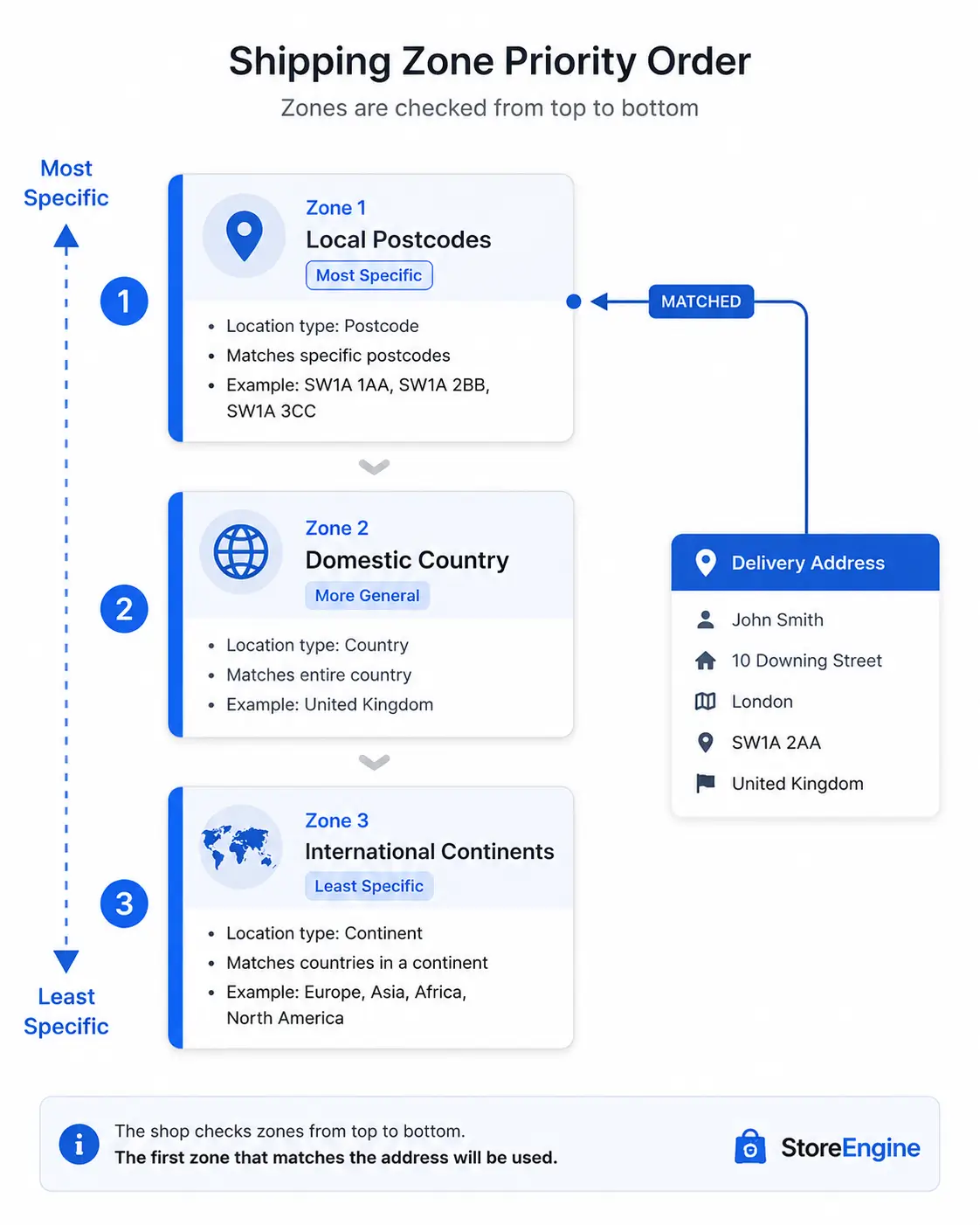
Zone order must match specificity order. A postcode zone for a specific metro area should sit above the country zone that includes the same postcodes. If the country zone is evaluated first, it matches and the postcode zone is never checked — which means customers in the metro area see the country rate instead of the local rate. The principle echoed across every shipping guide in 2026 is consistent: order zones from most specific to least specific.
Zone 0 is the catch-all fallback. When no named zone matches a customer’s address, zone 0 applies automatically. Zone 0 is built into the system — it exists whether you configure it or not, and its label is “Locations not covered by your other zones.” If you add a shipping method to zone 0, customers with unmatched addresses see that method. If zone 0 has no methods, customers with unmatched addresses see no shipping options at checkout, which prevents order completion.
For any store shipping internationally without country-level zones for every destination, zone 0 is the right place to put the catch-all international rate. That approach handles every address on earth: named zones cover the regions with specific rates, zone 0 covers everything else.
Address matching uses all four location types simultaneously. A zone with both country and postcode rules matches if the address satisfies the country rule OR the postcode rule — not AND. Two location types in one zone act as alternatives, not requirements. If you want a zone that requires both a country and a postcode match, you need to configure the postcode rules to be country-aware, which is handled by entering postcode values scoped to the relevant country.
Configuring Shipping Methods Within a Zone
Once a zone exists, you add shipping methods to it. Each method is an independent rate that the customer sees as a selectable option at checkout.
Flat rate: the core method
Flat rate is the primary shipping method available within a zone. It adds a fixed rate to the checkout for that zone — configurable with a name, a cost, and a tax status.
The cost field is more flexible than it looks. It supports formula expressions rather than requiring a fixed amount:
- 10.00 — a simple flat amount regardless of what’s in the cart
- 10.00 * [qty] — $10 per item in the cart
- [fee percent=”10″ min_fee=”5″ max_fee=”50″] — 10% of cart contents cost, minimum $5, maximum $50
The [qty] token is the count of items in the cart. The [cost] token is the total cost of cart contents. The [fee] shortcode calculates a percentage of the cart value with optional floor and ceiling values. These tokens can be combined arithmetically: 5.00 + 2.00 * [qty] produces a $5 base charge plus $2 per item.
Tax status per method controls whether shipping itself is taxable or not. Some jurisdictions tax shipping as part of the sale; others don’t. Setting this per method rather than globally lets you configure it correctly for each zone’s applicable tax rules.
Each method has its own display name — what the customer sees at checkout. A zone can have multiple methods with different names, costs, and tax settings. A domestic zone might offer “Standard Delivery” at $5 and “Express Delivery” at $12. Both appear as options; the customer chooses.
Multiple methods and ordering
The order methods appear in within a zone is configurable. Methods also have an enabled/disabled toggle, so you can disable a method temporarily without deleting its configuration — useful for turning off express delivery during peak periods or testing a new rate before making it live.
How StoreEngine Implements Shipping Zones
StoreEngine builds shipping zones natively into the store engine — the same system that manages products, orders, and checkout. There’s no WooCommerce dependency, no shipping plugin to install, and no compatibility matrix to worry about when WordPress updates.
The zone architecture uses three database tables: one for the zones themselves (name, priority order), one for zone location rules (zone ID, location code, location type), and one for the methods assigned to each zone (zone ID, method ID, settings, order, enabled status). Zone matching uses the location code and type stored in the locations table, matching against the customer’s normalized country, state, continent, and postcode at checkout. Results are cached with an automatically invalidated transient — the cache clears immediately when any zone is saved or deleted.
Zone 0 is built into the engine: any customer address that doesn’t match a named zone falls through to zone 0 automatically. If zone 0 has methods configured, those methods appear. The system is designed so no address can reach checkout in a state where zero shipping options exist, as long as zone 0 has at least one method enabled.
Setting up zones in StoreEngine follows the same sequence as any zone-based shipping system, just without WooCommerce in the path:
Step 1 — Create your zones in logical geographic groups. A typical starting configuration: one zone for your domestic market, one or more regional zones for specific states or cities if local rates apply, and zone 0 configured with a catch-all international rate. Name each zone clearly — “Domestic — UK”, “Local — London”, “International” — since zone names are your reference for managing the configuration later.
Step 2 — Set zone priority to match specificity. Postcode-based zones go at the top (lowest zone order number), state or provincial zones next, country zones below that, and continent or catch-all zones last. The zone order field controls the evaluation sequence. When two zones could both match an address, the one with the lower zone order number wins.
Step 3 — Add methods to each zone. Add at least one flat rate method to every zone, including zone 0. Set the cost — either a fixed amount or a formula expression for dynamic rates. Set the tax status to match the applicable rule for that region. Name the method what the customer will see at checkout: “Standard Shipping”, “Free Delivery”, “International Flat Rate.”
Step 4 — Test with representative addresses. Enter a test address in each target market and verify the correct zone’s methods appear. Common issues to check: a specific postcode that should match a local zone but falls into the country zone (zone order is wrong), an international address that shows no methods (zone 0 has no method configured), a state-level zone that isn’t matching (the state code format should be country:state — GB:ENG not just ENG).
For stores using the Couriers addon — connecting Pathao, Steadfast, or global carriers like FedEx and DHL — the shipping zone configuration determines which addresses are eligible for the courier’s service area, since auto-push creates courier shipments only for orders that completed checkout with a valid shipping method.
Common Zone Configurations by Store Type
Different stores need different zone architectures. These three patterns cover most WordPress stores.
Single-country store with a local delivery option: Two named zones — a postcode zone for the local area where delivery is free or discounted, and a country zone for the rest of the domestic market at the standard flat rate. Zone 0 configured for any international queries with either a high flat rate or no method (international orders not accepted). Zone order: local postcode zone first, country zone second.
Multi-country store with regional pricing: Country zones for each major market where rates differ (UK, US, Canada, Australia), a continent zone for markets where per-country rates aren’t needed (Rest of Europe, Rest of Asia), and zone 0 as the catch-all for any country not otherwise covered. Zone order: individual country zones first, continent zones after, zone 0 last.
Domestic store with carrier-specific zones: Country zone with a standard flat rate plus an express option. State zones for regions where a specific courier (Pathao in Dhaka, Steadfast in Chittagong) provides better rates or faster delivery. Zone 0 with a standard rate for any area not served by the regional couriers. This configuration works with the Couriers addon’s auto-push — each zone’s method maps to the appropriate carrier’s service area.
Shipping Zones vs Shipping Classes: What’s the Difference
Zones and classes are both part of a complete shipping configuration, but they describe different dimensions.
|
Shipping Zones |
Shipping Classes |
|
|
What it describes |
Where the customer is |
What type of product is in the cart |
|
Defined by |
Geographic location rules |
Product categories or characteristics |
|
Determines |
Which methods appear at checkout |
How the cost formula applies to different products |
|
Example |
“UK orders see Standard and Express options” |
“Heavy items add $5 to the shipping cost” |
|
Configured on |
Zones in Settings → Shipping |
Products and then referenced in method cost formulas |
Zones determine which methods are visible based on destination. Classes let you adjust the cost within a method based on what’s in the cart. A zone with a flat rate of 10.00 + [fee percent=”5″ min_fee=”2″] for orders containing fragile-class products adds a percentage surcharge on top of the base rate — that’s a class applied within a zone’s method, not a separate zone.
For most stores setting up for the first time, zones come first. Classes become relevant once the zone structure is working and you need more granular control over how cost varies by product type within a zone.
Is This the Right Shipping Setup for Your Store?
- If you’re on WooCommerce and tired of the plugin-on-plugin dependency — StoreEngine’s shipping zones are built into the store engine, not a bolt-on. One system, one update cycle, no HPOS compatibility concerns with your shipping configuration.
- If you need postcode-level granularity for local delivery pricing — the postcode location type supports wildcards, numeric ranges, and individual values, making metro-area delivery zones straightforward to configure without an additional plugin.
- If you ship internationally and need a catch-all for every address — zone 0 is always available and always catches unmatched addresses. Configure it with a standard international rate and no customer ever reaches checkout without shipping options.
- If you’re adding regional couriers like Pathao or Steadfast — zone configuration maps directly to the Couriers addon’s auto-push. A Dhaka postcode zone with a flat rate method tells the system which orders route to Pathao; a zone for Chittagong with a different method routes to Steadfast. See the Pathao WordPress integration guide and Steadfast WordPress integration guide for the courier-specific setup.
Frequently Asked Questions
What are shipping zones in WordPress?
Shipping zones are geographic regions configured in your WordPress store that determine which shipping methods and rates appear at checkout based on a customer’s delivery address. When a customer enters their address, the store evaluates configured zones in priority order and presents the methods assigned to the first matching zone. Zones can be defined by country, state or province, postcode, and continent — in any combination.
How does zone priority order work?
Zones are evaluated from lowest zone order number to highest — meaning a zone at position 1 is checked before a zone at position 3. The first zone whose location rules match the customer’s address is applied; no further zones are checked. This is why the most specific zones must have the lowest order numbers: a postcode zone for a metro area needs to be evaluated before the country zone that contains those same postcodes, or the country zone matches first and the postcode zone is never reached.
What is zone 0 in shipping zones?
Zone 0 is a built-in catch-all zone that applies to any delivery address that doesn’t match a named zone. It’s labeled “Locations not covered by your other zones” and is always present in the system whether or not you configure methods for it. Any shipping methods added to zone 0 will appear for customers in unmatched locations. If zone 0 has no methods, customers with unmatched addresses see no shipping options and cannot complete checkout.
Can I charge different rates for different postcodes?
Yes. The postcode location type in a zone accepts individual postcodes, wildcard patterns (SW1* matches any postcode starting with SW1), and numeric ranges (10000…10999). A postcode-based zone with its own flat rate method applies those rates specifically to customers whose address matches the postcode rules, regardless of what country or state zone might otherwise cover that address — as long as the postcode zone has a lower zone order number.
How does the flat rate cost formula work?
The flat rate cost field accepts a formula, not just a fixed number. Available tokens: [qty] for the number of items in the cart, [cost] for the total cost of cart contents, and [fee percent=”X” min_fee=”Y” max_fee=”Z”] for a percentage of cart value with optional minimum and maximum values. These can be combined arithmetically — 5.00 + 1.50 * [qty] produces $5 base plus $1.50 per item. If the field is left blank, the method produces no rate and doesn’t appear at checkout.
Do I need WooCommerce to use shipping zones on WordPress?
No. StoreEngine is a standalone WordPress ecommerce plugin that includes shipping zone configuration as a core feature, without WooCommerce. Zones, location rules, methods, and rate formulas are all configured in StoreEngine’s Settings → Shipping panel. The zone matching, zone 0 fallback, and postcode handling work identically to the description in this guide — none of it requires WooCommerce to be installed.
How many zones and methods can I configure?
There’s no enforced limit on the number of zones or methods per zone. In practice, zone configurations beyond 15 to 20 named zones become difficult to maintain and debug, and most stores achieve their needed rate structure with fewer than 10. The more relevant constraint is clarity: each zone should have a clear name and a non-overlapping geographic scope so you can reliably predict which zone applies to any given address.