


Most membership programs still mail physical cards to new members. The card arrives a week after signup. Half the time it goes straight into a drawer. The member shows up at the next event and can’t find it. Staff spend ten minutes manually verifying their status while a queue forms at the door.
Digital membership cards solve this the same way digital boarding passes solved paper tickets — by putting the credential on the phone that’s already in the member’s pocket, updating it automatically when status changes, and making verification instant.
Mobile wallet usage for passes, tickets, and credentials rose approximately 92% between 2019 and 2024 (ACI Worldwide, 2025 Mobile Wallet Trend Report). Members increasingly expect their credentials to live on their phone. And approximately 99.5 million smartphone users in the United States scanned QR codes in 2025, a 19% increase from 2022. The infrastructure is already in members’ pockets. The question is whether your membership program is using it.
This guide covers what digital membership cards are, how they compare to physical cards, the three formats they come in, how to create one, and how to connect a digital card to your WordPress membership site. If you’re setting up the membership layer itself first, start with the complete guide to selling memberships on WordPress.
Quick Answer: Digital Membership Cards
What Is a Digital Membership Card?
A digital membership card is a virtual credential that confirms someone’s membership status, tier, and access level. It does the same job as a physical card — proves who you are and that your membership is active — but it lives on a smartphone instead of in a wallet.
The credential can be stored in Apple Wallet or Google Wallet (appearing on the phone’s lock screen like a boarding pass), displayed as a QR code on a member portal page, or delivered as a downloadable PDF. All three carry the same core information: member name, membership tier, member ID, expiration date, and a logo or branding.
The key difference between digital and physical cards is what happens after the card is issued. A physical card is static — the information printed on it never changes. When a member renews and their expiration date updates, you need to print and mail a new card. When a member upgrades their tier, you need a new card. When a card is lost, you need a replacement. Every change creates an administrative task.
A digital card is dynamic. Any updates made by the organization are automatically reflected in the digital card, keeping members informed without additional effort. A member renews — their expiration date updates on the card already on their phone. They upgrade — the tier label changes. Their membership lapses — the card shows expired status or is deactivated. No reissue, no postage, no manual work.
Understanding this distinction connects to a broader question around membership vs subscription pricing models — because the card format you need often depends on whether you’re running a time-gated content membership, a recurring subscription, or a physical access pass.
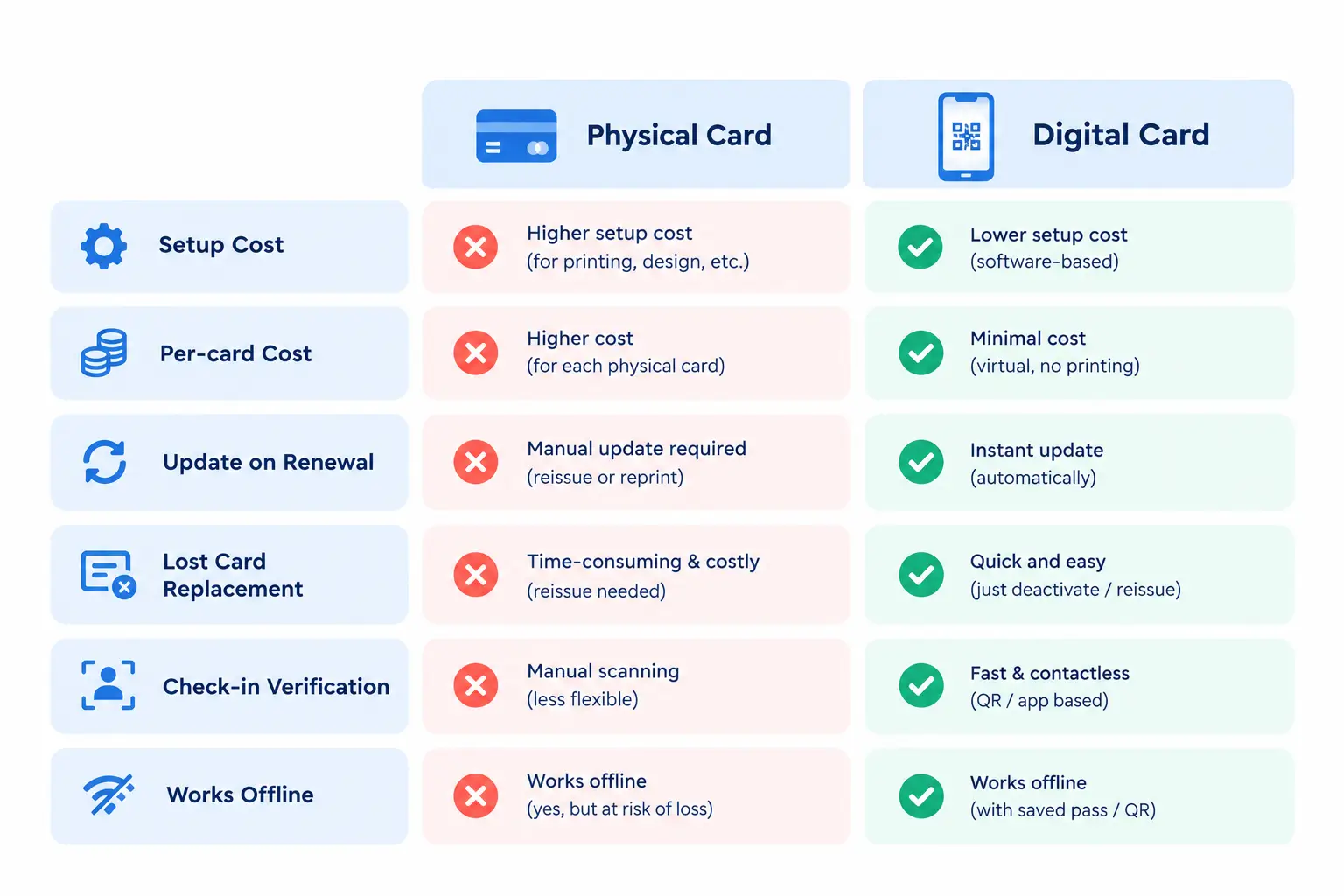
Digital Membership Cards vs Physical Cards: The Honest Comparison
|
Type of card |
Physical card |
Digital card |
|
Setup cost |
Design + print + mail for every member |
Design once, distribute digitally |
|
Per-card cost |
$1–$5+ printing and postage |
Fractions of a cent at scale |
|
Update on renewal |
Reprint and mail |
Automatic — updates on member’s device |
|
Lost card replacement |
Manual reissue |
Member re-downloads or it’s always accessible |
|
Check-in verification |
Visual check or magnetic strip scan |
QR code scan — instant, auditable |
|
Works offline |
Yes |
Yes (Apple/Google Wallet) |
|
Renewal reminders |
Separate email campaign |
Push notification to lock screen |
|
Data on usage |
None |
Scan tracking, check-in history |
|
Best for |
Premium brands, high-touch memberships |
Most organizations — lower cost, less admin |
Cost comparisons consistently show that digital membership cards save around 60% compared to physical cards when printing and postage are included. For an organization with 500 members renewing annually, the saving on physical card production alone is meaningful — and that’s before counting the staff time saved on replacements and manual status checks.
Physical cards still make sense in specific contexts. A premium membership at a private club, a luxury hotel loyalty card, or a high-status professional credential — where the physical object carries perceived prestige — is worth the extra cost. For most clubs, associations, nonprofits, and online memberships, digital is the practical default.
The Three Formats of Digital Membership Cards
Format 1: Apple Wallet / Google Wallet Passes
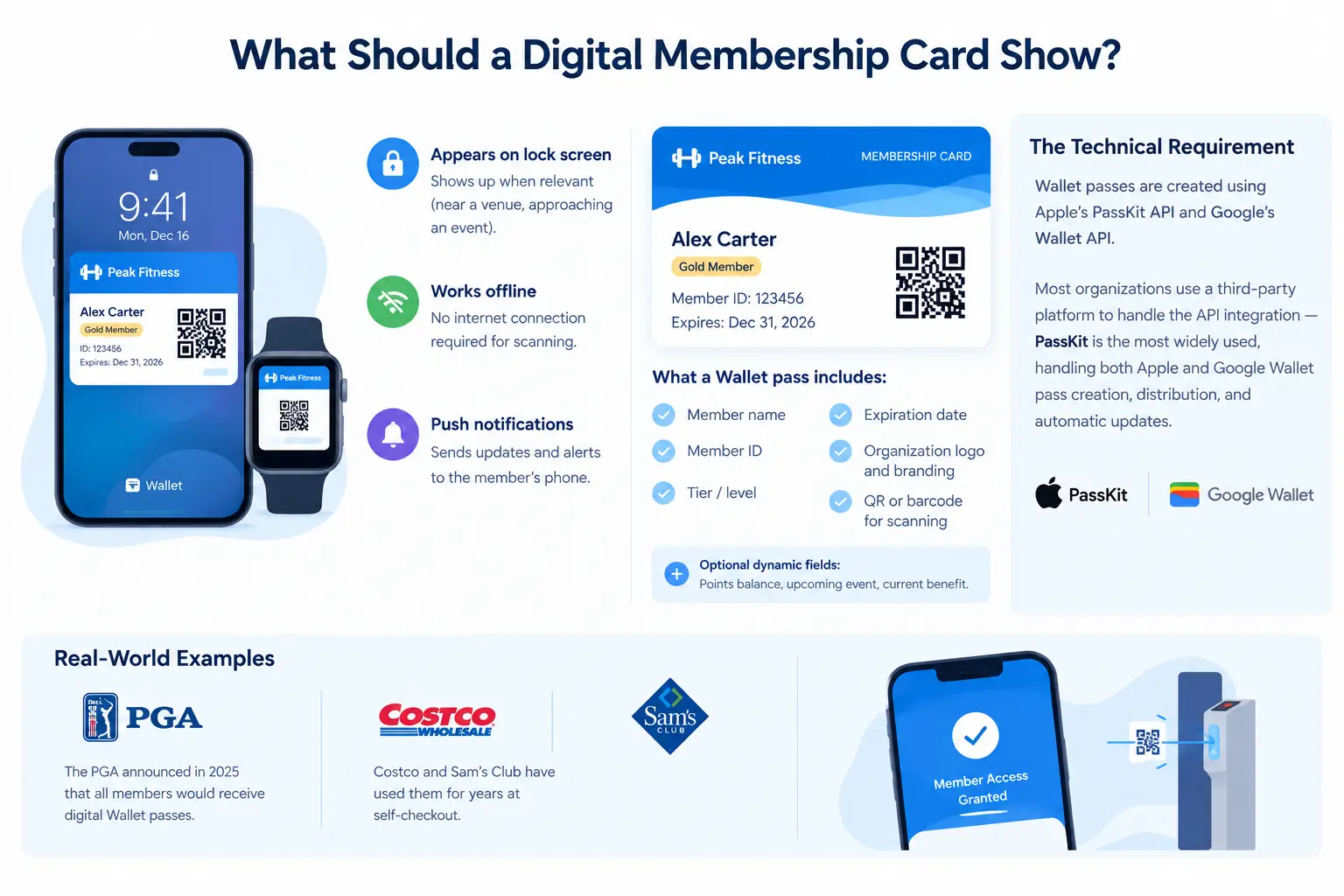
This is the most functional digital membership card format. The card lives in the member’s native wallet app — the same place their boarding passes and debit cards live. It appears on the lock screen when relevant (near a venue, approaching an event), works completely offline, and can send push notifications to the member’s phone.
What a Wallet pass includes: member name, member ID, tier/level, expiration date, organization logo and branding, QR or barcode for scanning, and optional dynamic fields (points balance, upcoming event, current benefit).
The technical requirement: Wallet passes are created using Apple’s PassKit API and Google’s Wallet API. Most organizations use a third-party platform to handle the API integration — PassKit is the most widely used, handling both Apple and Google Wallet pass creation, distribution, and automatic updates. The PGA announced in 2025 that all members would receive digital Wallet passes. Costco and Sam’s Club have used them for years at self-checkout.
Cost: PassKit uses usage-based pricing — membership cards cost as little as $0.005 per card per year at scale. For 500 members, that’s approximately $2.50/year in pass costs plus the PassKit subscription.
Best for: Organizations with physical check-in (gyms, clubs, events, venues) where the member needs to present a credential at a door or desk. The offline functionality and lock-screen presence make Wallet passes the most member-friendly format.
Format 2: QR Code on a Member Portal Page
The simplest format to implement on a WordPress membership site. A QR code is generated from the member’s unique user data (user ID, membership level, expiration date) and displayed on their account page. The member opens the account page on their phone and presents the QR code for scanning.
This format doesn’t require any wallet API integration. The QR code is generated dynamically by the WordPress site and displayed on the logged-in member’s account page. Scanning the QR code verifies the member’s current status in real time — because it’s pulling live data from the membership system, not from static information printed on a card.
Paid Memberships Pro has a Membership Card add-on that generates exactly this — a member-facing card with name, level, dates, logo, and a QR code, displayed in a block or shortcode on any WordPress page. The card customization uses the WordPress Block Editor with custom fields pulled from the user’s membership record.
For StoreEngine, the same approach works through the WordPress user account page combined with a QR code generation plugin. The QR code encodes the member’s user ID, and scanning it loads a verification page that shows current membership status in real time. This connects directly to how content restriction and member access control work in StoreEngine — the same membership status that gates your content drives the card’s live verification.
Best for: WordPress membership sites with physical check-in events or locations where staff verify membership at entry. Lower cost and simpler implementation than Wallet passes, with the advantage that the data is always live.
Format 3: Printable PDF Card
The least dynamic option but the most universally compatible. A PDF membership card is generated at signup (or on demand from the member portal) with the member’s name, tier, member ID, expiration date, and a QR code. The member can print it, screenshot it, or save it to their camera roll.
The disadvantage: a PDF doesn’t update when membership renews. If the member’s expiration date changes, the old PDF still shows the old date. For PDF cards to stay accurate, you need to regenerate and redistribute them on every renewal — which is possible to automate but adds complexity.
Best for: Organizations that need a simple starting point, members who prefer something they can print physically, or supplementary proof-of-membership alongside a portal login.
What Should a Digital Membership Card Show?
Regardless of format, every digital membership card needs these fields:
Optional but useful:
The principle: include only essential member details and use brand colors to make the card instantly recognisable. A card crammed with information is harder to scan and harder to present quickly at a door.
How to Create a Digital Membership Card: Three Approaches
Approach 1: Use PassKit for Apple/Google Wallet Passes
PassKit handles all the Apple/Google Wallet API complexity. You design the card in their interface and connect it to your data source.
Approach 2: Display a QR Code on Your WordPress Member Portal
This is the most direct approach for WordPress-based membership sites.
https://yoursite.com/verify-member/?id=[user_id]Staff at an event or venue scan the QR code on a member’s phone. The verification page loads instantly, showing the member’s name, tier, and whether their membership is currently active. No manual lookup, no guessing about expired cards.
For Paid Memberships Pro users, the Membership Card add-on handles all of this with a block-based card template — no custom code required.
Approach 3: Generate a Branded PDF Card
This approach requires the most configuration but produces a universally compatible output — members can print it or save it anywhere.
Connecting a Digital Membership Card to Your StoreEngine Membership
StoreEngine‘s Membership addon does not currently include a built-in digital membership card feature. The practical approach is one of two integrations:
Option A: PassKit via Zapier or webhook
Connect StoreEngine to PassKit using Zapier. When a new membership purchase completes in StoreEngine (webhook event: membership_activated), the Zap fires and sends the member’s name, email, tier, and expiration date to PassKit. PassKit generates a Wallet pass and emails it to the member. When a subscription renews in StoreEngine (subscription_renewed), a second Zap fires and PassKit updates the expiration date on the existing card.
Option B: QR code on the StoreEngine member account page
Add a QR code block to the WordPress account page (the page members land on after login). Use a QR code plugin to generate a dynamic code from the logged-in user’s ID. When a staff member at an event scans the code, they land on a verification page that queries StoreEngine’s membership data and displays the member’s current status — name, tier, and whether their access is active today.
Both approaches work without building a custom integration from scratch. Option A is more polished (Wallet passes on the lock screen). Option B is simpler to implement (no third-party service required).
Decision Framework: Which Digital Membership Card Format Is Right for You?
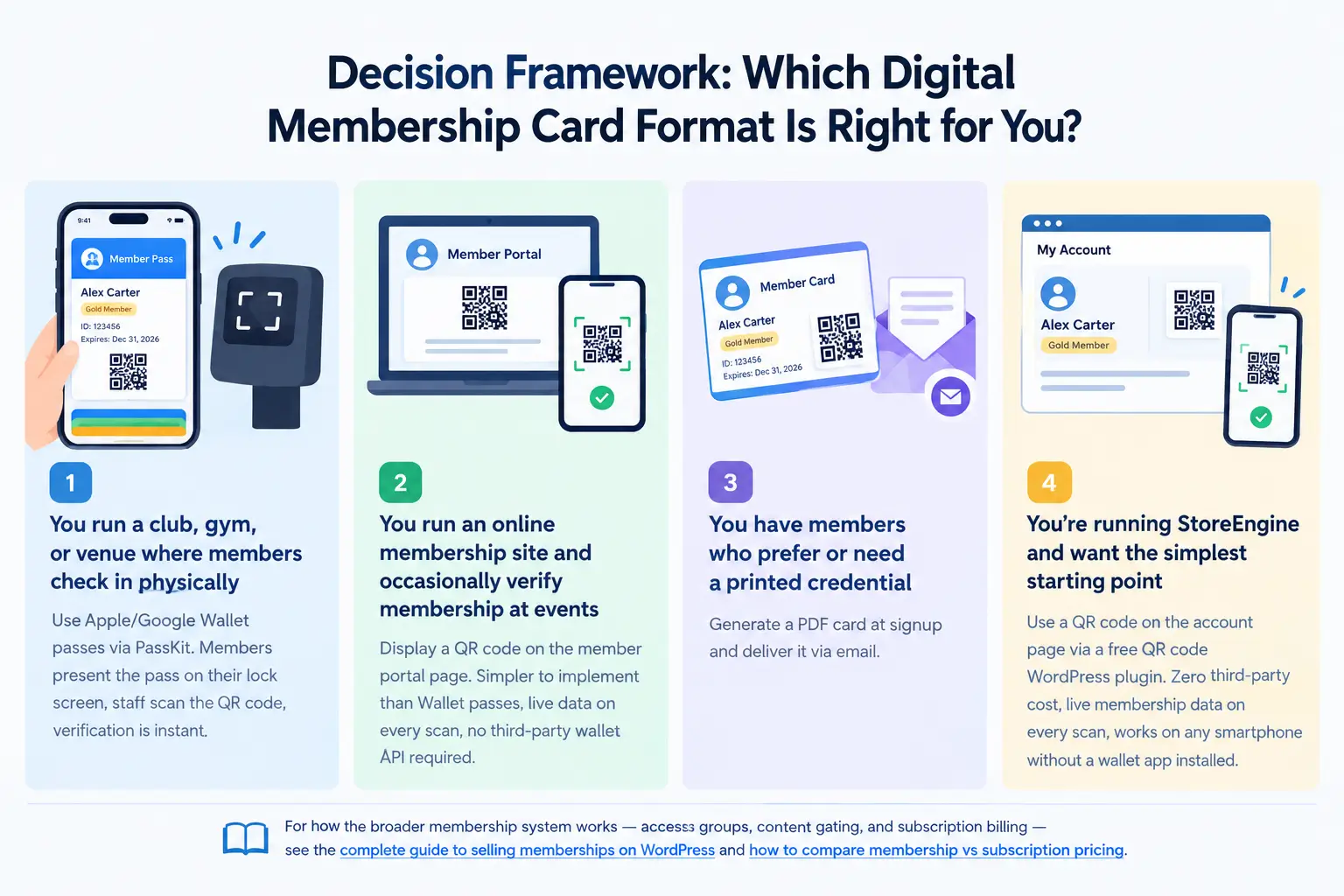
For how the broader membership system works — access groups, content gating, and subscription billing — see the complete guide to selling memberships on WordPress and how to compare membership vs subscription pricing.
Frequently Asked Questions
What is a digital membership card?
A digital membership card is a virtual credential stored on a smartphone that confirms someone’s membership status, tier, and access level. It replaces a physical card by living on the member’s phone — in Apple Wallet, Google Wallet, on a member portal page, or as a downloadable PDF. It does the same verification job as a physical card but updates automatically when membership renews, upgrades, or expires, without reprinting or mailing.
How do digital membership cards work?
A digital membership card contains the member’s name, tier, member ID, expiration date, and usually a QR code or barcode. At check-in, a staff member scans the QR code using a phone camera or scanner. The scan either validates the card’s stored data or loads a live verification page showing the member’s current status from the membership system. Cards in Apple Wallet or Google Wallet update automatically when membership data changes — no reissue required.
What are the pros and cons of digital membership cards vs physical cards?
Digital cards cost significantly less (no printing or postage), update automatically on renewal, can’t be permanently lost, enable QR-code check-in with real-time data, and can send push notifications. Physical cards are universally accessible without a smartphone, carry higher perceived prestige in premium contexts, and are familiar to members who aren’t comfortable with digital credentials. For most organizations, digital is the practical default — physical cards make sense mainly for high-touch premium memberships where the object itself carries value.
Is there a free digital membership card creator?
PassKit offers a 45-day free trial for Apple/Google Wallet pass creation. For WordPress sites, a QR code displayed on the member account page can be created using free WordPress plugins — no paid third-party service required. Paid Memberships Pro’s Membership Card add-on generates a customizable card with QR code for members on paid PMPro plans. A printable PDF card can be generated for free using open-source PDF plugins for WordPress.
How do I create a digital membership card for my WordPress site?
The simplest approach: install a QR code plugin, configure it to generate a dynamic code from the logged-in user’s ID, and add it to your member account page via shortcode or block. When a member shows their account page on their phone, staff scan the QR code to verify membership status in real time. For Apple/Google Wallet passes, use PassKit (with a Zapier connection to your WordPress membership plugin) to generate and distribute wallet cards automatically on signup and renewal.
What information should a digital membership card include?
At minimum: member name, membership tier, member ID, expiration date, organization logo, and a QR code or barcode for scanning. Optional additions include member photo (for identity verification at physical locations), join date (for recognising long-standing members), a brief benefit summary (“Includes: all courses + community”), and a staff verification URL. Keep the design clean — a card with too much information is harder to scan and present quickly.
Does StoreEngine have a built-in digital membership card?
StoreEngine’s Membership addon does not currently include a built-in digital membership card feature. The practical implementation options are: connecting StoreEngine to PassKit via Zapier to generate Apple/Google Wallet passes automatically on membership purchase and renewal, or displaying a QR code on the WordPress member account page using a free QR code plugin, with a verification page that queries StoreEngine membership status in real time.
What is the difference between a digital membership card and a membership portal?
A membership portal is the full member account area — where members log in to manage their account, view their membership status, access content, update payment details, and download resources. A digital membership card is a single credential document (or pass) that proves membership status at a glance, used primarily for check-in or benefit verification at physical or event-based touchpoints. The card is typically accessible from within the portal, but the portal is much broader than just the card. For more on setting up the portal layer itself, see how to restrict content and gate premium access on WordPress.