


Most membership sites are set up to handle the happy path — someone pays, they get access, they’re happy. What almost nobody sets up properly is everything that happens when the payment stops. A card expires. A member forgets to renew. Someone actively cancels. What happens to their access? When exactly? Who gets notified? Does access cut off immediately or after a grace period?
If you don’t have clear answers to those questions, you have a problem that will cost you money in two directions at once: members who lapsed accidentally but would have renewed if prompted, and members who cancelled months ago but still have access because nobody configured the expiration correctly.
This guide covers the full lifecycle of a membership after the first payment — renewal, cancellation, expiration, grace periods, failed payment recovery, and what happens when someone stops paying. Plus the exact configuration in StoreEngine that handles all of it automatically so you’re not managing it manually.
Before diving in: if you haven’t set up your membership tiers and billing yet, start with How to Sell Memberships on WordPress (Full 2026 Guide) — this guide picks up at the post-signup lifecycle and assumes your membership structure is already in place.
Quick Answer: Membership Renewal, Cancellation & Expiration
The Membership Renewal Lifecycle (What Actually Happens)
Before diving into settings and configuration, it helps to understand the full renewal lifecycle — the sequence of events from active membership through renewal, lapse, and reinstatement.
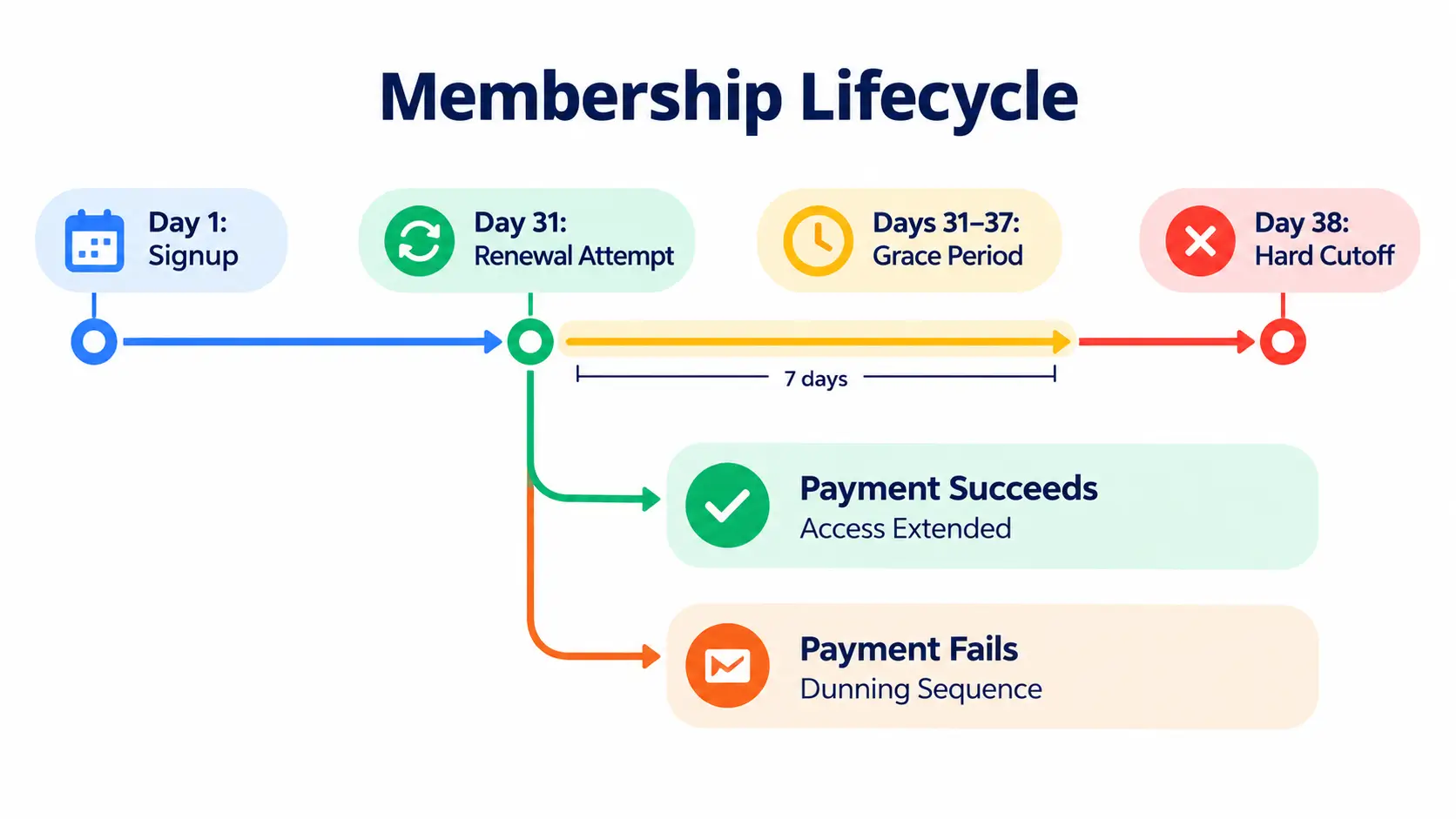
Here’s how it works for a typical monthly subscription:
Day 1: Member signs up, payment succeeds. Access Group activates. Expiration is set to Day 31.
Day 31 (renewal attempt): Billing system attempts to charge the card on file.
During grace period (Days 31–37 for a 7-day grace):
After grace period ends:
If member cancels voluntarily:
This lifecycle — not just the happy path — is what your membership system needs to handle automatically. If you’re managing any of this manually via spreadsheet or support ticket, you’ll lose members to unnecessary friction and miss renewals you could have recovered.
Auto-Renewal vs Manual Renewal: Which Should You Use?
For subscription-based online memberships, auto-renewal is the right default. Full stop.
Members on auto-renewal typically show 15–20% higher retention rates than those who manually renew. The reason is simple: auto-renewal removes the active decision to stay. Manual renewal requires a member to actively choose to continue — and that active decision is an opportunity to cancel. Auto-renewal converts “staying” into the path of least resistance. Glue Up
For annual memberships (associations, professional bodies, nonprofit memberships), manual renewal is more common — members receive a renewal invoice or letter and pay deliberately. The 2025 MGI Membership Marketing Benchmarking Report puts the median overall renewal rate at 84%, but first-year members renew at only 75% — a 25% churn rate that makes onboarding your highest-impact retention opportunity. Mailchimp
When to use auto-renewal:
When manual renewal makes sense:
In StoreEngine, subscription-based memberships use auto-renewal by default. When you create a Subscription plan linked to an Access Group, successful billing extends the Access Group expiration automatically. No manual action needed.
Not sure whether a recurring subscription model or a one-time membership is right for your business? The full comparison is covered in Membership vs Subscription: Which Pricing Model Actually Grows Your Business?
Setting Membership Expiration Dates (And Why It Matters)
Expiration is what happens when a membership’s billing period ends and is not renewed. Without a correctly configured expiration, two things go wrong: members who should have lost access still have it, or members who paid for the full period lose access before their time is up.
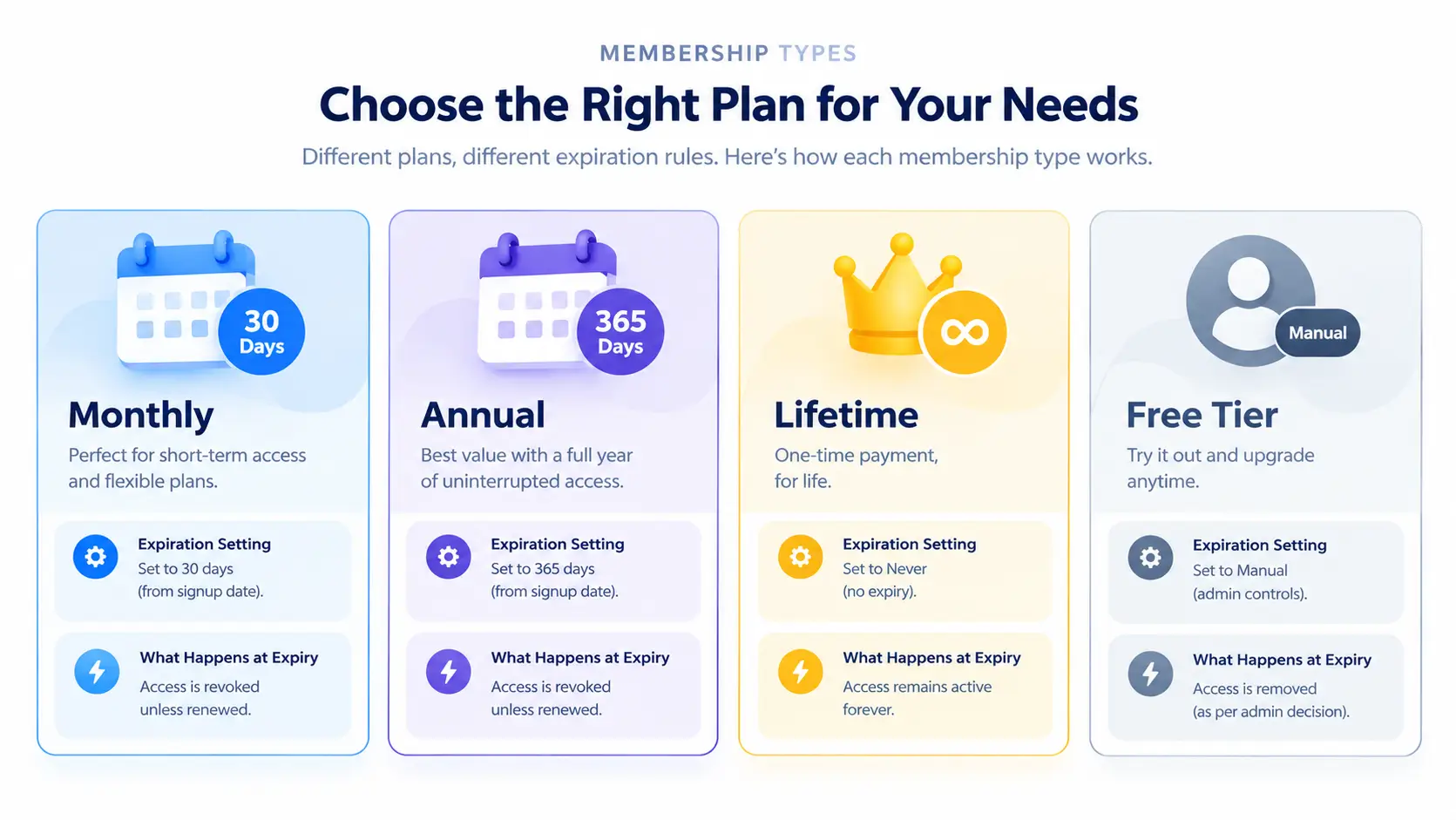
Expiration rules by billing type:
|
Membership Type |
Expiration Setting |
What Happens at Expiry |
|
Monthly subscription |
30 days from signup / last renewal |
Access Group deactivates if no renewal |
|
Annual subscription |
365 days from signup / last renewal |
Access Group deactivates if no renewal |
|
Lifetime |
Never expires |
Access Group remains active permanently |
|
Free tier |
Never expires (or manual removal) |
Access Group remains active until revoked |
|
Fixed-term (cohort) |
Specific end date |
Access Group deactivates on that date |
The key principle: expiration should always align with what the member paid for. If they paid for a month, they get a month. If they cancel on day 10 of a monthly subscription, access should run until day 30, not until day 10.
In StoreEngine, expiration is set per Access Group when you create it. Monthly tiers get 30-day expiration. Annual tiers get 365-day expiration. The Subscription addon extends the expiration date automatically on each successful payment cycle — you set it once and the system manages it from there.
Grace periods and expiration:
The expiration date is when the billing period ends. The grace period is additional time after expiration during which the member retains access while the system attempts to recover payment. These are two separate settings:
Don’t confuse them. Members shouldn’t lose access on Day 30 if you have a 7-day grace period. And members shouldn’t retain access after Day 37 if payment hasn’t recovered.
Membership Grace Periods: How Long Is Right?
A grace period is the window after a failed payment or expired membership during which the member retains access while you attempt to recover the payment. It’s not a free extension. It’s a recovery window.
Per the MGI benchmarking data, the average association offers a three-month grace period after the membership expiration date. That’s for annual associations with high membership value and long-standing member relationships. For monthly online membership subscriptions, three months is too long — you’d essentially be giving three months of free access to members who haven’t paid. Nonprofitlearninglab
Grace period guidelines by membership type:
In StoreEngine, the grace period is configured in the Subscription addon settings. When a renewal payment fails, access continues for the grace period duration. After the grace period ends, the Access Group is deactivated automatically.
What happens during the grace period should not be silence. It should be an escalating dunning sequence — see the next section.
Failed Payment Recovery: The Part Most Sites Get Wrong
Here’s a number that should change how you think about membership churn: involuntary churn accounts for 25–40% of total subscription churn and happens when payments fail — not when customers choose to cancel. enComm
These are members who still want your membership. They didn’t cancel. Their card expired, or funds ran low, or their bank flagged the charge. If you cut access immediately and send one generic “your payment failed” email, you lose them permanently — not because they chose to leave but because the friction of rejoining is higher than the friction of just not coming back.
With a comprehensive dunning strategy that includes automated retries, clear and empathetic customer communications, and frictionless payment updates, businesses can recover 50–80% of failed payments. Digital Applied Team
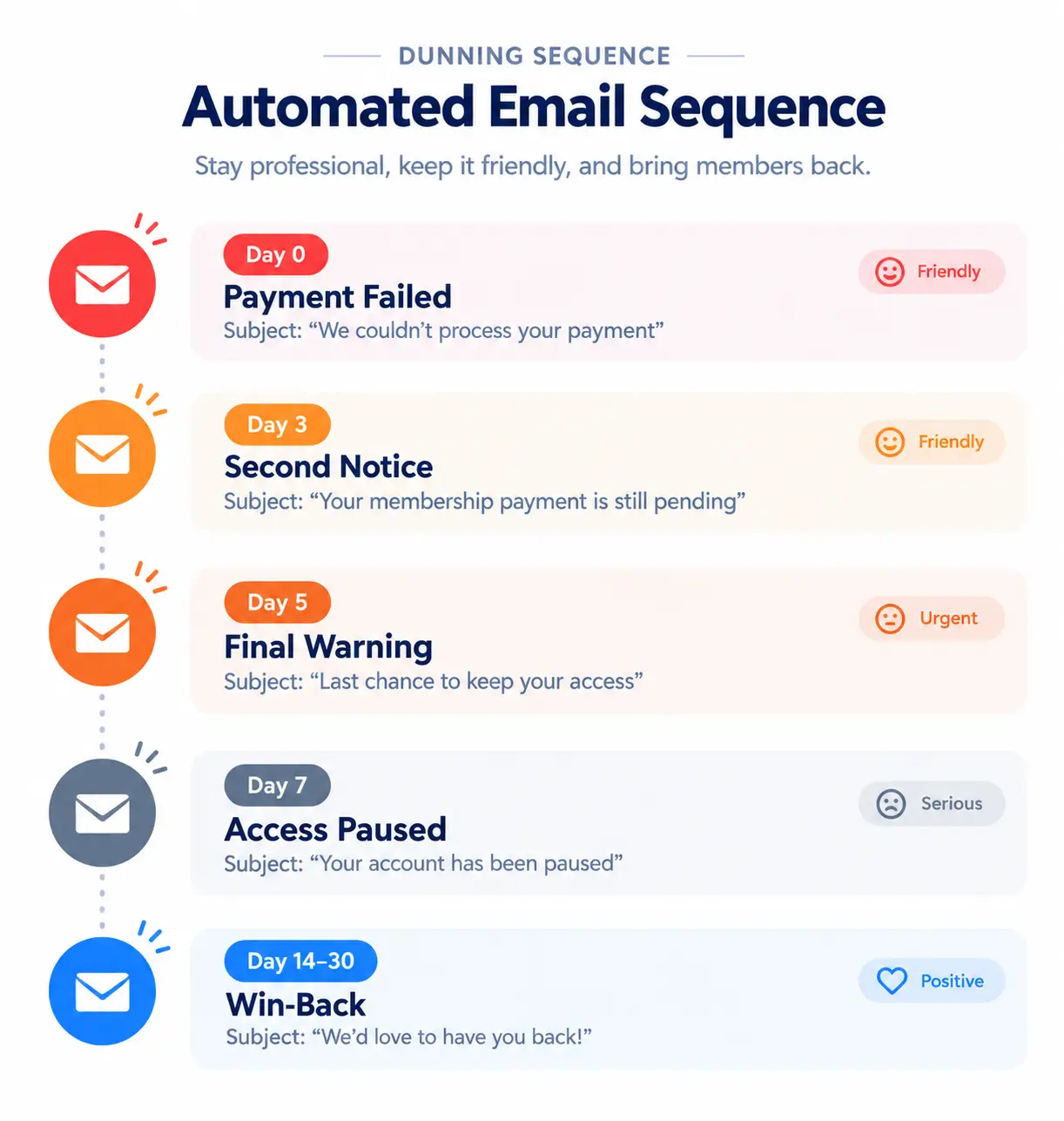
Here’s a dunning sequence that works:
Day 0 (payment fails):
Day 3:
Day 5:
Day 7 (end of grace period):
Day 14–30 (win-back window):
Stripe handles the retry logic automatically once configured. To understand how to connect Stripe to your WordPress store and configure Smart Retries, see How to Accept Stripe Payments in WordPress. Your dunning emails are sent separately via your email marketing tool triggered by Stripe webhooks or StoreEngine’s notification system.
Membership Cancellation: What Should Actually Happen
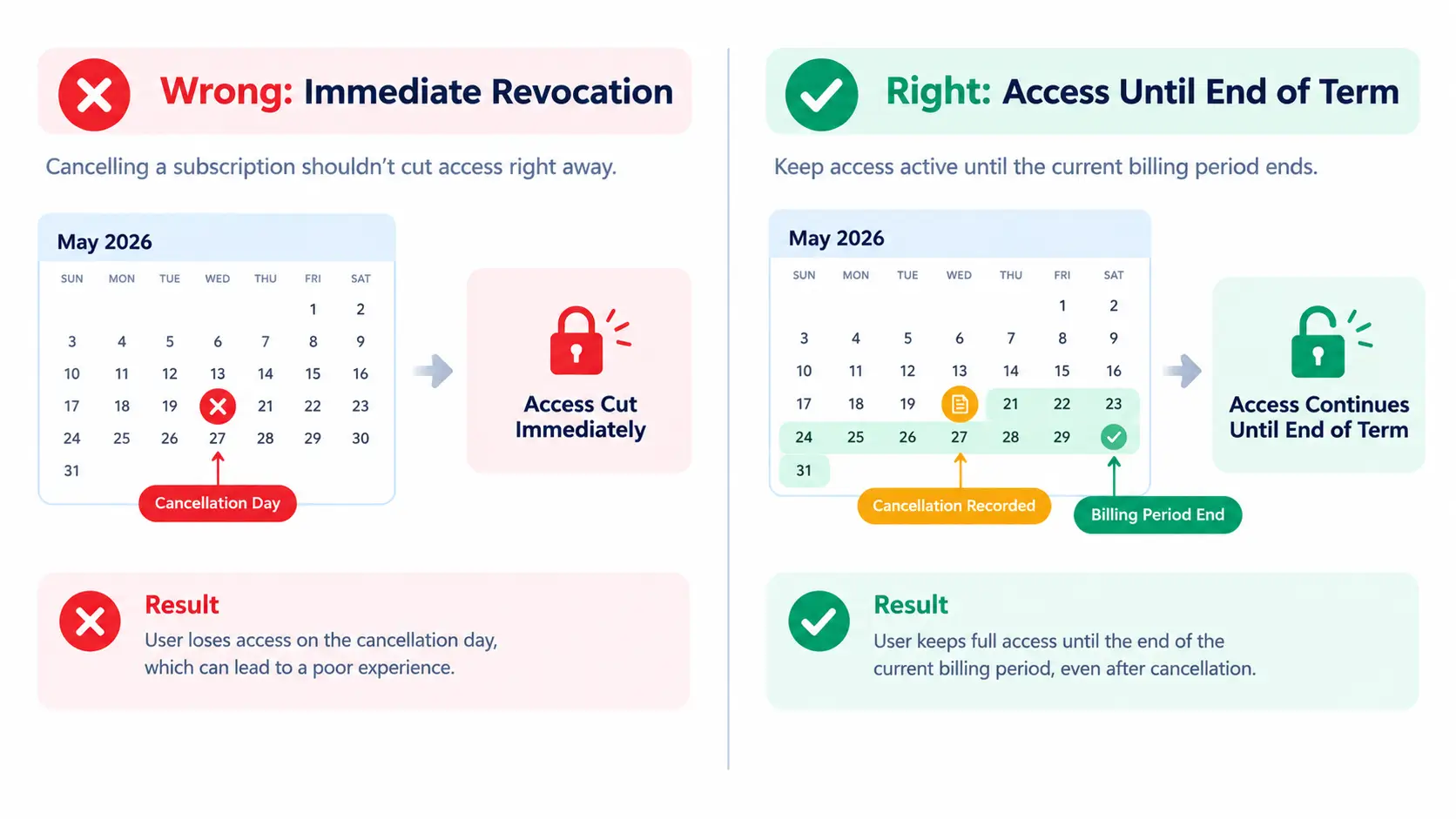
Cancellation on a subscription membership should mean two things: no more renewals, and access until end of the current billing period.
It should not mean immediate access revocation. A member who cancels on Day 12 of a monthly subscription has paid for Days 1–30. Revoking access on Day 12 is both unfair and a support ticket waiting to happen.
Here’s the cancellation flow that works:
Member clicks cancel:
Before confirming cancellation, show a pause option. “Would you prefer to pause your membership for 1–3 months instead?” Members who are offered a pause often take it — and a paused member has a much higher reactivation rate than a cancelled one. 1 in 4 new subscriptions in 2025 were returning subscribers — your cancelled base is a win-back pool. Merchantriskcouncil
If they confirm cancellation:
At end of billing period:
The cancellation survey:
Before the cancellation confirms, ask why. One question, not five. “What’s the main reason you’re cancelling?” with 4–5 options: too expensive, not enough time, didn’t find what I needed, switching to another tool, other.
That data is more valuable than any other analytics you’re running. The reason members cancel tells you exactly what to fix.
In StoreEngine, cancellation via the Subscription addon records the cancellation and sets the subscription to expire at the end of the current billing period. Access Group membership persists until that date, then deactivates automatically.
Membership Renewal Emails: When to Send and What to Say
The renewal email sequence is the most underbuilt part of most membership sites. Most sites send one email — either the day before renewal (for subscriptions) or on the renewal date (for annual memberships). That’s not a sequence. That’s a notification.
A proper renewal email sequence does three things: reminds members of the value they’ve received, handles objections before they become cancellations, and gives members multiple touchpoints to take action or raise concerns.
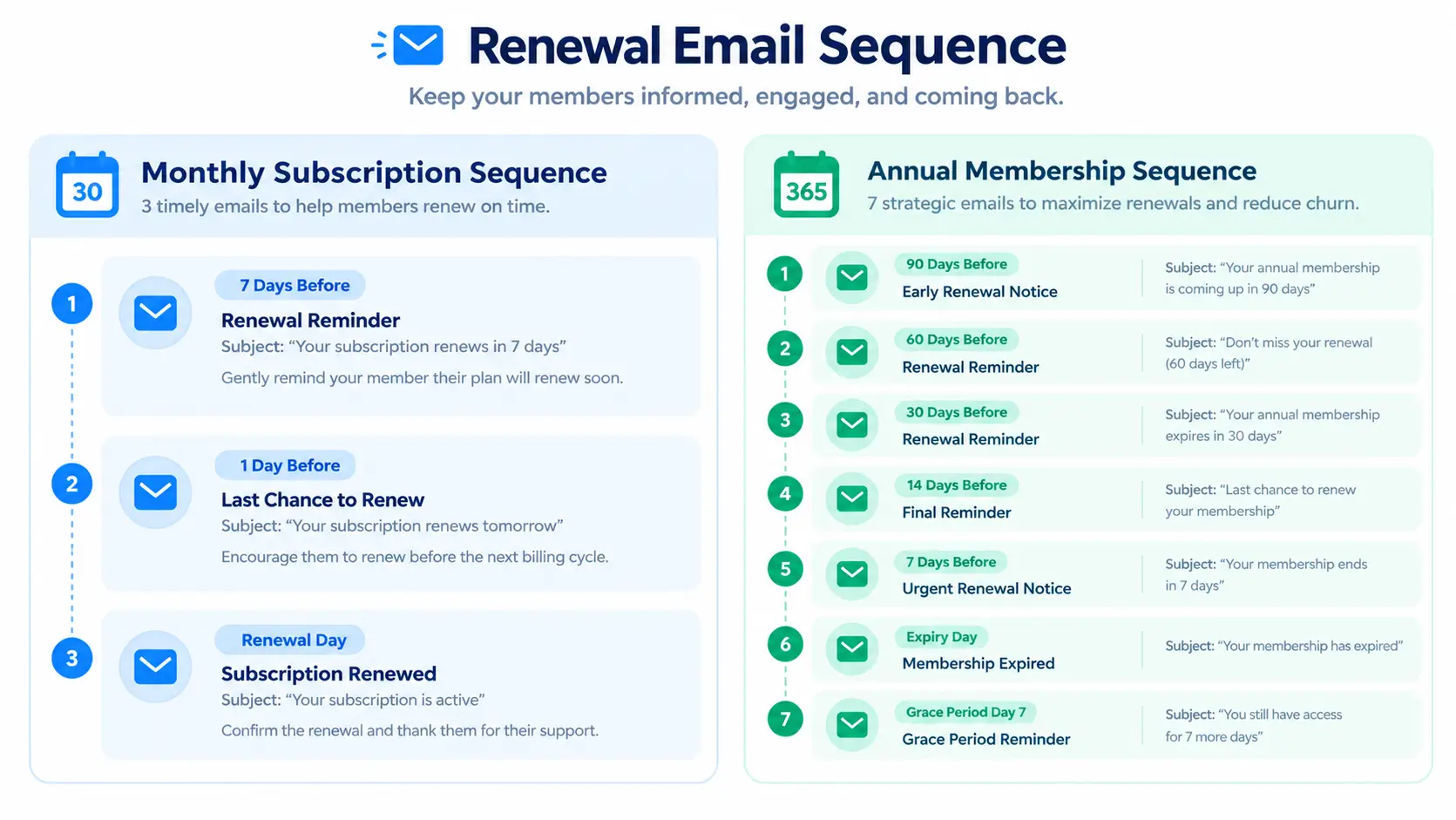
For subscription memberships (monthly auto-renewal):
The renewal happens automatically, so the goal is to remind members of value before the charge hits — not to ask them to renew manually. Send:
For annual memberships (manual renewal):
Send a full sequence:
The membership renewal letter:
For annual memberships (especially associations and professional bodies), a formal renewal letter — either emailed as a PDF or sent physically — carries more weight than a transactional email notification. The membership renewal letter should include: the renewal date, the renewal fee for the coming year, a summary of what membership includes, payment options, and a direct renewal link or return form.
For online membership sites with a digital-first audience, an HTML renewal email that looks like a designed document achieves the same outcome without the overhead.
What Happens When Someone Stops Paying for Paid Memberships Pro (or Any Plugin)
This is one of the most searched questions in this space: what happens if I stop paying for Paid Memberships Pro? The same question applies to MemberPress, Restrict Content Pro, StoreEngine, or any membership plugin.
The answer differs between two scenarios:
Scenario 1: You stop paying for the plugin license (your annual renewal to the plugin developer)
For most membership plugins, your site continues to function normally if you don’t renew the plugin license. The plugin remains installed and active. Existing memberships and access rules continue to work. What you lose is access to plugin updates and support from the developer. If a WordPress core update breaks compatibility, you won’t get a bug fix. If a security vulnerability is discovered, you won’t get a patch.
For Paid Memberships Pro specifically (open source, GPL): the core plugin is free and will always work. You only pay for premium add-ons and support. Stopping the paid plan means losing the premium add-ons, but the core functionality continues.
For StoreEngine: the Pro plan includes the Membership and Subscription addons. If you don’t renew the Pro license, existing memberships and access rules remain active, but you lose access to addon updates and new feature releases.
Scenario 2: Your members stop paying their membership subscriptions
This is what most people are actually asking. When a member stops paying:
They don’t lose their account. They don’t lose their profile. They lose access to protected content until they reactivate. This is the correct behaviour — it protects your content while leaving the door open for reinstatement.
To understand the full content restriction mechanism — how access groups protect posts, categories, and pages — see How to Restrict Content & Gate Premium Access.
Setting Up Renewal and Cancellation in StoreEngine
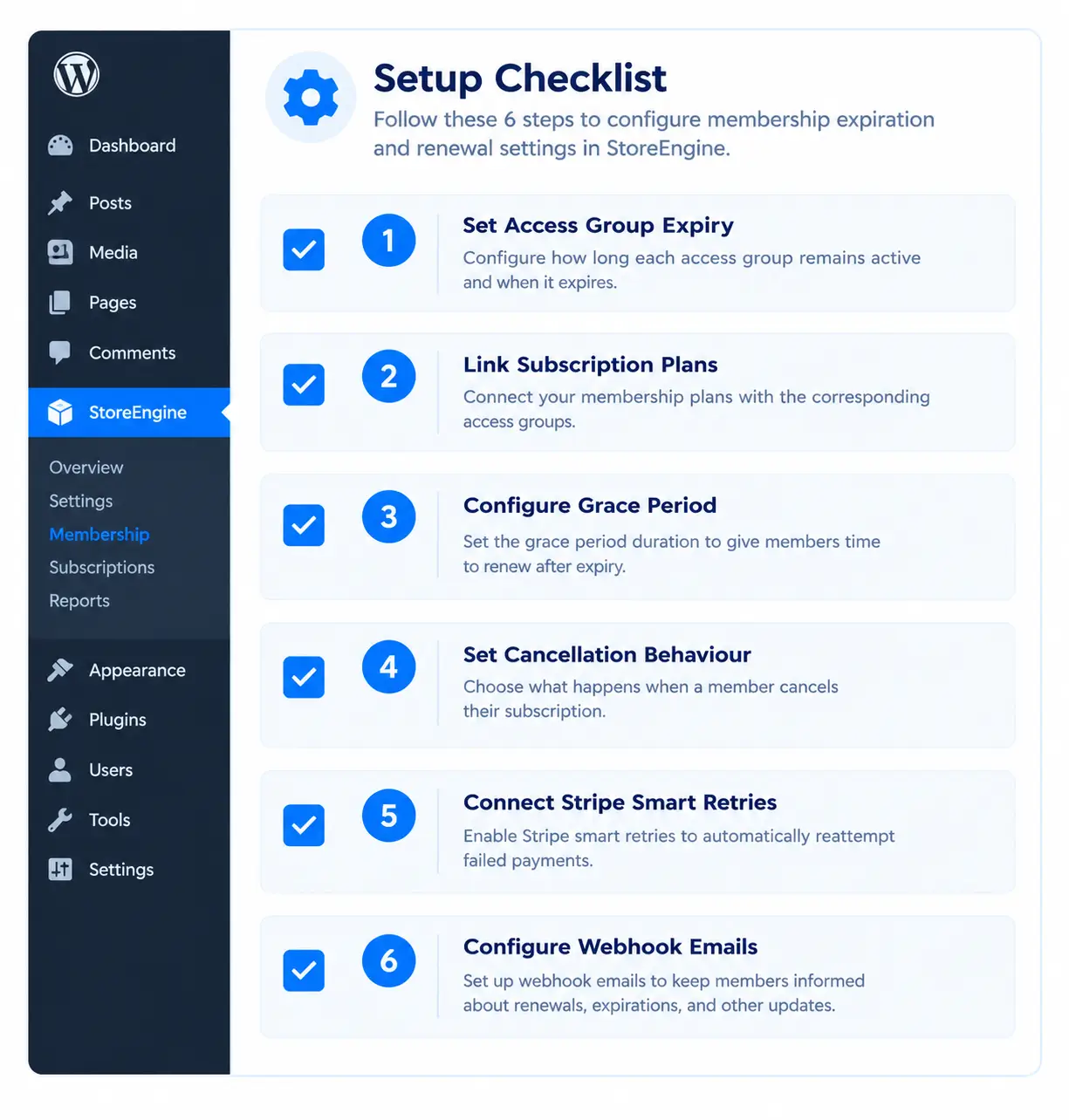
Here’s the configuration in StoreEngine that handles the full membership lifecycle automatically:
1. Set Access Group expiration per tier.
Go to StoreEngine → Membership → Access Groups → Edit Group. Set expiration to 30 days (monthly), 365 days (annual), or never (lifetime). This is the baseline — the Subscription addon extends it on renewal.
2. Connect Subscription plans to Access Groups.
Go to StoreEngine → Subscriptions → Plans → Edit Plan. Link each plan to the corresponding Access Group. Enable automatic renewal. On successful payment, the Access Group expiration extends automatically.
3. Configure the grace period.
In StoreEngine → Subscriptions → Settings, set the grace period duration. 3–7 days for monthly subscriptions. This is how long access continues after a failed payment before the Access Group deactivates.
4. Set cancellation behaviour.
StoreEngine’s Subscription addon sets cancelled subscriptions to expire at the end of the current billing period — not immediately. Access continues until the paid period ends, then the Access Group deactivates automatically.
5. Connect Stripe for dunning.
In Stripe’s subscription settings, configure Smart Retries and enable Stripe Radar for automatic failed payment retry logic. Stripe will automatically retry failed payments on an intelligent schedule based on the failure type. Your dunning emails are sent separately via your email marketing tool triggered by Stripe webhooks or StoreEngine’s notification system.
6. Configure renewal and expiration emails.
Set up a renewal reminder email (for annual memberships) and a failed-payment email sequence (triggered by Stripe webhook events) in your email marketing tool — Mailchimp, ConvertKit, ActiveCampaign, or similar. StoreEngine fires webhook events on payment success, failure, and cancellation that you connect to these sequences.
Decision Framework: Which Setup Is Right for You?
If you’re still deciding between a recurring subscription model and a tiered membership structure, BNPL vs Subscription vs Layaway: Choosing the Right Payment Model covers the tradeoffs between different billing models — useful if you’re designing this from scratch.
Frequently Asked Questions
What is a membership renewal?
A membership renewal is the process by which a membership’s active period is extended for another billing cycle. For subscription-based memberships, renewal happens automatically when a payment is processed. For annual memberships, renewal may be manual — the member receives a renewal notice and pays deliberately. Renewal extends access; non-renewal leads to expiration after a configurable grace period.
What is a membership renewal fee?
A membership renewal fee is the price charged to continue membership for another billing period — monthly, annual, or otherwise. For online subscription memberships, the renewal fee is the same as the original price unless a price change has been applied. For associations and professional bodies, renewal fees may increase annually based on updated dues schedules.
What happens if I stop paying for Paid Memberships Pro?
If you stop paying for the Paid Memberships Pro plugin license, your site continues to work. Existing membership levels, access rules, and active memberships remain functional. You lose access to plugin updates and premium add-on access. The core plugin is open-source and does not stop working when the paid plan expires. If you stop paying as a member of a site running PMPro, access to protected content deactivates after any configured grace period, but your account remains intact for reinstatement.
What should a membership cancellation form include?
A membership cancellation form or flow should include: confirmation of the cancellation date, the date access expires (end of current billing period, not immediately), a reason field or brief survey (one question), a pause option as an alternative to full cancellation, and a confirmation email with reactivation instructions. Never cancel access immediately on form submission — access should run through the end of the paid period.
What is a membership renewal letter?
A membership renewal letter is a formal communication sent before a membership expires, inviting the member to renew. For annual memberships, it typically includes the renewal date, the upcoming dues amount, a summary of membership benefits, and payment instructions or a renewal link. For online memberships, this is usually a branded HTML email. For professional associations, it may be a physical letter or a PDF sent via email.
How long should a membership grace period be?
For monthly subscriptions, 3–7 days is the standard grace period — enough time for a member to update a payment method without giving significant free access. For annual memberships, 14–30 days is more appropriate given the higher stakes of the payment and the one-time nature of annual billing. For long-tenure or high-value members, extending the grace period individually is worth considering.
What is involuntary membership churn?
Involuntary churn occurs when a member’s subscription lapses because their payment failed — not because they decided to cancel. Estimated to account for 25–40% of total subscription churn, it’s caused by expired cards, bank declines, insufficient funds, or fraud blocks. Involuntary churn is largely recoverable with a dunning system — automated payment retries and escalating email outreach — and a grace period that gives members time to fix the payment issue before access is cut.
How does StoreEngine handle membership expiration?
In StoreEngine, each Access Group has a configurable expiration period. Subscription plans linked to Access Groups extend the expiration automatically on each successful payment. When a payment fails, a configurable grace period maintains access temporarily while Stripe retries and your dunning emails go out. If payment is not recovered by end of the grace period, the Access Group deactivates. On cancellation, access runs until the end of the current paid period, then deactivates automatically.