


Selling online courses the old way means selling them one at a time. Someone buys a course, gets access, finishes it (or doesn’t), and leaves. That’s a transaction. You’re back to zero with the next sale.
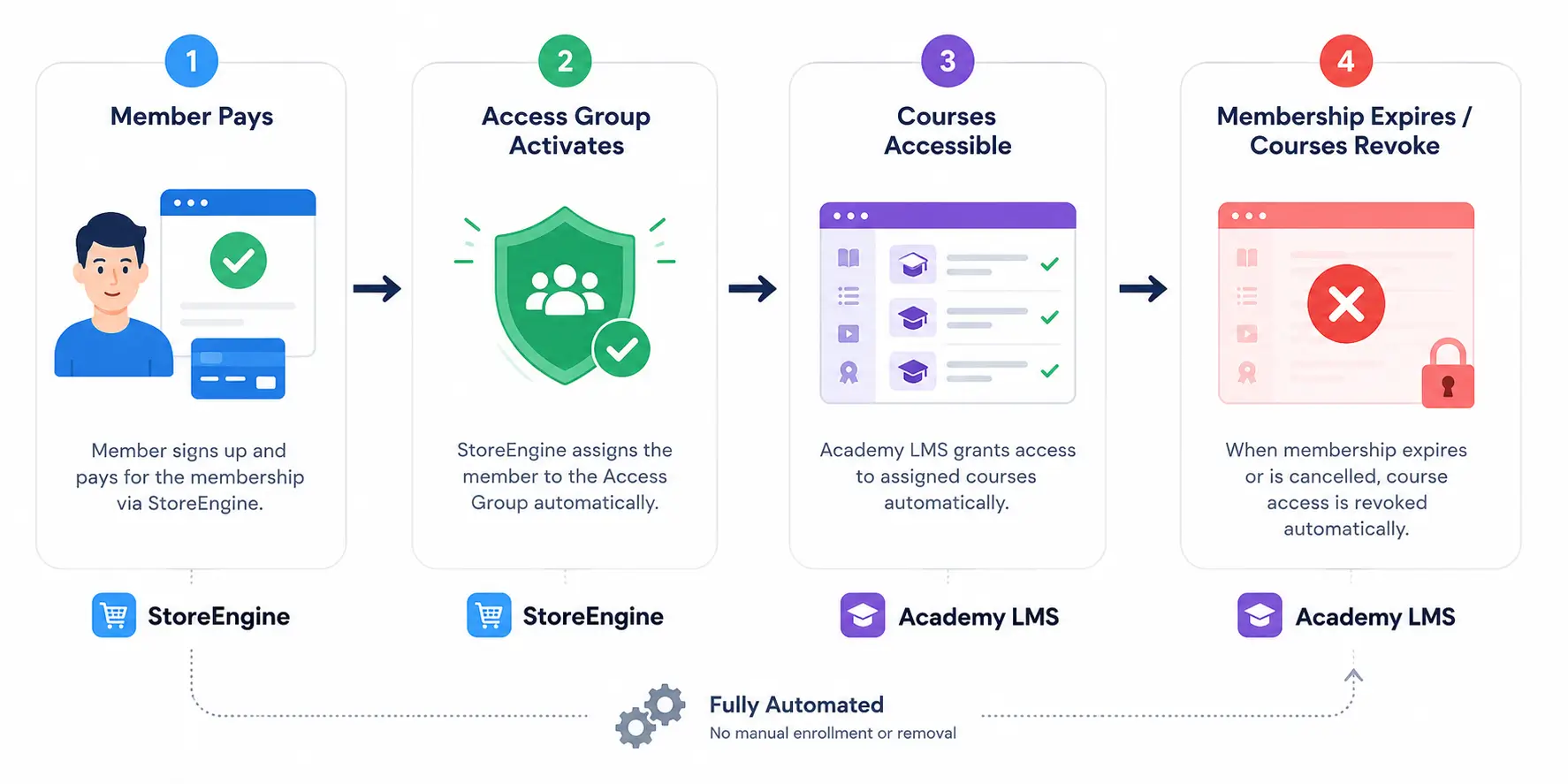
An LMS membership changes the model entirely. Instead of selling individual courses, you sell ongoing access to a library of courses. Members pay monthly or annually. As long as they’re subscribed, they can take any course in the library. When their membership expires or cancels, course access revokes automatically — no manual work, no spreadsheet, no support tickets.
Subscription-based learning is one of the fastest-growing segments in the eLearning market, projected to hit $50 billion by 2026 (Statista, 2024). The reason is straightforward: a membership model generates predictable recurring revenue, and learners prefer paying monthly for unlimited access over paying per course when the library is deep enough.
This guide covers how the LMS + membership combination works, the three main architectures for connecting them, when to use each one, and a step-by-step walkthrough of how StoreEngine’s Membership addon integrates with Academy LMS to make course access automatic.
Quick Answer: How do you gate online courses with a membership plugin?
- Architecture 1 — Membership plugin controls everything: The membership plugin assigns courses to access groups. No separate LMS enrollment needed. Access activates on subscription and revokes on cancellation.
- Architecture 2 — LMS controls courses, membership controls access: Members join via the membership plugin, which triggers automatic LMS enrollment. The LMS handles course structure and progress. Membership status controls whether enrollment is active.
- Architecture 3 — Sell courses and memberships separately: Courses can be purchased individually or accessed via membership. The membership plugin unlocks the library; individual course purchases work outside the membership.
- StoreEngine + Academy LMS: Create an Access Group in StoreEngine, assign Academy LMS course categories to it. When a member’s subscription is active, they get free automatic enrollment. When membership expires, course access revokes. No manual management.
What Is an LMS Membership?
An LMS membership is a model where members pay a recurring subscription fee for access to a library of online courses managed by a Learning Management System (LMS). The membership controls who has access. The LMS controls the course structure, progress tracking, quizzes, certificates, and learning experience.
The distinction between an LMS and a membership plugin is worth understanding clearly:
A membership plugin is a gatekeeper. It controls access — who can see what content, based on their subscription status. It handles billing, access groups, content restriction, and expiration.
An LMS is a classroom. It structures content into courses, lessons, and modules. It tracks student progress, manages quizzes and assignments, issues certificates, and handles the learning experience itself.
In 2025, the line between these two is blurring — some plugins now do both. But for most serious course memberships, you want the best of each: a dedicated LMS for the learning experience, and a membership plugin for access control and recurring billing. The challenge is connecting them cleanly so access activates and revokes automatically without manual work.
The global LMS market was valued at $24.05 billion in 2024 and is projected to grow at a CAGR of 19.9% from 2025 to 2030 (Grand View Research). The course membership model is a major driver of that growth — it’s simply a better business model than one-time course sales for most creators.
The Problem with Manual Course Gating
Before covering the right architecture, it helps to understand what the wrong one looks like — because most people start there.
Here’s the manual approach that most creators use before setting up proper LMS membership:
- Member signs up and pays
- Someone (you or a VA) manually enrolls them in the relevant courses
- Member accesses the LMS
- Member cancels their subscription
- Someone manually removes LMS enrollment
- Repeat for every member, every month
This works when you have 10 members. It breaks completely at 50. At 200, it’s a full-time job.
The specific failure modes:
- A member cancels their subscription. Nobody removes their LMS enrollment. They continue accessing courses for free for months before someone notices.
- A new member signs up. It takes 24–48 hours to manually enroll them. They email support asking why they can’t access the courses they paid for.
- You add a new course to the library. You have to manually enroll all existing members in the new course. With 300 members, that’s 300 individual enrollment actions.
The solution is automatic access control — where the membership plugin and the LMS are connected so access flows automatically based on subscription status.
The Three Architectures for LMS Membership
There are three main ways to connect an LMS to a membership system on WordPress. Which one you use depends on which plugin you’re using and how you want to handle course access.
Architecture 1: Membership Plugin Controls Course Access Directly
The membership plugin assigns course content (pages, custom post types, categories) to Access Groups. When a member is in the right Access Group, they can see and access the course pages. The LMS handles the course structure and progress tracking, but access to even see the course is controlled by the membership plugin.
How it works in StoreEngine + Academy LMS:
- Academy LMS courses are assigned to a WordPress category (e.g., “Member Courses”)
- That category is assigned to a StoreEngine Access Group (“Core Members”)
- When someone becomes a Core Member, they can see and access all courses in that category
- When membership expires, the Access Group deactivates, and the courses disappear from their view
- No manual enrollment. No manual removal. The access follows the subscription.
Best for: Course libraries where all courses are included in the membership. Simple, automatic, no separate enrollment flow.
Architecture 2: Membership Triggers LMS Enrollment
The membership plugin and LMS are connected via integration. When a member signs up, the membership plugin fires an event that automatically enrolls the member in the relevant LMS courses. The LMS manages the enrolled courses and tracks progress. When the membership expires, the integration revokes the LMS enrollment.
How it works in practice:
- Member signs up for Core Membership
- Membership plugin webhook fires → LMS receives the event → member is automatically enrolled in all courses tagged for Core Members
- LMS sends the member a “Welcome to your courses” email
- Member cancels subscription → membership plugin fires cancellation event → LMS revokes enrollment
Best for: Course creators who want tight LMS enrollment tracking (completion certificates, assignment submission, cohort-based courses) alongside the membership model.
Architecture 3: Hybrid — Individual Course Sales + Membership Library
Some creators sell courses two ways: individually (pay once, get this specific course forever) and via membership (pay monthly, access the full library). This is the most flexible model but also the most complex to configure.
How it works:
- Individual course purchase → LMS enrollment for that specific course, permanent
- Membership signup → Access Group activates → all library courses become accessible
- Membership expires → Access Group deactivates → library courses disappear, but individually purchased courses remain
Best for: Creators with a mix of signature courses they sell at a premium and a broader membership library.
StoreEngine + Academy LMS: The Integration Walkthrough
Academy LMS is built by Kodezen — the same team that builds StoreEngine. The integration between them is native, not a third-party connector. That means it works cleanly, without the synchronization issues that come from patching together two unrelated plugins.
Here’s exactly how to set it up:
Step 1: Install both plugins.
Install StoreEngine (with Membership and Subscription addons) and Academy LMS on the same WordPress site. Both are available from WordPress.org and their respective sites.
Step 2: Create your courses in Academy LMS.
Go to Academy LMS → Courses → Add New. Build your course: add lessons, quizzes, assignments. Set the course price to free (enrollment will be controlled by StoreEngine, not sold individually within the LMS). Assign the course to a category — for example, “Member Courses” or “Core Library.”
Step 3: Create Access Groups in StoreEngine.
Go to StoreEngine → Membership → Access Groups → Add New. Create one group per membership tier. Name them clearly: “Core Members,” “Pro Members.”
Step 4: Assign Academy LMS course categories to each Access Group.
In the Access Group settings, assign the relevant Academy LMS course categories. “Core Members” might get access to “Core Library” courses. “Pro Members” might get access to both “Core Library” and “Pro Courses.” Since access is additive, Pro Members can be added to both groups — they inherit all Core content plus their exclusive Pro content.
Step 5: Create Subscription plans.
Go to StoreEngine → Subscriptions → Plans → Add New. Set billing interval (monthly or annual), link to the corresponding Access Group. When a subscription payment succeeds, the Access Group activates and the member can immediately see and access the courses. When the subscription fails or cancels (after the grace period), the Access Group deactivates and course access revokes.
Step 6: Set the after-purchase redirect to a course library page.
When a member completes purchase and their Access Group activates, redirect them to a dedicated “Your Courses” page or the Academy LMS course catalog. This is the welcome moment — make it count. The redirect is set in StoreEngine → Membership → Settings → After Purchase Redirect.
Step 7: Configure the restriction message for non-members.
When a non-member or lower-tier member tries to access a course they don’t have access to, they should see a specific message: “This course is included in the Pro Membership — available for $79/month. [Upgrade to Pro].” Not a generic “access denied” message. A direct sales moment.
Step 8: Test the full flow.
Create a test account with no membership. Confirm you can’t access protected courses. Purchase a test membership (using Stripe’s test card 4242 4242 4242 4242). Confirm course access activates immediately. Cancel the test subscription. Wait for the grace period to end. Confirm course access revokes.
Connecting Other LMS Plugins to a Membership System
Not everyone uses Academy LMS. LearnDash, LifterLMS, Tutor LMS, and LearnPress are all widely used. Here’s how each one connects to a membership plugin:
LearnDash + MemberPress
This is the most documented combination in the WordPress membership space. MemberPress has a dedicated LearnDash integration that automatically enrolls members in courses based on their membership level and revokes enrollment on cancellation. It’s well-tested and reliable. Setup involves connecting the two plugins in MemberPress → Settings → Add-ons.
If you’re already on MemberPress and LearnDash, this integration is the path of least resistance.
LearnDash + Paid Memberships Pro
PMPro has a “Courses for Membership” add-on that connects to LearnDash, LifterLMS, and Tutor LMS. Members at the appropriate level are automatically enrolled. The integration fires on membership activation and revokes on cancellation or expiration. Available as a premium add-on on paid PMPro plans.
LifterLMS Memberships (Built-in)
LifterLMS has a native membership feature built directly into the LMS — it’s not a separate plugin. LifterLMS Memberships gates access to courses within the LMS itself. Useful if you want everything in one plugin, but less flexible for complex membership configurations or sites that need ecommerce alongside the course membership.
Tutor LMS + Any Membership Plugin
Tutor LMS integrates with WooCommerce for course sales, which means it works with WooCommerce Memberships for access gating. It also has some native membership management features. The integration is less native than LearnDash + MemberPress but functional with some configuration.
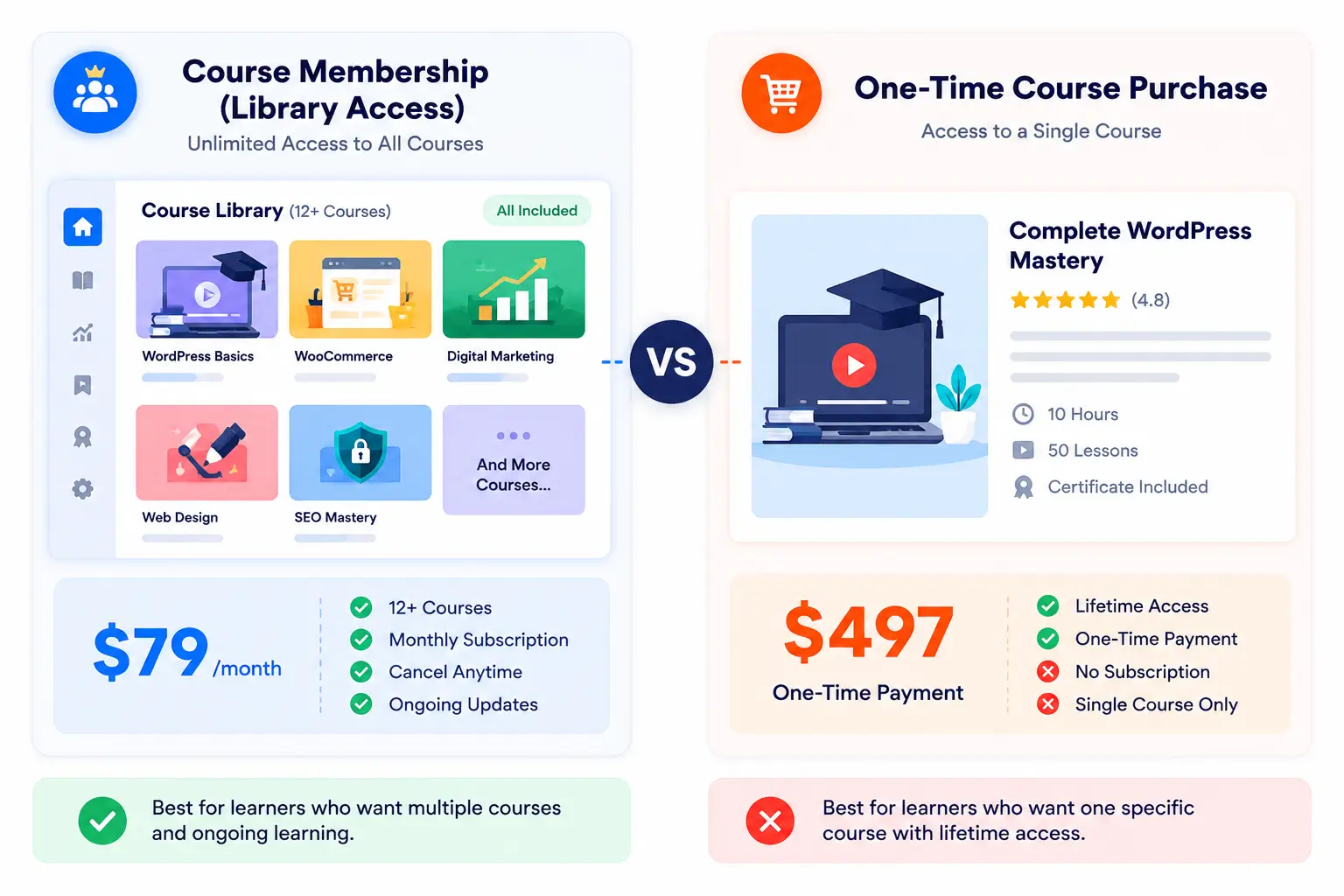
Course Membership vs One-Time Course Sales: Which Model Is Right?
This is the real strategic question before you choose any LMS or membership plugin. Here’s the honest framework:
Course membership model works best when:
- You have or plan to have more than 5–7 courses (a library worth subscribing to)
- Your courses are related and complementary — members benefit from accessing multiple courses over time
- You publish new courses regularly — each new addition increases membership value
- Your audience is looking for ongoing skill development, not a one-time solution
One-time course sales work best when:
- You have one or two flagship courses that stand alone as complete products
- Buyers want a permanent resource they can return to without maintaining a subscription
- Your course solves a one-time problem (a product launch course, a certification prep course)
- Your audience is allergic to subscriptions
The hybrid model (both) works when your catalog is large enough that a library membership makes sense, but you also have one or two premium courses that justify a standalone price. This is the most common model for established course creators.
What Happens to Course Access When a Membership Expires?
This is the question most course creators get wrong. Here’s what should happen, and what you need to configure:
When membership expires or cancels:
- StoreEngine deactivates the Access Group linked to the subscription
- Academy LMS courses assigned to that Access Group are no longer visible or accessible
- The member’s progress (completed lessons, quiz scores, certificates earned) is preserved in the database — it’s not deleted
- If the member reactivates their membership, they return to exactly where they left off
What should not happen:
- Progress deletion — never delete a member’s course progress on expiration. It’s their data and it’s a powerful re-subscription incentive
- Immediate access revocation on cancellation (without a grace period) — access should run through the end of the paid billing period, not cut off on cancellation date
- Silent access revocation with no notification — send an email when access is about to expire: “Your membership expires on [date] — your course progress will be saved and waiting when you return.”
The “progress preserved on expiration” point is worth emphasising. If a member has completed 60% of a course when their membership lapses, and they resubscribe six months later, picking up from 60% is a much better experience than starting from zero. It’s also a stronger resubscription incentive — “all your progress is still there” is a more compelling win-back message than “start fresh.”
Decision Framework: Which LMS + Membership Setup Is Right for You?
- You’re building from scratch on WordPress and want one team’s ecosystem → use StoreEngine + Academy LMS. Both are built by Kodezen. The integration is native, the support comes from one place, and there’s no third-party connector to maintain.
- You’re already on MemberPress and want an LMS → add MemberPress Courses (built-in) for simple courses, or LearnDash for a full-featured LMS. Both integrate natively with MemberPress.
- You’re already on LearnDash and want to add membership → add MemberPress or Paid Memberships Pro. Both have documented, well-tested LearnDash integrations. Don’t add WooCommerce Memberships unless you’re already running WooCommerce.
- You want to sell individual courses AND offer a membership library → use Architecture 3 (hybrid). Configure individual course purchases separately from membership access. Ensure individually purchased courses don’t revoke on membership cancellation.
- You want the simplest possible setup → use a plugin with built-in LMS. MemberPress includes CourseCure. LifterLMS includes native memberships. These reduce the number of integrations to maintain but offer less specialisation in each function.
Frequently Asked Questions
What is an LMS membership?
An LMS membership is a model where members pay a recurring subscription fee for access to a library of online courses managed by a Learning Management System. The LMS handles course structure, progress tracking, quizzes, and certificates. The membership plugin controls who has access based on subscription status — activating access when payment succeeds and revoking it when membership expires or cancels.
What is the difference between a membership plugin and an LMS plugin?
A membership plugin is a gatekeeper — it controls access to content based on subscription status. An LMS plugin is a classroom — it structures content into courses and lessons, tracks student progress, manages quizzes and assignments, and issues certificates. Most serious course membership sites use both together: the LMS for the learning experience, the membership plugin for access control and billing.
How do I gate online courses with a membership in WordPress?
The most direct method: assign your LMS course categories to a membership Access Group (in StoreEngine) or to a membership level (in MemberPress or PMPro). When a member is in the right access group, they can see and access the courses. When membership expires, courses become inaccessible. In StoreEngine + Academy LMS, this is configured by assigning Academy LMS course categories to the relevant Access Group — no manual enrollment required.
Does Academy LMS integrate with StoreEngine?
Yes — natively. Both are built by Kodezen. In StoreEngine, you assign Academy LMS course categories to Access Groups. Active members in that group have automatic access to all courses in those categories. When membership expires, course access revokes automatically. No third-party connector, no Zapier, no manual enrollment.
What happens to my course progress when my membership expires?
Course progress — completed lessons, quiz scores, earned certificates — is preserved in the database when membership expires. Access to the courses is revoked (you can’t view lesson content or take new quizzes), but the progress data remains. When membership is reactivated, members return to exactly where they left off. Never delete progress on expiration — it’s a member’s data and a strong reactivation incentive.