

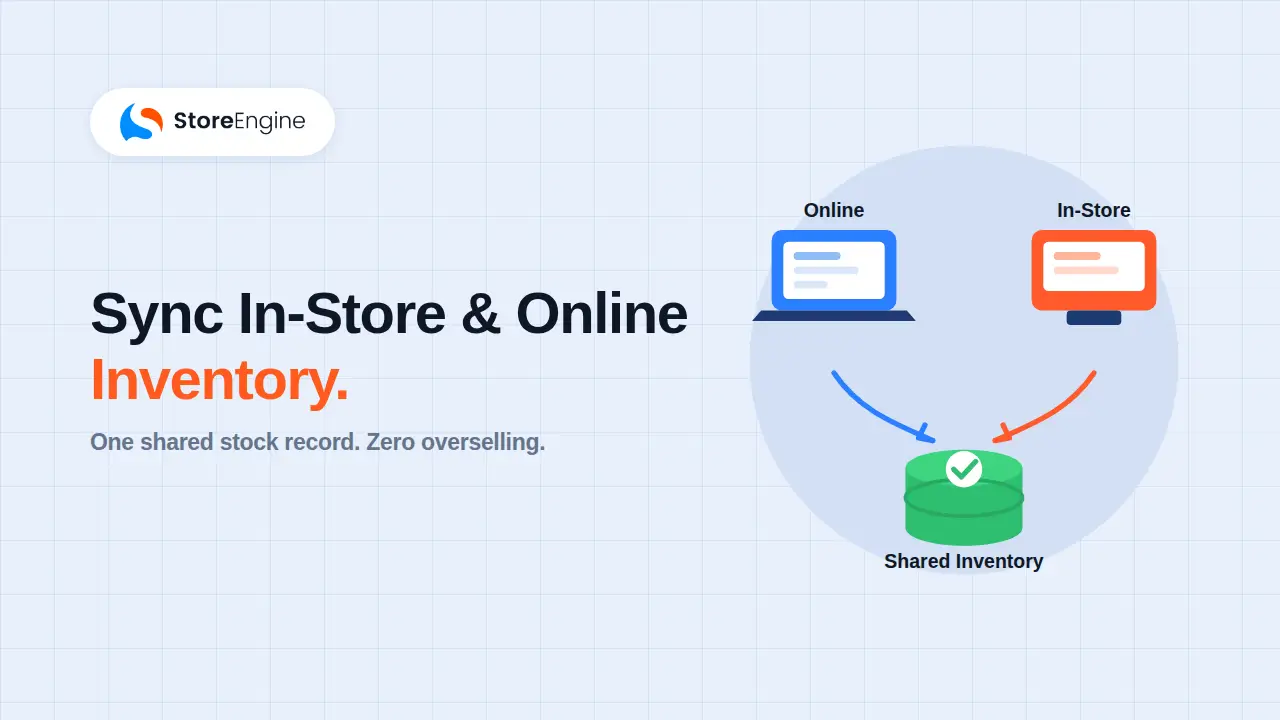

The best way to sync in-store and online inventory on WordPress is to stop syncing altogether — and run both channels on one shared stock record instead. With StoreEngine, your online store and POS terminal read and write to the same inventory database, so every sale updates the count in real time. No batch jobs, no overnight sync, no overselling. Here is how it works.
💡 Quick Takeaway:
Sync gaps cost real money. When channels update on different schedules, you get phantom stock and oversold SKUs — the exact failures that erode trust. Retailers with strong omnichannel execution retain 89% of customers versus just 33% for weak setups (Aberdeen Group). A single shared inventory is what closes that gap.
Why does inventory sync break in the first place?
Most retailers do not have a selling problem — they have a connecting problem. You sell on your website and at your physical register, but each system lives in its own silo and updates on its own schedule. A sale in the store does not immediately reach the website, and vice versa.
The traditional fix is a sync tool that copies stock numbers between the two systems on a timer — every few minutes, every hour, or overnight in a batch. That interval is exactly where things break:
- Phantom stock: the website still shows an item as available minutes after it sold on the shop floor.
- Oversold SKUs: two customers buy the last unit across two channels before either count updates.
- Reconciliation drift: your team spends hours matching numbers that should already agree.
Every sync-based system has this lag by design because it is moving data between two separate sources of truth. The only way to eliminate the lag is to eliminate the second source.
The real fix: one shared inventory, not two synced ones
StoreEngine takes a different architectural approach. Because the POS terminal runs inside the same WordPress installation as your online store, both channels draw from a single inventory database. There is nothing to sync because there is only one record.
As the StoreEngine documentation puts it, every sale made through the POS terminal decrements stock from the same inventory database as your online store — there is no sync gap, no batch process, and no possibility of selling a unit twice across channels. A customer checking out online and a cashier ringing up a walk-in compete for the same unit against the same live count, at the same moment.
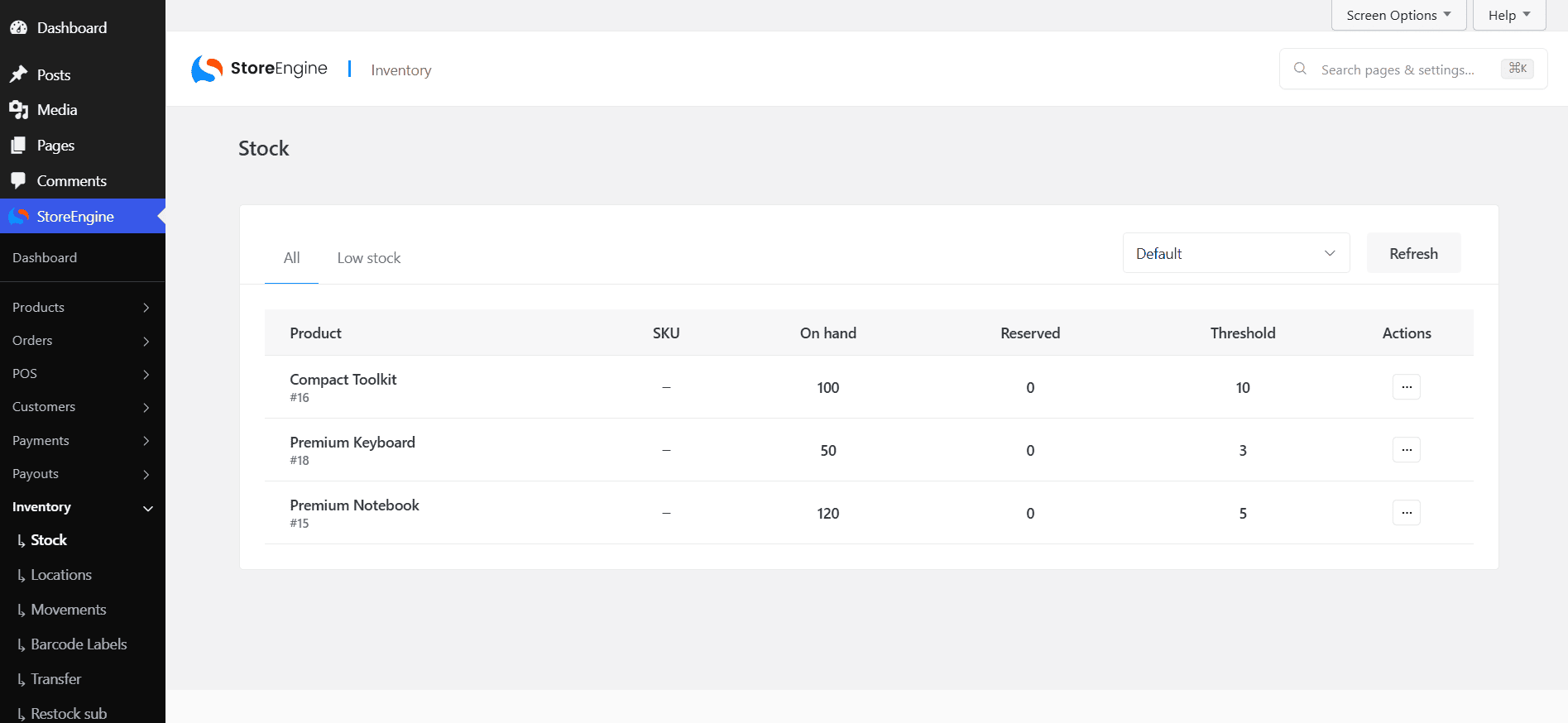
How StoreEngine keeps online and in-store in sync automatically
Three pieces work together to keep every channel on the same page. None of them requires you to configure a sync schedule.
1. POS Terminal writes to live inventory
The StoreEngine POS Terminal is a browser-based till that runs in your WordPress admin. It is not a lite version or a workaround — it supports cashier sessions, barcode and SKU lookup, card payments, and parked carts. Most importantly, every in-store sale decrements the same stock count your website uses, instantly. By design, the POS add-on requires the Inventory add-on, so every POS sale necessarily flows through the inventory system.
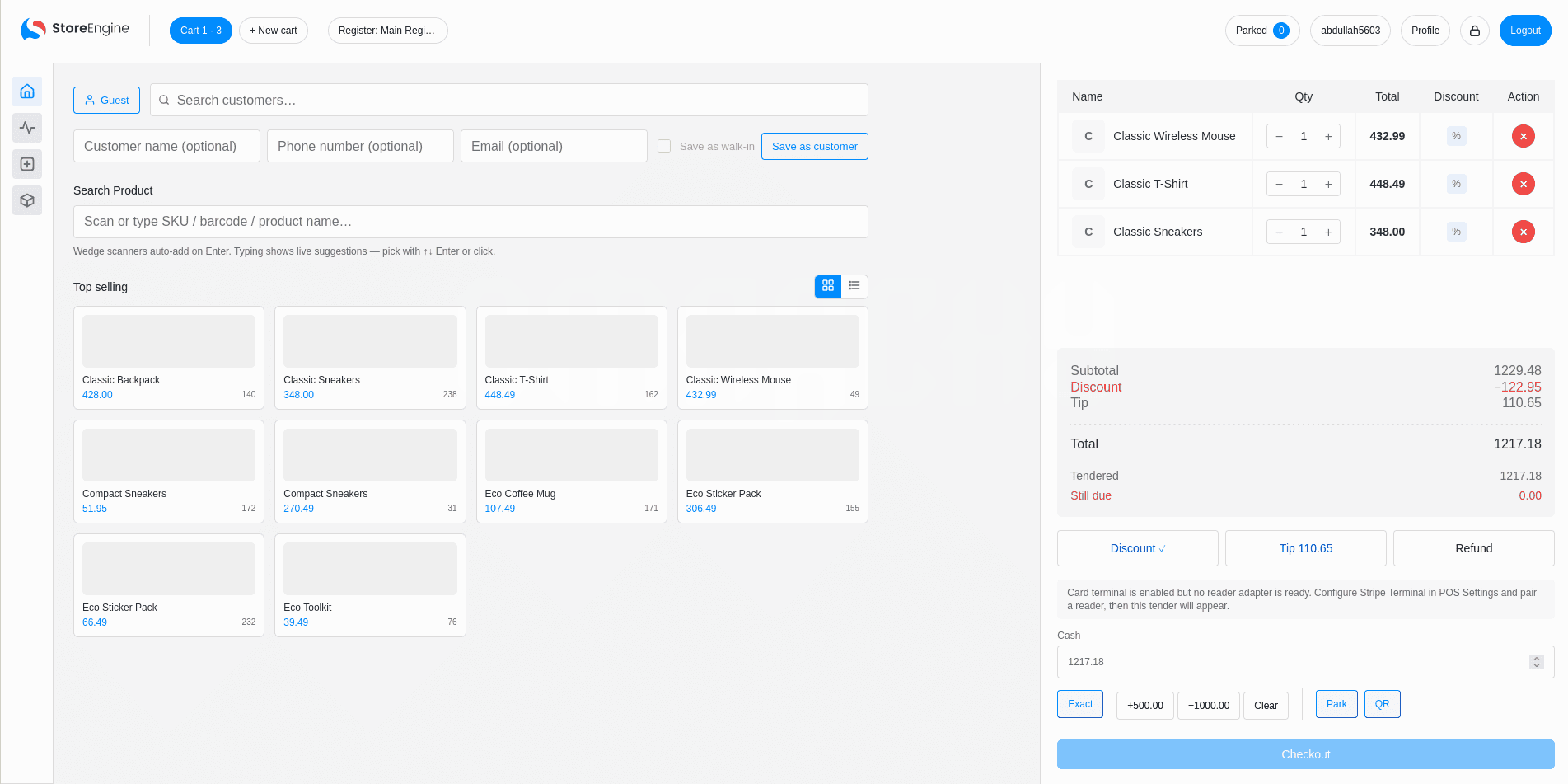
2. Inventory Pro tracks stock per location
If you sell from more than one place — a warehouse, a store floor, a pop-up — Inventory Pro extends the base Inventory add-on to true multi-location management. You can create named locations, track stock levels for each one separately, and execute stock transfers between locations with full movement history. Each POS register can be bound to a specific location, so an in-store sale automatically decrements the right shelf’s count rather than a generic pool. Barcode label generation is built in.
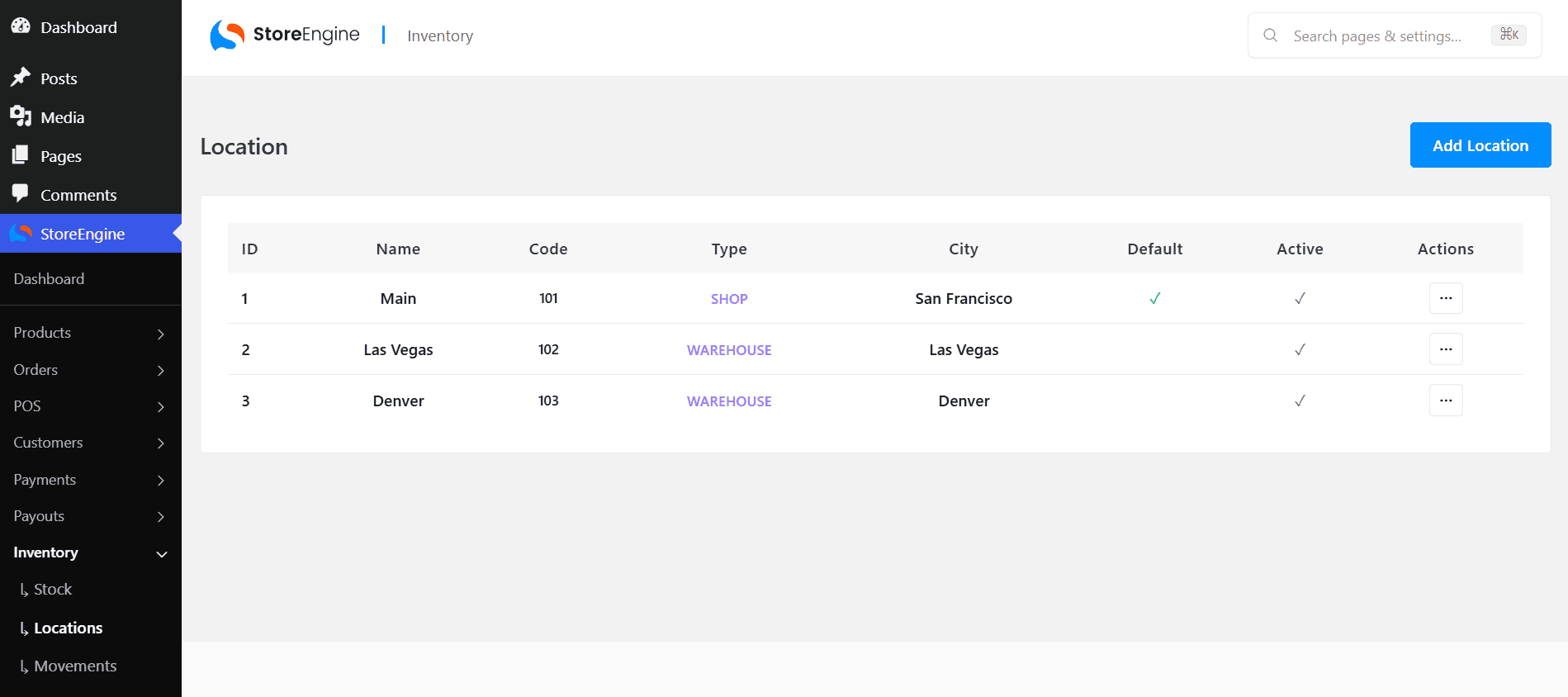
3. Returns write stock back automatically
Syncing is not only about sales — returns move stock too. StoreEngine’s Returns/RMA workflow is built around inventory intelligence: a customer initiates a return, the admin approves it, the item is received and inspected, and the unit is restocked at the appropriate location. Because Returns requires the Inventory add-on, every approved return writes straight back to the stock record and the unit becomes sellable again immediately — no manual adjustment, no status limbo.
Why the architecture matters more than any feature
It is worth pausing on why this is different from a WooCommerce-plus-plugins setup. In a typical stack, your POS, your inventory tracker, and your returns tool are separate products from separate vendors, each with its own database, connected by sync connectors that can fail independently.
StoreEngine is layered deliberately instead. POS requires Inventory. Returns require Inventory. Inventory Pro extends the base with multi-location tracking. Each layer builds on the one below it, the same way an enterprise retail platform is designed — so data cannot drift between them because they share one foundation. This is what makes “sync” a non-issue rather than a feature you have to maintain.
A quick note on what you need
To run this unified setup, a few pieces need to be in place:
- Inventory add-on (free): the foundation — single-location stock tracking, low-stock alerts, and stock movement logging.
- Inventory Pro: add this only if you sell from multiple locations and need per-location tracking and transfers.
- POS Terminal (Pro): the in-store till; it requires the Inventory add-on to be active first.
- Returns/RMA (optional): if you want returns to restock inventory automatically.
The Bottom Line
Keeping in-store and online inventory in sync on WordPress does not have to mean babysitting a sync tool. With StoreEngine, one shared inventory record powers your online store, your POS terminal, and your returns workflow — so counts stay accurate automatically, across every location, in real time. Enable the Inventory add-on, add your POS terminal, and let the architecture do the syncing for you.
Frequently asked questions
Do I need a separate sync plugin to connect my POS and online store?
No. That is the entire point of StoreEngine’s approach. The POS Terminal runs inside the same WordPress site as your online store and writes to the same inventory database, so there is nothing to sync. You only need the Inventory add-on active (the POS requires it), not a third-party connector between two systems.
Can I track stock across multiple stores or warehouses?
Yes, with Inventory Pro. It lets you create named locations, track stock separately for each, and transfer stock between them with a full movement history. You can bind each POS register to a specific location so in-store sales decrement the correct location’s count automatically.
What happens to inventory when a customer returns an item?
StoreEngine’s Returns/RMA workflow restocks the item automatically. Once a return is approved and the item is received and inspected, the unit is added back to inventory at the appropriate location and becomes sellable again immediately — without any manual stock adjustment.
Will the online store ever oversell an item that just sold in-store?
With StoreEngine, this is prevented by design. Because both channels read and write the same live stock count, an in-store sale and an online sale compete for the same unit at the same moment. There is no sync interval during which the two counts disagree, which is what causes overselling in batch-synced setups.