


To start an online store on WordPress, you need a domain, hosting, WordPress installed, and an eCommerce plugin. With StoreEngine, the setup takes four steps: install the plugin, configure your payment settings, add your products, and go live. This guide walks through every step from scratch — no coding required — so you can launch a working online store on WordPress in a single session.
💡 Quick Takeaway:
WordPress powers 43% of all websites on the internet and is the most popular platform for building online stores. The biggest advantage over hosted platforms like Shopify is full ownership — you control your store, your data, and your costs. There are no monthly platform fees or per-transaction cuts taken from your revenue.
Why build your online store on WordPress?
WordPress powers 43% of all websites on the internet. It is free, open-source, and runs on hosting you own — which means no platform lock-in, no revenue share, and no monthly SaaS bill for the core software. You pay for hosting (typically $5–20/month) and your domain name, and that is largely it.
The eCommerce opportunity on WordPress is real. Global retail eCommerce sales reached $6.9 trillion in 2026, and the tools available to independent store owners have never been better. The question is not whether WordPress can power a serious online store — millions of businesses prove that it can. The question is which eCommerce plugin to use.
Historically, that answer was WooCommerce by default. But WooCommerce was built as an extension of WordPress rather than a native eCommerce platform, which means running a full-featured store often requires stacking a dozen add-ons on top of each other. StoreEngine takes a different approach: it is built from the ground up as a complete eCommerce platform for WordPress, with payments, checkout, subscriptions, memberships, affiliates, POS, and more available as native addons — not third-party bolt-ons.
What do you need before you start?
Before you install anything, you need three things in place. These are the foundation every WordPress store runs on.
1. A domain name
Your domain is your store’s address on the internet (e.g., yourstore.com). Keep it short, memorable, and relevant to what you sell. Avoid hyphens and numbers if possible. Register your domain through a reputable registrar — most hosting providers offer domain registration as part of their onboarding. Expect to pay $10–15 per year.
2. Web hosting
Hosting is the server where your WordPress site lives. For a new store, a managed WordPress host or a reliable shared hosting provider works well. Look for hosts that offer one-click WordPress installation, SSL certificates (required for secure checkout), and at least 99.9% uptime. Popular options include SiteGround, Cloudways, and Hostinger — all of which support StoreEngine without additional configuration.
3. WordPress installed
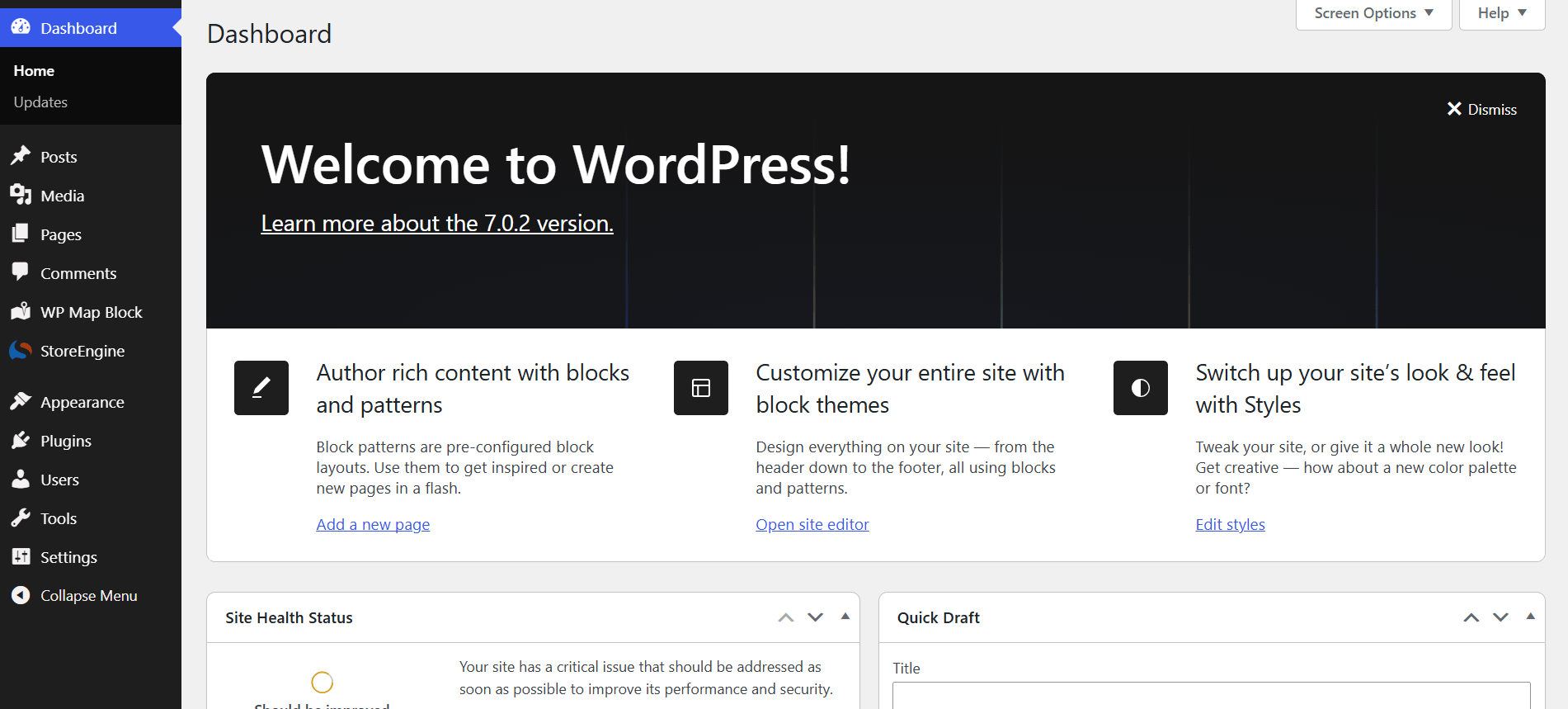
Most hosts offer one-click WordPress installation from the control panel. Once installed, you will have access to the WordPress admin dashboard — the interface
How do you install StoreEngine?
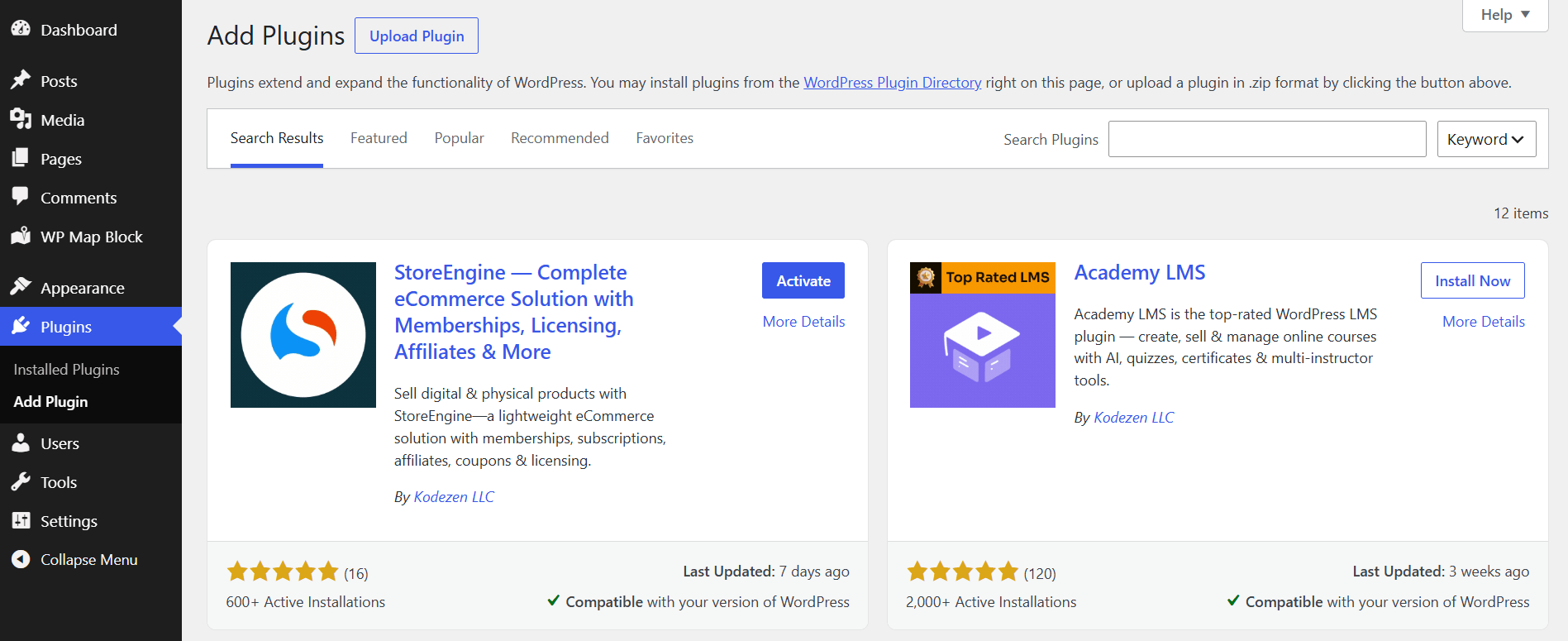
Once WordPress is set up, installing StoreEngine takes under two minutes. Here is the exact process.
1. Go to Plugins → Add New from your WordPress admin sidebar.
2. Search for “StoreEngine” in the plugin search box.
3. Click Install Now, then Activate once the installation completes.
4. Follow the setup wizard that appears on first activation — it walks you through store currency, basic settings, and creating your first pages (shop, cart, checkout, account).
The free version of StoreEngine covers core product management and basic payment options. The Pro version unlocks subscriptions, memberships, affiliate management, digital licenses, order bumps, abandoned cart recovery, POS terminal, and priority support. You can start free and upgrade when you need those features.
How do you configure payments?
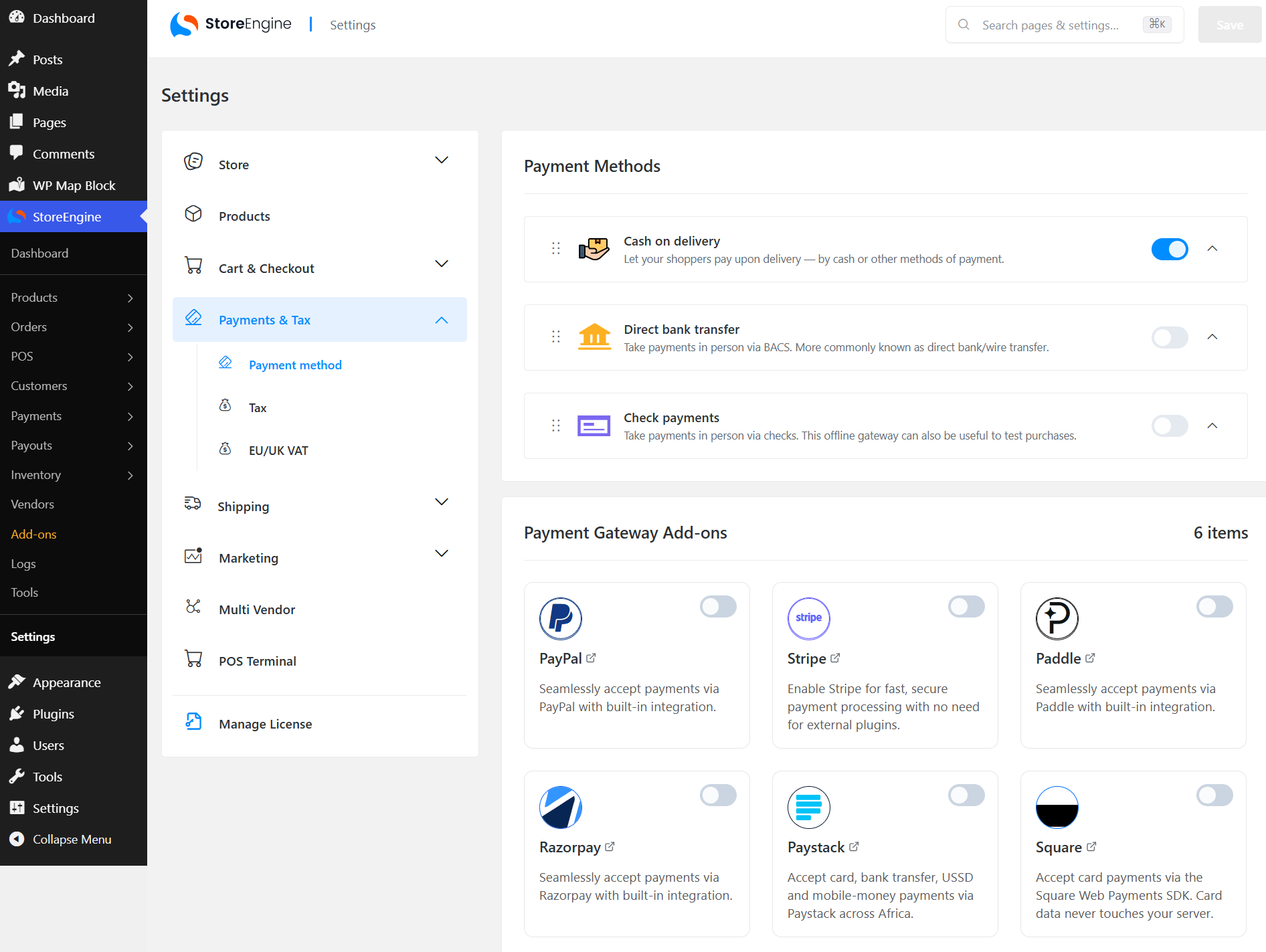
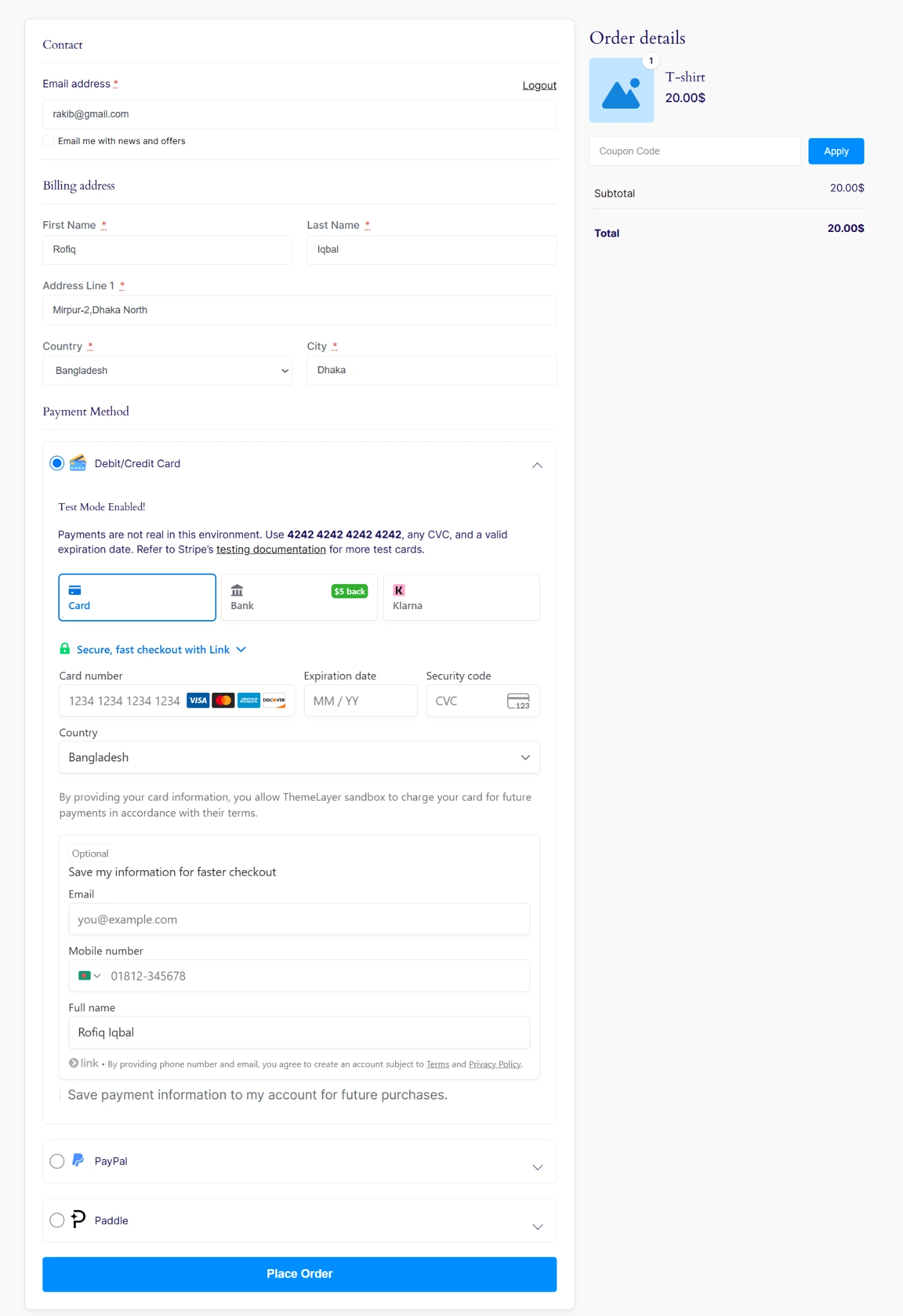
Your store cannot take money without a payment gateway. This is the most important configuration step — get it right before you add any products. In StoreEngine, go to StoreEngine → Payments to see all available gateway options.
Which payment gateway should you choose?
For a new store, start with Stripe and PayPal. These two gateways cover the large majority of global buyers and take under 30 minutes to configure with StoreEngine.
How do you add your first product?
With payments configured, you are ready to add products. StoreEngine supports physical products, digital downloads, and service products from the same product editor — you do not need a separate plugin for each type.
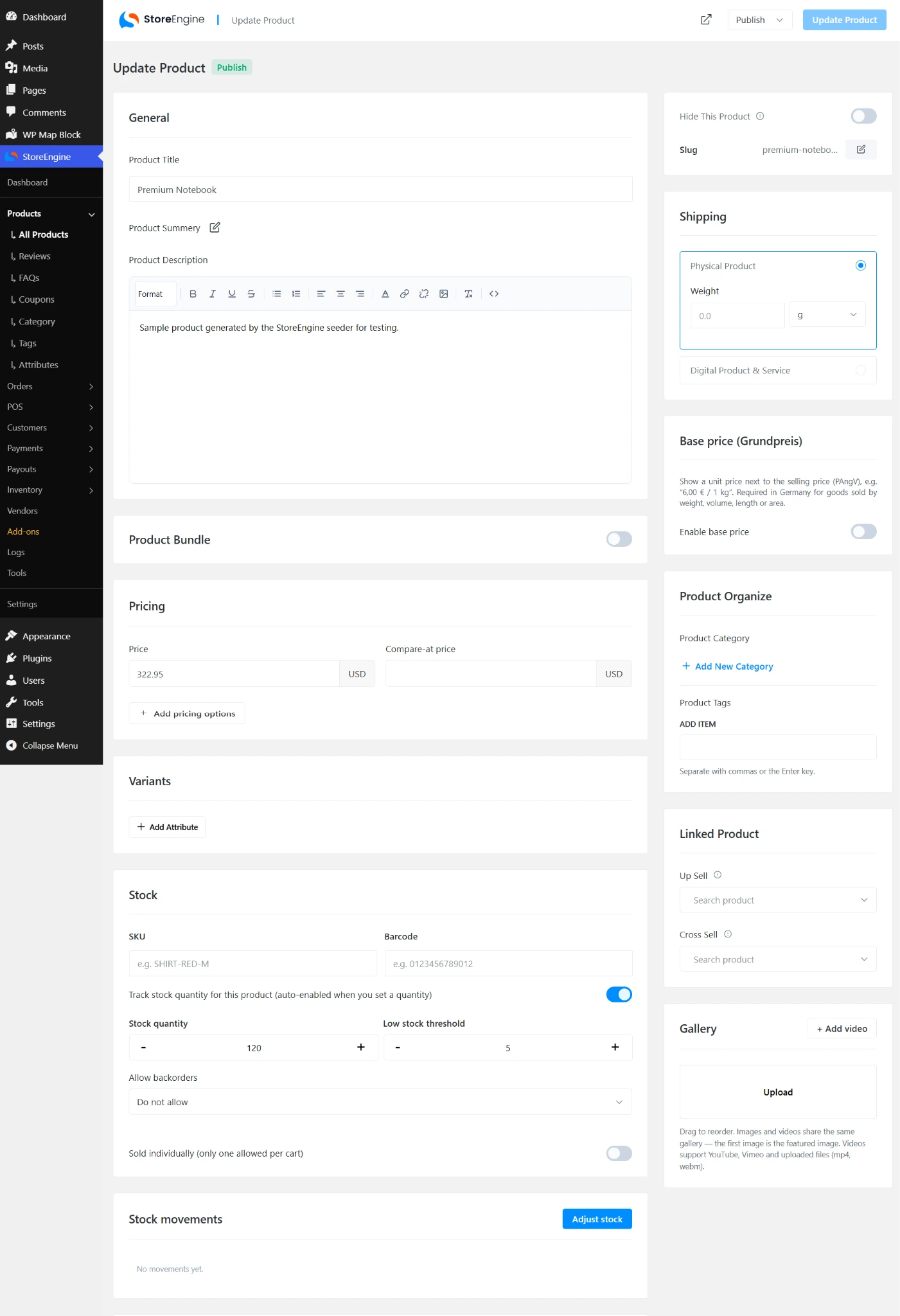
1. Go to StoreEngine → Products → Add New Product.
2. Enter the product name, description, and price. Use the product description to answer the most common buyer questions — what it is, what it does, and why they should buy it rather than a competitor’s version.
3. Upload product images. Use the first image as your featured product photo. Additional images go into the gallery. Clear, well-lit photos against a simple background convert better than staged lifestyle shots for most product categories.
4. Choose the product type: Physical Product (with shipping settings) or Digital Product & Service (with download or license delivery). For digital products, toggle Auto Fulfill on so the download link is sent automatically on purchase.
5. Set categories and tags, then click Publish. Your product is now live in your store.
How do you configure your store settings?
Before you drive any traffic to your store, spend 20 minutes in Settings to make sure the basics are correct. A few configuration mistakes here — wrong currency, missing shipping zones, no email notifications — will cause problems with every order you receive.
Currency and region
Go to StoreEngine → Settings → General. Set your store currency, currency position (before or after the number), and decimal separator. If you sell internationally, StoreEngine’s Currency Switcher addon lets customers browse and pay in their local currency.
Shipping (for physical products)
Go to StoreEngine → Settings → Shipping. Create shipping zones for the regions you ship to, set flat-rate or free shipping thresholds, and configure any carrier-based rates. For a new store, a simple flat-rate setup is fine — you can add calculated shipping rates later as order volume grows.
Email notifications
StoreEngine sends automated emails for order confirmations, payment receipts, and shipping updates. Go to Settings → Email Notifications to confirm these are enabled and to customize the sender name and subject lines. A professional order confirmation email is itself a trust signal — it tells customers their purchase was received and processed correctly.
Store pages
The StoreEngine setup wizard creates your Shop, Cart, Checkout, and My Account pages automatically. Verify these exist in your WordPress Pages list and that they are published. If any are missing, StoreEngine → Tools → Page Setup can recreate them.
What should you set up before your first sale?
Your store is technically ready to sell at this point. But a few additional steps will dramatically improve your results from the very first sale.
The Bottom Line
Starting an online store on WordPress has never been more accessible. With a domain, reliable hosting, and StoreEngine installed, you can go from zero to a live, accepting-payments store in under an hour. The platform handles the infrastructure — checkout, payments, product delivery, and order management — so you can focus on the parts only you can do: choosing what to sell, finding your first customers, and building a store worth returning to.
Frequently asked questions
Do I need to know how to code to start a WordPress store with StoreEngine?
No. StoreEngine is designed for non-technical store owners. The setup wizard handles page creation, the product editor works like a form, and all settings are configured through the WordPress admin with toggle switches and dropdown menus. You do not need to edit any code to launch a fully functional online store.
How much does it cost to run a WordPress store with StoreEngine?
The core costs are hosting ($5–20/month), a domain name ($10–15/year), and an SSL certificate (usually free from your host). The StoreEngine free version covers basic store functionality at no additional cost. StoreEngine Pro unlocks advanced features like subscriptions, memberships, order bumps, and abandoned cart recovery — check storeengine.pro for current Pro pricing.
Can I sell both physical and digital products in the same StoreEngine store?
Yes. StoreEngine supports physical products (with shipping), digital products and downloads (with auto-delivery), subscriptions, software licenses, and memberships from the same platform. You can mix product types in the same store without installing separate plugins for each category.
What is the difference between StoreEngine free and Pro?
The free version covers core product management, basic payment options, and a standard checkout. StoreEngine Pro adds subscriptions, memberships, affiliate management, digital license generation, order bumps, abandoned cart recovery, POS terminal, inventory management, and priority support. Most new stores can launch on the free version and upgrade to Pro once revenue supports it.