


PayPal for StoreEngine allows you to integrate PayPal as a payment gateway on your eCommerce site. This document walks you through the process of activating and configuring it.
Enable PayPal
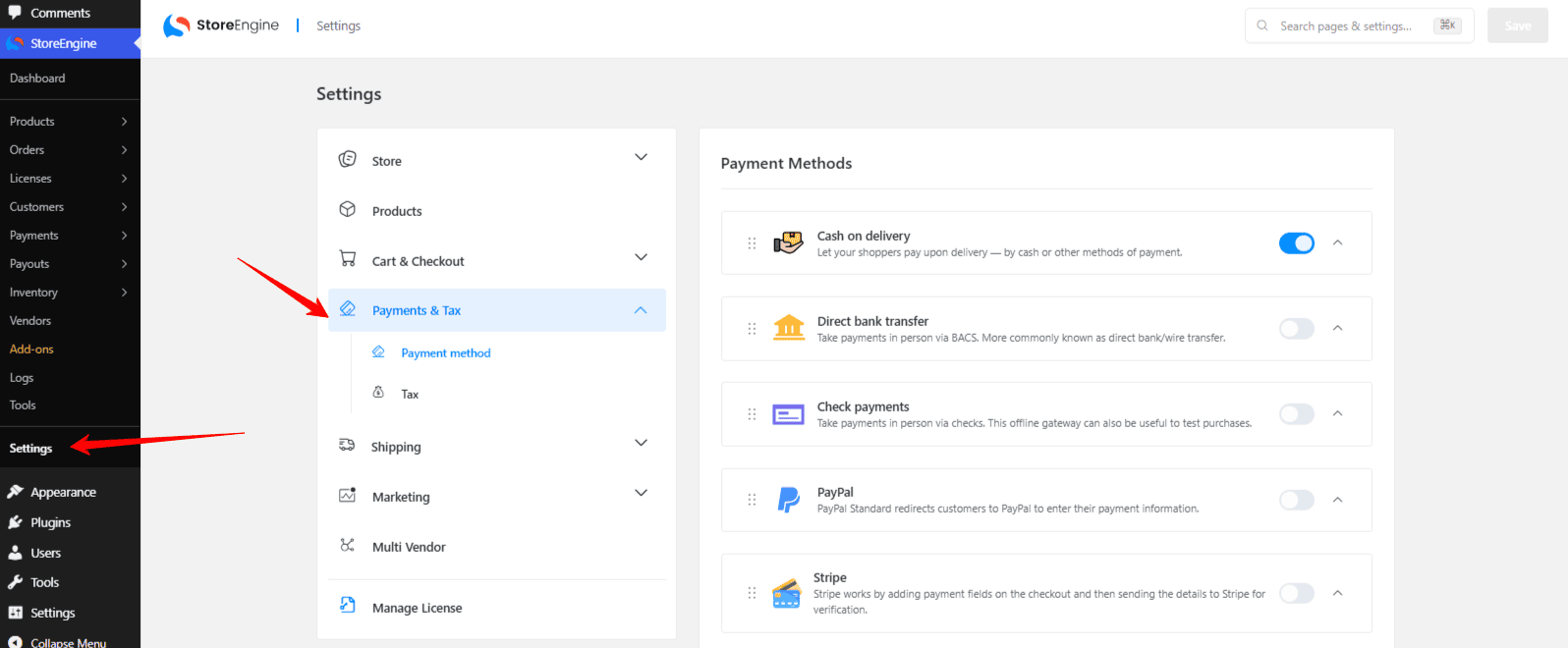
- Navigate to StoreEngine → Settings → Payments & Tax → Payment method.
- Locate PayPal from the list of payment methods.
- Click the toggle to enable it.
- Once enabled, click on the PayPal row to expand its settings and configure it.
Once enabled, a gear icon  will appear next to the addon. Click ot to configure your payPal seeting.
Enable the PayPal Addon
Configure PayPal Settings
- Go to StoreEngine → Settings → Payments & Tax → Payment method.
- You’ll see PayPal listed as a payment option.
- Click on it to expand the settings panel, then use the toggle to activate PayPal as a live payment gateway on your site.
After enabling PayPal Click settings, next toggle.
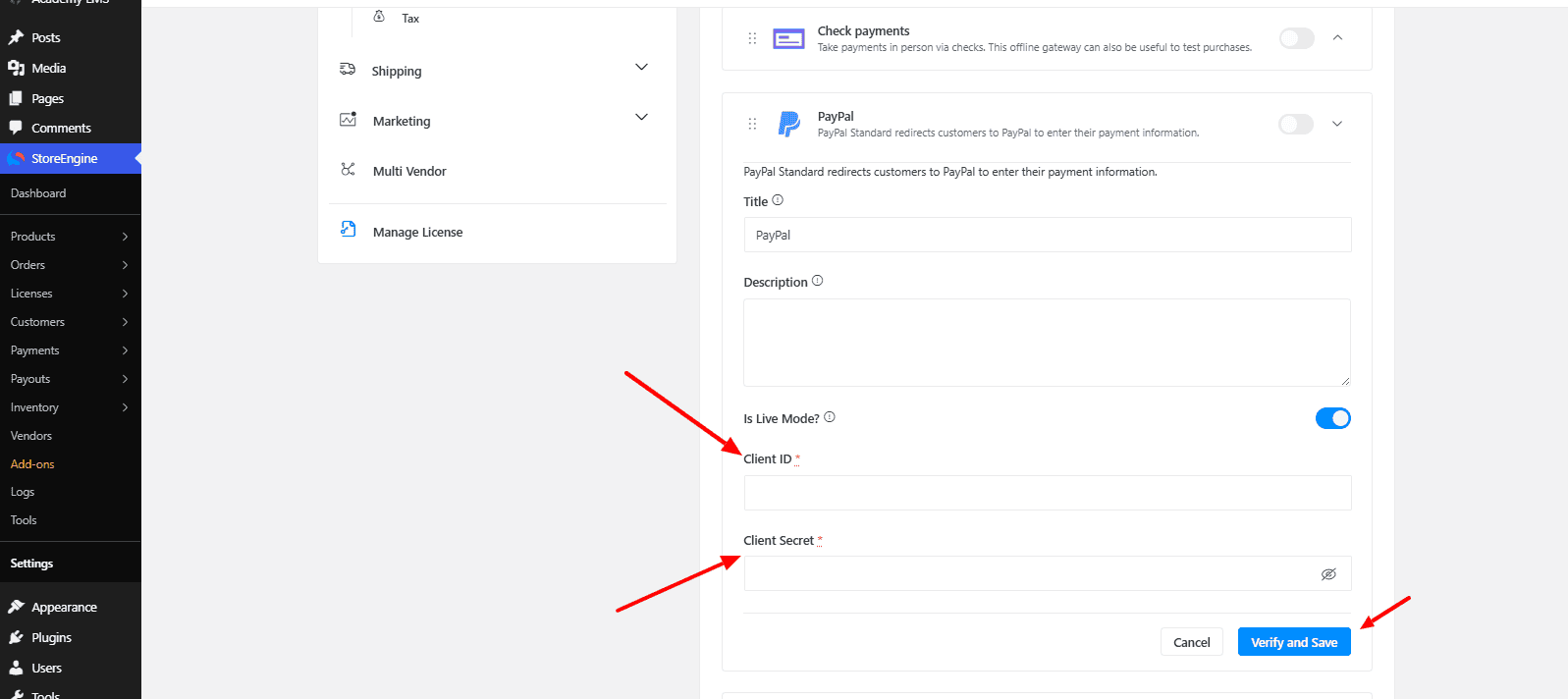
To use Paypal you will need a Client ID and Client Secret, to get this we refer you to Paypal documentation Get client ID and client secret.
After you have get the credentials of PayPal navigate to the StoreEngine PayPal Settings, switch to Live Mode, and paste the new credentials.
Click Verify, then Save. You’re All Set!
You’ve now fully integrated PayPal with your StoreEngine-powered website. Your customers can begin making payments securely and conveniently using PayPal.
Handling “Duplicate Invoice ID” Errors (Important)
When using PayPal with StoreEngine, you may sometimes encounter the DUPLICATE_INVOICE_ID error. This occurs when PayPal detects that the invoice/order ID being sent from your site already exists inside your PayPal account.
Handling “Duplicate Invoice ID” Errors (Important)
When using PayPal with StoreEngine, you may sometimes encounter the DUPLICATE_INVOICE_ID error. This occurs when PayPal detects that the invoice/order ID being sent from your site already exists inside your PayPal account.
1. After Resetting or Migrating Your Store Database
If you reset your WordPress or StoreEngine database but continue using the same PayPal API keys, PayPal may receive invoice IDs that were already created in earlier checkout sessions.
Since PayPal doesn’t allow duplicate invoice numbers, the payment will fail with:
[DUPLICATE_INVOICE_ID: The invoice_id must be unique for each transaction].
2. When Using the Same PayPal API Keys on Multiple Stores or Platforms
If the same PayPal App (Client ID & Secret) is used across different eCommerce platforms (e.g., StoreEngine + Shopify + WooCommerce, etc.), those systems may generate overlapping invoice IDs.
PayPal will reject any checkout that uses an invoice number previously created on another platform.
Recommended Fix: Disable Duplicate Invoice Check (Safe & Common Solution)
If you see a “Duplicate Invoice ID” error when using PayPal, it usually happens because your PayPal account has already recorded an order with the same invoice number — often after a database reset, site migration, or using the same PayPal API keys on multiple eCommerce platforms.
To fix this quickly, you can disable PayPal’s duplicate-invoice check from your PayPal Business account.
Once disabled, PayPal will allow invoices even if the same ID was previously used, and checkout will work normally again.