

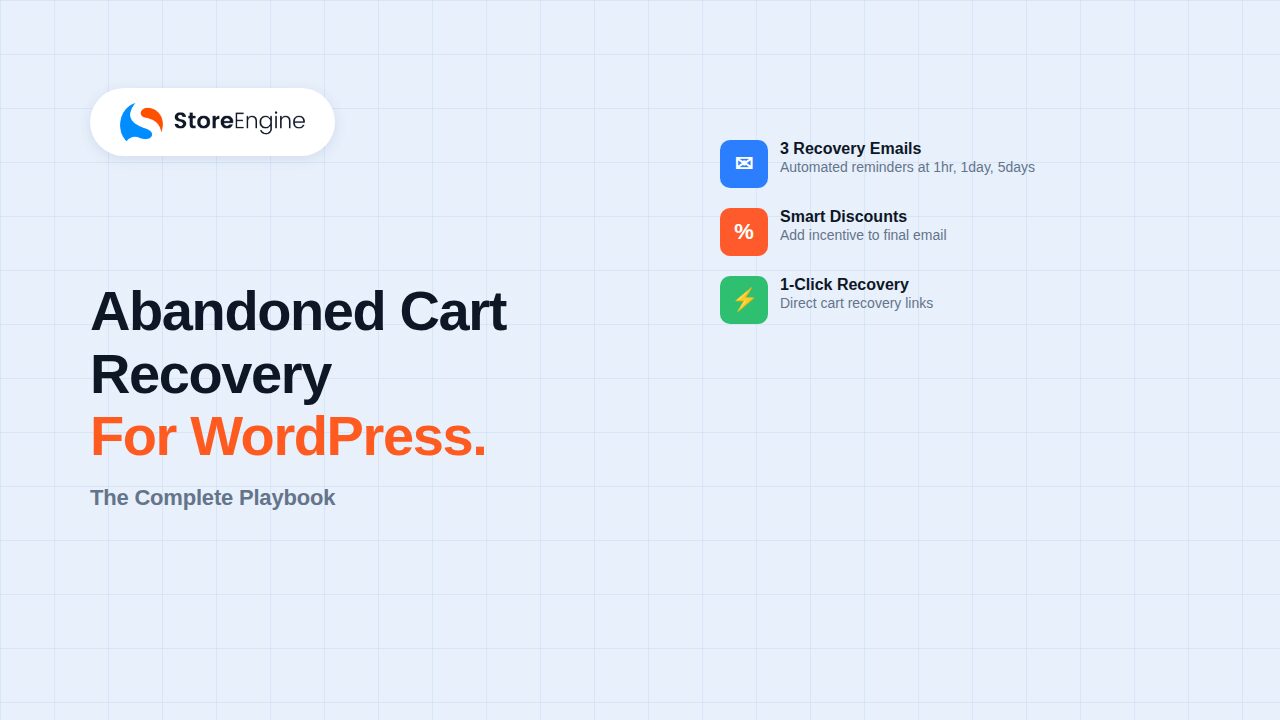

Abandoned carts represent one of the highest-margin recovery opportunities in eCommerce. Studies show that 70% of online shopping carts are abandoned before checkout completes — but with the right strategy, you can recover 10-30% of that lost revenue. StoreEngine’s native Abandoned Cart feature lets you automate recovery emails, set strategic discounts, and personalize messaging — all without leaving WordPress.
This guide shows you exactly how to set up, configure, and optimize abandoned cart recovery in StoreEngine, including setup steps, configuration best practices, and real-world scenarios.
💡 Quick Takeaway:
Abandoned cart recovery is not optional. A single 1% improvement in recovery rate can add $5,000–$50,000+ annually in recovered revenue for stores doing $100K–$1M in annual sales.
Why Abandoned Carts Matter in eCommerce
Abandoned carts happen to every store. When a customer adds items to their cart but leaves without completing the purchase, you lose not just that transaction — you lose the customer relationship and future repeat purchases. The challenge: by the time you notice, the customer has moved on to a competitor.
StoreEngine’s Abandoned Cart Addon solves this by:
- Automatically tracking when a cart is left unpaid
- Triggering recovery emails at strategic intervals
- Personalizing messages with customer names and cart details
- Adding incentives (discounts) to motivate completion
- Providing analytics to track recovery success
Unlike WooCommerce, which requires a 3rd-party plugin stack (WooCommerce + email plugin + automation layer), StoreEngine integrates cart tracking and email templates natively — meaning fewer moving parts, fewer bugs, and simpler setup.
Step 1: Enable Abandoned Cart in StoreEngine
Before you can track and recover abandoned carts, you need to activate the Abandoned Cart Addon and enable the Email Notification system.
Prerequisites Checklist:
- StoreEngine (latest version) installed and activated
- StoreEngine Pro add-on active
- Abandoned Cart Addon enabled from StoreEngine → Add-ons
- Email Notification Addon enabled (required to send recovery emails)
Once enabled, you’ll see “Abandoned Cart” listed in the Settings menu. Navigate to StoreEngine → Settings → Abandoned Cart & Checkout to access the full configuration panel.

Figure 1: Locating the Abandoned Cart Addon in StoreEngine → Add-ons
The Abandoned Cart addon should appear as a toggle switch. Ensure it’s enabled (blue toggle) and that Email Notification is also active.
Step 2: Configure Cart Cut-off Time
The “Cart Cut-off Time” setting defines when a cart transitions from “active” to “abandoned.” This is the key timing variable that controls when your first recovery email triggers.
How It Works:
When you set a cut-off time (e.g., 30 minutes), StoreEngine tracks inactivity from the last user action. If a customer adds items to their cart at 10:00 AM but takes no further action, and your cut-off is 30 minutes, the cart is marked abandoned at 10:30 AM.
Recommended cut-off times by business model:
- Impulse purchases (digital products, subscriptions): 15–30 minutes
- Standard retail (physical products): 30–60 minutes
- High-ticket items (luxury goods, B2B): 2–4 hours
The shorter the cut-off, the faster you reach abandoners (but you risk emailing users still shopping). The longer the cut-off, the more certain you are the cart is truly abandoned (but recovery rates drop as users move on.

Figure 2: Abandoned Cart & Checkout Settings in StoreEngine. Set Cart Cut-off Time (30 minutes recommended) and configure email delays.
In the Settings panel, you’ll see “Cart cut off time” set to 30 minutes by default. Adjust this based on your business model.
Step 3: Set Up Your Recovery Email Sequence
StoreEngine allows up to 3 reminder emails, each with its own delay and customization. Think of this as a multi-wave recovery funnel: the first email re-engages attention, the second nudges skeptics, and the third (optional) closes with urgency or a stronger incentive.
Email 1: Immediate Reminder (1 Hour Delay)
The first email should arrive while the customer still remembers their shopping session. A 1-hour delay works well because:
- Customer is still in “shopping mode”
- Decision friction (why they left) is fresh in mind
- Competitive urgency is highest
Subject line example: “Your Cart Awaits – Complete Your Purchase!” or “We Saved Your Items”
Email 2: Second Wave (24 Hours Delay)
If the customer didn’t respond to Email #1, they may have been busy or distracted. The second email hits them the next day with a softer touch — no discount yet, but social proof or scarcity language can work.
Subject line example: “Don’t Miss Out – Your Cart Expires Soon” or “3 People Just Viewed These Items”
Email 3: Final Push (5 Days Delay)
By day 5, the customer has had time to think. This email is your last chance — typically paired with a discount or free shipping incentive to break the final objection.
Subject line example: “Last Chance: 10% Off Your Cart (Expires Today)” or “Final Reminder: Your Items Are Selling Out”
Step 4: Configure Discount Settings
Discounts are the most powerful motivator for cart abandonment recovery. In StoreEngine, you control both the discount amount and which email it appears in.
Discount Configuration Options:
- Type: Percentage (e.g., 10% off) or Fixed amount (e.g., $5 off)
- Amount: Set the incentive size (balance urgency with margin)
- Expiration: Set how many days the coupon remains valid
- Which Email: Choose Email 1, Email 2, or Email 3
Strategic Discount Timing:
You can choose when to introduce the discount. Common strategies:
- Aggressive: Include discount in Email #1 (converts faster, erodes margin)
- Balanced: Include in Email #2 (gives customers time to reconsider, adds incentive)
- Patient: Include in Email #3 (maximizes full-price recovery, discount is last resort)
For most stores: 10-15% off (or $5 free shipping) in Email #2 works well. This gives non-responders an incentive without broadcasting discounts too early.

Figure 3: Discount Settings in StoreEngine. Set discount type (Percentage or Fixed), amount, expiration days, and choose which email to send it with.
In this example, a 10% discount is configured to expire in 7 days and will be sent with the First Reminder Email. You can adjust these values based on your margins and strategy.
Step 5: Customize Recovery Email Templates
StoreEngine’s Email Template editor gives you full control over every element: subject line, heading, body copy, buttons, and dynamic variables.
Available Template Variables:
- {user_display_name} — Customer’s first/last name
- {customer_first_name} — First name only
- {customer_last_name} — Last name only
- {site_title} — Your store name
- {site_url} — Your store URL
- {abandoned_cart_discount} — Discount details (if enabled)
- {cart_items} — List of items in the abandoned cart
- {cart_totals} — Cart subtotal and total
- {abandoned_cart_button} — “Complete Purchase” button link
Example Email Body Template:
Hi {customer_first_name}, We noticed you left some items in your cart, and we want to make sure you don’t miss out on your favorites! [Cart items display here] {abandoned_cart_discount} [Complete Purchase Button] If you have any questions, reply to this email. We’re here to help!
Template Best Practices:
- Keep subject lines under 50 characters (mobile-friendly)
- Use personal names {customer_first_name} to increase open rates
- Show cart items so customers remember what they wanted
- Make the recovery button stand out (use color, size, action-oriented text)
- Test the email preview before publishing to catch formatting issues

Figure 4: Email Template Editor for Abandoned Cart Recovery #1. Use blocks to customize subject, heading, body content, and add variables like {abandoned_cart_discount} and {cart_items}.
The template editor shows the Abandoned Cart Recovery #1 email configuration. You can see variables like {abandoned_cart_discount} and {cart_items} which are populated dynamically when the email is sent. The preview on the right shows how the email will render.
Common Setup Scenarios (By Business Model)
Scenario 1: Digital Product Store (eBooks, Templates, Software)
Digital products have high margins and low cart values, so recovery is critical.
- Cart cut-off time: 15 minutes (customers decide fast)
- Email 1: 30 minutes (re-engagement)
- Email 2: 6 hours (reminder)
- Email 3: 2 days (final discount push)
- Discount: 15% off (high margin allows aggressive incentive)
Scenario 2: Physical Retail Store (Clothing, Electronics)
Physical products have longer decision times and shipping concerns.
- Cart cut-off time: 60 minutes
- Email 1: 1 hour (soft reminder)
- Email 2: 24 hours (second chance)
- Email 3: 5 days (final offer)
- Discount: Free shipping (often more motivating than % off for physical goods)
Scenario 3: Subscription / Membership Service
Subscriptions have high lifetime value, so patience and education matter.
- Cart cut-off time: 120 minutes
- Email 1: 2 hours (soft re-engagement, focus on benefits)
- Email 2: 48 hours (social proof, testimonials)
- Email 3: 7 days (limited-time 20% discount)
- Discount: 20% off first month (subscription LTV justifies deeper discount)
Step 6: Access Email Settings & Send Test Emails
Once you’ve configured your discount and email delays, you can customize and test each recovery email before it goes live. StoreEngine provides an email editor for each of the three reminder emails.

Figure 5: Email Notification Templates list showing Abandoned Cart Recovery #1, #2, and #3. Click “Edit Template” to customize each email.
This view shows all email notification templates in StoreEngine. You’ll see Abandoned Cart Recovery #1, #2, and #3 listed. Each has its own “Edit Template” button, allowing you to customize the subject line, body, and variables independently.
StoreEngine vs. Other WordPress eCommerce Platforms
When setting up abandoned cart recovery in WordPress, you have options. Here’s how StoreEngine compares to WooCommerce and the WooCommerce + Klavioy stack:
|
Feature |
StoreEngine |
WooCommerce |
WooCommerce + Klavioy |
|
Native Cart Tracking |
✓ Yes |
✓ Yes |
✓ Yes |
|
Built-In Email Templates |
✓ Yes |
✗ No |
✓ Yes |
|
Discount Management |
✓ Native |
✓ Native |
✓ Native |
|
Setup Complexity |
Low |
High |
Medium |
|
Setup Time |
1-2 hours |
4-8 hours |
2-4 hours |
|
Number of Plugins Required |
1-2 |
3-5 |
2-3 (+ SaaS) |
|
Cost (No 3rd-party Tools) |
$ |
$+ |
$$$ |
|
Monthly SaaS Fee (Email Platform) |
✓ None (native) |
✗ Requires 3rd party ($20-$300/mo) |
✗ Yes ($30-$300/mo Klavioy) |
|
Email Personalization Variables |
9+ built-in |
Limited (requires plugin) |
Extensive (Klavioy) |
|
A/B Testing (Native) |
✗ No |
✗ No |
✓ Yes (Klavioy) |
|
Multiple Recovery Email Flows |
✓ Up to 3 |
✓ Via plugin |
✓ Unlimited |
|
Support & Documentation |
Good (StoreEngine docs) |
Extensive (WooCommerce) |
Excellent (Klavioy) |
|
Self-Hosted Control |
✓ Full |
✓ Full |
✗ Partial (Klavioy is SaaS) |
|
Best For |
Stores wanting native simplicity + low cost |
Stores wanting maximum flexibility + community support |
Stores wanting advanced features + sophisticated automation |
Key Takeaway: StoreEngine gives you native cart recovery without plugin stacking or 3rd-party SaaS fees. WooCommerce requires additional plugins (AutomateWoo, WP Mail SMTP, etc.) and often integrations with Klavioy/Mailchimp, increasing setup time and cost. If you need advanced features (A/B testing, complex segmentation), WooCommerce + Klavioy is more powerful — but costs significantly more.
Optimization Tips & Best Practices
1. Test Your Email Preview Before Publishing
Always use the Preview button to check how your email renders. Look for formatting issues, incomplete variables, and broken recovery links. Many abandoned cart failures stem from broken buttons or malformed personalizations.
2. Monitor and Adjust Cut-off Times
Start with industry defaults (30–60 minutes), then adjust based on your data. If 80% of recoverable carts are flagged within 20 minutes, lower your cut-off. If most conversions happen after Email #2, lengthen the Email #1 delay.
3. Segment by Cart Value
If possible, create different discount strategies for high-value vs. low-value carts. A customer with $500 in their cart may only need a “We Miss You” message; a $15 cart might need 20% off.
4. Disable Email #1 If Email #2 Converts Better
Not every store needs all 3 emails. If your data shows Email #1 has 5% open rate but Email #2 (with discount) has 25% conversion, consider running just Email #2 and #3. This reduces email fatigue and improves ROI.
5. Use Clear, Action-Oriented Copy
Avoid generic language. Instead of “Click here,” use “Complete Your Purchase” or “Get 10% Off Now.” Button copy matters — it’s the final conversion step.
Frequently Asked Questions
Can I track abandoned carts from guest (non-logged-in) users?
StoreEngine’s “Start Tracking When User Adds to Cart” feature works with logged-in users. For guest carts, StoreEngine tracks abandonment after checkout details are entered, ensuring you still capture high-intent users. If you need guest tracking from the browse phase, consider integrating with a 3rd-party email platform like Klavioy or Mailchimp via StoreEngine’s API.
What happens if a customer replies to a recovery email saying they’re still interested?
Recovery emails are one-way automated messages. If a customer replies, they’ll receive a response based on your default email settings. Set up a manual process (or use StoreEngine’s Customer Dashboard) to flag engaged customers and pause subsequent emails. You can also disable Email #2 and #3 if Email #1 converts successfully.
Can I send different discount codes to different emails?
Currently, StoreEngine sends one discount coupon configured in Discount Settings. However, you can customize the subject line and email body text per reminder (Email 1/2/3), so you can frame the same discount differently — e.g., Email 2 emphasizes “Limited Time,” Email 3 emphasizes “Expiring Today.”
How do I know if my abandoned cart recovery is working?
Monitor the StoreEngine Reports dashboard for “Abandoned Cart Recovery” analytics. Track open rates (via your email provider), click-through rates on recovery links, and conversion rates (carts recovered ÷ total abandoned carts). A healthy recovery rate is 10-30% depending on your discount strategy and industry.