


A sale closes at your physical counter. The customer walks out satisfied. Ten minutes later, someone buys the same item through your online store — because the stock count there still says “1 in stock.”
Now you have two orders for something you cannot fulfill, a customer to disappoint, and an inventory record that belongs to neither system. This is not a discipline problem. It is a design problem.
The design problem is this: when your in-store sales system and your online store are two separate pieces of software, inventory accuracy depends on how well they communicate. Scheduled syncs fall behind real-world sales. Manual updates get missed. API conflicts write conflicting stock counts.
What you actually need is a single platform where the POS and the online store share one inventory record — not two systems trying to stay synchronized. StoreEngine’s POS Terminal is built on that premise. It is a native, browser-based point-of-sale system that runs directly inside your WordPress admin, so every in-store transaction updates the same inventory your online customers see in real time.
By the end of this article, you will understand exactly how the POS Terminal works, what it includes, how the inventory sync happens mechanically, and whether it is the right fit for your store.
Quick Answer: What Is a POS Terminal in WordPress?
- What it is: StoreEngine’s POS Terminal is a built-in, counter-facing interface that processes in-person sales directly inside the WordPress admin — no third-party POS app, no WooCommerce dependency.
- Core mechanism: Staff create orders, search or scan products, complete payment, and inventory updates automatically — all within the same platform that runs the online store.
- Who it’s for: WordPress merchants managing online and offline sales who need both channels to share accurate, real-time stock data without manual reconciliation or a second system.
- Main benefit: Inventory mismatches between physical and online sales become structurally impossible — both channels read and write to the same record.
- How to get started: Install the StoreEngine free base plugin from WordPress.org, then activate the POS Terminal Pro add-on from the StoreEngine dashboard.
What Is a POS Terminal — and Why Do WordPress Merchants Need One?
A POS Terminal — Point of Sale Terminal — is the counter-facing interface a store cashier uses to process in-person transactions. It is the equivalent of the register: the tool that creates the order, applies pricing, handles payment, and closes the sale. For WordPress store owners, the need for one appears the moment physical selling begins. A standard WordPress product page cannot take a customer’s cash, update stock counts, and record the order in the same step — you need a dedicated interface that connects to your store data in real time.

The market context matters here. Over 70% of retailers are now prioritizing omnichannel strategies, and the research consistently identifies unified POS platforms — ones that bring inventory, ecommerce, and in-store operations into a single system — as the standard those retailers are moving toward. (Retail POS System Market, Market Growth Reports) For WordPress merchants, the traditional path has been to install WooCommerce, then layer a compatible WordPress POS plugin on top. That ecommerce POS software approach works until inventory sync becomes a real operational concern — which it almost always does.
The traditional two-plugin path has a structural flaw worth naming directly: it requires two separate systems to stay synchronized. When they do not — and they often do not — inventory accuracy breaks. The next section explains why this is inherent to the architecture, not a fixable setting in any specific plugin.
Why Two Separate Systems Always Create Inventory Problems
What this actually solves is something most WordPress POS plugin comparisons do not address: the root cause of inventory mismatches is not bad software — it is two separate systems writing to two separate data stores.
When a POS plugin is layered onto a separate ecommerce platform, both systems manage inventory through different code paths, different API calls, and different timing windows. A sale through the POS writes a stock deduction at one moment. An online order processes at another.
If both happen in close sequence, or if one system is processing faster than the other, the resulting stock counts do not reliably agree. Inventory sync research confirms this directly: POS tools and plugins may update inventory differently, and if systems are not synced correctly, stock data becomes inconsistent across platforms — leading to overselling, incorrect availability, and delayed fulfillment.
The Canonical Failure Scenario
Consider a concrete situation: you run a small clothing boutique with an online store on WordPress. A customer walks in and buys the last medium in a particular jacket. Your POS records the sale.
Before the sync catches up, another customer adds the same jacket to their online cart and completes checkout. The online store had not received the inventory update yet. Now you have two confirmed orders for one jacket, and one customer who will not receive what they paid for.
WordPress inventory management documentation describes this exact pattern: “A sale happens in the store. Nobody updates the WordPress inventory. The online store still shows the old count. The item gets sold online too.” The phrase “nobody updates” suggests a discipline problem — but the real issue is that updating requires a separate manual step or an external sync job that runs on a delay.
Why Common Workarounds Fall Short
The standard workarounds — scheduled syncs, webhook triggers, manual stock adjustments — all treat the symptom rather than the cause. Scheduled syncs introduce a delay window where inaccurate stock is live. Webhooks are faster but still separate API calls that can fail, retry out of order, or conflict with concurrent operations. Manual adjustments depend on staff memory and accuracy.
None of these approaches eliminate the two-system problem. They try to manage it. The only structural fix is to not have two systems in the first place — and that is the premise StoreEngine’s POS Terminal is built on.
How StoreEngine’s POS Terminal Works — From Counter to Cart
StoreEngine’s POS Terminal is a browser-based point-of-sale interface that runs inside the WordPress admin. It is not a separate application, not a mobile app that syncs to your store, and not a bridge to a third-party POS provider. It is a native interface within the same platform that manages your online products, orders, and customers.
The part most workflows get wrong is the assumption that “integration” is good enough. An integrated POS is two systems talking. A native POS is one system with a counter-facing view. StoreEngine’s POS Terminal is the latter.
Opening a Cashier Session
Before any sales can be processed, a staff member opens a POS session. This establishes the register context: who is operating the terminal, what the opening float is (the starting cash amount in the drawer), and which register is active. Sessions are discrete — each one tracks its own opening balance, cash movements, and closing float — so end-of-day reconciliation is tied to the session record, not reconstructed from memory or a separate log.
Creating an Order
From the session interface, staff create orders by searching for products by name, SKU, or barcode. A USB keyboard-wedge barcode scanner works as a direct input method — scanning a product barcode populates the cart exactly as typing a SKU would. Products are added to the cart, quantities are set, and discounts are applied with supervisor PIN verification required for approvals above the cashier’s permission level. This prevents unauthorized discounting without requiring a manager to be physically present for every transaction.
Processing Payment
Cash transactions are handled natively, with change-due calculated automatically. For card-present payments, StoreEngine’s POS Terminal supports Stripe Terminal — a physical card reader that integrates directly with the session. The payment amount is sent to the reader, processed by Stripe, and recorded on the order without any manual entry. If a transaction is interrupted mid-sale, carts can be parked: the current order state is saved, the terminal freed for another customer, and the original cart recalled when the first customer returns.
Transaction Close and Inventory Update
When payment is confirmed, the transaction closes. At that moment, the inventory count for every product in the order is decremented in the same database that powers the online store — not through an API call to a separate system, not on a sync schedule.
The stock count updates because both the POS Terminal and the online storefront read from, and write to, the same underlying product record. This is the mechanism that eliminates inventory mismatches by design.
What the POS Terminal Interface Includes
StoreEngine’s POS Terminal is a full-featured commercial POS built specifically for WordPress ecommerce — not a lite version of something larger, and not a port from a different platform.

Cashier Session Management
Each register operates through a session that tracks opening and closing floats, cash movements (for situations like adding change to the drawer mid-shift), and a complete summary of all transactions within that session. End-of-day reconciliation uses the session record directly — the data is already there, not something to reconstruct from two separate reports.
Product Search and Barcode Scanning
Products are searchable by name, SKU, or barcode. The barcode lookup works with standard USB keyboard-wedge scanners — no proprietary hardware driver required. The scanner reads the barcode and inputs the SKU as keystrokes; the POS Terminal matches it to the product and adds it to the cart. This is a point of sale WordPress store owners can run with standard off-the-shelf hardware from day one.
Staff Roles and Supervisor Controls
Multiple cashiers can operate the POS Terminal with distinct role assignments. Supervisor PIN verification gates specific actions — primarily discount approvals — so cashiers work within defined permissions. This is the built-in POS access control structure, not a separate plugin or user role system.
Customer Management
Customer records are accessible within the POS interface. Staff can look up existing customers by name or account, or create new customer records at the counter. Purchase history, order details, and customer information are stored in the same system as online orders — there is no separate POS customer database to maintain.
Parked Carts
Mid-transaction interruptions are handled through cart parking. An active cart is saved as a server-side record, the terminal freed for another transaction, and the original cart recalled when needed. The cart persists even if the browser is closed or the device changes, because it is stored in the database — not in browser state.
Receipt Customization
Receipt output is configurable per register. Header and footer content, custom fields, and format are set through the POS Terminal settings. Receipts can be printed or emailed depending on the customer’s preference and how the terminal is configured.
Order and Sales History
Every POS transaction appears in the same order management system as online orders. There is no separate POS order log — sales history, transaction records, and reporting are centralized, with each order flagged by its originating channel. This is unified inventory tracking and order management from a single location.
Real-Time Inventory Sync — What Happens the Moment a Sale Closes
In practice, this matters most when you have the same product available in-store and online simultaneously. The question every dual-channel merchant needs answered is: when I sell something at the counter, how quickly does my online store know?
With StoreEngine’s POS Terminal, the answer is: immediately.
The Mechanism Behind the Sync
The inventory update happens at transaction close, within the same database write that creates the order record. There is no queue, no external API call, no polling interval. The product’s stock count is decremented as part of the same operation that marks the order complete. Because the online storefront reads inventory from that same database, the updated count is available to online buyers on their very next page request.
What This Looks Like Operationally
A customer at the counter buys the last unit of a product. The cashier closes the transaction. The stock count drops to zero.
If another customer is on that product page online at that same moment, the next time they refresh or attempt to add to cart, the product shows as out of stock. No manual step. No waiting for a WordPress POS inventory sync to run.
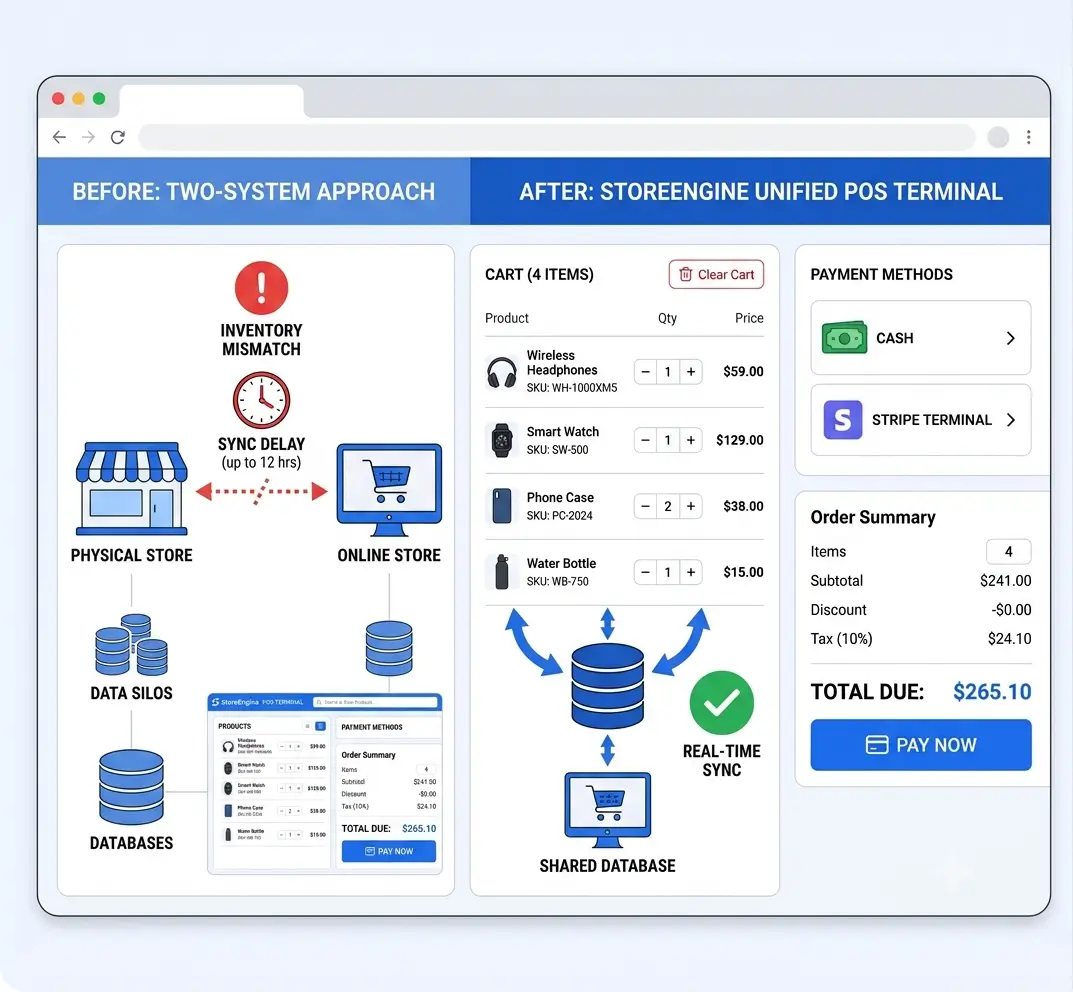
This differs structurally from a two-system setup, where managing online and offline inventory channels means the POS updates its own inventory table and a separate sync process later reads that update and writes it to the ecommerce platform. Between the physical sale and the sync completion, there is a window where the online store shows inaccurate stock. That window is exactly where overselling happens. With a native POS Terminal sharing one database, that window does not exist.
Before and After — Running a WordPress Store With vs. Without a Native POS Terminal
|
Workflow Step |
Without Native POS Terminal |
With StoreEngine POS Terminal |
|
Recording in-store sale |
Separate POS software or manual cash register |
Separate POS log + online platform orders |
|
Inventory update after sale |
Manual entry, scheduled sync, or external API call |
POS interface inside WordPress admin |
|
Online stock accuracy |
Lags physical reality by minutes or hours |
Automatic at transaction close, same database |
|
Staff training surface |
Two dashboards with different UX to learn |
Updated immediately after each in-store sale |
|
End-of-day reconciliation |
Cross-referencing two systems’ order records |
One WordPress admin for all store operations |
|
Customer record location |
Split between POS database and online platform |
Single customer record, accessible from POS and admin |
|
Order history |
Separate POS log + online platform orders |
All orders centralized, regardless of channel |
The operational difference compounds over time. Every manual sync step, every cross-system reconciliation, every “which number is correct?” conversation is a cost — not dramatic on any given day, but persistent and cumulative. Online and offline sales management from a single platform removes that cost by removing the architectural problem underneath it. That is what a native POS Terminal makes possible.
Is StoreEngine’s POS Terminal the Right Fit for Your Store?
The POS Terminal is the right fit for WordPress merchants who sell through both a physical location and an online store and need both channels to share accurate inventory. Here is a practical breakdown.
When This Feature Fits
- You sell through both a physical location and an online store, and you need both channels to share accurate inventory without manual intervention. The POS Terminal exists for this exact situation — centralized commerce operations from one platform.
- You want to run a WordPress ecommerce POS without building on WooCommerce. StoreEngine operates independently; the POS Terminal is a native add-on, not a WooCommerce extension.
- You need cashier-level access controls, session management, and Stripe Terminal support without paying per-terminal SaaS fees to a separate POS provider. These are built in.
- You run a small-to-medium retail operation — boutiques, specialty retail, pop-up shops, service providers with a physical location — where the best WordPress POS setup is one that does not require maintaining separate systems or monthly fees to a standalone POS retail system.
When This Feature May Not Apply
- Your store is entirely online with no physical sales channel. The POS Terminal solves a specific dual-channel problem; if that problem does not exist, this feature does not apply.
- You need advanced enterprise hardware integrations beyond what Stripe Terminal and standard barcode scanner support currently provides — multi-register deployments with proprietary enterprise POS hardware, for example.
For stores that match the first set of criteria, the relevant starting point is StoreEngine’s features page, where current add-on availability and pricing are listed.
How to Get Started with StoreEngine’s POS Terminal
Getting the POS Terminal operational is a four-step process. No developer required.
Step 1 — Install the StoreEngine Base Plugin
Search for “StoreEngine” in the WordPress plugin directory, install, and activate. Unlike a standalone pos WordPress plugin that bolts onto a separate ecommerce system, StoreEngine is the ecommerce platform itself — the POS Terminal is a native add-on within it. The free base plugin provides the full ecommerce foundation: product management, orders, customers, payment gateways, and tax management.
Step 2 — Activate the POS Terminal Pro Add-On
From your WordPress dashboard, navigate to StoreEngine → Pro → Add-ons. Locate the POS Terminal add-on and activate it. A license key from your StoreEngine account is required for Pro features.
Step 3 — Configure the Terminal
Set up cashier roles and assign access permissions. Configure per-register receipt settings — header content, footer, and format. If you are using Stripe Terminal for card-present payments, connect your Stripe account and pair the physical card reader from the POS settings.
Step 4 — Open a Session and Test a Transaction
Open a cashier session from the POS Terminal interface. Create a test order by searching for a product, add it to the cart, and complete a test transaction. After the transaction closes, check that the inventory count decrements correctly in the product management view. If it does, the sync is working and the terminal is operational.
Who Should Use StoreEngine’s POS Terminal — A Decision Guide
If you run a physical store alongside an online WordPress store → the POS Terminal gives you a single platform where every in-store sale automatically updates the stock your online customers see. No sync step, no reconciliation.
If your team includes multiple cashiers or counter staff → session-based management, supervisor PIN controls, and distinct cashier roles let you run multiple staff through the same system with appropriate access limits without needing a separate access control system.
If you are currently using a separate POS solution and migrating to WordPress → StoreEngine’s POS Terminal replaces that system, not supplements it — which means you eliminate the sync problem entirely rather than trying to manage it better.
If you want to expand from online-only to include a physical retail presence → the POS Terminal lets you add in-person selling without adding a new software platform. Your existing products, customers, and inventory are already there.
Frequently Asked Questions
What is a POS Terminal in WordPress?
A POS Terminal in WordPress is a counter-facing interface that lets store staff create orders, process payments, and update inventory directly inside the WordPress admin. StoreEngine’s POS Terminal is a native add-on — not a WooCommerce extension, not a third-party app — that runs in the browser and operates from the same platform as the online store.
Does StoreEngine’s POS Terminal require WooCommerce?
No. StoreEngine is an independent WordPress ecommerce plugin. The POS Terminal is a native component of the StoreEngine platform, so WooCommerce does not need to be installed. This is a key architectural difference from WooCommerce POS plugins, which require WooCommerce as a prerequisite and then sync inventory across the two systems.
How does inventory stay synchronized between in-store and online sales?
Both channels write to the same inventory record in the same database. When a sale closes through the POS Terminal, the stock count is decremented immediately — there is no separate sync process, no scheduled job, no API call to another system. The updated count is available to online store visitors on their next page load.
Can multiple cashiers use the POS Terminal at the same time?
Yes. The POS Terminal supports multiple cashier accounts with distinct role permissions. Each session tracks its own opening float, transactions, and closing balance. Supervisor PIN verification gates actions like discount approvals, so cashiers operate within defined limits without requiring a manager to authorize each transaction in person.
Does StoreEngine’s POS Terminal support barcode scanning and card readers?
Yes on both. Product search includes SKU and barcode lookup via USB keyboard-wedge scanner — any standard barcode scanner that sends keystrokes will work, with no proprietary driver required. For card-present payments, Stripe Terminal is integrated, allowing a physical card reader to process the transaction and record it on the order automatically.
Is there a free version of StoreEngine’s POS Terminal?
The StoreEngine base plugin is free and available through WordPress.org. The POS Terminal is a Pro add-on. Current pricing and plan details are available at storeengine.pro/features.
Where do POS transactions appear — in a separate log or with online orders?
All POS transactions appear in the same order management system as online orders. There is no separate POS order log. Sales history, transaction records, and reporting are centralized in one location, regardless of whether the order originated from the online store or the physical counter.
Can I use the POS Terminal without dedicated POS hardware?
Yes. The terminal is browser-based and runs in any modern browser on a laptop, tablet, or desktop computer. A barcode scanner and Stripe Terminal card reader are optional hardware additions, not requirements. A full POS session can be run from a standard laptop with only cash payment processing from day one.
What happens to parked carts if the browser is closed?
Parked carts are saved as server-side database records — not in browser state. If the browser is closed or the device changes, the parked cart remains accessible from the POS Terminal when a new session is opened.
What is the difference between StoreEngine’s POS Terminal and a separate POS plugin?
A separate POS plugin is a second system layered on top of an ecommerce platform. Inventory sync between the POS and the online store happens through API calls between two distinct software layers, on a schedule or trigger basis. StoreEngine’s POS Terminal is native to the StoreEngine platform — there is no second layer. The POS and the online store read from and write to the same data. That architectural difference is what eliminates inventory mismatches structurally rather than managing them procedurally.
Does the POS Terminal work with existing products already set up in StoreEngine?
Yes. The POS Terminal reads from the same product catalog your online store uses. Any product already configured in StoreEngine — with its existing pricing, SKUs, stock counts, and variants — is immediately available in the POS interface without any additional setup or data import.