


Adding eCommerce to an existing WordPress website can seem straightforward—until a customer reaches checkout and finds that a payment method is missing, shipping is unavailable, or tax is calculated incorrectly. A successful store launch depends on more than installing a plugin. You need to configure the essentials and test the complete buying journey before customers arrive.
Adding eCommerce to WordPress means using a store plugin to add product management, cart and checkout functionality, payments, shipping, tax settings, and order management, which are essential for building an eCommerce website. WordPress is a flexible content management system that can be customized to create an ecommerce site, but it does not include a complete eCommerce system by default. You can add those capabilities with a plugin such as StoreEngine For a general overview of building an online store with WordPress, see this WordPress eCommerce guide.
This guide walks you through the process—from preparing your existing website to publishing a product and testing your first order—using StoreEngine.
What You’ll Need Before You Start
Before adding eCommerce to WordPress, make sure you have:
You don’t need a complete catalog to get started. One product is enough to configure the store and test the checkout process.
Why WordPress eCommerce Setups Get Complicated
A store can become difficult to manage when you add separate tools for products, checkout, payments, subscriptions, and customer management without planning how they work together. Every extra plugin can add settings to maintain and another possible source of compatibility issues.
The solution is to choose an approach that fits the products you sell and the way you want to manage your store. A full eCommerce plugin keeps the main store workflow within WordPress. Other approaches, such as a digital-download plugin or an embedded buy button, can make sense for narrower requirements.
StoreEngine is a standalone WordPress eCommerce plugin; it does not require WooCommerce to run. Its features cover store setup, product management, payments, and other store workflows. WooCommerce is another established option with a broad extension ecosystem; you can compare approaches in this WordPress eCommerce overview. A hosted or headless setup, such as the approach discussed in this BigCommerce for WordPress article, can suit businesses that want to manage a catalog outside WordPress. Check the StoreEngine website and Free vs Pro comparison to confirm which features are included in the plan you need.
How to Add eCommerce to WordPress: Step by Step
The following steps take you from installation to a tested order on your ecommerce website with WordPress. The exact labels may vary slightly by plugin version, so use the linked StoreEngine documentation if your dashboard looks different while customizing your WordPress eCommerce website.
Step 1: Install and Activate StoreEngine
From your WordPress dashboard:
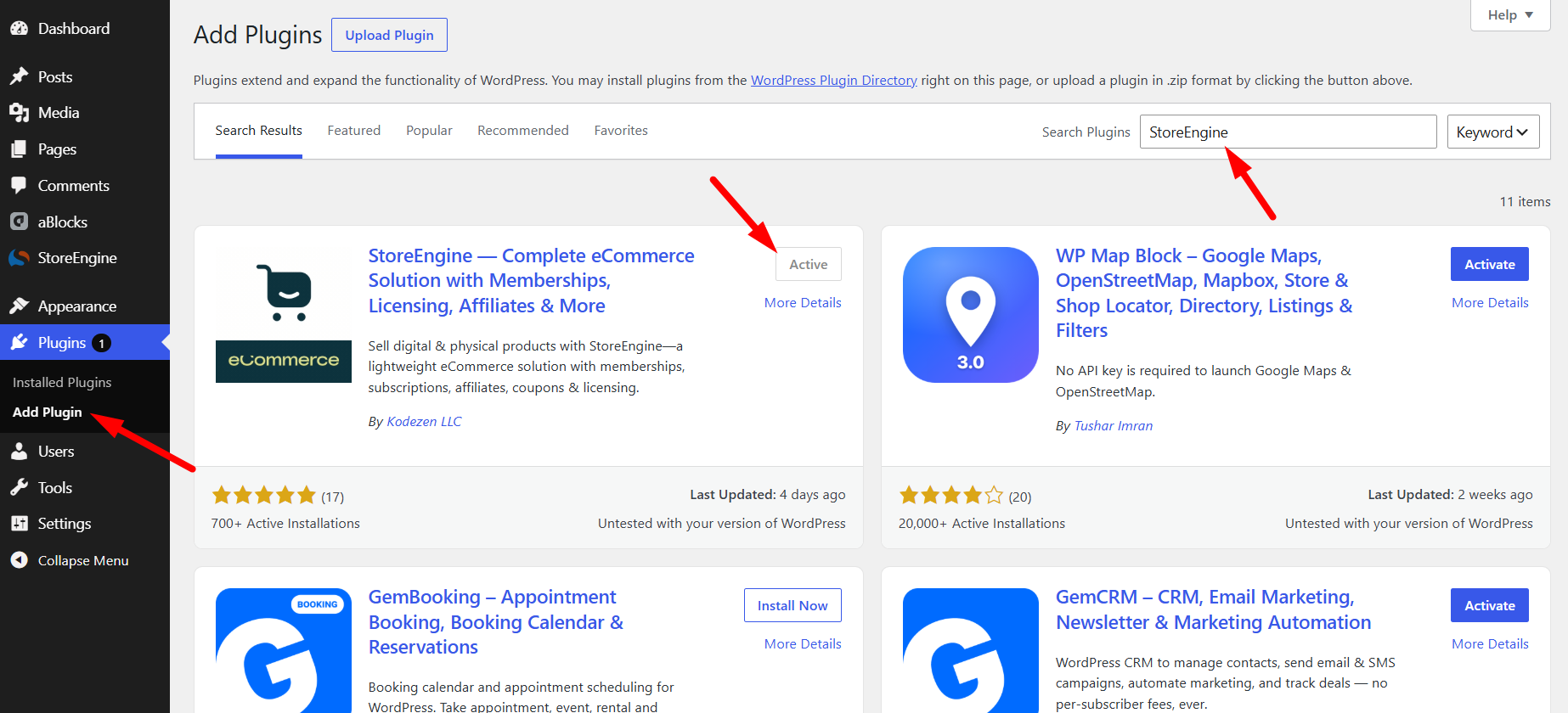
You can also get the free plugin from WordPress.org. Start with the free version and compare available plans if you need additional capabilities later.
If your website is already live, install WordPress and configure the plugin on a staging copy first to avoid any disruptions to your eCommerce operations. That gives you a chance to identify theme, caching, or plugin conflicts before customers encounter them on your ecommerce site.
Step 2: Run the StoreEngine Setup Wizard
When you activate StoreEngine for the first time, the setup wizard guides you through the main store settings. You can reopen it from StoreEngine Dashboard → Tools → Setup Wizard. Follow the StoreEngine initial setup wizard guide if you need help.
The wizard asks you to configure:
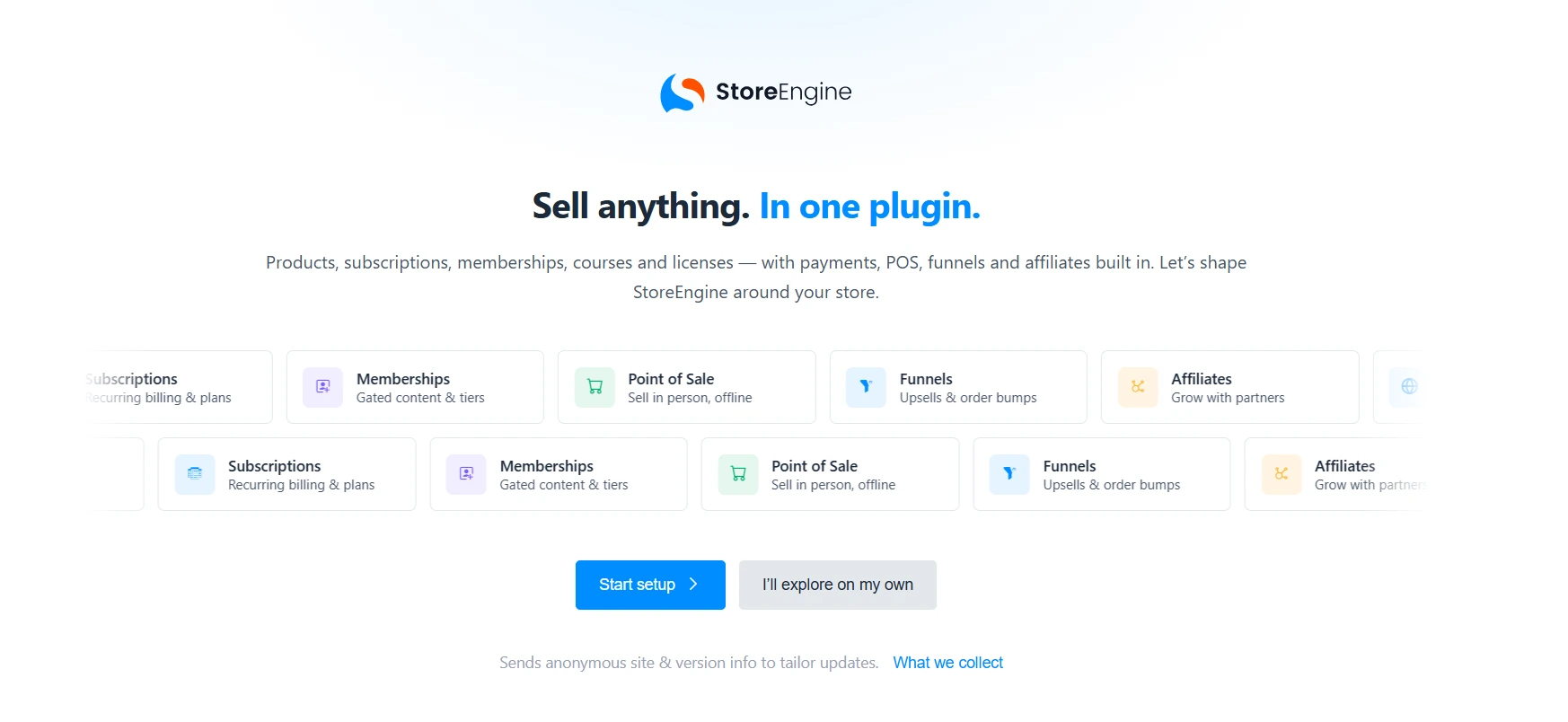
These choices help prepare your store, but they do not replace checking the settings yourself. Confirm that the currency, store details, pages, and product type match your business before you start selling.
Step 3: Check Your Store Pages and Permalinks
After the wizard finishes, open your WordPress e-commerce store. Pages in WordPress and check that your e-commerce store, Cart, Checkout, Thank You or Receipt, and Dashboard pages exist. StoreEngine’s necessary pages setup guide explains how to create and assign them if anything is missing.
Check the page URLs too. If your WordPress site already has a page using a slug such as /shop/, resolve the conflict before launching the store. Avoid changing an established permalink structure without a reason, because existing links and search engine rankings may be affected, impacting your WordPress eCommerce website’s visibility.
Open the pages on desktop and mobile for your e-commerce site. Confirm that the content displays correctly, buttons work, and customers can move from a product to the cart and checkout without getting stuck.
Step 4: Configure Your Payment Methods
A payment method allows customers to pay for their orders. StoreEngine includes options such as bank transfer, check payment, and cash on delivery. Stripe and PayPal can be enabled through their respective add-ons. Additional gateway availability may depend on the relevant companion plugin, configuration, and region.
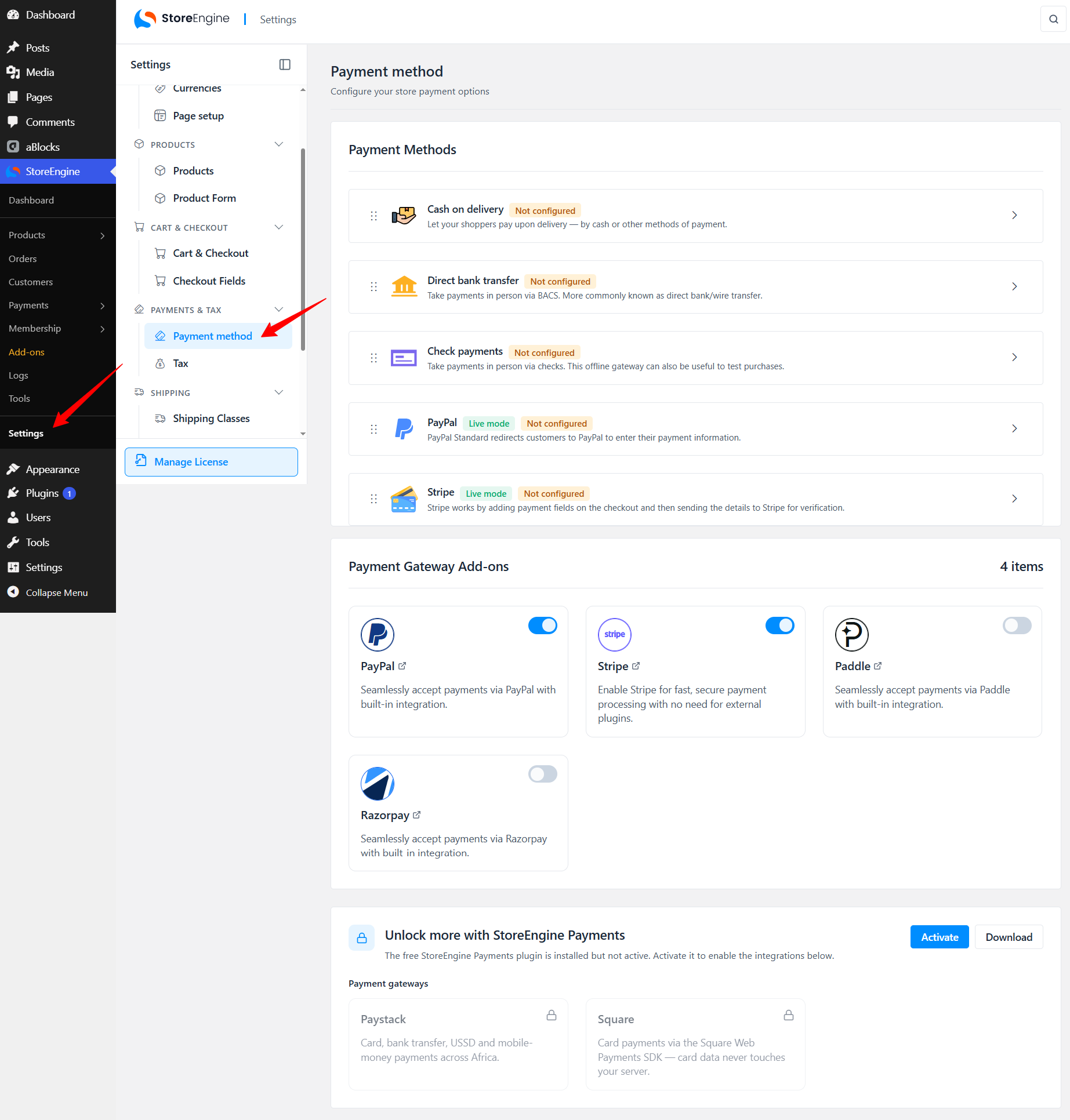
To configure payments:
Follow the official StoreEngine payment methods guide for the current setup steps. For Stripe credentials, refer to Stripe’s API keys documentation.
Offer payment methods that make sense for your customers and location. Do not switch to live payments until you have confirmed that the checkout and order confirmation work as expected.
Step 5: Set Up Shipping Zones
If you sell physical products on your ecommerce website, customers need to see the shipping options and costs that apply to their delivery address. A shipping zone is a geographic area—such as a country, state, or region—with its own shipping methods and rates.
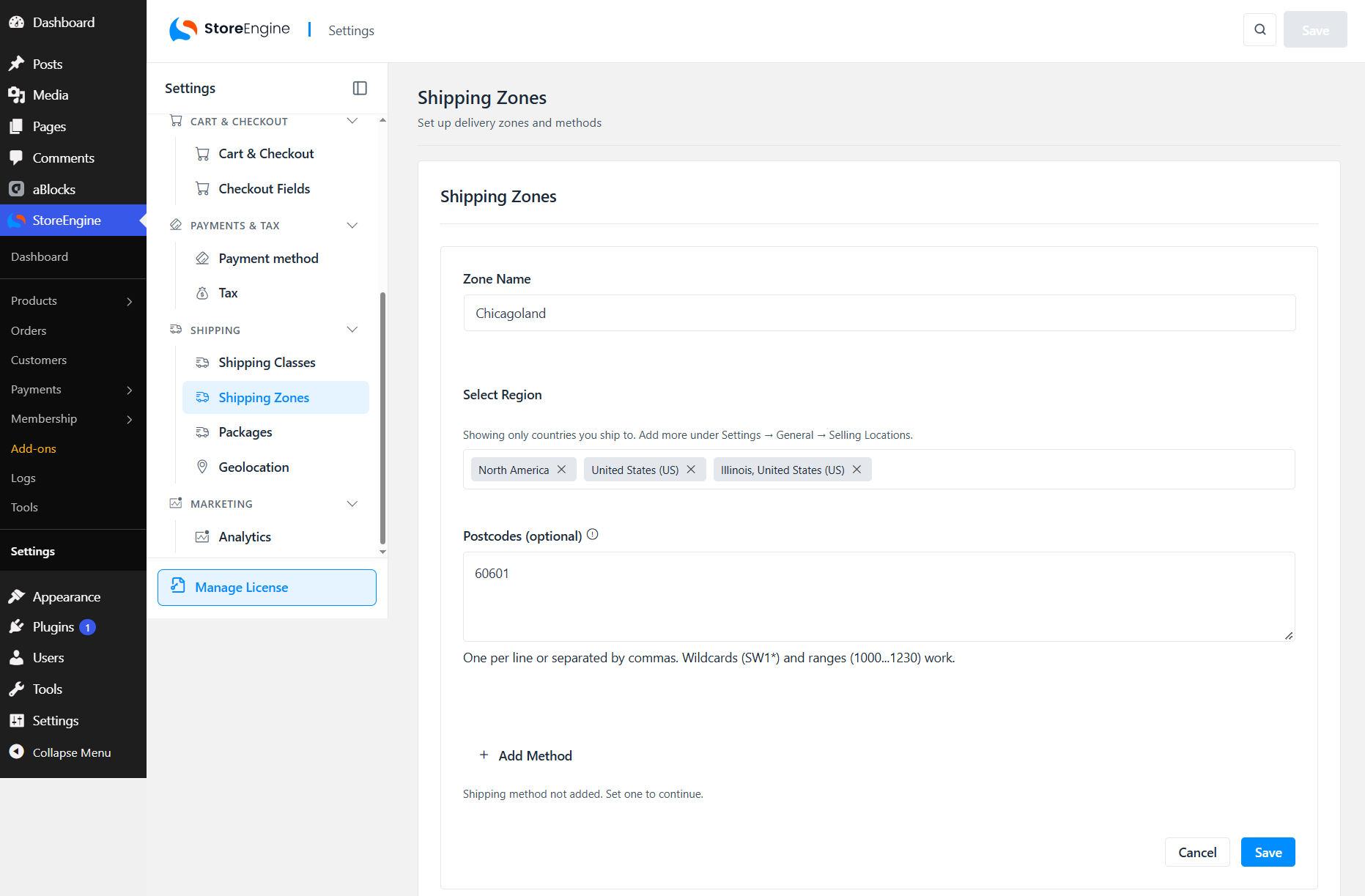
To configure shipping in StoreEngine:
See the e-commerce site StoreEngine shipping zones guide for details.
Test an address inside each zone and another address outside your configured areas. Make sure customers see a valid shipping method and an accurate cost—or a clear message if you do not deliver to their location. If you sell digital products only, shipping may not be necessary for those products.
Step 6: Configure Tax Settings
Tax requirements depend on where your business operates and where your customers are located. Configure tax settings only after confirming the rules that apply to your store.
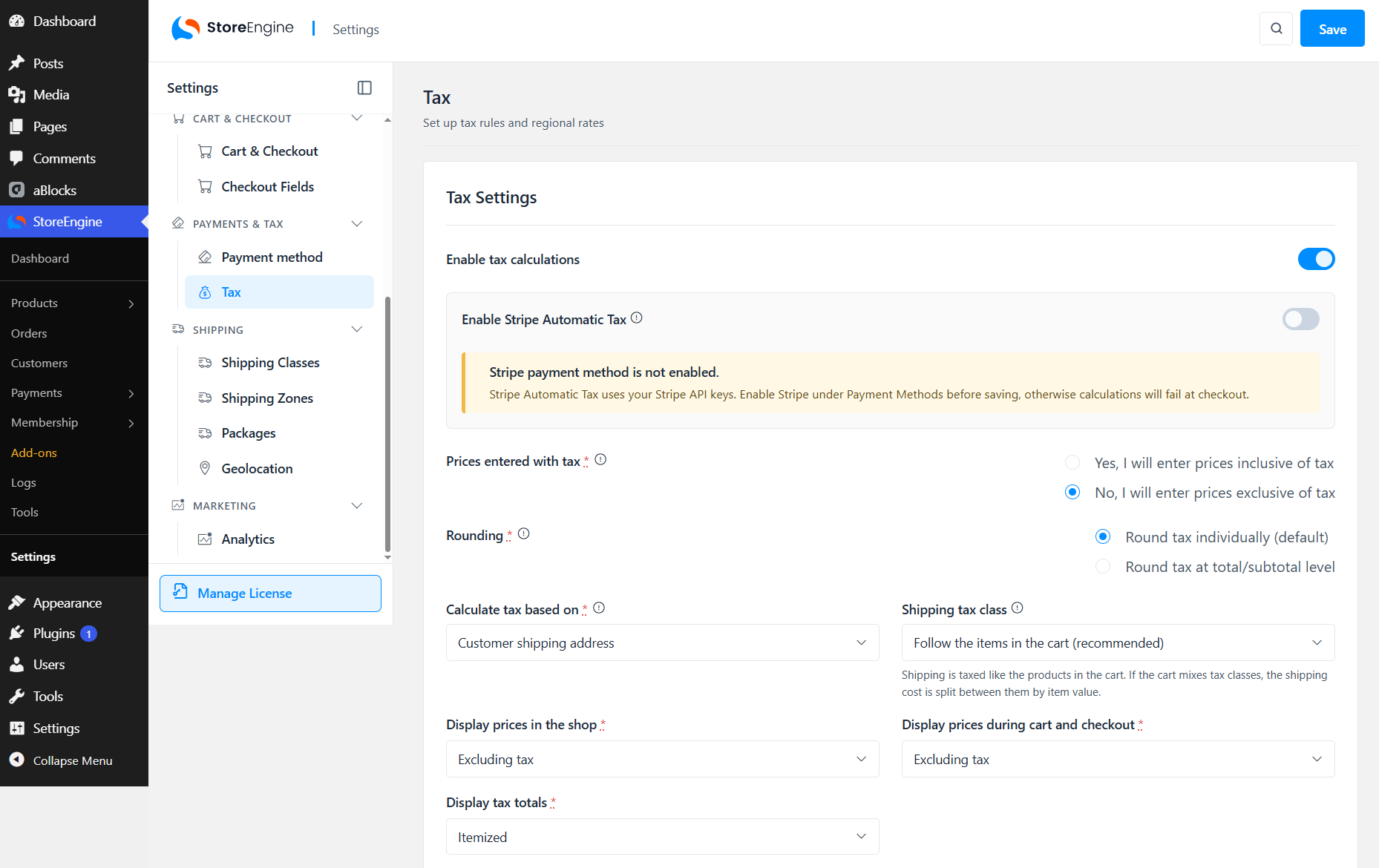
First, add your business location under StoreEngine → Settings → General Settings → Store Address. Then open Product Settings and enable features for your ecommerce store. Tax Calculation. The Tax section will become available for configuring rates and display preferences.
Review these settings carefully:
StoreEngine’s tax management guide explains the configuration process. Tax rules vary by location, so verify rates and obligations with your local tax authority or a qualified accountant to ensure compliance for your ecommerce site.
For example, if a hypothetical region charges 8.5% tax on a $40 product and the product price excludes tax, the tax amount would be $3.40, which is an important consideration when you make an eCommerce website using WordPress and WooCommerce. The final total may also include shipping and any applicable tax on shipping. Always test an example order to confirm that the calculation matches your intended rules.
Step 7: Create and Publish Your First Product
Once the basic store settings are ready, add a product. Go to StoreEngine → Products → Add New Product and enter the product title and description. Save a draft first if you want to review the product before publishing it.
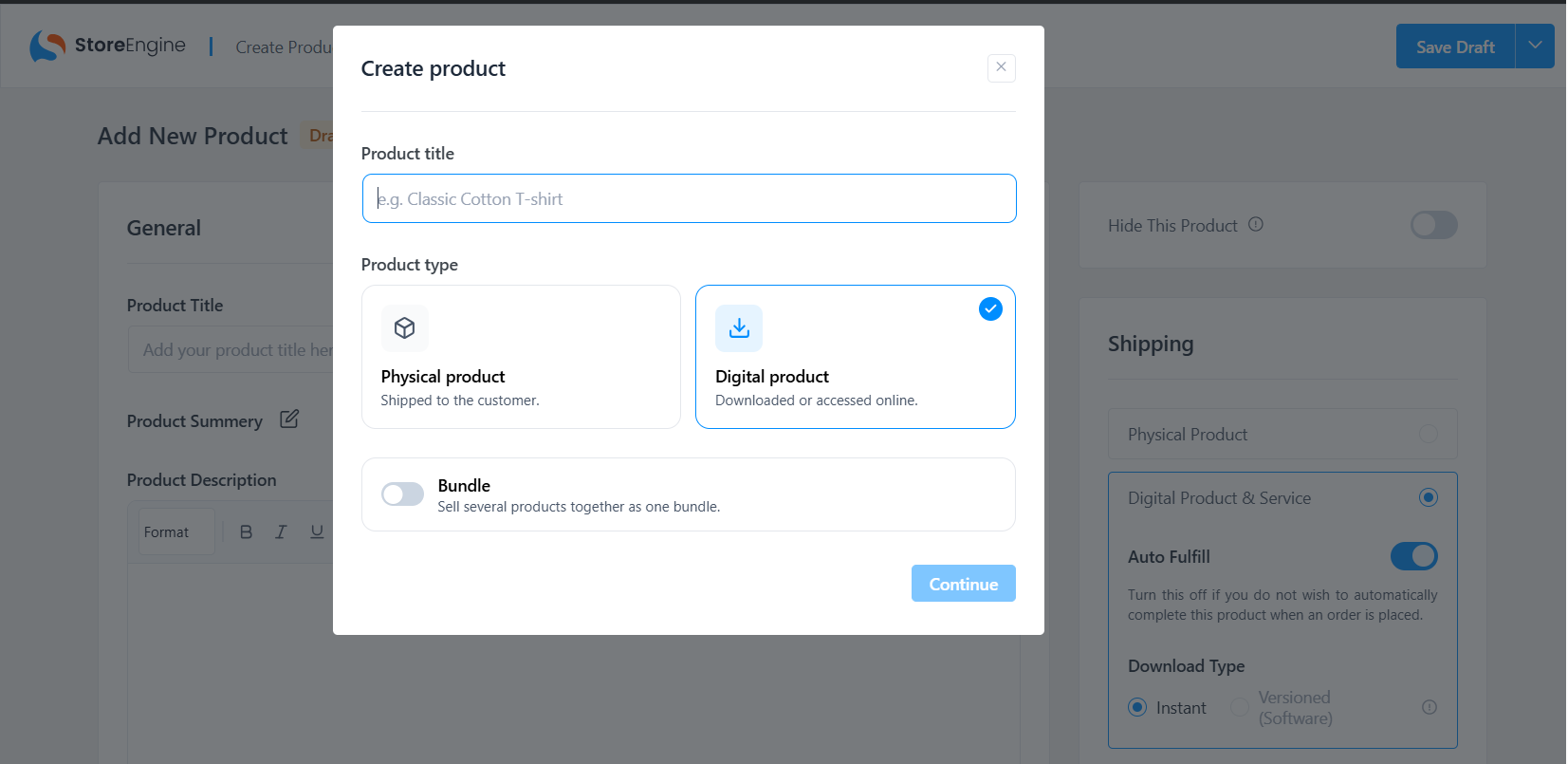
Use the relevant product settings for what you sell:
StoreEngine’s guides explain how to create physical products , sell physical products, manage your WordPress e-commerce products digital downloads for your e-commerce site, and offer. For stores selling different product types together, review the mixed integration and checkout guide. If you are moving an existing WooCommerce store, check StoreEngine’s migration add-on documentation and WooCommerce alternative comparison before deciding to switch.
Add clear product images, a useful description, an accurate price, and the appropriate category to enhance SEO. Then preview the product on desktop and mobile before publishing it.
Step 8: Place a Test Order Before Going Live
Do not assume the store is ready because the product page looks correct. Complete the buying journey as a customer would.
A practical workflow is:
When the tests pass, review your live payment configuration and run any final checks required by your payment provider. If you make a real test purchase, follow the gateway and store procedures for refunding it. StoreEngine’s refunds and cancellations guide for your e-commerce store can help with the store-side process.
Keep Your Store Fast and Stable
Adding eCommerce does not mean you should ignore performance. A few practical checks can help keep the experience reliable:
A new store shares your website’s theme, hosting, and plugin environment. Check for conflicts before launch rather than waiting until customers report a problem.
Automate Repeatable Store Tasks
As orders arrive, you may want to automate tasks such as notifying your team, adding customers to an email list, or starting a post-purchase workflow. StoreEngine provides features and integrations that can support store workflows; available options depend on the integration and your configuration. You can review the email notification add-on documentation for order-related email settings and the abandoned checkout recovery guide for follow-up workflows.
Before automating a process, map out the trigger and the expected result. For example, a completed order might trigger a customer email or an enrollment workflow in a connected learning platform. Test the entire workflow with a sample order, and make sure customer data is shared only with services you intend to use.
Getting Started Checklist
Use this checklist before opening your store to customers:
Common Mistakes When Adding eCommerce to WordPress
Installing plugins before planning the store
Adding several plugins before deciding how products, payments, and orders should work can create overlapping settings and unnecessary maintenance.
What to do instead for your online shop: Decide what you sell and what your store needs first. Choose a solution that fits the current requirements of your e-commerce store and leaves room for reasonable growth, especially in terms of customization options available in WordPress themes.
Testing only the product page
A product page can look perfect while checkout, shipping, tax, or order emails are broken.
What to do instead: Complete an end-to-end test order on your online shop, including a relevant delivery address and payment test. Review the order record and confirmation email.
Hiding shipping costs until checkout
Unexpected costs can discourage customers from completing an order on your WordPress eCommerce website, so be transparent about pricing. Baymard Institute’s cart abandonment research discusses extra costs among the reasons shoppers abandon carts.
What to do instead: Explain shipping costs and delivery expectations clearly on your ecommerce store, and test the rates that appear for different addresses.
Leaving tax settings unverified
A default setting may not match your business or local tax obligations, so it’s crucial to customize your WordPress eCommerce website accordingly.
What to do instead: Confirm the rules that apply to your products and locations, configure StoreEngine accordingly, and validate the tax shown on a sample order.
Making changes directly on a busy live site
A plugin or theme conflict can affect customers if you discover it during setup.
What to do instead: Back up the site and use staging to test installation, configuration, and major updates before applying changes to the live store.
Adding eCommerce to WordPress Doesn’t Have to Be Complicated
You can add an online store to an existing WordPress website without rebuilding the whole site. Start with the essentials: install StoreEngine, run the setup wizard, configure payments and shipping, review tax settings, publish a product, and test the checkout from beginning to end.
StoreEngine is a standalone option for businesses that want to manage their store through WordPress. Explore the StoreEngine website, review the Free vs Pro comparison, and check the documentation for the features you plan to use.
Start with one product and a tested checkout. Once the basics work reliably, you can expand your catalog and add the store features your business actually needs.
Frequently Asked Questions
Can I add eCommerce to an existing WordPress website without rebuilding it?
Yes. You can add a store plugin alongside your existing pages and posts to create an online store. Back up your site first, test on staging, and check for page URL conflicts before launching.
Do I need WooCommerce to sell on WordPress?
No. WooCommerce is one option, but it is not the only one. StoreEngine is a standalone WordPress eCommerce plugin and does not require WooCommerce to run. Compare the available features and extensions against your store’s requirements before choosing a plugin.
How much does it cost to add eCommerce to WordPress?
You can start with a free plugin such as StoreEngine. Your overall costs may include hosting, a domain, payment processing fees, and paid features or services you choose to use. Check the current StoreEngine pricing for your WordPress e-commerce site and Free vs Pro comparison for plan details.
Can I sell physical and digital products in the same WordPress store?
StoreEngine supports physical products and digital downloads, making it a great choice for anyone looking to build an eCommerce website using WordPress. If you want to sell different product types in one order, review the mixed checkout documentation and test your exact product combination before launch.
How do I accept payments on a WordPress website?
Install a store plugin, enable a supported payment method, and configure it with the details required by the provider. StoreEngine includes offline methods, and Stripe and PayPal can be enabled through their respective add-ons. Follow the payment setup guide and test the checkout on your ecommerce site before accepting live payments.
Do I need an SSL certificate to sell online?
Your website should use HTTPS before accepting payments. Check that your hosting plan includes a valid SSL certificate and confirm that your store pages load securely.
How long does it take to add eCommerce to WordPress?
Installing the plugin and running the setup wizard can be quick. The total time depends on the number of products, payment methods, shipping regions, tax rules, and integrations you need to configure. Allow enough time to test the complete checkout process before launch.