


You don’t need WooCommerce to accept PayPal payments on your WordPress store. StoreEngine and other lightweight solutions give you direct PayPal integration, lower overhead, and faster checkouts—all without the bloat. In this guide, we’ll walk through exactly how to set this up.
| 💡 Quick Takeaway WordPress paired with StoreEngine or standalone payment plugins like WP Simple Pay gives you PayPal integration in minutes, no WooCommerce dependency, and full control over your checkout experience. |
Why Skip WooCommerce? (And When It Makes Sense)
WooCommerce is powerful—but it’s also heavy. It adds database bloat, slower page loads, and complexity you might not need if you’re selling a handful of products or services.
Here’s the honest truth: many store owners activate WooCommerce, install a dozen plugins to “optimize” it, and end up with a slower site that’s harder to maintain. If you’re running a simple product catalog or service-based business, you’re paying a performance tax you don’t need to pay.
That’s where alternatives like StoreEngine come in. Built as a WordPress-native eCommerce suite, StoreEngine gives you the essentials—product management, inventory tracking, direct PayPal integration—without the overhead. Your site stays fast. Your checkout stays simple.
Plus, you avoid WooCommerce’s notorious security update cycles and compatibility headaches. You’re in control of your stack.
Direct PayPal Integration: Your Options
Before you dive into setup, let’s map out your choices. There are three main paths:
1. StoreEngine + Native PayPal Support
StoreEngine integrates PayPal directly into its core architecture. No extra plugins needed. You get:
- One-click PayPal connection (no API keys to juggle manually)
- Order tracking and fulfillment built in
- Automatic inventory updates after payment
- Customer invoice emails with one click
This is the path we recommend for most WordPress store owners. Setup takes about 10 minutes.
2. Standalone Payment Plugins (WP Simple Pay, Stripe)
If you prefer a minimal approach, plugins like WP Simple Pay or Mollie give you PayPal support without a full eCommerce framework.
- Lightweight—just payment handling
- Works with any post type or custom forms
- But: you’ll need separate tools for inventory, shipping, refunds
Good for low-volume or service sellers. Not ideal if you need automated inventory management.
3. PayPal’s Native WordPress Buttons
PayPal lets you embed purchase buttons directly on any WordPress page via their plugin or HTML embed code.
- Requires no developer setup
- Very basic—no order tracking, no auto-inventory
- Best for one-off sales or services, not product stores
If you’re selling a single e-book or course, this might be enough. If you’re building a real store, skip this.
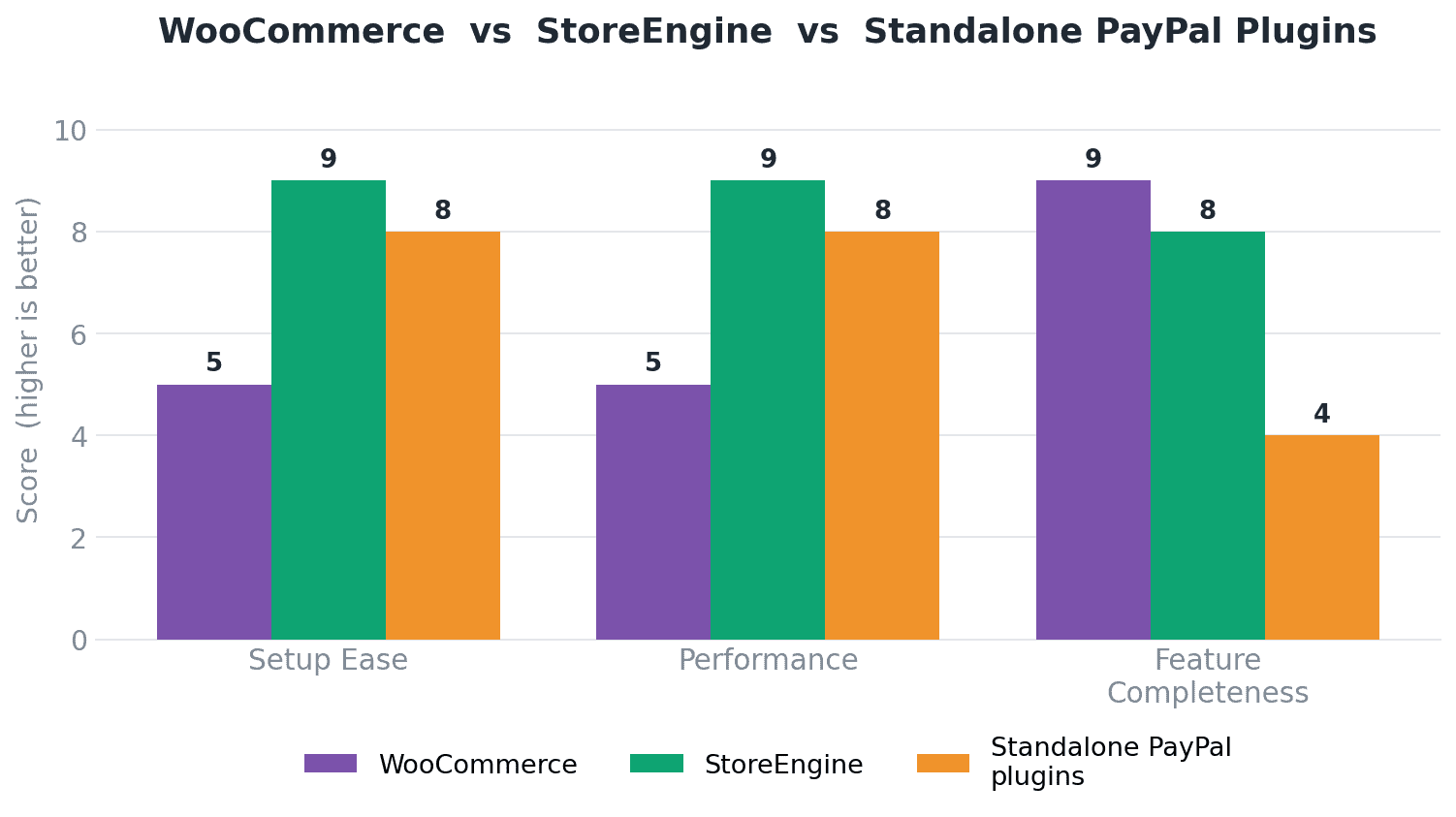
Comparison: WooCommerce vs. StoreEngine vs. standalone PayPal plugins.
Step-by-Step: Setting Up PayPal with StoreEngine
Here’s the fast track. We’re assuming you already have WordPress and StoreEngine installed.
Step 1: Log Into Your StoreEngine Dashboard
From your WordPress admin, navigate to StoreEngine → Settings. You’ll see a “Payments” tab. Click it.
Step 2: Add PayPal as Your Payment Gateway
Click “Connect Payment Gateway” and select PayPal. StoreEngine will prompt you to log in with your PayPal account.
You’ll authorize StoreEngine to process payments on your behalf. This is a secure OAuth connection—your login credentials never touch StoreEngine’s servers.
Step 3: Configure Your PayPal Settings
Once connected, you’ll see options to:
- Set your currency (USD, EUR, GBP, etc.)
- Enable invoicing (automatic emails to customers)
- Toggle live vs. sandbox mode (always test first)
Leave these on defaults unless you have a specific reason to change them.
Step 4: Test Your Checkout
Before going live, test a purchase. Use PayPal’s sandbox mode (it’s toggled in settings). Add an item to your cart, click checkout, and complete a test transaction.
You should see:
- Order created in StoreEngine
- Confirmation email sent to customer
- Payment showing in your PayPal account
If all three happen, you’re ready. If not, check your email settings and PayPal API connection.
Step 5: Go Live
Once testing is done, flip the toggle from “Sandbox” to “Live.” Your store now accepts real PayPal payments. Watch your first transaction come through—it’s always satisfying.
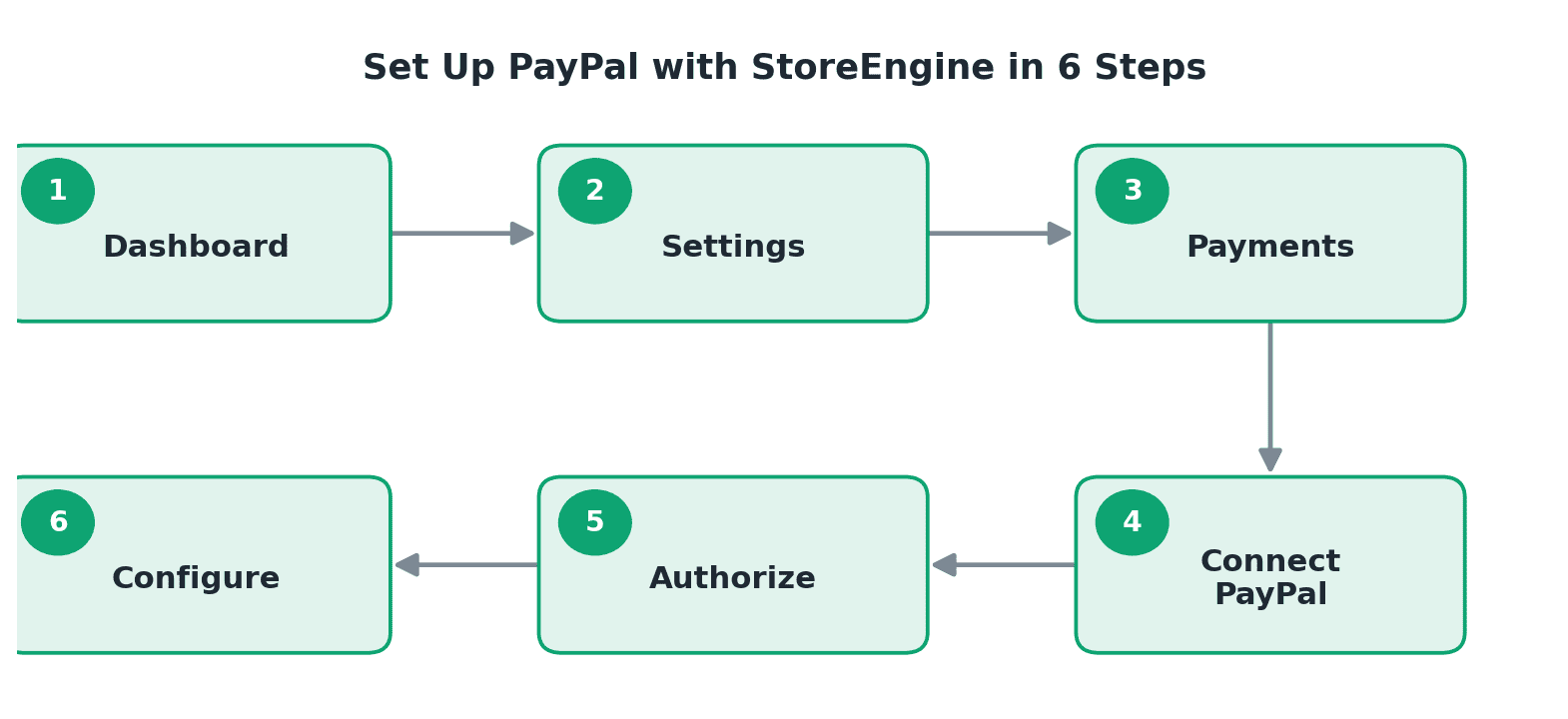
The full setup flow: Dashboard → Settings → Payments → Connect PayPal → Authorize → Configure.
Handling Refunds, Disputes, and Chargebacks
PayPal will occasionally throw curveballs. Here’s what to expect and how to handle it.
Refunds
A customer buys something, realizes it’s not right, and asks for their money back. Here’s the friction-free way to handle it:
- Go to your StoreEngine order history
- Find the customer’s order
- Click “Issue Refund”
- StoreEngine syncs with PayPal automatically
The money goes back to their account within 1–3 business days. Seriously, that simple.
Disputes and Chargebacks
Sometimes a customer disputes a charge through their bank (not through PayPal). This is called a chargeback.
PayPal notifies you immediately. You get a 10-day window to respond. Do it. Even if you think you’re wrong, respond with:
- Order confirmation screenshots
- Delivery/access proof (email logs, etc.)
- Communication with the customer (if you have it)
Most chargebacks go in the merchant’s favor if you provide evidence. Don’t ignore them.
PayPal Fees: What You Actually Pay
No one likes fees, but here’s what PayPal actually takes from each transaction:
Standard PayPal Rates (Domestic)
- 2.9% + $0.30 per transaction
Example: A customer buys a $50 product. PayPal takes $1.75. You get $48.25.
Cross-Border Payments
- 4.4% + $0.30 (if customer and merchant are in different countries)
Volume Discounts
- If you hit $20k+ in monthly volume, PayPal offers lower rates (2.2% + $0.30).
These fees are industry-standard. Stripe and other gateways charge similar rates. The difference is usually negligible—focus on growing sales, not micro-optimizing fees.
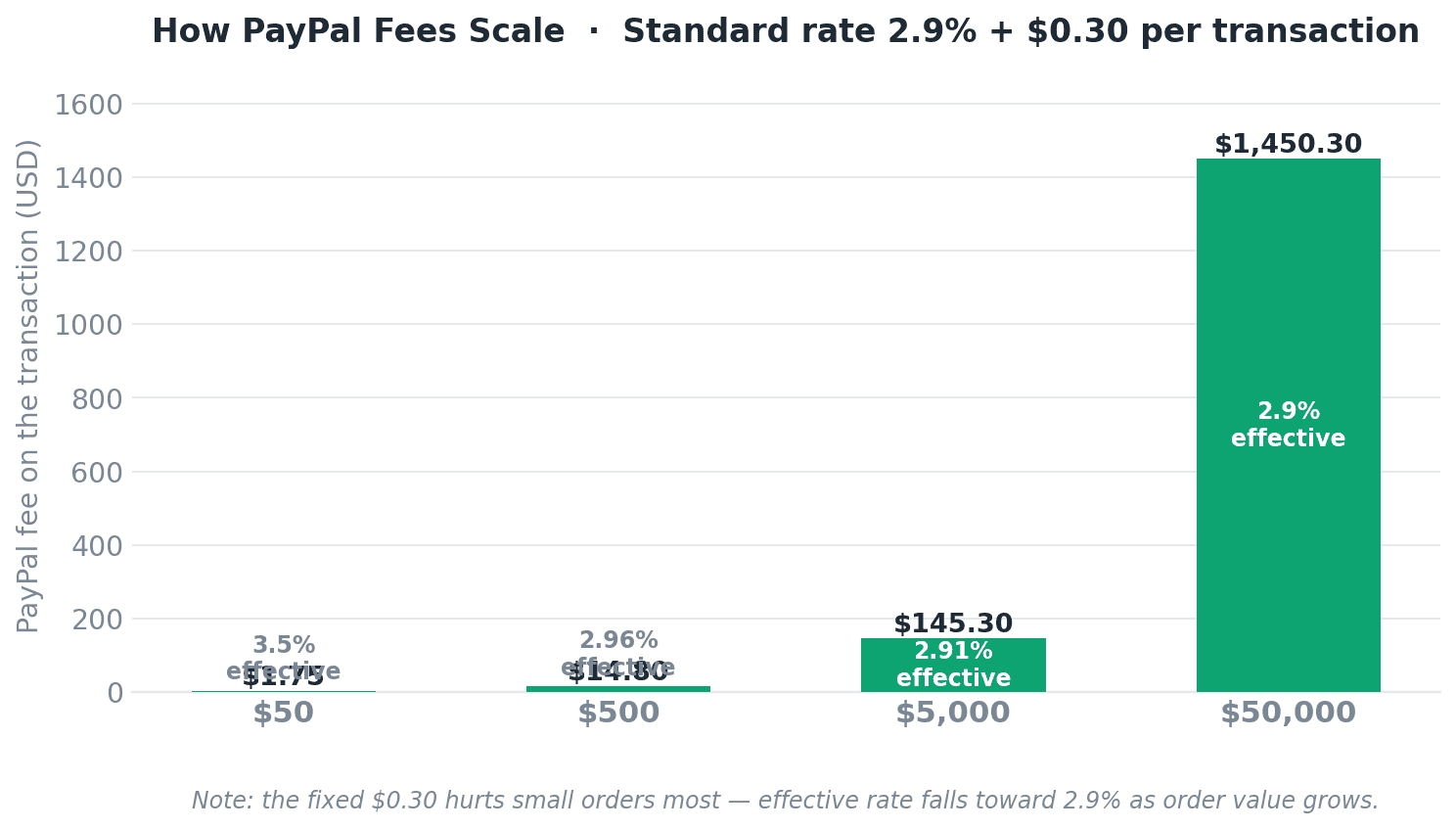
How PayPal fees scale across transaction sizes ($50 to $50,000).
Common Pitfalls (And How to Avoid Them)
Pitfall 1: Not Testing in Sandbox Mode
Going live without testing is asking for trouble. Always run 3–5 test transactions first. It takes 10 minutes.
Pitfall 2: Forgetting to Configure Email Notifications
Your customers expect an order confirmation email. Set this up in StoreEngine → Email Settings. Include:
- Order number
- Product details
- Download link (if digital product)
- Support contact
Pitfall 3: Ignoring Currency Mismatches
If your store is in USD but a customer in Europe pays in EUR, make sure PayPal’s currency conversion is set up. You lose money if it’s not.
Pitfall 4: Letting Inventory Go Out of Sync
With StoreEngine, inventory updates automatically after payment. But if you’re using a standalone plugin, you need to manually track stock or use a separate inventory plugin. This causes overselling.
Alternatives: When to Consider Stripe or Square
PayPal is great, but it’s not the only player. Here’s when you might look elsewhere:
Stripe
- Slightly lower fees at high volume
- Better developer experience (if you’re coding custom flows)
- More international support
StoreEngine supports Stripe too. If you’re comparing, the fee difference is usually <0.5% per transaction. Not worth switching unless you’re processing $50k+ annually.
Square
- Best if you’re also running a physical store (POS integration)
- Excellent customer support
2Checkout (Verifone)
- Good for international selling (supports 205+ countries)
- Higher fees (5.5% + transaction fees)
Honest take: For most WordPress store owners, PayPal is the sweet spot. It’s ubiquitous, trustworthy, and integrated everywhere. Unless you have a specific need (like international sales at scale), stick with it.
The Bottom Line
You don’t need WooCommerce to build a real WordPress store. With StoreEngine and PayPal, you get a lightweight, fast, and powerful eCommerce platform in minutes.
The setup is straightforward: connect your PayPal account, configure your products, test once, and go live. Your first order will come through faster than you think.
And here’s the bonus: because you’re not running WooCommerce, your WordPress site stays fast, secure, and easy to manage. That means more time selling and less time troubleshooting plugin conflicts.
Ready to get started? Grab StoreEngine today and accept your first PayPal payment by lunch. 👇
Have you set up PayPal payments on WordPress before? What was your experience—and did you use WooCommerce or go a different route? Drop a comment below. We’d love to hear from you.
FREQUENTLY ASKED QUESTIONS
Do I need a business PayPal account?
Not required, but recommended. A business account gives you better reporting, bulk refunds, and API access. Personal accounts work, but come with slightly higher fees and less professional appearance.
Can I accept PayPal and credit cards at the same time?
Yes. StoreEngine lets you offer multiple payment methods in a single checkout. Customers pick their preferred option. This increases conversion rates.
What happens if PayPal limits or closes my account?
It’s rare, but happens if you violate their policies or show unusual activity. Always keep transaction records, respond to disputes quickly, and avoid selling prohibited items. If it happens, contact PayPal support immediately.
Can I use PayPal on a WordPress.com site?
No. PayPal integrations require self-hosted WordPress (wordpress.org). WordPress.com doesn’t allow third-party payment plugins unless you’re on their Business plan (even then, options are limited).
How long does money take to appear in my account?
Typically 1–2 business days. PayPal holds new sellers’ funds for 21 days before allowing withdrawal (for fraud protection). After that, funds clear in 1–2 days.
Can I use PayPal for subscription payments?
Yes. PayPal supports recurring billing. StoreEngine can handle subscription products with automatic monthly or annual charging.