









Setting up a payment method is a crucial step in running a successful online store with StoreEngine. Whether you’re selling digital or physical products, having a seamless and secure payment system ensures a smooth checkout experience for your customers.
StoreEngine supports multiple payment methods, including online gateways and offline options, allowing you to choose the best solution for your business needs. In this guide, we’ll walk you through the step-by-step process of configuring payment methods in StoreEngine, so you can start accepting payments effortlessly.
Set up Payment Method in StoreEngine
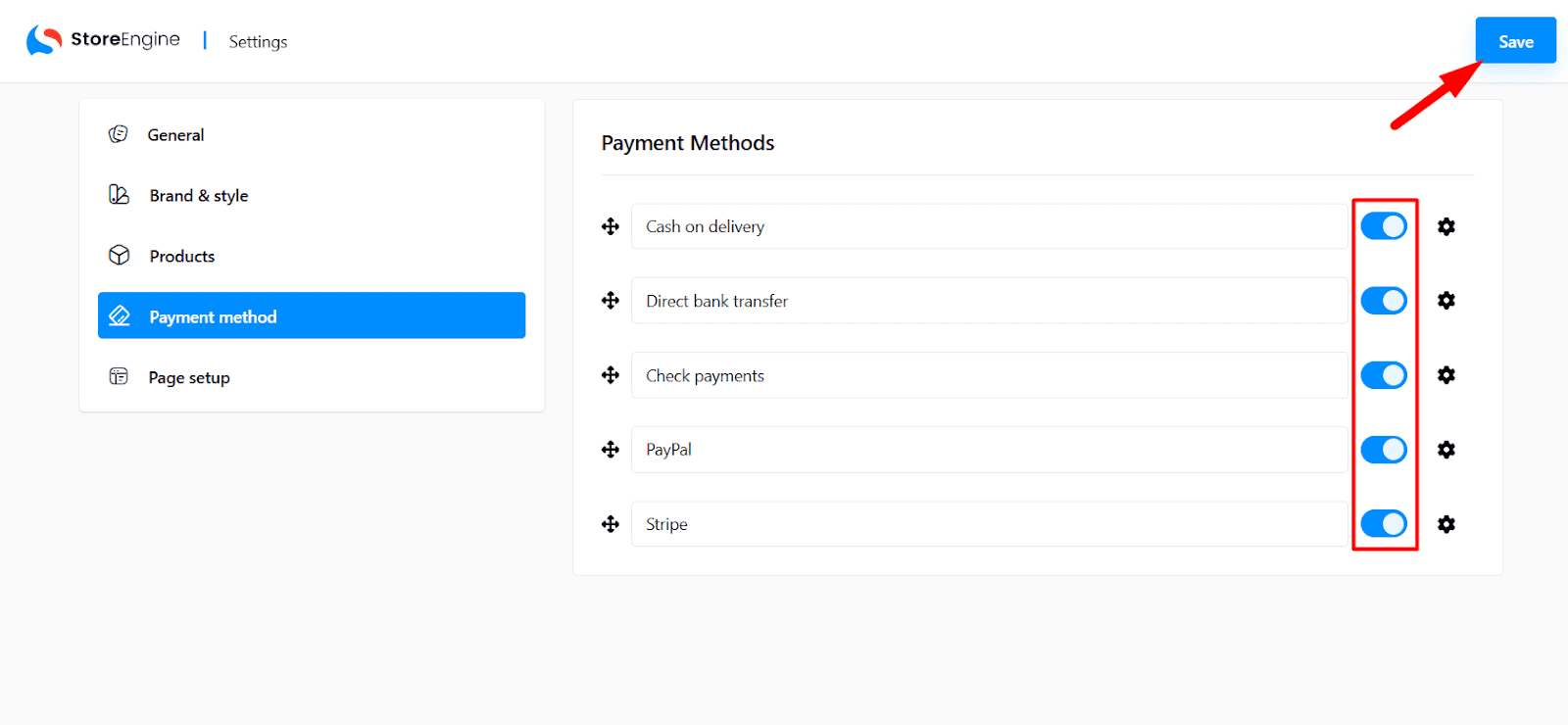
To set up a payment method in StoreEngine you first you have to navigate to StoreEngine Seeting the payment area. Here you will find few payment method such as Cash on Delivery, Direct bank transfer, Check payments, Paypal and Stripe.
Set up PayPal
To use Paypal you will need a Client ID and Client Secret, to get this we refer you to Paypal documentation Get client ID and client secret
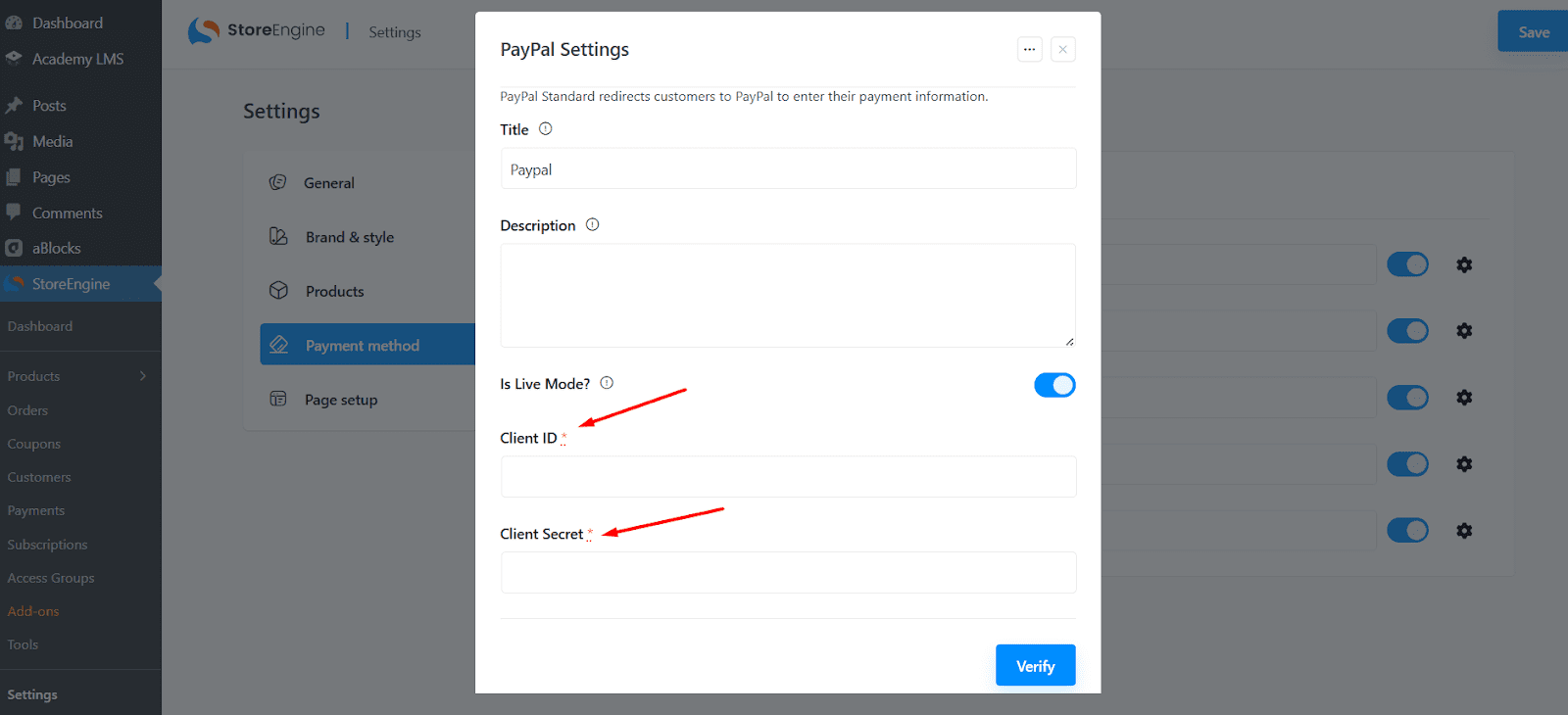
After you get those input those in these above fields and click on verify. You also have an option for a title and description. Also, enable the live mode.
Stripe Set Up
To use Stripe you will need a Publishable Key and Secret Key, to get this we refer you to Striepe documentation Api Keys.
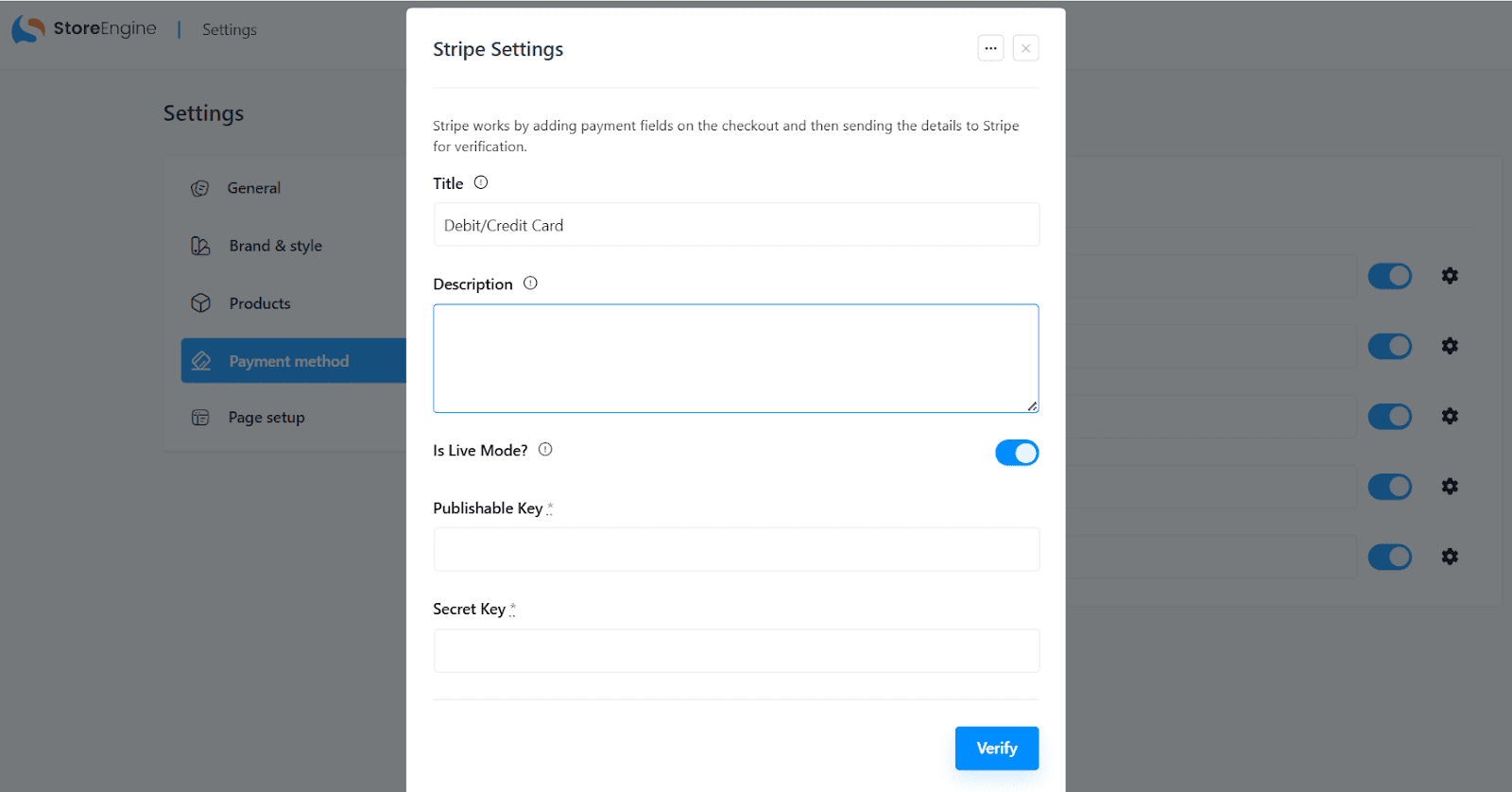
Once you’ve entered the details into the fields above, click “Verify” to confirm. You can also add a title and description for clarity. Additionally, enable Live Mode to activate the feature.