









Want to showcase your products without allowing customers to make a purchase directly? StoreEngine’s Catalog Mode feature is perfect for that. Whether you’re running a wholesale website, launching a product showcase, or simply want to disable the add-to-cart functionality for specific users or all visitors, Catalog Mode gives you full control over how your store appears.
In this guide, we’ll walk you through the step-by-step process to enable and configure Catalog Mode in StoreEngine, so you can easily switch from a selling store to a product-only catalog whenever you need.
Let’s get started!
How to Configure Catalog Mode in StoreEngine?
First, make sure the Catalog Mode Addon is enabled. You can do this by navigating to the StoreEngine → Addons section and toggling the Catalog Mode Addon to “on”.
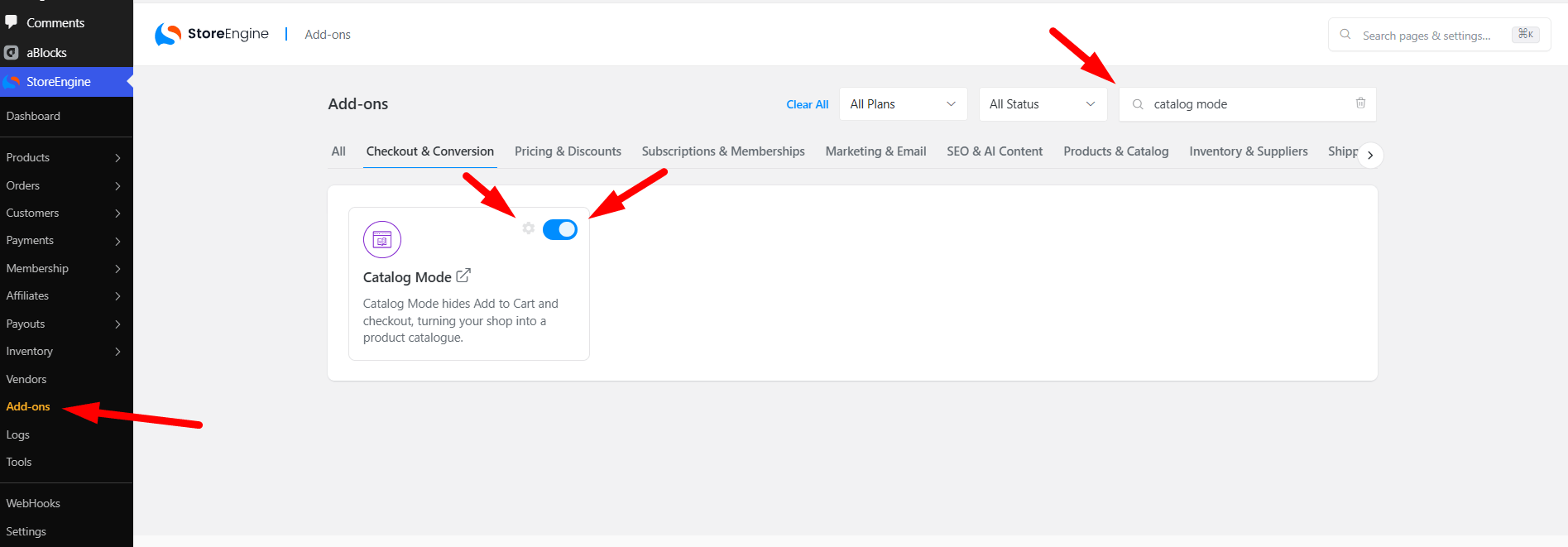
Once enabled, click the Settings icon beside the addon, or alternatively, go to StoreEngine → Settings → Catalog Mode from the main StoreEngine menu.
Configure Catalog Mode
After enabling the addon, the Catalog Mode will be active by default. Now let’s go through the settings step-by-step:
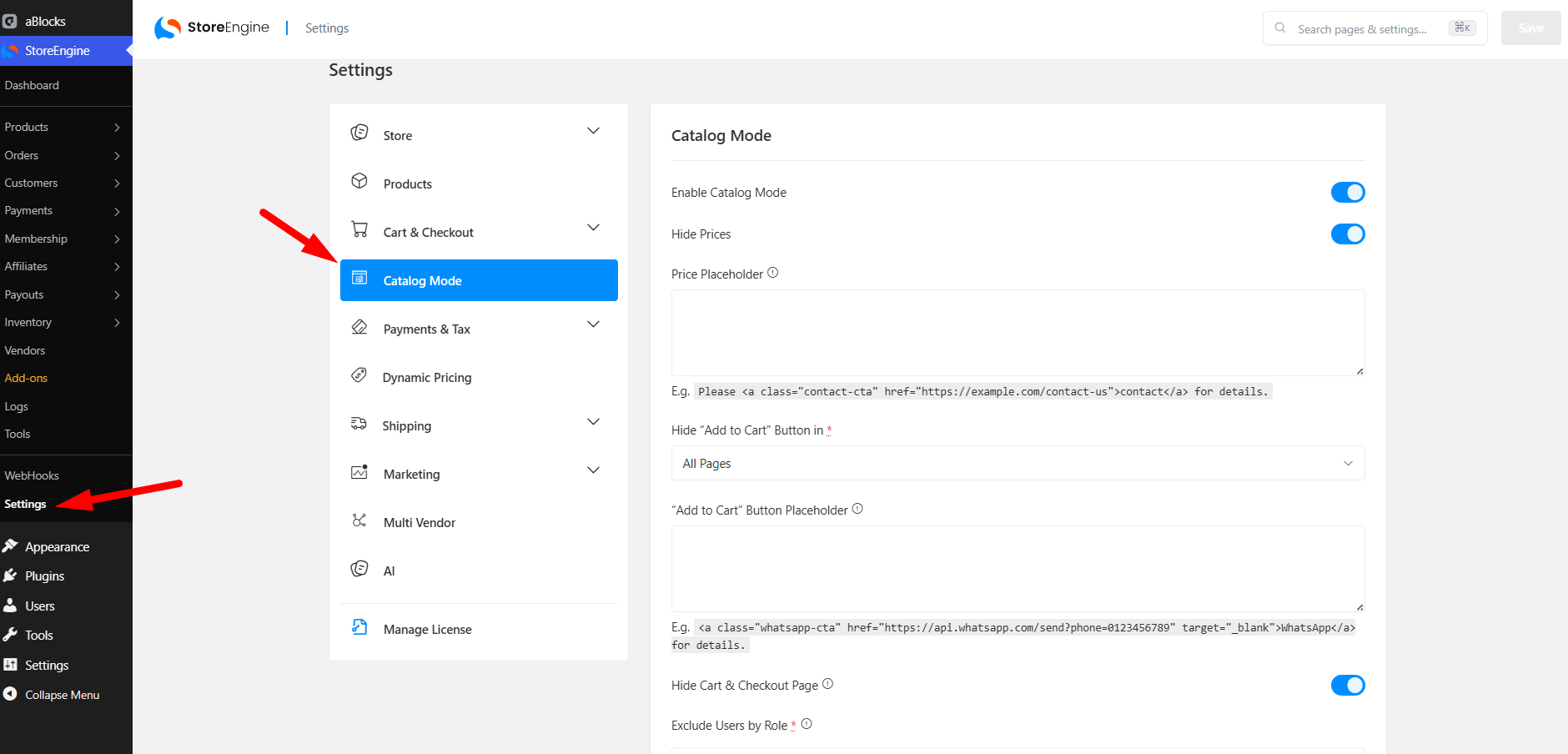
Enable Catalog Mode: This toggle turns Catalog Mode on or off. When enabled, it will hide purchase functionality depending on your settings below.
Hide Prices: Enable this option if you want to hide all product prices from visitors.
Price Placeholder: You can enter custom HTML or text here that will replace the price display.
Example:
Please <a class="contact-cta" href="https://example.com/contact-us">contact</a> for details.
Hide “Add to Cart” Button In: Use the dropdown to choose where the Add to Cart button will be hidden. Options include:
1. All Pages
2. Shop Page
3. Product Page
Add to Cart Button Placeholder: This text or HTML will be shown instead of the “Add to Cart” button.
Example:
<a class="whatsapp-cta" href="https://api.whatsapp.com/send?phone=0123456789" target="_blank">WhatsApp</a> for details.
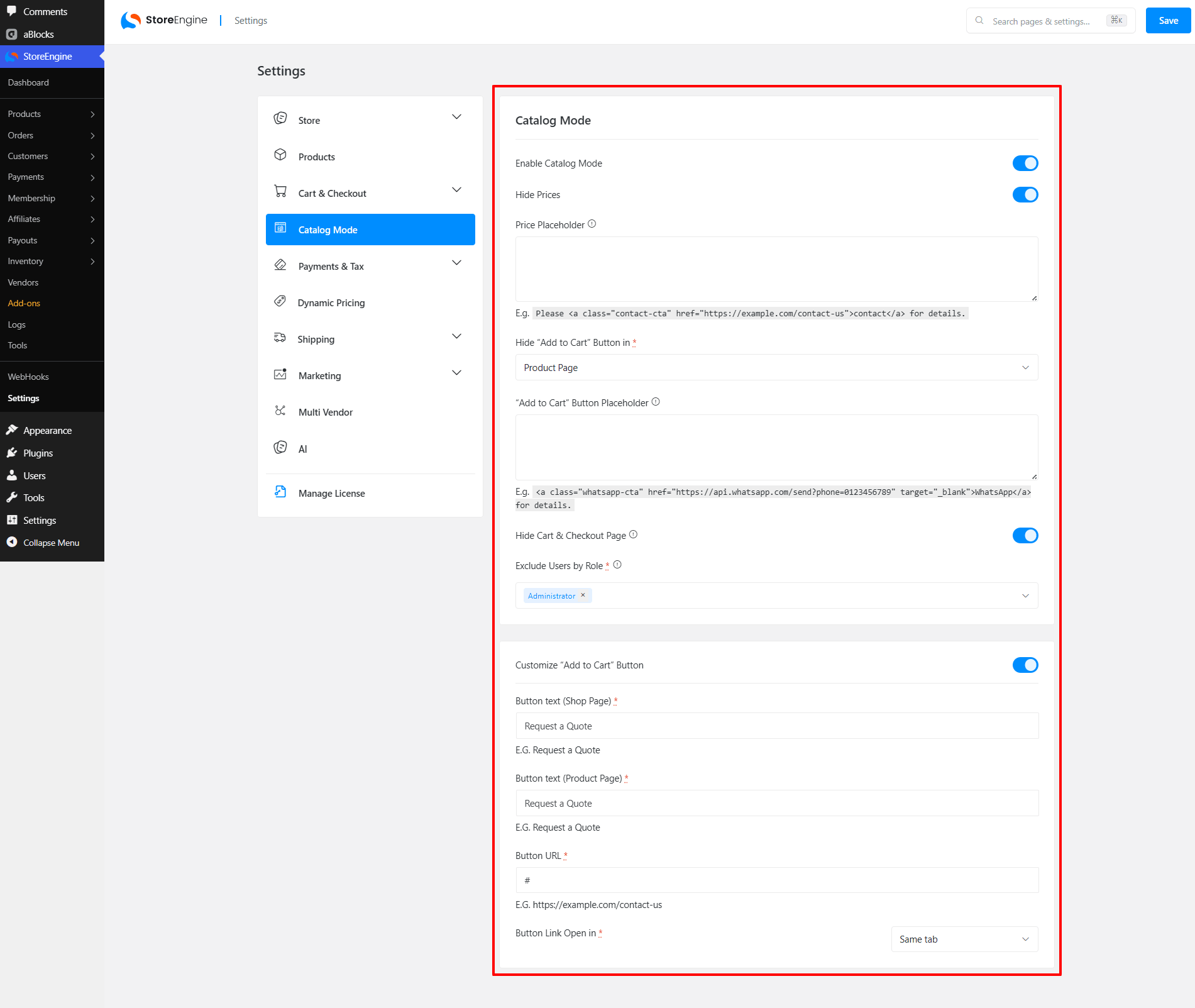
Hide Cart & Checkout Page: Enable this toggle if you want to completely hide the Cart and Checkout pages from visitors. This is useful when you’re turning your store into a full product catalog and don’t want users to place orders directly.
Exclude Users by Role
This setting allows you to exclude specific user roles from catalog mode restrictions. For example, if you want logged-in wholesalers or admins to see pricing and checkout options, you can exclude their roles here.
By default, no roles are excluded, meaning all users will see the catalog view.
Customize “Add to Cart” Button
You can fully customize the Add to Cart button to fit your catalog mode needs. This is useful when you want to replace the purchase action with something like a “Request a Quote” or “Contact Us” CTA.
Button Text (Shop Page)
- Change the button text on the Shop (Archive) pages.
- Example: Request a Quote, Contact for Price, etc.
Button Text (Product Page)
- Customize the button label on Single Product pages.
- Keeps the messaging consistent or tailored for product detail views.
Button URL
- Define where the button should link.
Example: a contact form or external quote request page. (E.g., https://example.com/contact-us)
Button Link Open in
- Choose whether the link should open in the same tab or a new tab.
Once all your preferred settings are configured, click Save Changes to apply Catalog Mode across your store.
Here below is a example of Catalog customized product.
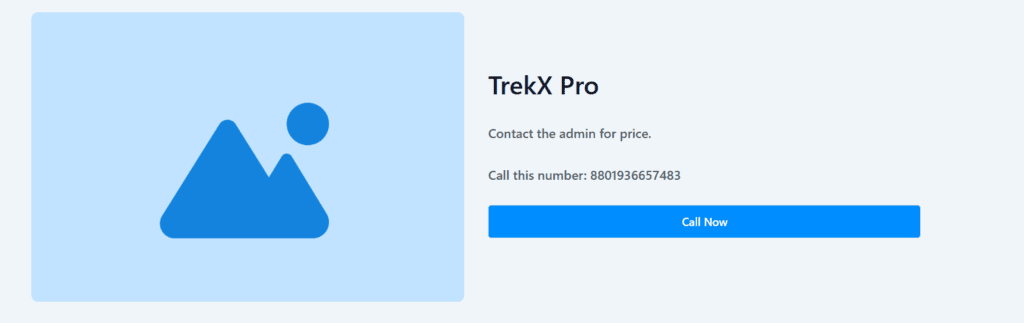
With these options, you can turn your StoreEngine-powered store into a product catalog with custom actions, tailored user access, and clean call-to-actions — all without any complex coding.