











Order notes are a powerful tool in StoreEngine that help you keep track of order progress, add internal updates, and communicate directly with customers — all from your WordPress dashboard.
In this guide, we’ll walk you through how order notes work in StoreEngine, how they’re automatically created, and how you can manage them for smoother order fulfillment and better customer service.
What Are Order Notes?
Order notes are timeline entries that appear in each individual order inside the StoreEngine dashboard. They are used for:
- Recording changes in order status (e.g., Processing, Pending, Completed, Cancelled)
- Logging manual updates or internal messages by store admins or shop managers
- Sending messages and updates directly to the customer
Every order status change or key action automatically triggers an order note, reducing the need for manual tracking and helping your team stay on the same page.
Where to Find Order Notes

You can view and manage order notes by:
- Navigating to StoreEngine → Orders
- Clicking into any specific order
- Scrolling to the Order Notes section on the right side of the order details page
Types of Order Notes
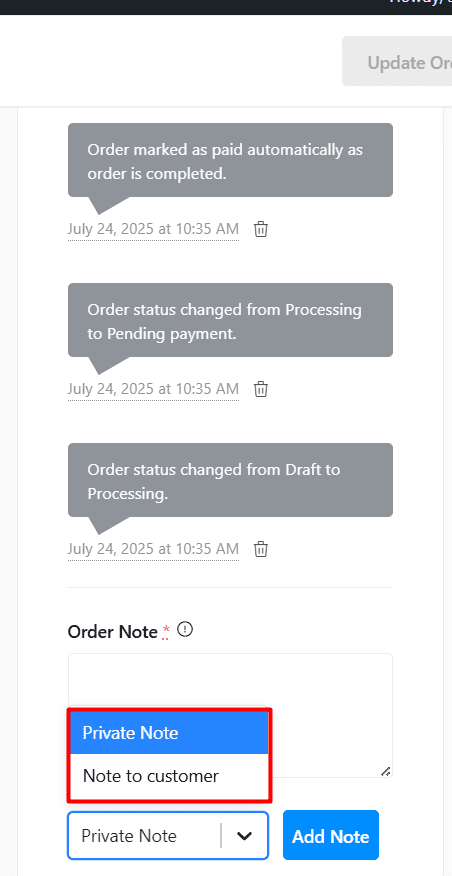
StoreEngine supports two types of notes:
1. Private Notes
- Only visible to site admins and shop managers
- Useful for internal communication or updates (e.g., “Spoke to supplier, restock expected next week”)
2. Note to Customer
- Visible to customers
- Automatically sent to the customer’s email
- Ideal for sharing shipping updates, payment issues, or follow-up messages (e.g., “Your package has been shipped!”)
When adding a note, simply choose whether it should be private or sent as a customer note.
Automatically Generated Notes
StoreEngine automatically creates notes for key order events such as:
- Status updates (Pending → Processing, Processing → Completed, etc.)
- Order cancellations or refunds
- Payment confirmations
- Custom order actions
These notes are timestamped and serve as a reliable log of every step taken on the order.
Email Notifications for Customer Notes
When you add a Note to Customer, StoreEngine will:
- Add the note to the order timeline
- Automatically send the note via email to the customer
This reduces the need for writing and sending manual emails or making phone calls — streamlining your customer support process.
Managing Order Notes
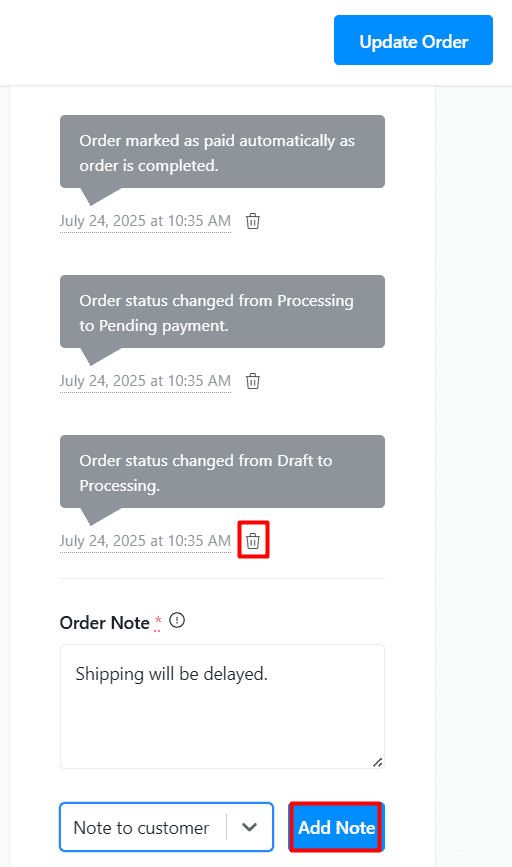
As an admin, you can:
- Add Notes: Use the input field under the Order Notes section to write your message and choose the note type.
- Delete Notes: Hover over an existing note and click the trash icon to remove it.
Note: After updating an order status or adding a note, make sure to update/save the order so the changes reflect properly.