











Managing data effectively is crucial for any successful eCommerce operation. Whether you’re launching a new store, switching platforms, or reorganizing internal systems, having a reliable way to export and import your data is essential.
StoreEngine simplifies this process with its powerful CSV Export/Import capabilities. With just a few clicks, you can export and import:
- Customers
- Products
- Orders
- Access Groups (Memberships)
- Subscriptions
Additionally, if you’re migrating from Restrict Content Pro (RCP), StoreEngine provides a seamless transition. You can export your RCP data—like Membership Levels, Payments, Customers, and Memberships—and import them directly into StoreEngine with proper mapping and structure.
In this guide, we’ll walk you through each step to help you utilize the Export/Import tools like a pro—whether you’re starting fresh or moving from RCP.
Enable the CSV Import/Export Addon from StoreEngine
To begin exporting or importing data, you’ll need to activate the CSV Import/Export addon.

Here’s how to do it:
- Navigate to the StoreEngine → Addons menu.
- Locate the CSV Import/Export addon.
- Toggle the switch to enable it.
- Click the Settings gear icon next to the addon to open the Export/Import dashboard.
Alternative Access: You can also find the Export/Import area under StoreEngine → Tools.

Once activated, you’re ready to start managing your data with ease.
Start the Process of CSV Export
Inside the Export/Import area, you’ll find options to export different types of data. The process is simple and fast.
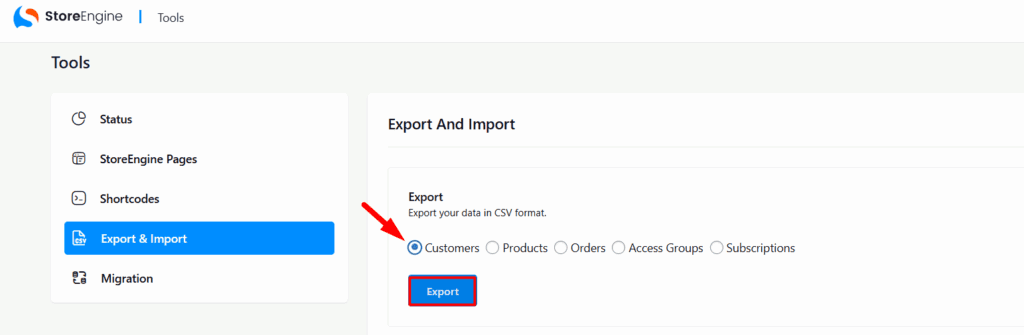
Steps to Export:
- In the Export section, choose what you want to export:
- Customers
- Products
- Orders
- Access Groups (Memberships)
- Subscriptions
- Click the Export button next to your selected data type.
- Within seconds, a download prompt will appear.
- Click the Download File button to save the exported CSV to your computer.
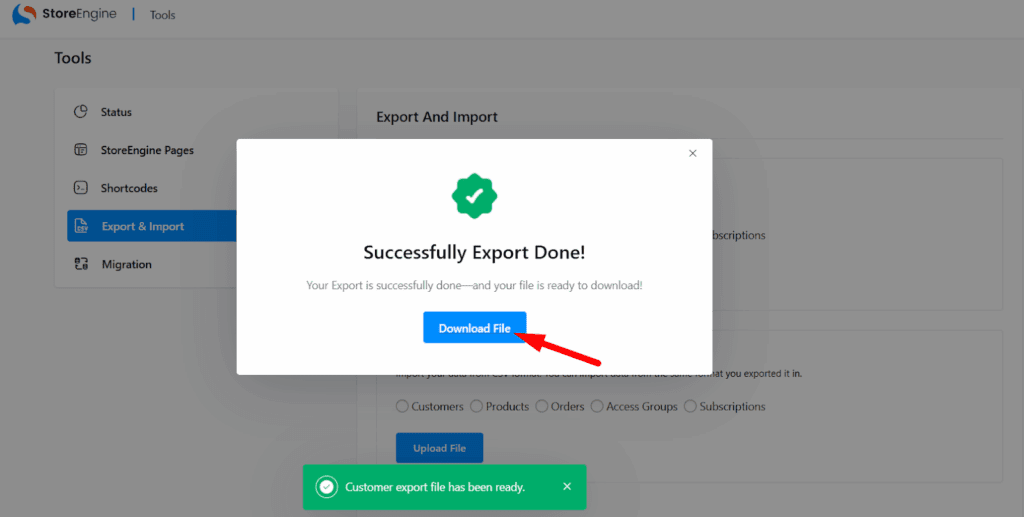
Repeat the process for each data type you need.
Note: The options for Access Groups and Subscriptions will only appear if both respective addons are activated in your StoreEngine setup.
CSV Import: Bring Data Into StoreEngine
Once you’re in the Import section of StoreEngine, bringing in data is just as straightforward.
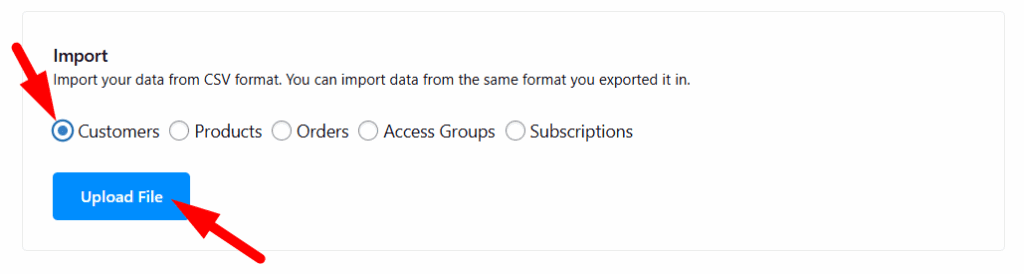
Steps to Import:
- Navigate to the Import tab in the Export/Import area.
- Read the Instructions carefully:
“Import your data from CSV format. Use the same format as exported.”
- Under Pick Data Type, choose one:
- Customers
- Products
- Orders
- Access Groups
- Subscriptions
- Click Upload File to select your CSV file.
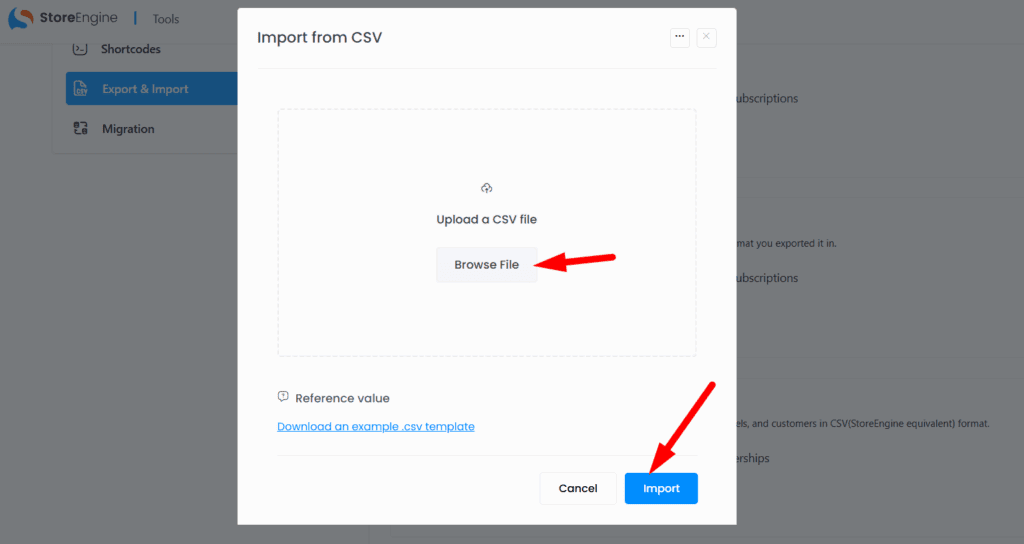
- Click the Import button to begin the process.
Repeat this process for each type of data. This ensures your store is populated with the correct customer, product, and membership data—accurately and efficiently.
Export and Import Data from Restrict Content Pro (RCP)
If you’re moving from Restrict Content Pro, StoreEngine makes the migration process seamless and accurate.
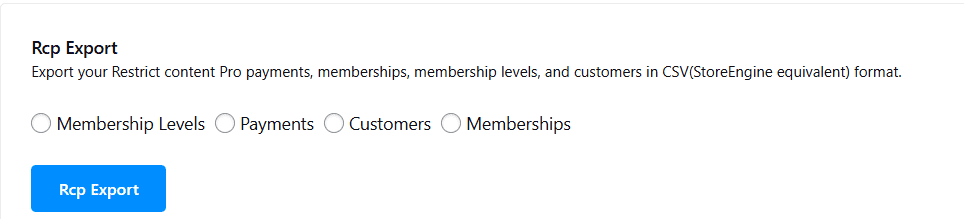
First, Export Data from RCP:
- Ensure both RCP and StoreEngine are installed and activated on your WordPress site.
- Go to the RCP Export section inside StoreEngine.
- From there, export the following:
- Membership Levels
- Payments
- Customers
- Memberships
Follow the standard export process as outlined above.
How RCP Data Is Imported Into StoreEngine
After exporting your RCP data, it’s time to import that into StoreEngine. But before doing so, keep these important notes in mind:
Required Addons:
Ensure the following addons are activated before importing:
- Membership (Access Group) Addon
- Subscription Addon
Data Mapping:
Here’s how RCP data translates inside StoreEngine:
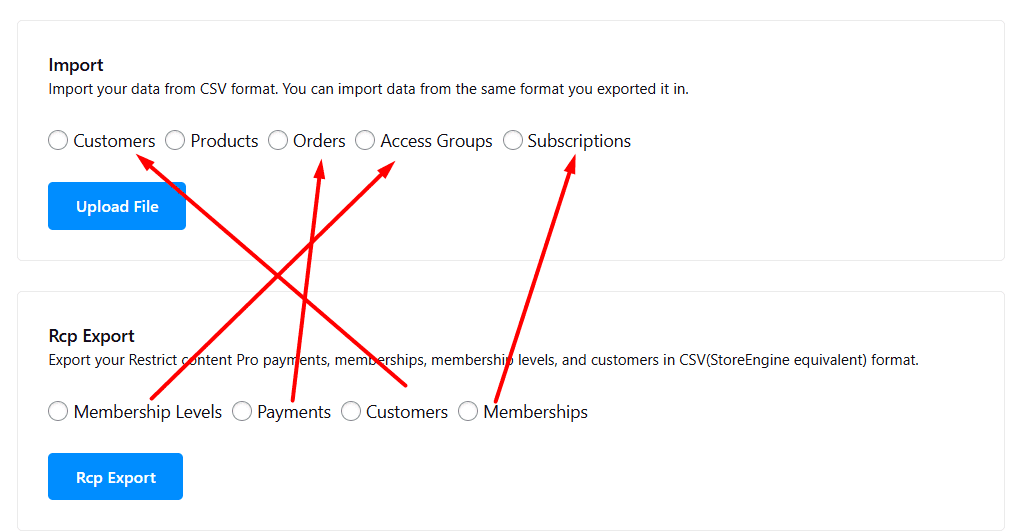
- RCP Membership Levels → StoreEngine Access Groups
While importing, select “Access Groups” as your data type.
- RCP Payments → StoreEngine Orders
- RCP Customers → StoreEngine Customers
- RCP Memberships → StoreEngine Subscriptions
Note: Only recurring memberships will be converted into Subscriptions in StoreEngine.
Now, follow the standard import process using the correctly formatted CSVs. This ensures smooth migration and consistent structure throughout your store.
The StoreEngine Export/Import tool is built to give you full control over your eCommerce data—whether you’re setting up a new store, reorganizing existing data, or switching from platforms like Restrict Content Pro.
Start using this feature today and take full command of your store’s data. If you ever need help, the StoreEngine support team is always ready to assist you.