











This guide will help you submit a support ticket for StoreEngine so you can report issues, ask questions, or request assistance from our support team. Be sure to provide all necessary details—such as your account information, the product or service in question, and a clear description of your issue—so our team can respond quickly and accurately.
For urgent queries, you can also contact a support agent directly through Live Chat for immediate assistance.
Note: If you are not logged in, you’ll need to log in first to submit a support ticket. Make sure your request details are provided on your registered account page to get faster assistance.
Step 1: Access the Support Page
Start by visiting the StoreEngine Website Navigate to the Get Help section and click on Support in the website header. This will take you to the main support page, where you can explore help options.
Step 2: Create a Support Ticket
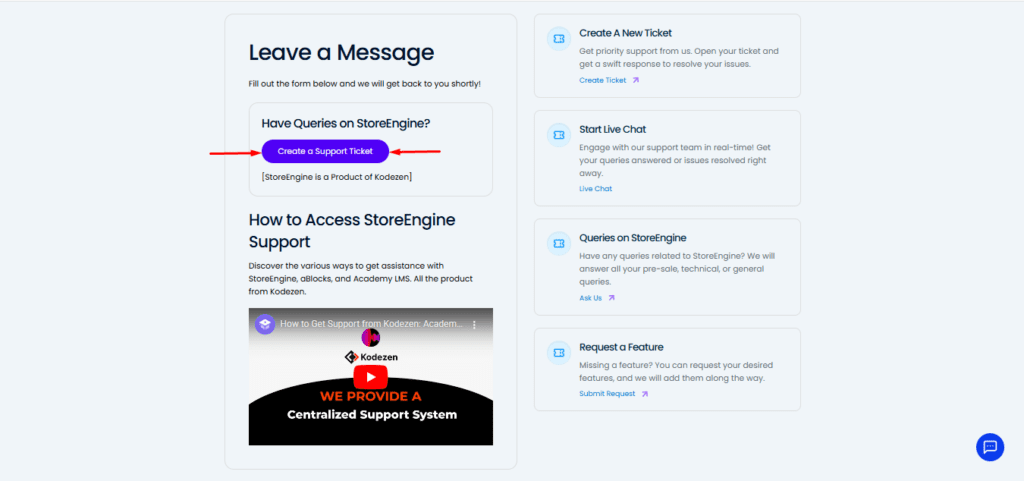
On the Support page, you’ll notice multiple options for reporting different issues. To submit a ticket, click the “Create a Support Ticket” button in the left-hand column.
Step 3: Navigate the Support Center
After clicking the “Create a Support Ticket” button, you will be taken to the “Welcome to Kodezen Support Center” page. Here, you have two main options:
- Create a New Support Ticket – This option takes you to the community ticket page, where you can submit your ticket and provide all the details about your issue.
- Join the Growing Community – This option takes you to the community feed, where you can view discussions, ask questions, or share posts related to our plugins.
Choose the option that best fits your needs to continue getting support.
Step 4: Open the Ticket Form
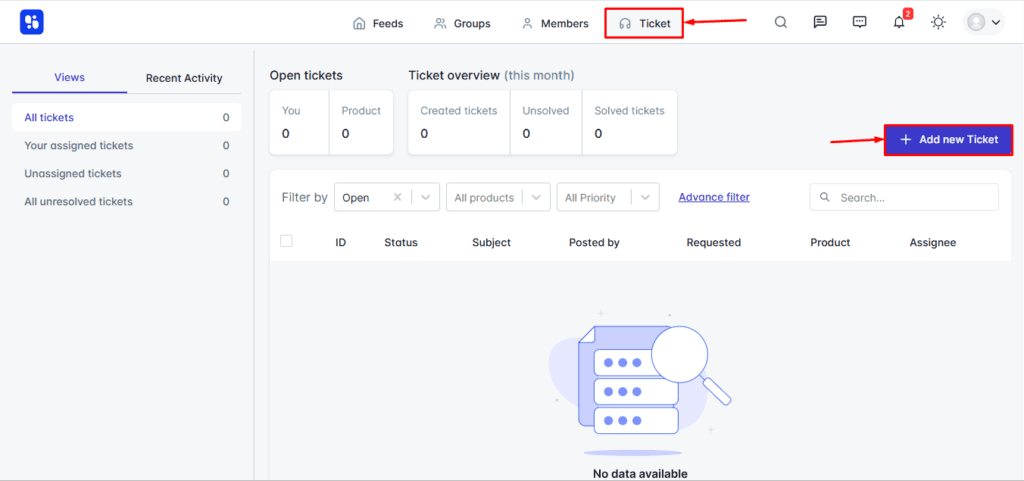
Once you choose to create a new support ticket, click the “Add New Ticket” button on the right side of the window. This will open a ticket creation form in a pop-up on the right side of your screen.
Step 5: Fill in Your Ticket Details
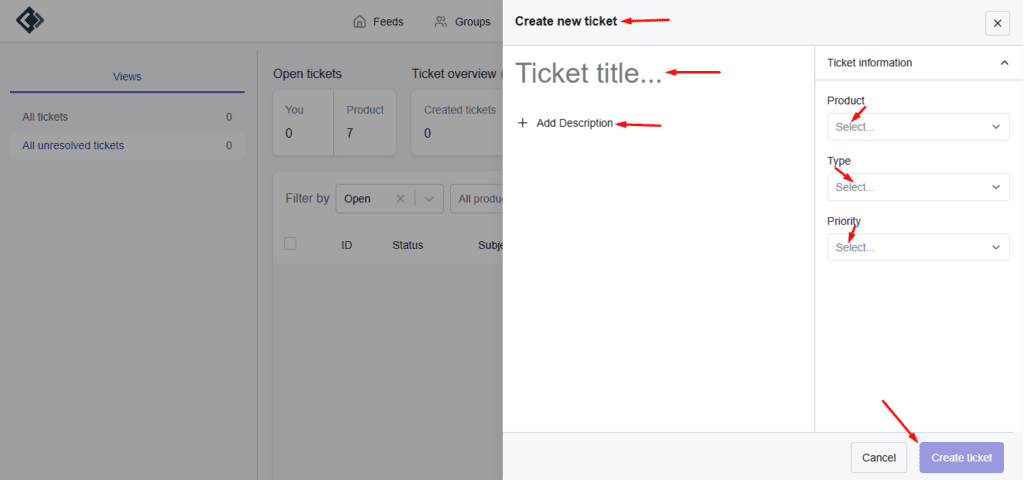
After clicking the “Add New Ticket” button, a pop-up will open on the right side of your window. On this page, you can enter the details of your ticket, including:
- Ticket Title – A brief summary of your issue
- Description – A detailed explanation of your request or problem
- Product – The relevant product or service
- Type – The category of your issue
- Priority – The urgency level of your request
Make sure to provide accurate and complete information so the support team can assist you efficiently. Once all fields are filled, click the “Create ticket” button at the bottom right to submit your ticket.
How to Contact a Support Agent via Live Chat
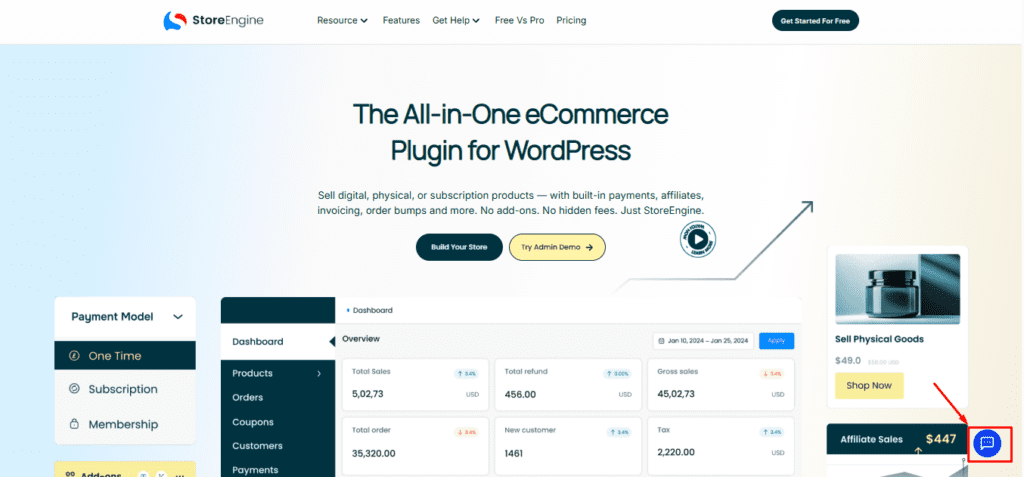
On the StoreEngine Website, look for the chat icon at the bottom right corner of the page. Click the icon to start a live chat with a support agent for immediate assistance.
Conclusion
Submitting a support ticket with StoreEngine is simple when you follow the steps outlined above. By providing complete and accurate information, you help our support team resolve your issues quickly and effectively. Remember, for urgent queries, the Live Chat feature is always available to connect you directly with a support agent.
We’re here to make sure you get the help you need, so don’t hesitate to reach out and take full advantage of our support system.