











StoreEngine makes it simple for customers to apply coupon codes during checkout. This feature allows buyers to redeem discounts, free shipping, or other promotional offers directly on their purchase — creating a smooth and rewarding shopping experience.
Follow these steps to use a coupon code on the checkout page:
Step 1: Go to Checkout Page
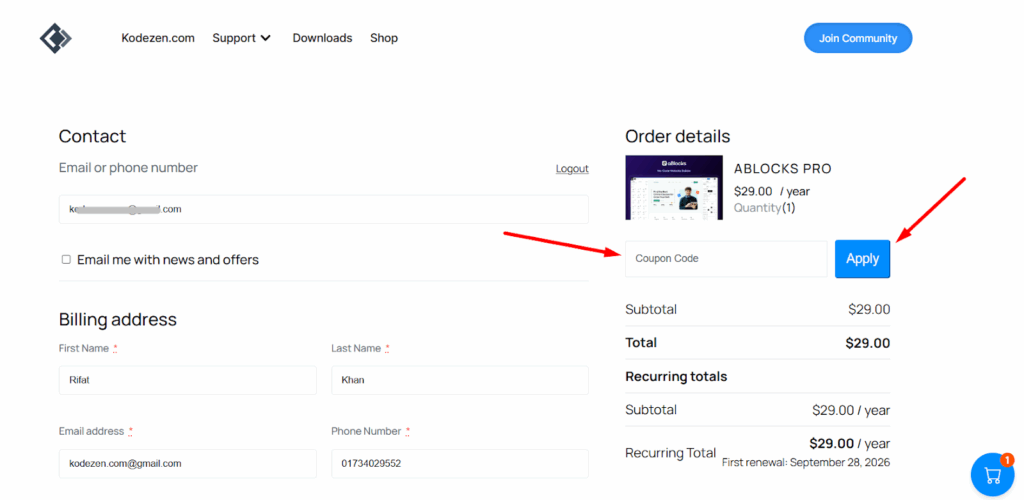
After adding your desired products to the cart, click the Checkout button. This will take you to the checkout page where you can review your order, billing details, and payment method.
Step 2: Locate the Coupon Code Field
On the checkout page, look for the “Have a coupon code?” field. This is usually displayed above or below the order summary section.
Step 3: Enter Your Coupon Code
Type or paste your valid coupon code into the field. Make sure to enter it exactly as provided — coupon codes are case-sensitive.
Step 4: Apply the Coupon
Click the Apply Coupon button. Once applied:
- The page will refresh automatically.
- Your discount (percentage, fixed amount, or free shipping) will be shown in the order summary.
- The total price will be recalculated based on the coupon conditions.
Step 5: Complete Your Order
After applying the coupon successfully, continue by filling out your billing and payment details. Finally, click Place Order to complete the purchase.