











Tired of generic listings? StoreEngine’s robust Product Variation features allow you to transform a single product listing into an extensive catalog of choices, giving your customers the exact size, color, material, or style they are looking for.
Unlock true flexibility by managing unique inventory, pricing, images, and descriptions for every possible combination—all from one intuitive interface. Start selling smarter, not harder!
Product Variations: A Deeper Overview
StoreEngine Product Variations let you sell one product in multiple options, like different sizes or colors. This keeps all choices on one product page while giving store owners strong control over each option.
The system works using Attributes (like Color or Material) and Variations (the final combinations, such as Medium–Blue). Each variation becomes a unique, sellable product.
To set this up, first choose Variable Product in the product editor. Then add attributes, define their terms (Small, Medium, Large), and enable them for variations.
After that, use the Variations tab to automatically generate all possible combinations with one click. Each variation can have its own price, SKU, image, and stock level. This helps you manage inventory accurately and ensures customers always see the correct product details.
Steps For Product Variations Creation
Defining Attributes in StoreEngine (Step 1)
This step explains how to create the core attributes that will be used for your product variations.
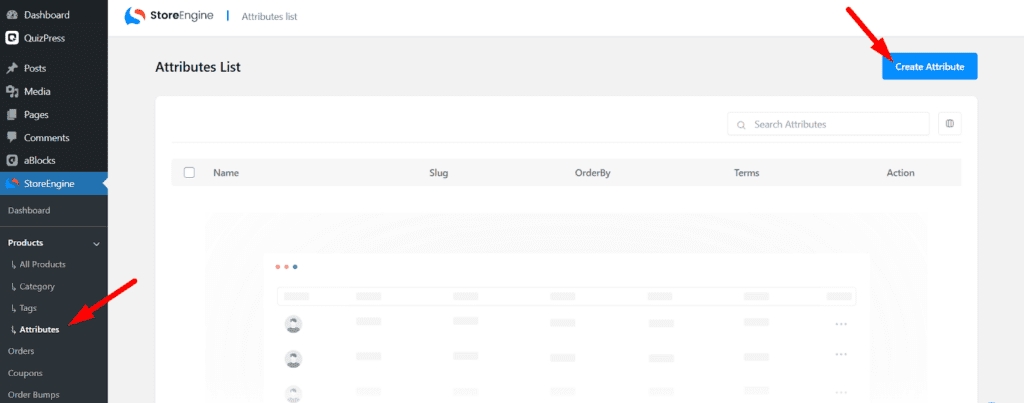
1. Open the Attributes List
From the StoreEngine dashboard, go to Products → Attribute to access the Attributes page.
2. Create a New Attribute
Click the Create Attribute button (top right) to open the creation window.
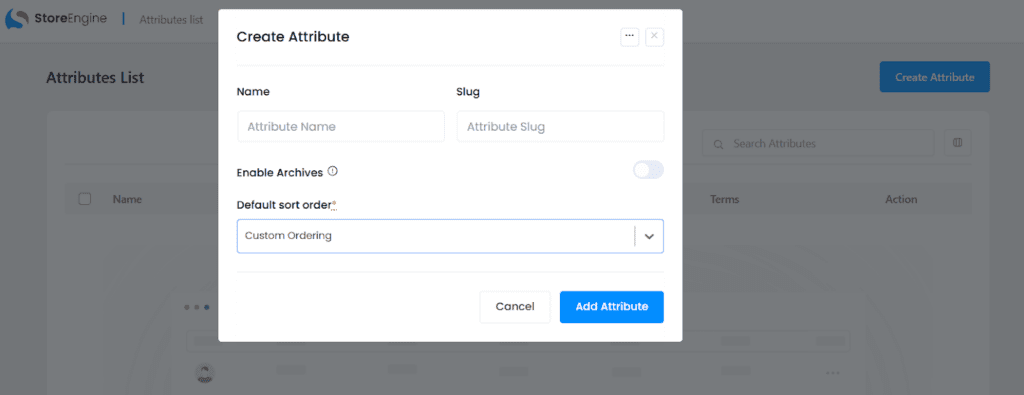
3. Enter Attribute Details
Name: Add a clear name (e.g., Color, Size).
Slug: Auto-generated and editable for URLs (e.g., color).
4. Configure Display Options (Optional)
- Enable Archives: Enable this if you want this attribute to have product archives in your store and allow customers to filter products by it.
- Default Sort Order: Choose how the terms will appear on the front end. Custom Ordering, name and term is.
5. Save the Attribute
Click Add Attribute to finalize and register it in StoreEngine.
After adding the attribute, click the three-dot menu next to the attribute name and select Manage Terms.

From the next window, click the Add Term button to add new terms for this attribute.
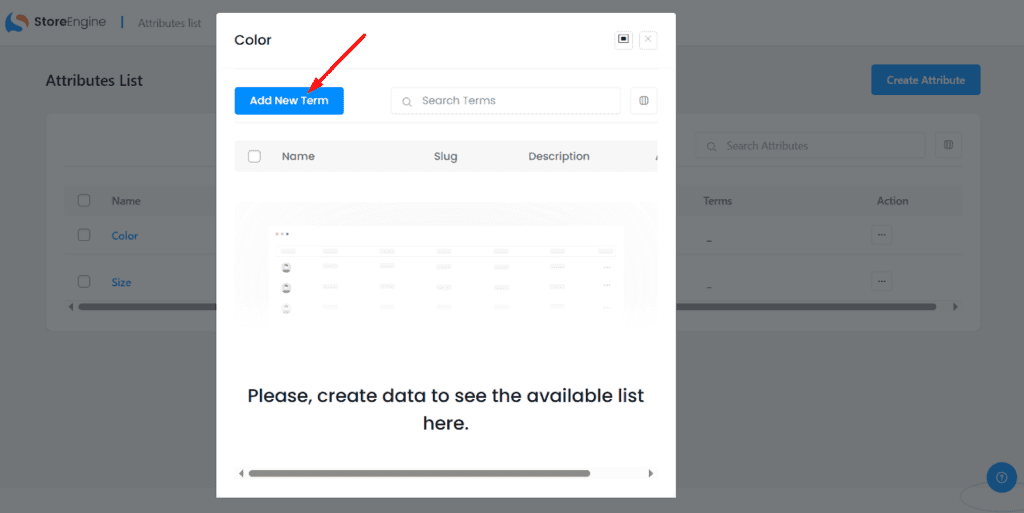
Next, enter the term name (the slug will auto-generate). Add a description if needed, then click the Add Term button.
Repeat this process to add as many terms as you need.

Adding Product Variations to a Product
This section shows how to apply your existing attributes to a product and set up each variation with its own image, price, and stock.
1. Select or Create a Product
Go to StoreEngine → Products and either create a new product or edit an existing one.
Make sure the product price is set.
2. Add Attributes

Scroll to the product settings area and click + Add Attribute.
From the dropdown, select a previously created attribute like Color or Size.
3. Select Attribute Values (Terms)
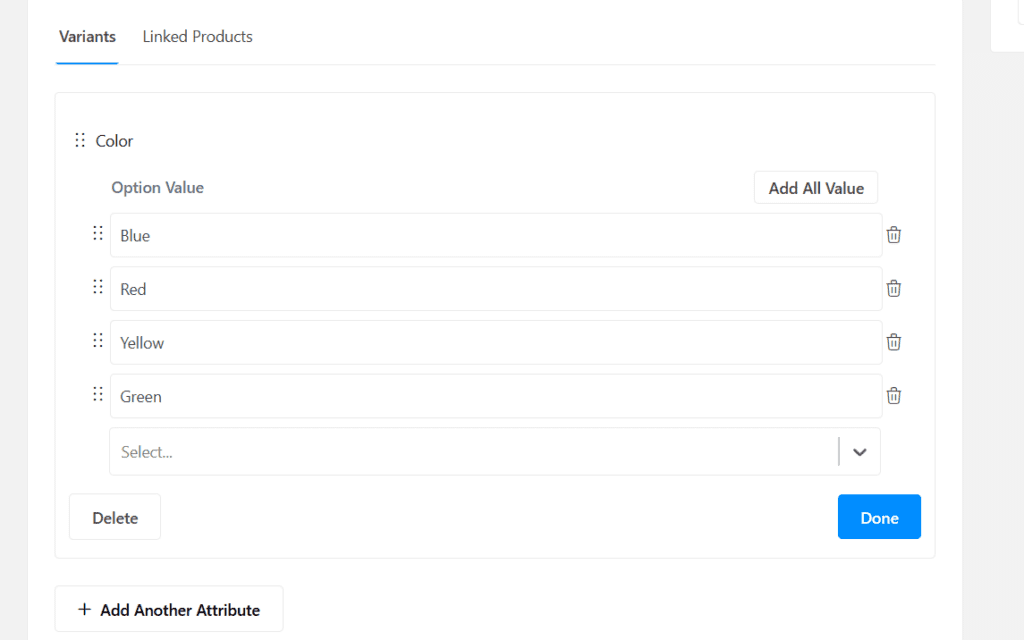
After adding the attribute, click Add All Value or choose specific terms from the dropdown (e.g., Blue, Red, Green).
Click Done to confirm your selection.
4. Add Multiple Attributes
Click + Add Another Attribute to add more options like Size (S, M, L, XL). Adding multiple attributes creates more variation combinations.
5. Configure Variants (Images & Pricing)
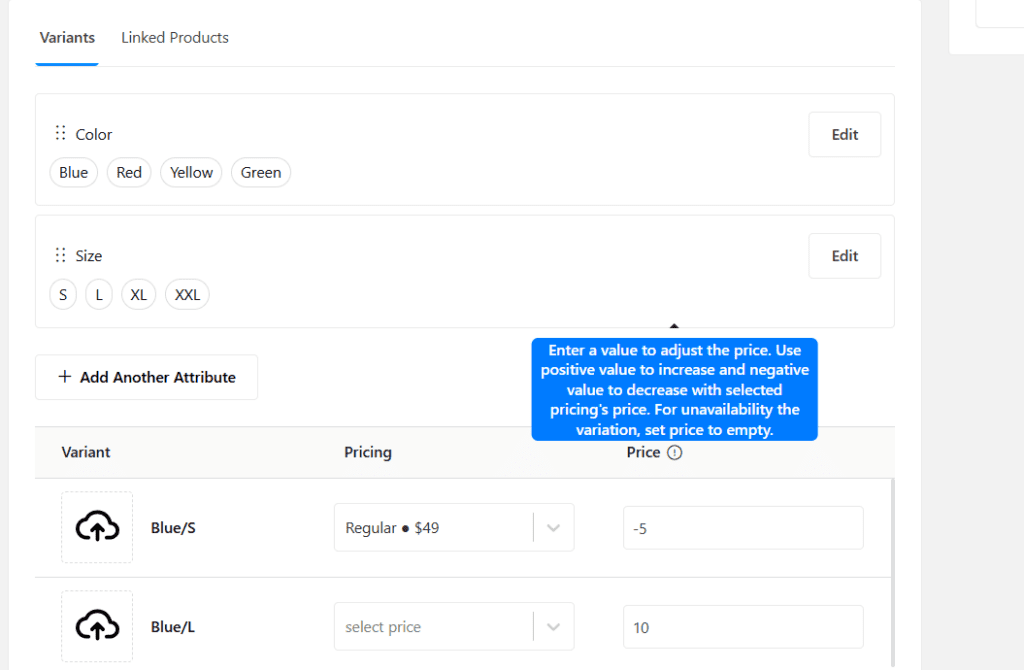
In the Variants section, StoreEngine automatically generates all possible combinations (e.g., Blue–S, Red–L).
For each variant, you can:
- Upload a specific image
- Set a unique price
This lets you fine-tune pricing and inventory for every variation.
6. Finalize and Preview
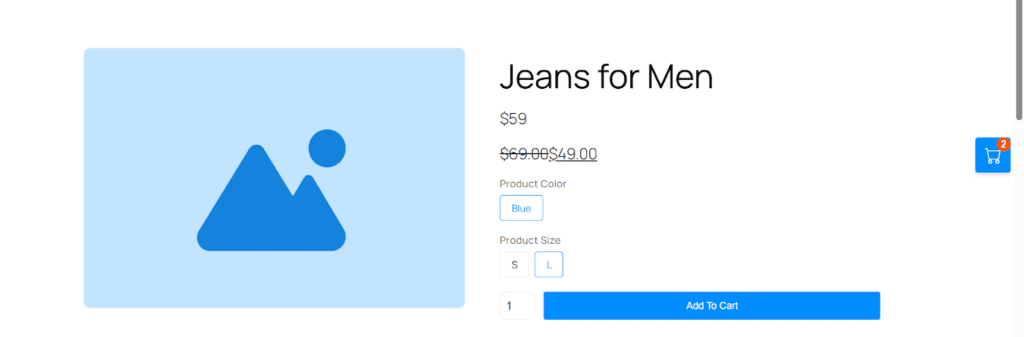
Once everything is set, click Update or Publish. Preview your product to make sure all variations display and work correctly.
Conclusion: Mastering StoreEngine Variations
By properly setting up Attributes and Variations, you turn a simple product into a powerful, flexible listing. StoreEngine lets you control pricing, images, and inventory at a detailed level—helping you deliver a better shopping experience while keeping stock and reporting accurate.