











Shipping zones let you define specific geographic regions where you want to ship your products. Each zone can be assigned one or more shipping methods and rates, allowing you to customize delivery options based on the customer’s location. Setting up shipping zones ensures accurate shipping costs and a smoother checkout experience for your customers.
In this documentation, we’ll show you how to set up shipping zones in StoreEngine step by step.
How to Set Up Shipping in StoreEngine?
Setting up shipping in StoreEngine begins with adding shipping zones. Once a zone is added, you can assign one or more shipping methods to it.

Step 1: Navigate to the Shipping Settings
- Go to StoreEngine > Settings from your WordPress dashboard.
- Click on the Shipping tab.
- If this is your first time visiting the page, you’ll see a prompt to add your first shipping zone.
Step 2: Add a New Shipping Zone

To create a shipping zone:
- Click Add New Shipping Zone.
- Enter a Zone Name
Example: “United States – Florida”
- Select Zone Regions
Choose one or more regions that apply. You can select: Countries, States/Provinces, Continents
- Click the Create button to save your shipping zone.
Step 3: Add a Shipping Method

After creating a zone, you’ll see a message:
“Shipping method not added. Set one to continue.”
- Click on the Add Method button.
- Fill out the shipping method details:
- Shipping Type
Choose from available methods (e.g., Flat Rate).
Example: Flat rate allows you to charge a fixed amount for shipping in that zone.
- Description
Add a short explanation visible at checkout.
Example: “Flat rate shipping within the Florida region.”
- Shipping Name
This is what your customers will see.
Example: “Standard Delivery”
- Tax Status
Set whether the shipping charge is Taxable or Non-taxable.
- Cost
Enter the fixed shipping cost (in your store’s default currency).
Example: $5.00
- Click the Create button to save this method.
Dynamic Cost Field Explanation (upcoming features)

This tooltip provides instructions on how to define dynamic shipping costs for your shipping method. You can use fixed values, quantity-based calculations, or percentage-based fees.
Supported Cost Formats:
Fixed Cost:
Example: 30 – This will charge a flat shipping fee of 30 (in your default currency).
Based on Quantity:
Example: 10.00 * [qty] – Charges 10 per item in the cart.
Based on Order Total:
Use [cost] to reference the total cart value.
Example: 0.10 * [cost] – Charges 10% of the cart’s total cost.
Percentage Fee with Min/Max Limits:
Use this format:
[fee percent=”10″ min_fee=”20″ max_fee=””]
percent=”10″ applies 10% of the cart total.
min_fee=”20″ ensures the fee is at least 20.
max_fee=”” means no upper limit (leave empty or set a value).
Where It Appears:
This tooltip appears when you’re setting the Cost field for a shipping method in StoreEngine, helping you apply simple or advanced logic for shipping fees.
Managing Shipping Zones & Methods
Once a shipping zone and its method are created, you’ll see them listed in the Shipping settings. Here’s what you can do next:

Activate or Deactivate a Shipping Method
Use the toggle switch to enable or disable any shipping method.
- Blue toggle = Active
- Gray toggle = Inactive
Edit or Delete a Method
Click the three-dot menu beside any method to:
- Edit – Update name, description, cost, or type.
- Delete – Remove the method entirely from the zone.
Add More Shipping Methods
You can add multiple methods under the same zone.
Add More Shipping Zones
Need to ship globally or to different regions?
Click Add Another Shipping Zone to define shipping rules for:
- Other countries or continents (e.g., Europe, Asia)
- Specific provinces or states
Here is shipping overview example.
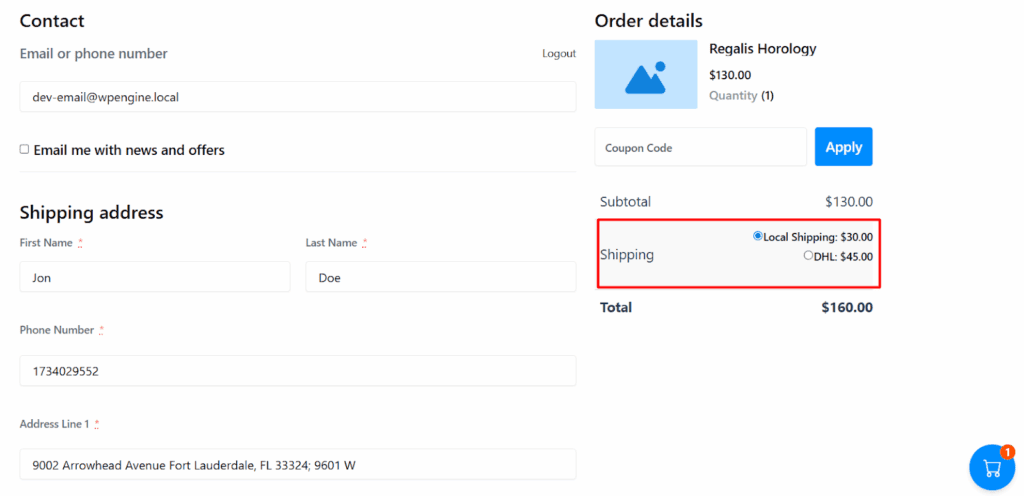
StoreEngine’s flexible shipping system lets you tailor delivery options based on customer location. Whether you’re offering standard delivery, free shipping, or custom rates, this setup ensures a smooth checkout experience for your buyers.
Ready to optimize your store’s shipping? Start by creating your first zone now.