











The StoreEngine Continue Shopping shortcode enables you to display a “Continue Shopping” button on the order Thank-You page. This button helps customers quickly return to your shop after completing a purchase, improving navigation flow and overall user experience.
Shortcode
[storeengine_continue_shopping]Adding this shortcode will instantly display a Continue Shopping button on the page.
What This Shortcode Does
The StoreEngine Continue Shopping shortcode displays a call-to-action button that encourages users to keep browsing products after placing an order.
Button Behavior
- Displays a Continue Shopping button on the page
- When a user clicks the button, they are redirected to the StoreEngine shop (store-shop) page.
- Helps users continue shopping without manually navigating back to the shop
Where It’s Commonly Used
This shortcode is primarily designed for the Store Thank You (Order Confirmation) page.
Store Thank You Page
You can place the shortcode alongside other StoreEngine Thank You shortcodes, such as:
- Order information
- Payment instructions
- Order details
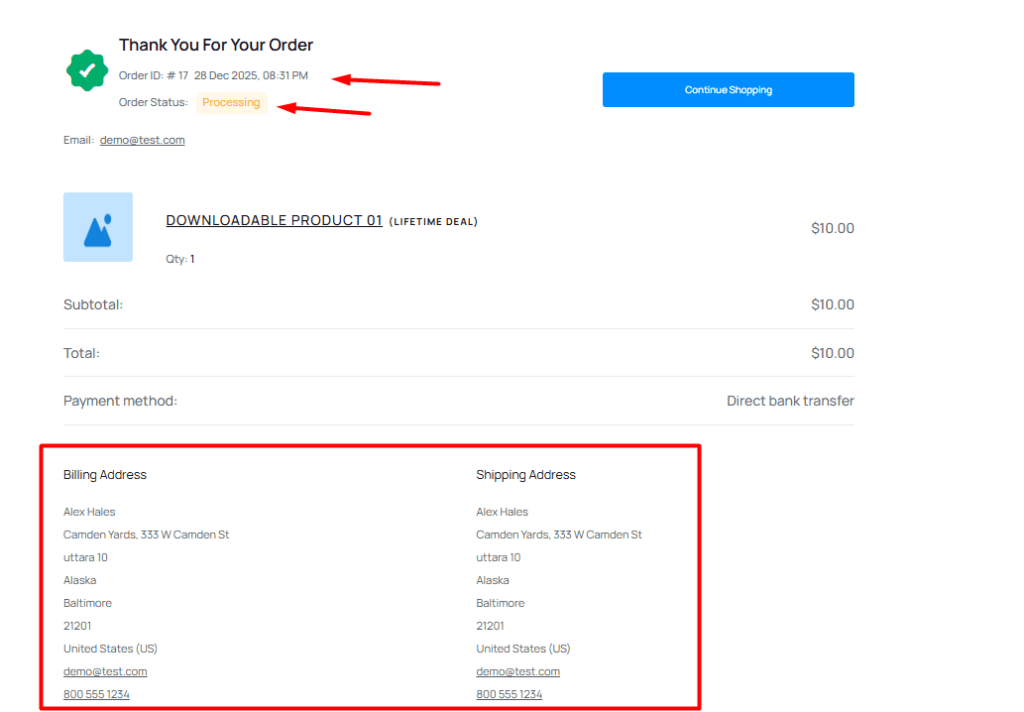
Frontend Output
On the frontend, the shortcode renders a clearly visible Continue Shopping button.
It typically appears near the order summary or confirmation section, making it easy for customers to proceed.
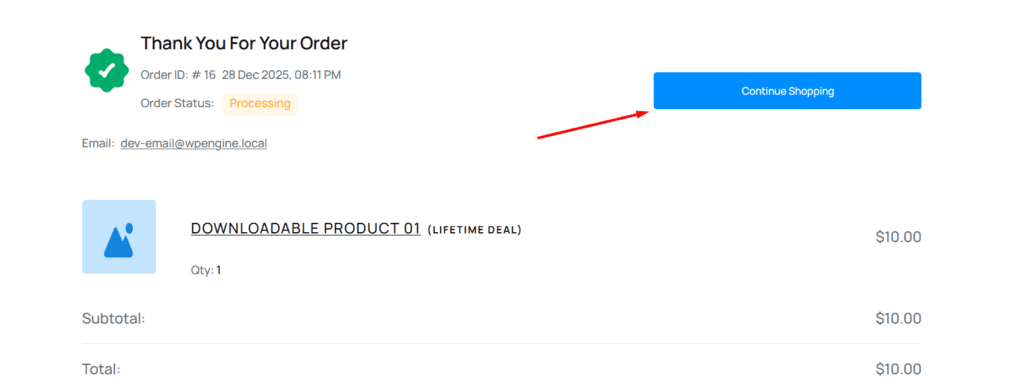
Usage Example
You can add the shortcode anywhere on the Thank You page:
[storeengine_continue_shopping]This works best when placed near:
- The “Thank You for Your Order” message
- Order summary details
- Confirmation status sections
How to Use in Gutenberg Editor
Follow these steps to add the Continue Shopping button using the Gutenberg editor:
- Open your Store Thank You page.
- Click the ➕ (Add Block) button.
- Search for and insert the Shortcode block.
4. Paste the following shortcode into the block: [storeengine_continue_shopping]
5.Click Update or Publish to save your changes.
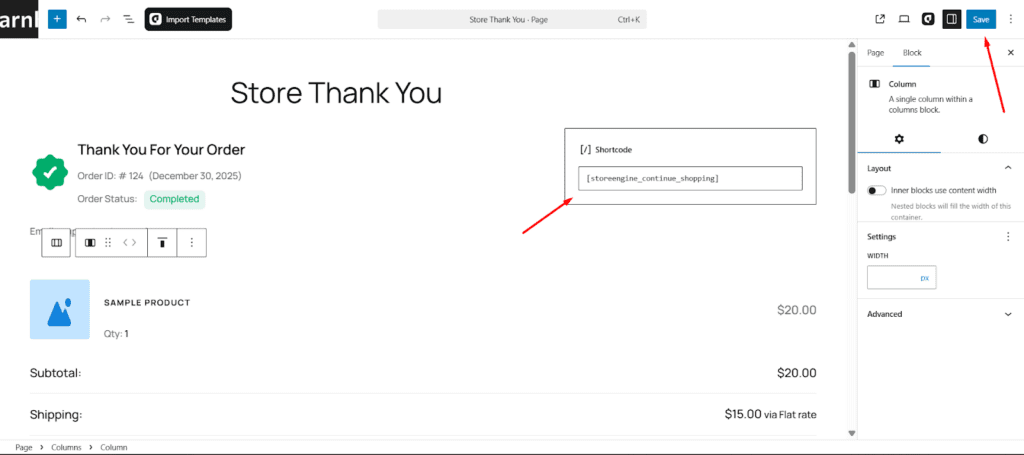
Once saved, the Continue Shopping button will appear on the frontend of the Thank You page.
Using with aBlocks
You can also add the Continue Shopping button using aBlocks, without using a shortcode.
Steps to Add Using aBlocks
You can also add the Continue Shopping button using aBlocks, without using a shortcode.
- Open your Store Thank You page in the block editor.
- Click the ➕ (Add Block) button.
- Search for aBlocks.
- Insert the aBlocks → StoreEngine Continue Shopping button block.
- Position the block where you want the button to appear.
- Click Update or Publish.
Once added, the Continue Shopping button will automatically appear on the frontend.
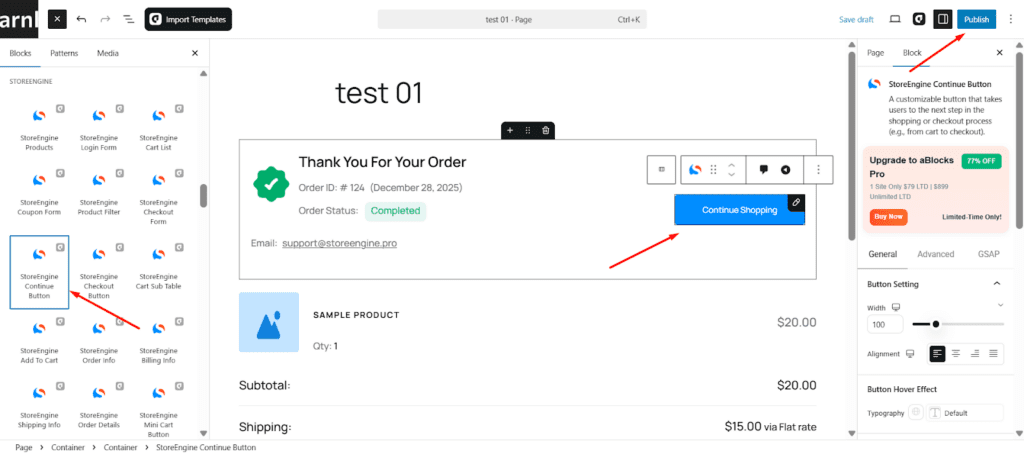
Once added, the Continue Shopping button will automatically appear on the frontend.
Summary
The storeengine_continue_shopping shortcode provides a seamless post-checkout experience by guiding customers back to the store shop page with a single click. This helps increase engagement, improve product discovery, and encourage repeat purchases.