











StoreEngine’s Geolocation feature brings intelligent location detection to your eCommerce store, ensuring every customer sees the most relevant products, prices, and shipping options—automatically. By identifying a visitor’s country or region in real time, StoreEngine helps you display accurate taxes, localized currencies, and location-specific offers without manual input.
Whether you’re running a global marketplace or serving regional audiences, StoreEngine’s geolocation system makes every shopping experience personal, faster, and more compliant with regional rules. With precise IP-based detection and caching-friendly performance, it keeps your site optimized while tailoring the entire buying journey to each customer’s location — from homepage to checkout.
Prerequisite
Before you start, make sure you have:
- Installed and activated StoreEngine on your WordPress website.
- Properly configure your store settings, store address, and default address, including currency and tax regions.
Step 1: Open the Geolocation Settings
Go to your WordPress Dashboard.
- Navigate to StoreEngine → Settings.
- From the left sidebar, click on Geolocation.
Step 2: Set Default Customer Location

Under the Default Customer Location option, you’ll find a dropdown with the following choices:
No Location:
StoreEngine won’t detect or assign any location by default.
Store Country/Region:
Sets your store’s country or region as the default customer location.
IP Address Based Geolocation:
Detects a customer’s location automatically using their IP address.
Choose the option that best fits your store’s needs. If you want to personalise the user experience and apply region-specific taxes or shipping, it’s recommended to select IP Address-Based Geolocation.
Step 3: How the “IP Address Based Geolocation (with page caching support)” Option Works
If you enable the IP Address Based Geolocation (with page caching support) option, StoreEngine will append a unique query string (hash) to your site’s URLs, such as: https://yourstore.com/?se-v=c419b06b4c65
This hash is a user-specific identifier based on the visitor’s IP address. It allows cached pages to serve location-specific data—such as tax rates, shipping options, or regional pricing—while still benefiting from caching performance.
This approach ensures that even when pages are cached, customers still see accurate, location-tailored information as they browse your store.
If you prefer not to have these query strings appear in your URLs, you can instead select the IP Address Based Geolocation option (without caching support). This option detects customer locations dynamically without adding user-specific parameters to your URLs.
MaxMind Geolocation Integration
This API allows StoreEngine to automatically download the MaxMind (GeoLite2 Country) database and use it to perform geolocation lookups for any IP address. By integrating MaxMind, StoreEngine can accurately detect a customer’s location, personalize their shopping experience, and apply location-based settings such as currency, tax, and shipping preferences.
1. Visit MaxMind’s GeoLite2 sign-up page.
2. Complete the registration form.
If you’re not sure about which option to select in the Industry, Intended use and What Platform fields, you can use eCommerce Platform, Content customization and StoreEngine respectively.
For How do you plan to use the data? field you can put something like this “The GeoIP data will be used to detect users’ countries from their IP addresses to prefill checkout fields, calculate taxes and shipping costs, and optimize the user experience (e.g., auto-selecting currency or regional settings).”

3. Verify your account.
- After submitting the form, MaxMind will send you an email with a link to set your password. Click the link and create a strong, secure password.
4. Create a MaxMind License Key.
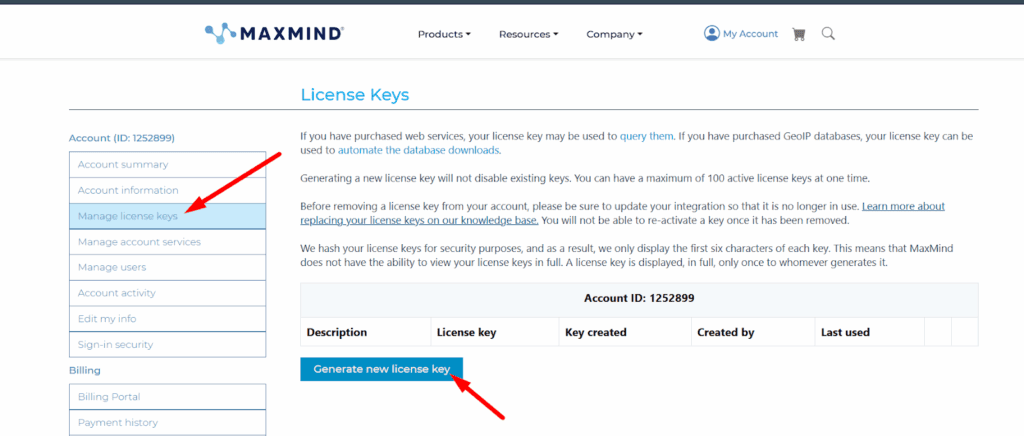
- Log in to your MaxMind Account Dashboard.
- Click the Manage License Keys tab.
- Select Generate new license key.
- Add a short description (e.g., your store’s name).
- Click Confirm to generate the key.
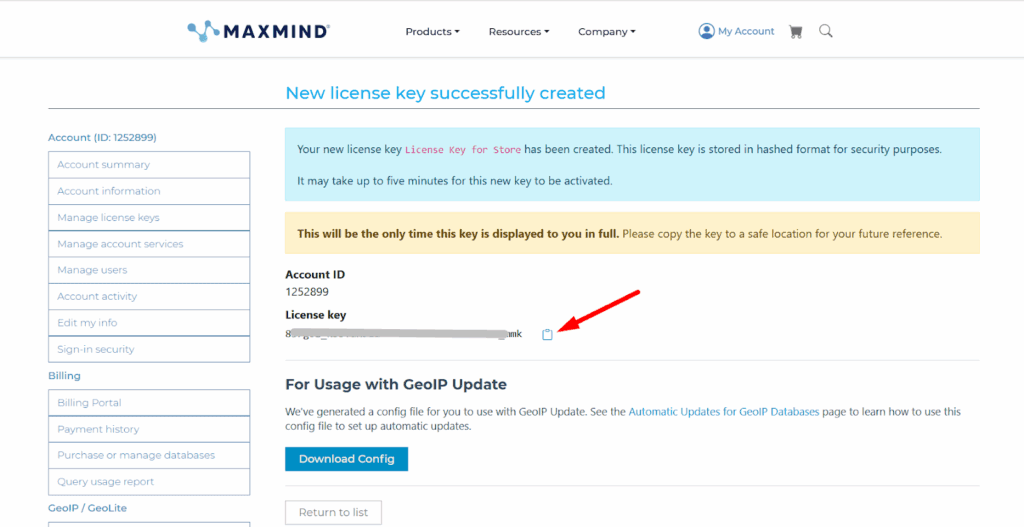
5. Copy and save your license key.
- The key will be shown only once — make sure to copy it and store it safely.
Once you have your key, return to your StoreEngine → Settings → Geolocation page, paste the key into the MaxMind License Key field, and click Save.
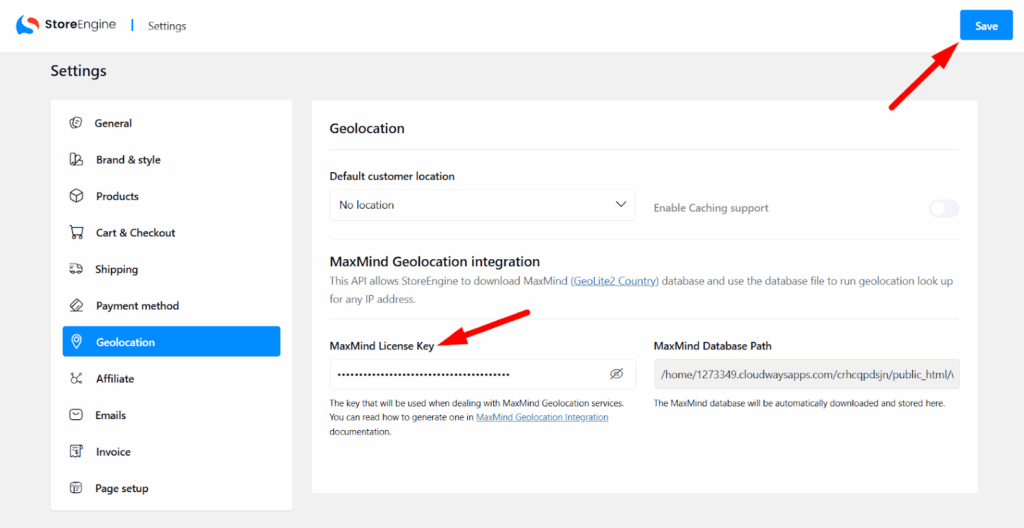
MaxMind Database Path
The MaxMind Database Path shows where your MaxMind database is stored. This database is downloaded automatically and used for location lookups.
💡 You don’t need to manually modify this path. StoreEngine handles it automatically once the license key is added.
Save Your Changes
Once you’ve configured everything, click the Save button in the top-right corner to apply your settings.
Conclusion
The Geolocation feature in StoreEngine helps you deliver a personalized and efficient shopping experience by automatically detecting a customer’s location. By setting the Default Customer Location to IP Address Based Geolocation and optionally enabling Caching Support, you can improve site performance and accuracy for most visitors. However, keep in mind that users browsing through VPNs or Proxies may experience less precise location detection. Overall, this feature ensures your store remains fast, user-friendly, and location-aware for global customers.