











StoreEngine offers a simple subscription model with all features included under one transparent plan. Our system is built for reliability and safety. We never store user payment data. All transactions are securely handled by Stripe, following the strict Payment Card Industry Data Security Standard (PCI-DSS). When it’s time to renew, the system requests your payment securely, ensuring full protection of your financial details.
How to Add a Subscription Price to a Product
To start using the subscription model, first, you need to activate the subscription addon. To do this, go to your StoreEngine dashboard, click ‘Add-ons’, and then search for ‘Subscription’.
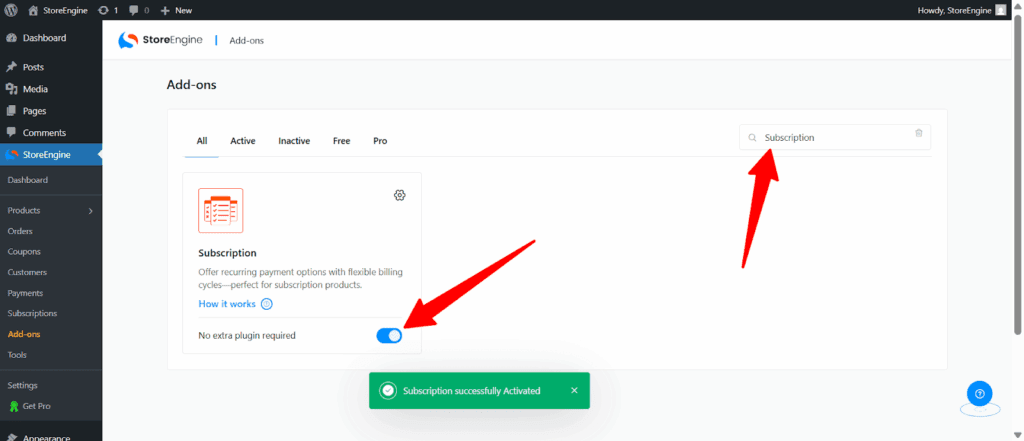
Now, simply activate the addon.
1. Open the Products Section
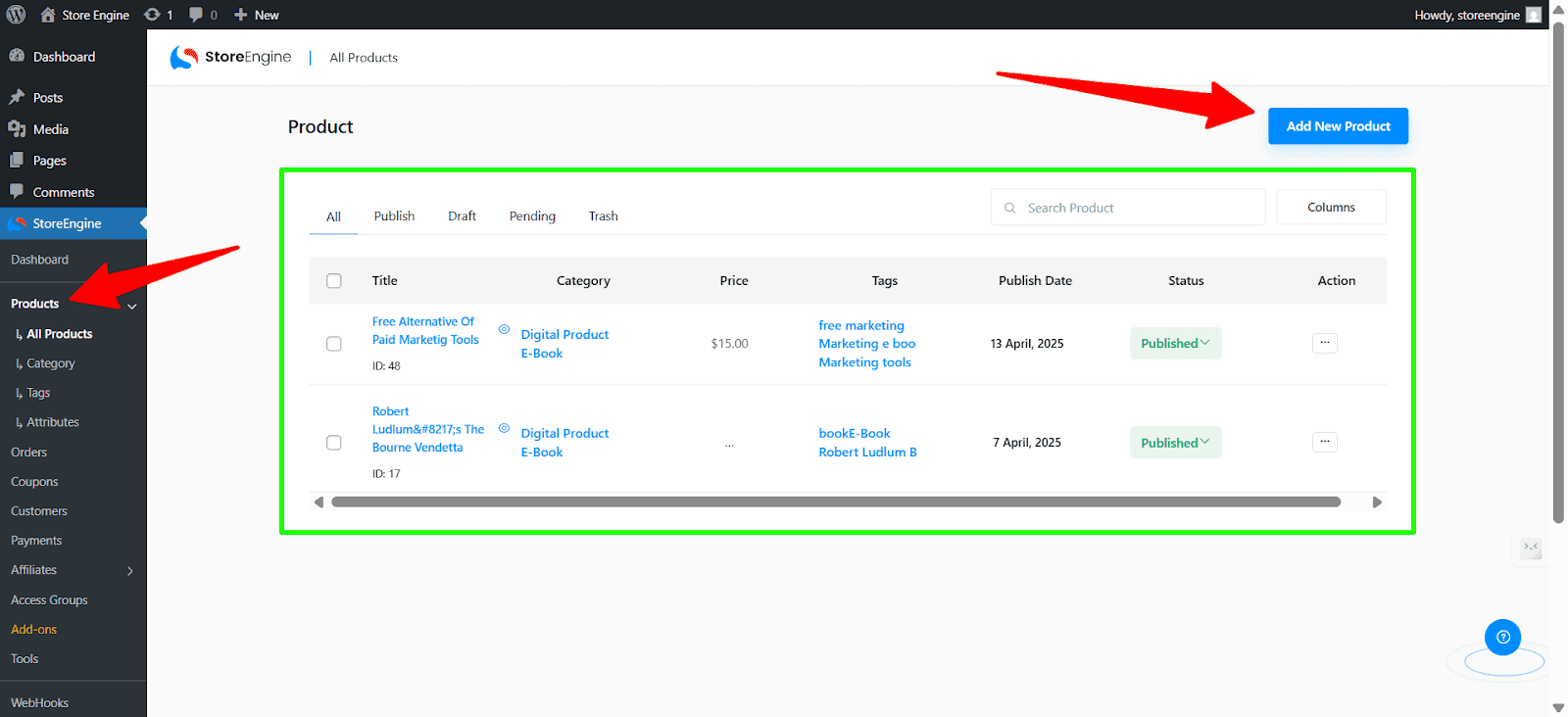
From your dashboard, click on “Products” to view all your existing products.
2. Choose a Product
Select the product where you want to apply a subscription-based price. If you haven’t created the product yet, click “Add New Product” to create one first.
3. Navigate to the Pricing Section
Inside the product editor, first add your product Title and Description. Then either publish the product or save it as a draft.
Once that’s done, scroll down or locate the “Pricing” section to start adding your pricing model.
4. Click on “Add Price”
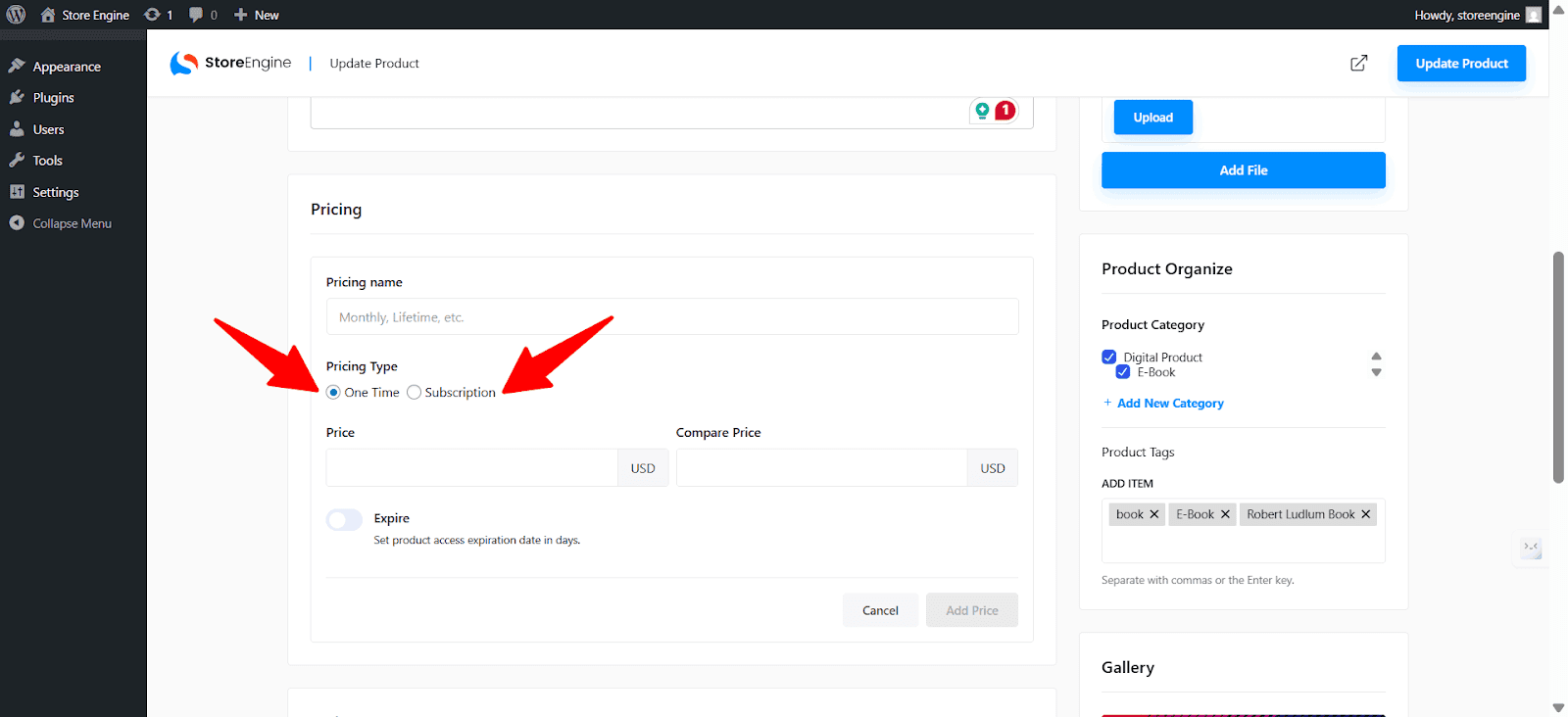
Click the “Add Price” button. A section will appear showing two pricing model types:
- One-Time
- Subscription
5. Select “Subscription”
Choose the “Subscription” option to begin setting up recurring payments for this product.
Customize subscription pricing
When you will select the subscription model, You’ll see the following fields:
Subscription Pricing Options
- Pricing name: Add a label to describe this plan. Example: Monthly, Yearly, Lifetime, etc.
- Pricing Type: Select “Subscription” to activate recurring billing.
- Price: Set the amount the customer will be charged each cycle.
- Compare Price (Optional): Shows a strikethrough price to indicate a discount.
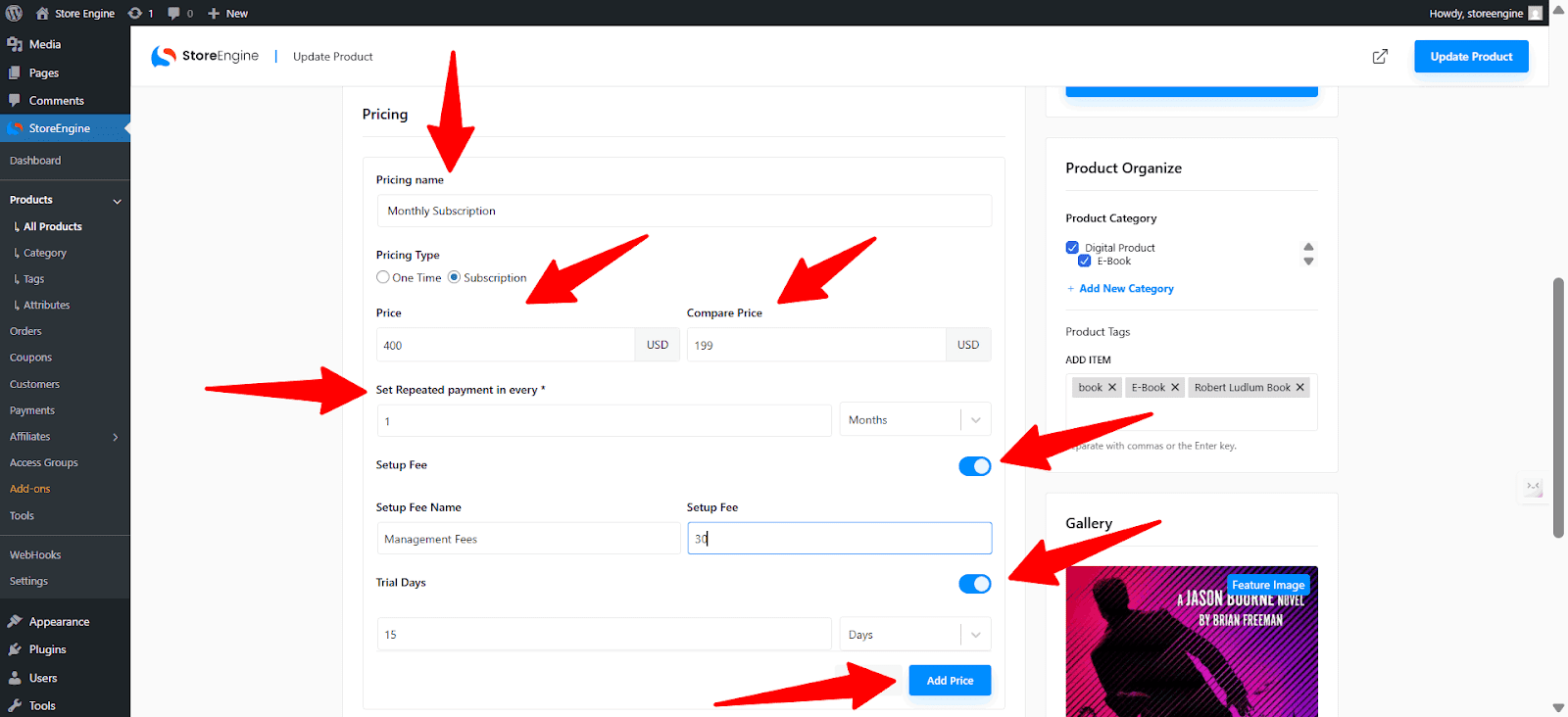
- Set Repeated payment: Define how often the customer will be charged for this subscription.
- Example: Enter 1 and select Months for a monthly plan. You can choose from Days, Weeks, Months, or Years.
- Setup Fee (Optional): Charge a one-time fee during the first payment.
Once you’re done, click “Add Price” to save this subscription plan.
Conclusion
That’s all about the StoreEngine subscription payment model. From one-time purchases to recurring subscriptions with setup fees, StoreEngine makes it flexible and easier for everyone. Make sure each field is filled accurately to match your pricing strategy. Clear labels and billing intervals will improve buyer understanding and reduce confusion during checkout.