











Setting up tax properly is one of the most important steps in running a compliant and professional eCommerce store. Whether you’re selling digital or physical products, StoreEngine makes it easy to configure, manage, and apply taxes based on your location and business requirements.
In this guide, you’ll learn how to set up taxes step-by-step—from entering your store address to adding specific tax rates for different regions. With StoreEngine’s intuitive interface and powerful tax features, you’ll be ready to collect and manage taxes effortlessly.
Store Address: A Prerequisite for Tax Setup

Before configuring taxes, you must set up your store address, as it serves as the foundation for accurate tax calculations based on your location.
To set your store address:
- Navigate to StoreEngine Settings and select General Settings.
- Scroll to the Store Address section, where you’ll find a user-friendly form.
- Complete the form, ensuring all required fields—marked with an asterisk (*)—are filled:
- Country*: Select your country from the dropdown menu.
- City*: Enter your city.
- State/Province*: Specify your state or province.
- Address (Area and Street): Optional, but recommended for precision.
- Address 2: Optional, for additional address details.
- Postcode: Optional, but useful for location-specific tax rules.
The form features a clean, web-based layout with white input fields and clear visual indicators for mandatory entries, ensuring a straightforward setup process.
Enabling Tax on Your Store
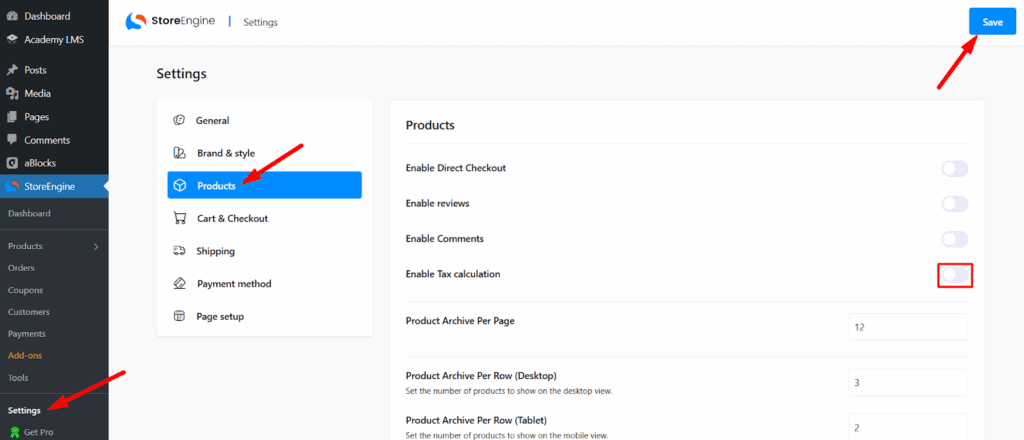
To enable tax calculations for your products, you need to activate the tax feature in StoreEngine’s product settings.
To enable taxes:
- Go to StoreEngine Settings and select the Product Settings section.
- Locate the Enable Tax Calculation option.
- Toggle the switch to On to activate tax calculations for your store.
Once enabled, a new Tax section will appear in StoreEngine Settings, unlocking advanced tax configuration options.
Tax Setup and Management

With tax calculations enabled, you can access the Tax Settings panel in StoreEngine to configure tax-related preferences for pricing and checkout workflows. This comprehensive interface provides the following key options:
Prices Entered with Tax: Choose whether prices are entered inclusive or exclusive of tax. The default setting is exclusive tax entry, which ensures precise tax calculations at checkout.
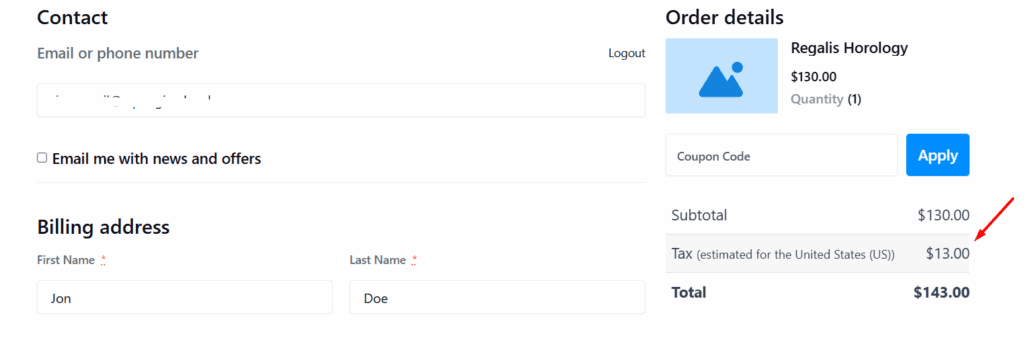
Rounding: Select how taxes are rounded:
- Individual Rounding (default): Rounds taxes for each item separately.
- Line-Item Rounding: Rounds taxes at the line-item level, affecting the final tax total.
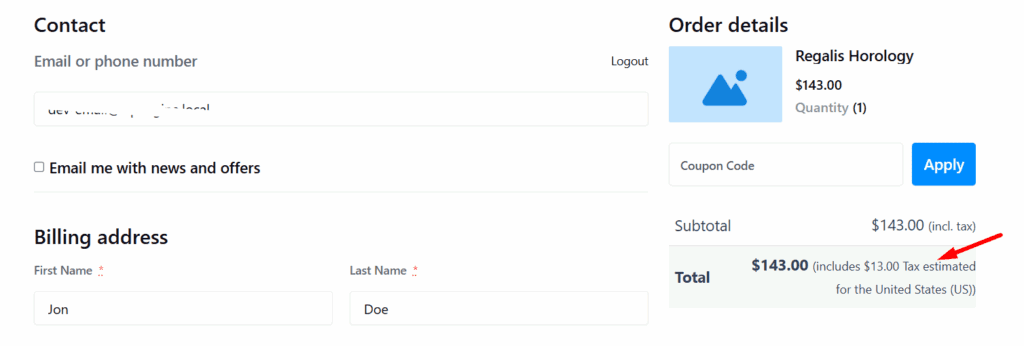
Display Prices During Cart and Checkout: Decide whether prices are displayed including or excluding tax. The default setting is exclude tax, promoting transparency for customers.
Display Tax Totals: Choose how tax details are presented:
- Itemized Breakdown: Shows taxes for each item separately.
- Single Summarized Total: Combines all taxes into one total for simplicity.
The interface is designed with intuitive controls, logical grouping of settings, and clear labeling, making it easy to configure taxes accurately while ensuring compliance with regional regulations.
Adding Tax Rates
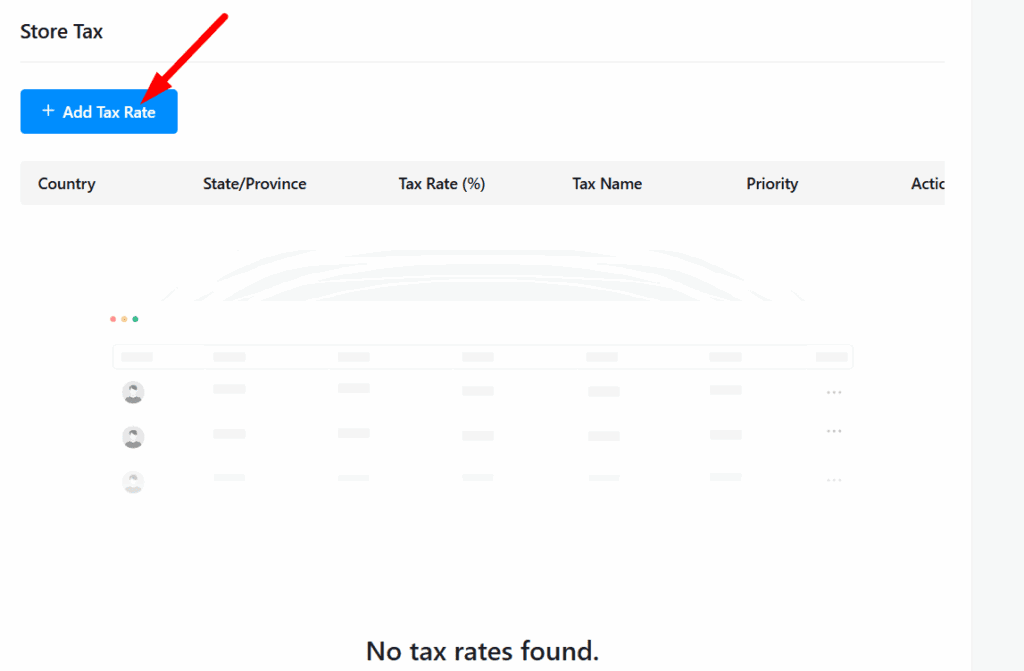
Once tax settings are configured, you can define specific tax rates for different regions to ensure accurate tax application.
To add a tax rate:
- In the Tax Settings section, scroll to the Store Tax option.
- Click the Add Tax Rate button to open a configuration window.

- Fill in the required information:
- Country: Select the country where the tax rate applies.
- State: Specify the state or province, if applicable.
- Tax Rate: Enter the tax percentage (e.g., 8.5 for 8.5%).
- Tax Name: Provide a descriptive name for the tax (e.g., “Sales Tax”).
- Tax Priority: Assign a priority level for the tax rate. Note that only one matching rate per priority will be applied. To define multiple tax rates for a single area, use different priority levels for each rate.
- Click Save to add the tax rate.
- Repeat the process to add additional tax rates for other regions as needed.
- Once all tax rates are configured, click the final Save button to apply your changes.

This flexible system allows you to manage multiple tax rates for different regions, ensuring compliance and accuracy across your store’s operations.
Your StoreEngine store is now fully configured to collect and display tax based on your rules and location. You can always return to adjust rates, change display settings, or update priorities as your business grows.