


This add-on lets you record what each product costs you, so your StoreEngine reports show real profit — not just revenue. The cost is captured at the moment of sale, which keeps historical profit accurate even when supplier prices change later.
| Plan required: Cost & Profit Tracking is available on the Pro plan. Enable it from StoreEngine → Add-ons. |
Step 1 — Enable Cost & Profit Tracking
Go to StoreEngine → Add-ons and toggle on Cost & Profit Tracking.

Turning it on will:
- Add a Cost per unit field inside the product editor.
- Grant the “view profit” permission to Administrator and Shop Manager roles by default.
- Unlock COGS, Profit, and Margin tiles on your dashboard and reports.
Step 2 — Set the Cost on Your Products
Open any product in the editor and scroll down to find the Cost per unit field. Enter what the product costs you to produce or acquire.

The Cost per unit field in the StoreEngine product editor
The field works across all product types:
- — a single Cost per unit field.Simple product
- — a separate cost per variation (each size or color can have its own cost).Variable product
- — also has a Cost per unit field. If a variation has no individual cost, the parent product cost is used.

| ✔ Note: Set costs before you start selling so every order captures an accurate snapshot from day one. |
How Profit Is Calculated
When an order is placed, StoreEngine takes a snapshot of the cost for each item and stores it on that order. The snapshot never changes — so historical reports always reflect what products actually cost at the time of sale.
Profit = Revenue − Cost of Goods Sold (COGS)
Margin = Profit ÷ Revenue × 100
Two important rules about cost snapshots:
- Changing a product’s cost later does not alter profit on orders that have already been placed.
- A cost of zero is treated as a real value (margin shows near 100%). A product with no cost set at all is excluded from profit calculations.
Step 3 — View Profit on the Analytics Dashboard
Once at least one order has been placed for a product with a cost set, your StoreEngine dashboard will display three new tiles: COGS, Profit, and Margin — each with a comparison against the previous period.
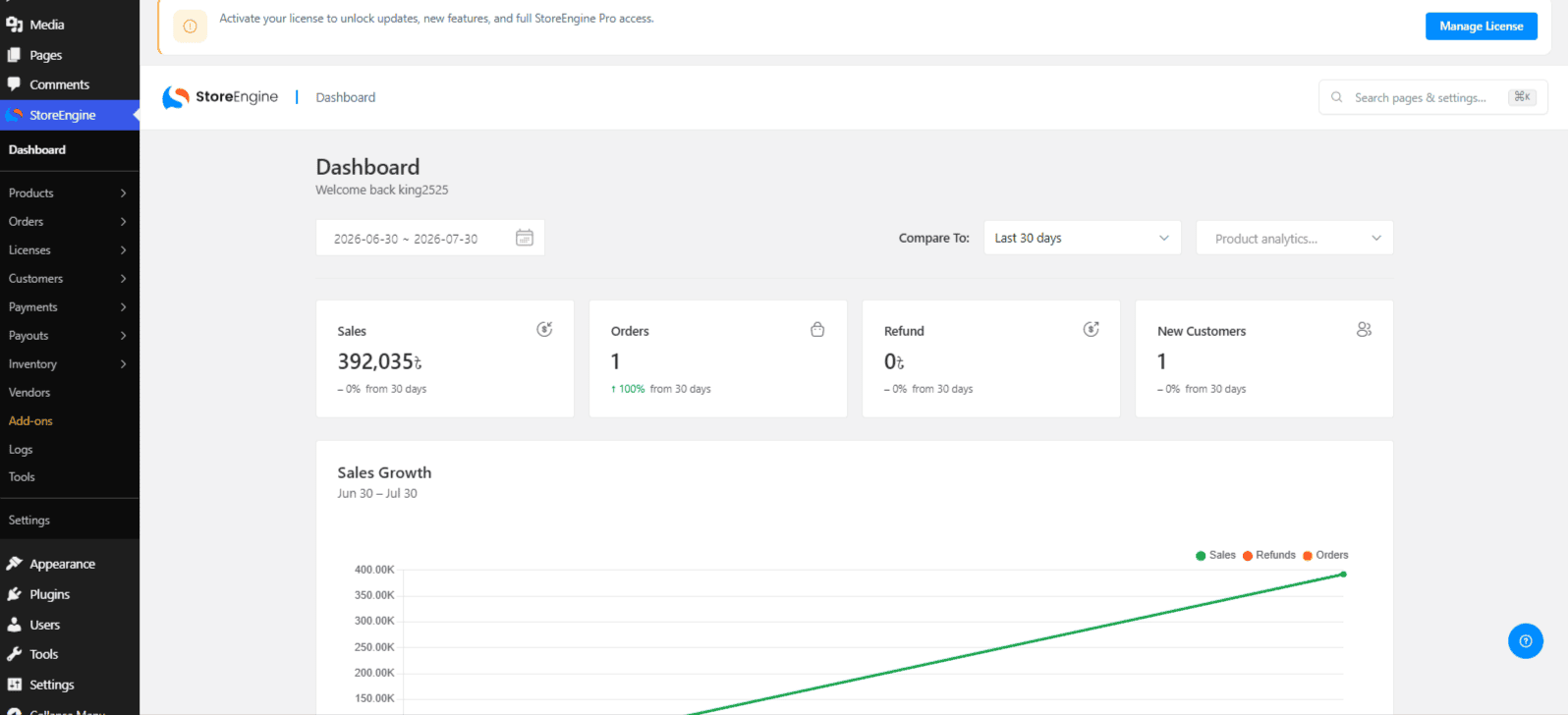
COGS, Profit, and Margin tiles on the StoreEngine analytics dashboard
Profit data is available in three places:
- — COGS, Profit, and Margin with period-over-period comparison.Dashboard tiles
- — open any order to see its revenue, cost, profit, and margin breakdown.Per order
- — choose a date range to see totals that reconcile with your individual orders.Reports
| ✔ Note: Only completed and processing orders count toward profit. Refunded orders are excluded. Report summaries are cached for a few minutes — wait briefly after changing data before refreshing. |
Troubleshooting
|
Problem |
What to Check |
|
Profit shows zero on an order |
The product had no cost set at the time of sale. Set a cost now — it applies to future orders only, not past ones. |
|
Cost field is missing on a digital product |
Confirm the Cost & Profit Tracking add-on is enabled. The field is available for digital products too. |
|
Changing a cost didn’t update an old order |
This is by design. Costs are snapshotted at sale time to keep historical data accurate. |
|
A staff member can’t see profit |
They lack the “view profit” permission. Grant it via their role or Role Permissions settings. |
|
Dashboard numbers didn’t update immediately |
Profit summaries are cached briefly. Wait a few minutes and refresh the page. |
Tips & Best Practices
- Set costs on all products before you go live so every order captures a real profit snapshot.
- Use Purchase Order receiving with a cost strategy to keep costs current without manual editing.
- Costs are stored in your store’s base currency. Multi-currency stores display a converted figure, but the stored value does not change.
- Run a CSV export/import to update costs in bulk after a supplier price change — this will apply to all future orders.