


This add-on helps your checkout meet German and EU legal requirements: clear “place order” wording, consent checkboxes (terms, revocation policy, newsletter), a transparent VAT breakdown, unit pricing (Grundpreis), and GDPR-compliant consent records. It’s about legal compliance, not tax math — for VAT calculation and validation see VAT Validation.
Plan: Free · Add-on: EU Compliance · Where: StoreEngine → Settings →Payment & tex → EU/UK VAT
What you can do
- Set custom “Place Order” button text (the German Button-Lösung requirement).
- Show a VAT breakdown at cart/checkout: net total, VAT per rate, and gross total.
- Add consent checkboxes — Terms (AGB), Revocation Policy (Widerrufsbelehrung), Newsletter opt-in, and your own custom ones. Each can be required or optional and linked to a page.
- Keep a consent log — a record of every consent decision (who, when, and what they agreed to), exportable and erasable through WordPress privacy tools.
- Attach legal PDF documents (terms, revocation policy) to order emails.
- Show unit prices (Grundpreis) like “€6.00 / 1 kg” next to your prices.
Turn on EU Compliance
- Go to StoreEngine → Add-ons.
- Toggle on EU Compliance.
- Configure everything at StoreEngine → Settings → Compliance

Optional companions
- Invoice add-on — needed to attach legal PDFs to emails (skipped quietly if off).
- GDPR add-on — needed for consent logs to appear in WordPress privacy export/erase.
- GemCRM — needed to sync newsletter opt-ins to your contact list.
None of these are required for basic compliance; the add-on works without them and simply skips the extra step.
Checkout Button, VAT Transparency & Legal Documents
Go to StoreEngine → Settings →Payment & tex → EU/UK VAT
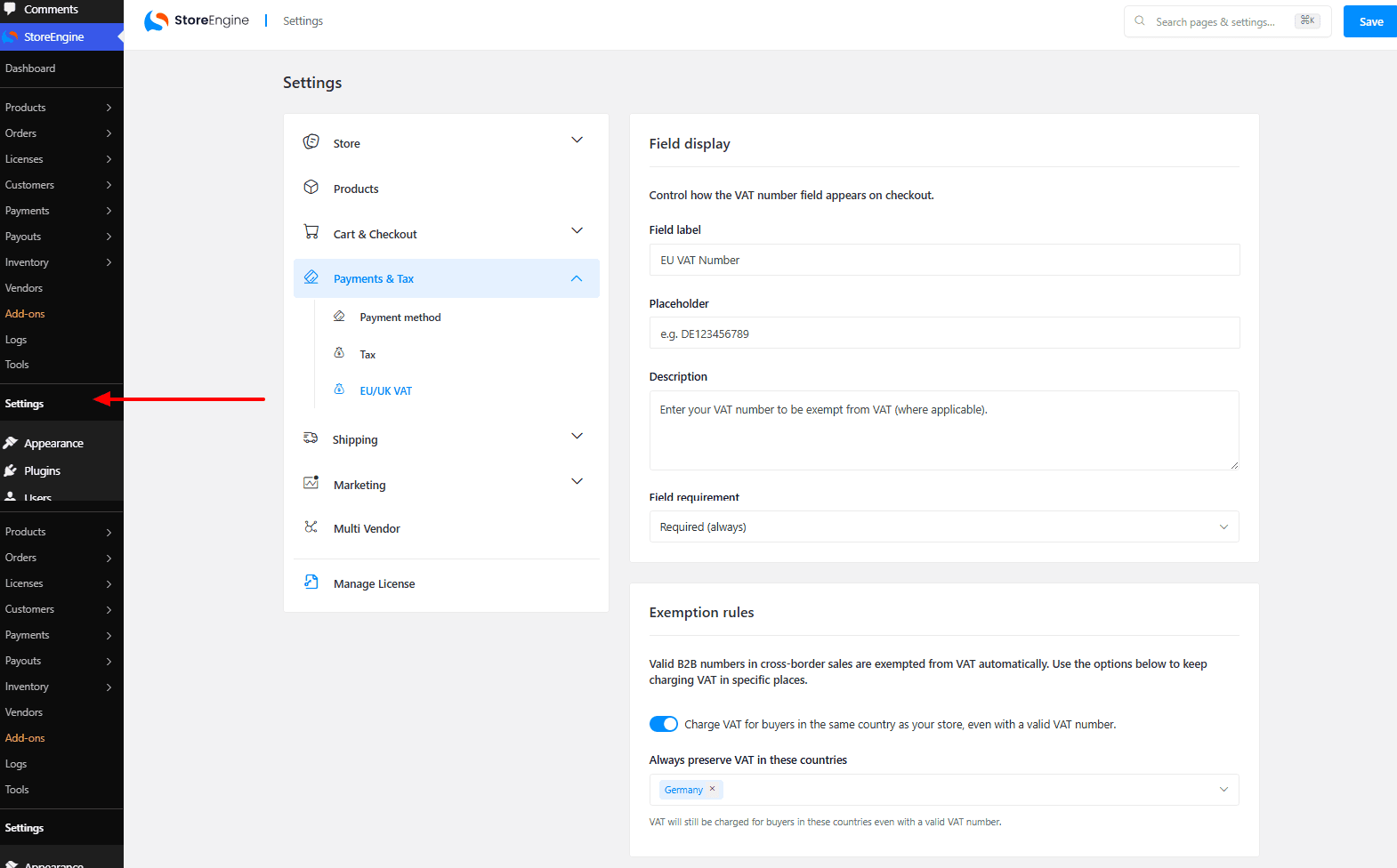
Enter your custom wording in the Place-order button text field. This sets the label on the checkout button — for German stores use e.g. “Kostenpflichtig bestellen” to meet the Button-Lösung requirement. Leave it blank to keep the default “Place Order” text.
VAT Transparency
Toggle on Show net total + per-rate VAT breakdown on cart & checkout to display a full VAT breakdown — net total, VAT per rate, and gross total — at both the cart and checkout pages.
Legal Documents (attached to confirmation email)
Select the WordPress pages for your legal documents:
- Terms & Conditions (AGB) page — select the page from the dropdown.
- Revocation Policy (Widerrufsbelehrung) page — select the page from the dropdown.
Selected pages are rendered to PDF and attached to every order confirmation email. This requires the Invoice and Email add-ons to be active.
Click Save in the top right corner when done.
Consent Checkboxes

Scroll down on the same Settings → Payment & tex → EU/UK VAT Compliance page to reach the Consent Checkboxes section. These checkboxes appear above the order button at checkout. Mandatory ones block the order until ticked; every decision is logged automatically — who, when, what, and how.

Each checkbox has the following fields:
- Key (unique id) — a short internal identifier (e.g. agb, widerruf, newsletter). Must be unique across all checkboxes.
- Label shown to the customer — the text the customer sees at checkout (e.g. “I accept the Terms and Conditions (AGB).”).
- Role — what the checkbox does beyond recording consent. Leave as None for standard legal checkboxes, or select Newsletter (sync opt-in to GemCRM) to push the opt-in to your GemCRM contact list when ticked.
- Linked page ID (optional) — the WordPress page ID of the relevant policy page. Customers can click to read it, and it is rendered as a PDF and attached to the order confirmation email (requires Invoice + Email add-ons).
- Display order — controls the sequence checkboxes appear at checkout. Lower numbers appear first.
- Mandatory — when on, the checkbox must be ticked before the order can be placed. An unticked mandatory checkbox blocks checkout with a clear message.
- Enabled — when off, the checkbox is hidden at checkout without being deleted.
- Remove — permanently deletes the checkbox.
Three checkboxes come pre-configured by default: agb (Terms & Conditions), widerruf (Revocation Policy), and newsletter (newsletter opt-in). Edit or remove any of these to match your store’s requirements. To add a new one, click Add Checkbox at the bottom of the section.
Click Save in the top right corner when done.
The consent log
Every time a customer accepts (or declines) a checkbox at checkout, StoreEngine records it: their email, IP address, browser, the timestamp, and whether consent was given. This works for both guests and logged-in customers.
- Export — a customer’s personal-data export (via WordPress privacy tools) includes their consent records.
- Erase — a privacy erasure anonymizes the records rather than deleting them: personal details are removed but the row remains as legal proof that consent was collected.
- (Consent records appear in WordPress privacy tools only when the GDPR add-on is active.)
Tips & best practices
- Link every consent checkbox to a real, published page — a deleted page just means no PDF/link, with no error.
- After saving settings, reload the page to confirm your toggles stuck (the form normalizes values on save).
- Keep your terms and revocation pages up to date, since they’re what customers agree to and what’s attached to emails.
- Test checkout as both a guest and a logged-in customer to confirm consent is logged for both.
Troubleshooting
|
Problem |
What to check |
|
Consent logs don’t appear in privacy export |
The GDPR add-on must be active for logs to surface in WordPress privacy tools. |
|
Legal PDFs aren’t attaching to emails |
The Invoice add-on must be active; without it, orders still complete but no PDF is attached. |
|
Newsletter opt-in isn’t creating a contact |
GemCRM must be active and connected; if it’s off or fails, the order still completes. |
|
Required checkbox doesn’t block checkout |
Confirm the checkbox is set to required (optional ones never block). |
|
Erased customer’s consent row still exists |
That’s intentional — erasure anonymizes the record but keeps it as legal proof. |