


What it does: Fills your store with realistic sample data — customers, products, orders, coupons and more — in one click, so you can test themes, layouts, and features without building everything by hand. It tracks everything it creates, so you can remove it all again just as easily.
For testing/development stores. On a live (production) site, seeding is blocked unless you deliberately override it. Removing seeded data is always allowed.
Free vs Pro: Core data sets are Free. A few extra sets (licenses, staff, cost/profit orders, and more) come with StoreEngine Pro and their parent add-ons.
Turn it on
Either:
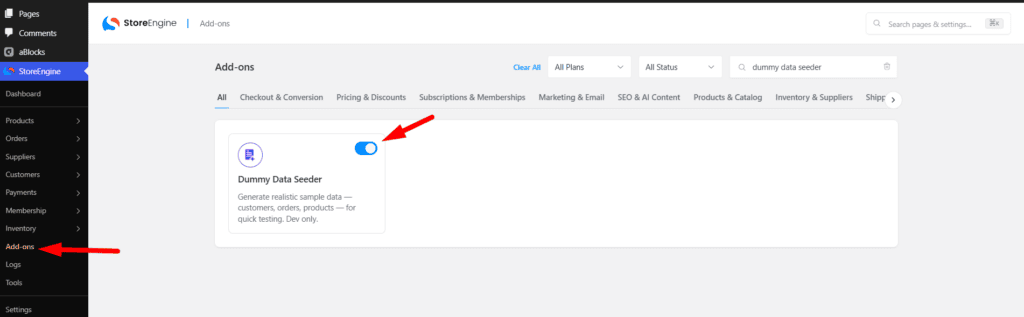
- Go to StoreEngine → Add-ons and turn on Dummy Data Seeder, or
- Click Insert dummy data on the “Populate your store with sample data 🧪” notice.
Then open StoreEngine → Tools → Dummy Data.
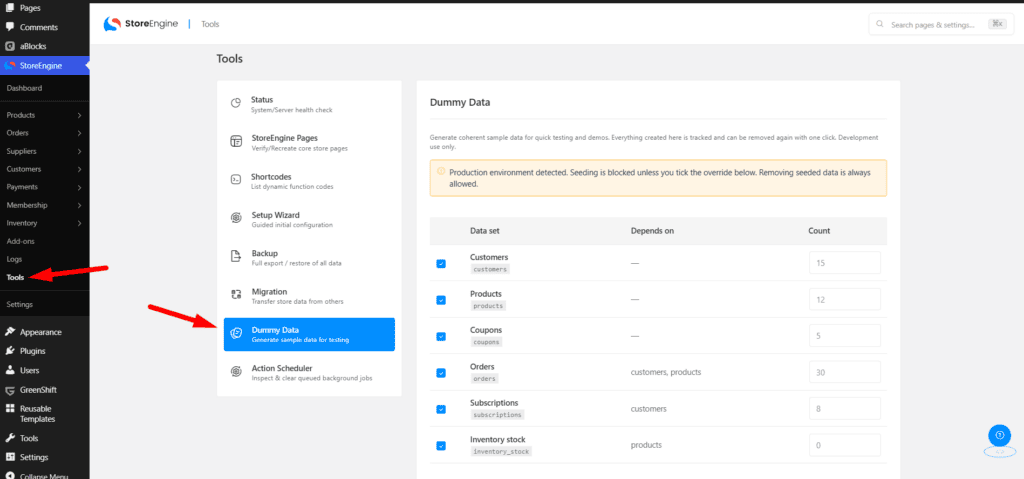
Generate sample data
On the Dummy Data page you’ll see a table of data sets, each with a checkbox and a count:
- Tick the data sets you want.
- Adjust each count, or leave it blank to use the default.
- Click Seed data.
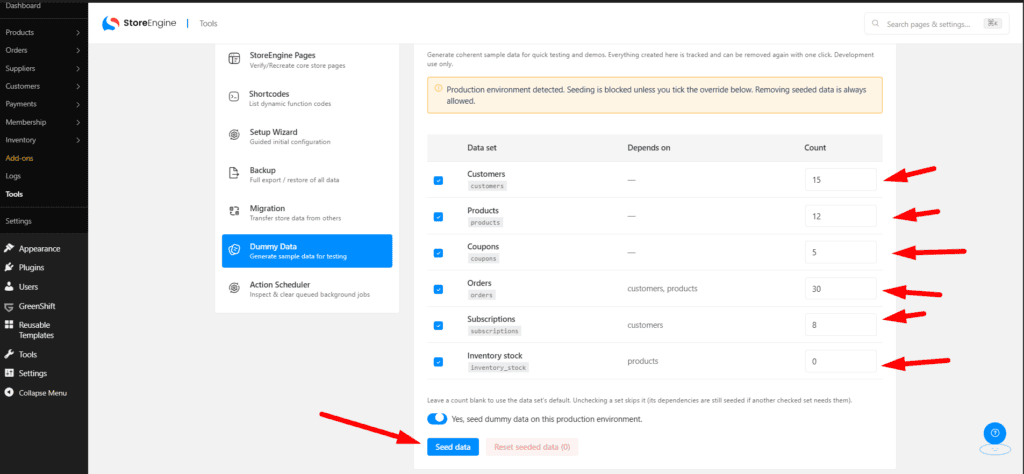
Available data sets (some only appear when their add-on is active):
|
Data set |
Default count |
Needs |
|
Customers |
15 |
— (Free) |
|
Products |
12 |
— (Free) |
|
Coupons |
5 |
— (Free) |
|
Orders |
30 |
— (Free) |
|
Subscriptions |
8 |
— (Free) |
|
Inventory stock |
— |
Subscription add-on |
|
Sales Funnels |
1 |
Inventory add-on |
|
Licenses |
12 |
Funnel Builder add-on |
|
Deployments |
— |
License Management (Pro) |
|
Cost & profit orders |
15 |
Cost-Profit add-on (Pro) |
|
Staff users |
5 |
Role-Permission add-on (Pro) |
|
Buy X Get Y coupons |
2 |
Advanced-Coupon add-on (Pro) |
Dependencies are handled for you. For example, Orders need customers and products, so those are created automatically even if you didn’t tick them.
Remove everything it created
Click Reset seeded data (N) — where N is how many items the seeder is tracking. Confirm the prompt (“Delete all seeded data? This cannot be undone.”) and it removes only what the seeder made, leaving your real content untouched.
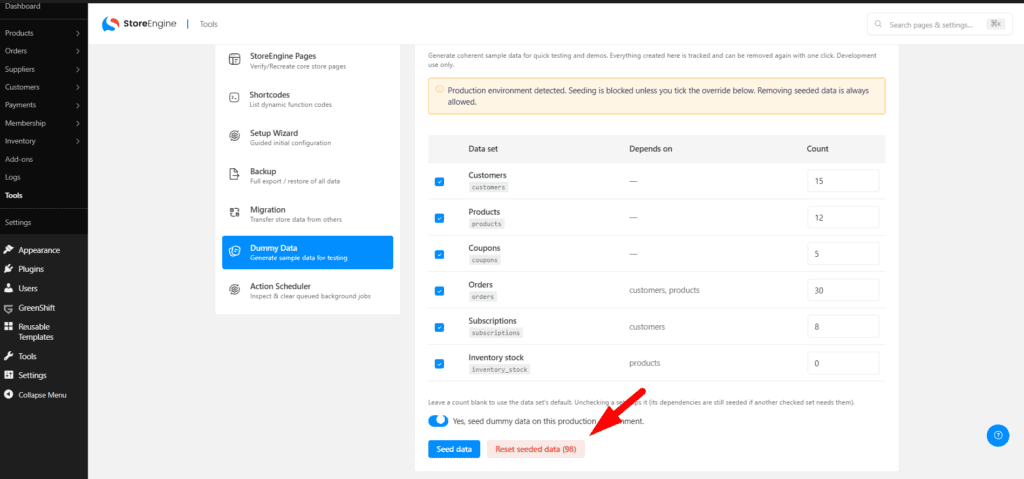
Seeding on a production site
If StoreEngine detects a live environment, seeding is blocked with a warning. To proceed anyway, tick “Yes, seed dummy data on this production environment.” first. (Only do this if you’re sure — it adds fake data to a real store.)
Troubleshooting
- “Pick at least one data set to seed” — tick at least one box before clicking Seed data.
- A data set is missing from the list — turn on its parent add-on (e.g. enable Subscriptions to see the Subscriptions data set).
- Seeding blocked — you’re on a production environment; tick the override checkbox to continue.