


What it does: Automatically send each order to the right supplier for fulfilment. When an order is paid, StoreEngine splits it by supplier, then either dispatches each part automatically (creating a purchase order and emailing the supplier, or pushing it to a supplier’s API) or holds it in a queue for you to send manually. Supplier “shipped” and courier “delivered” updates flow back onto the order.
Beta feature.
This is a StoreEngine Pro add-on, and it’s the “top layer” that ties Suppliers and Couriers together.
Before you start (important)
Dropshipping requires two other add-ons to be on first:
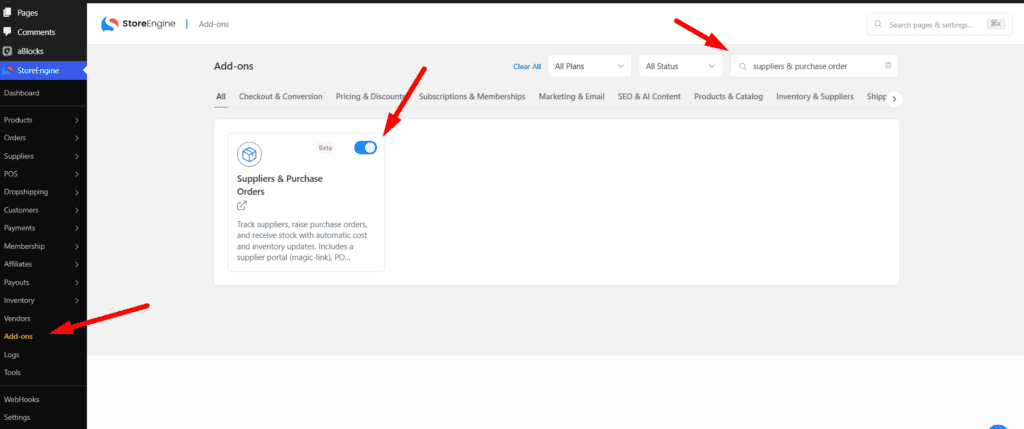
- Suppliers & Purchase Orders
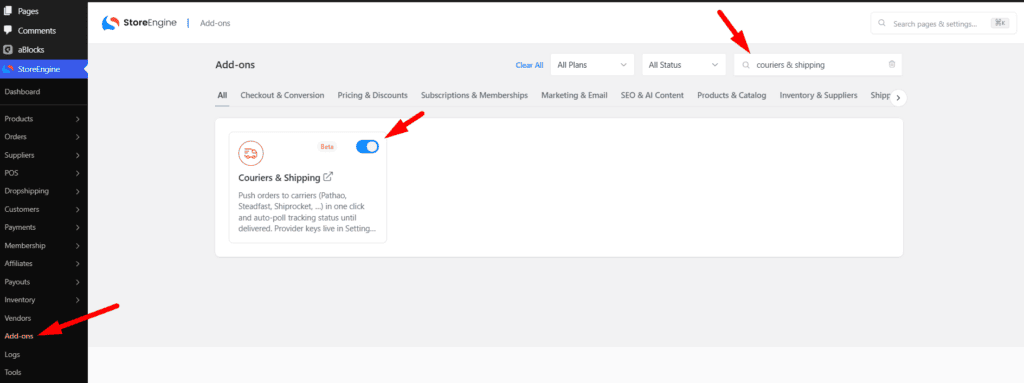
- Couriers & Shipping
StoreEngine won’t let you enable Dropshipping until both are active (and won’t let you turn them off while Dropshipping is on). For branded supplier catalogs (below), you also need the StoreEngine Connectors plugin.
Turn it on
- Enable Suppliers & Purchase Orders and Couriers & Shipping.
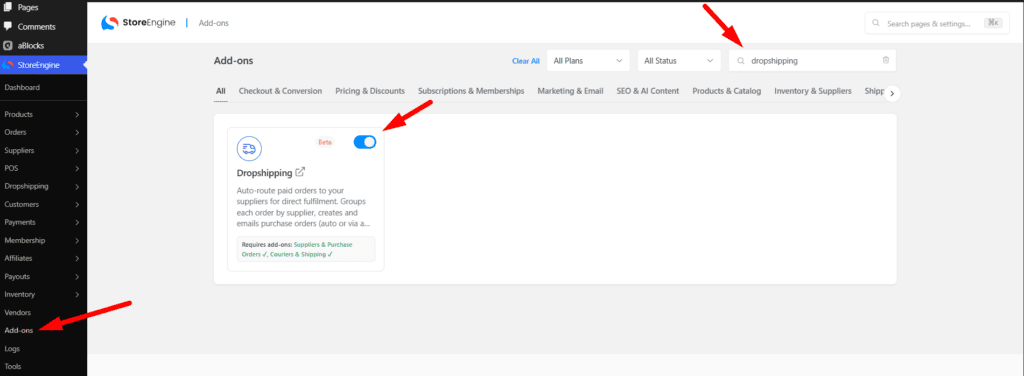
- Go to StoreEngine → Add-ons and turn on Dropshipping.
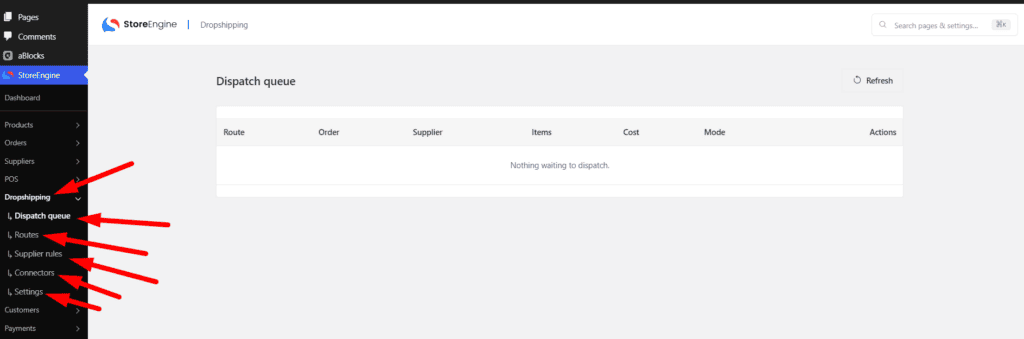
- A Dropshipping menu appears with: Dropshipping (the dispatch queue), Routes, Supplier rules, Connectors, and Settings.
How an order flows
- An order is paid.
- StoreEngine creates one route per supplier (based on each product’s preferred supplier, set in the Suppliers add-on).
- Each route is either auto-dispatched or held in the dispatch queue for you.
- When the supplier ships and the courier delivers, the route — and the order — update to match.
A route moves through: Pending → Queued → Dispatched → Acknowledged → Shipped → Delivered (or Cancelled / Failed).
If a dispatch fails, StoreEngine retries automatically a few times before marking it failed.
Set your supplier rules
Under Supplier rules, configure each supplier:
- Auto-dispatch — send their orders automatically, or hold for manual review.
- Max order value — orders above this amount go to the manual queue (0 = no limit).
- Fulfilment type:
- Portal — StoreEngine creates a purchase order and emails the supplier their secure link.
- API — the order is pushed to a connected supplier service.
- Connector — which service to use for API fulfilment.
Work the dispatch queue
The Dropshipping screen is your manual queue. For each route you can:
- Dispatch — send it now
- Retry — try a failed one again
- Cancel the route or replan the whole order
Import products from suppliers (Connectors)
Under Connectors you can pull supplier catalogs in and keep prices/stock synced. Two universal options always work:
- CSV / feed — paste a CSV feed URL (a public link to the supplier’s product CSV with a header row) and set a cache time. Expected columns include id/sku, title, price, cost, stock, image, description.
- Custom API — a generic connector for any REST supplier.
With the StoreEngine Connectors plugin you also get branded connectors: AliExpress, CJ Dropshipping, Spocket, Zendrop, Printful, Printify. Each supports search, import (add products to your catalog), and sync (refresh price/stock).
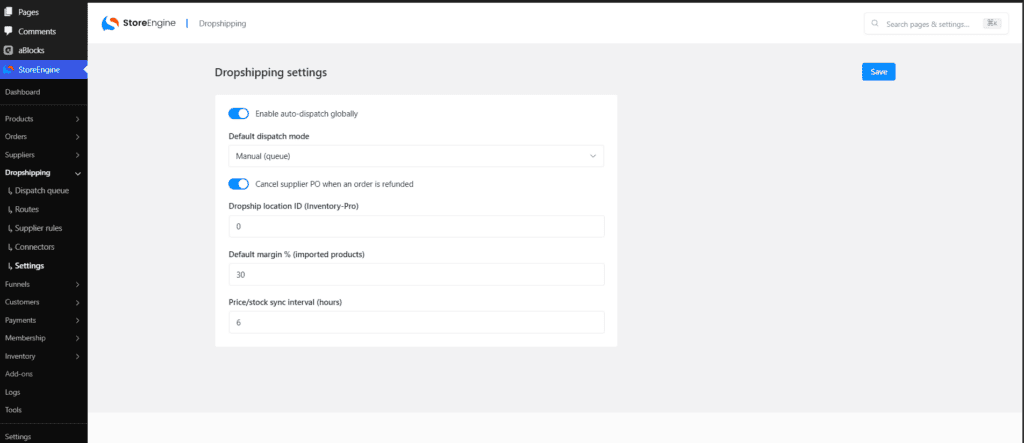
Settings summary
- Default dispatch mode — Manual or Auto (used for suppliers with no rule of their own).
- Global auto-dispatch — a master on/off switch for all automatic dispatching.
- Dropship location — which inventory location to record supplier receipts against.
- Cancel PO on refund (on by default) — cancel the supplier’s PO if an order is refunded after dispatch.
- Default courier — which courier to open a shipment with when a supplier ships.
- Default margin % and sync interval — markup and refresh rate for imported catalog products.
Troubleshooting
- Can’t enable Dropshipping — turn on Suppliers and Couriers first.
- Nothing dispatches automatically — check Global auto-dispatch is on and the supplier’s rule allows auto-dispatch (and the order is under its max value).
- Branded connectors missing — install the StoreEngine Connectors plugin.
- A “minimum core version” notice — update StoreEngine to core 1.8.1 or newer.
More: storeengine.pro/docs