


StoreEngine is a powerful all-in-one WordPress eCommerce plugin by Kodezen that helps you sell digital and physical products, manage subscriptions, memberships, affiliates, invoicing, POS, and more — all from a single plugin, without any bloat.
Part 1: How to Install and Activate StoreEngine Free
Follow the steps below to install StoreEngine Free from the WordPress plugin repository.
Step 1: Navigate to Add New Plugin
From your WordPress dashboard, go to:
Plugins → Add New Plugin
Step 2: Search for StoreEngine
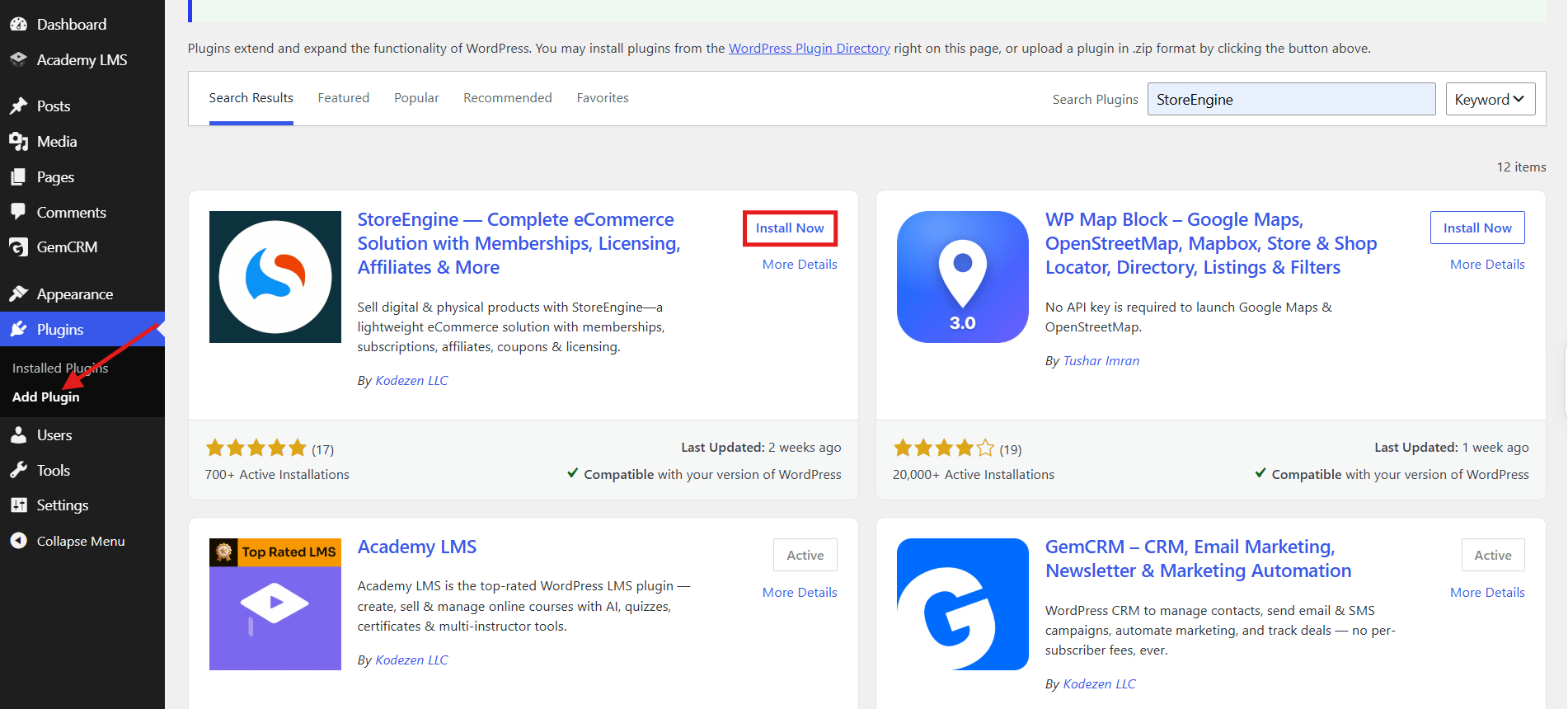
In the search bar on the right side of the page, type StoreEngine and press Enter. The StoreEngine plugin by Kodezen will appear in the search results.
Step 3: Install the Plugin
Click the “Install Now” button on the StoreEngine plugin card. WordPress will download and install the plugin automatically.
Step 4: Activate the Plugin
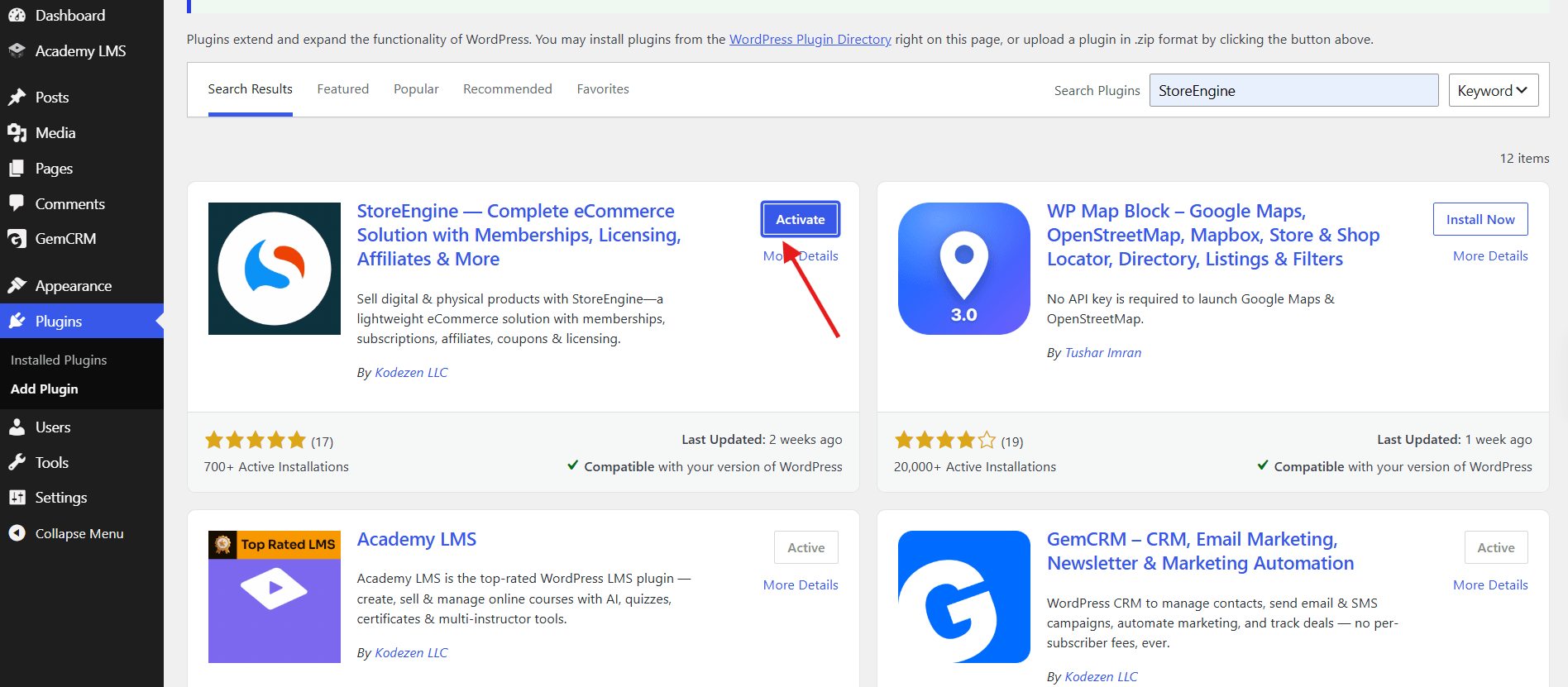
After installation is complete, click “Activate Plugin”. StoreEngine will now be active on your site.
Step 5: Confirm Activation
You will now see a StoreEngine menu item in your WordPress left sidebar. The Free version is fully ready to use — no license key is needed.
StoreEngine Free is now installed and active. You can start building your store immediately. If you have purchased StoreEngine Pro, continue to Part 2 below.
Part 2: How to Install and Activate StoreEngine Pro
If you have already completed Part 1, StoreEngine Free is active on your site. Now follow the steps below to install StoreEngine Pro on top of it and activate your license key.
Important: Do not deactivate or delete StoreEngine Free. Both StoreEngine Free and StoreEngine Pro must be active at the same time for the plugin to work correctly.
Step 1: Purchase StoreEngine Pro
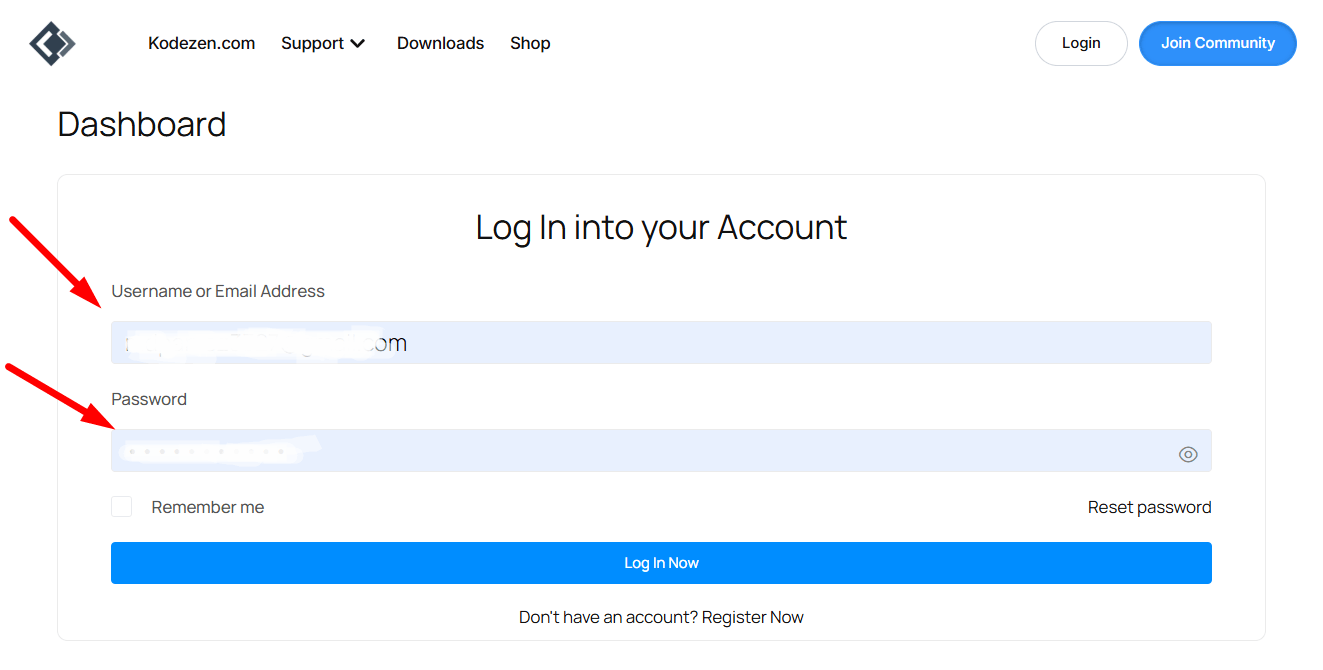
After a successful payment, Kodezen will send a welcome email to your registered email address containing your login email and password. Use these credentials to log in to your Kodezen account.
Step 2: Log In to Your Kodezen Account and Download StoreEngine Pro
Log in to your Kodezen account to download the StoreEngine Pro plugin file.
- Visit store.kodezen.com and log in using the credentials from your welcome email.
- After logging in, you will be taken to your account dashboard.
- Locate StoreEngine Pro under your purchases and click the Download button to save the ZIP file to your computer.
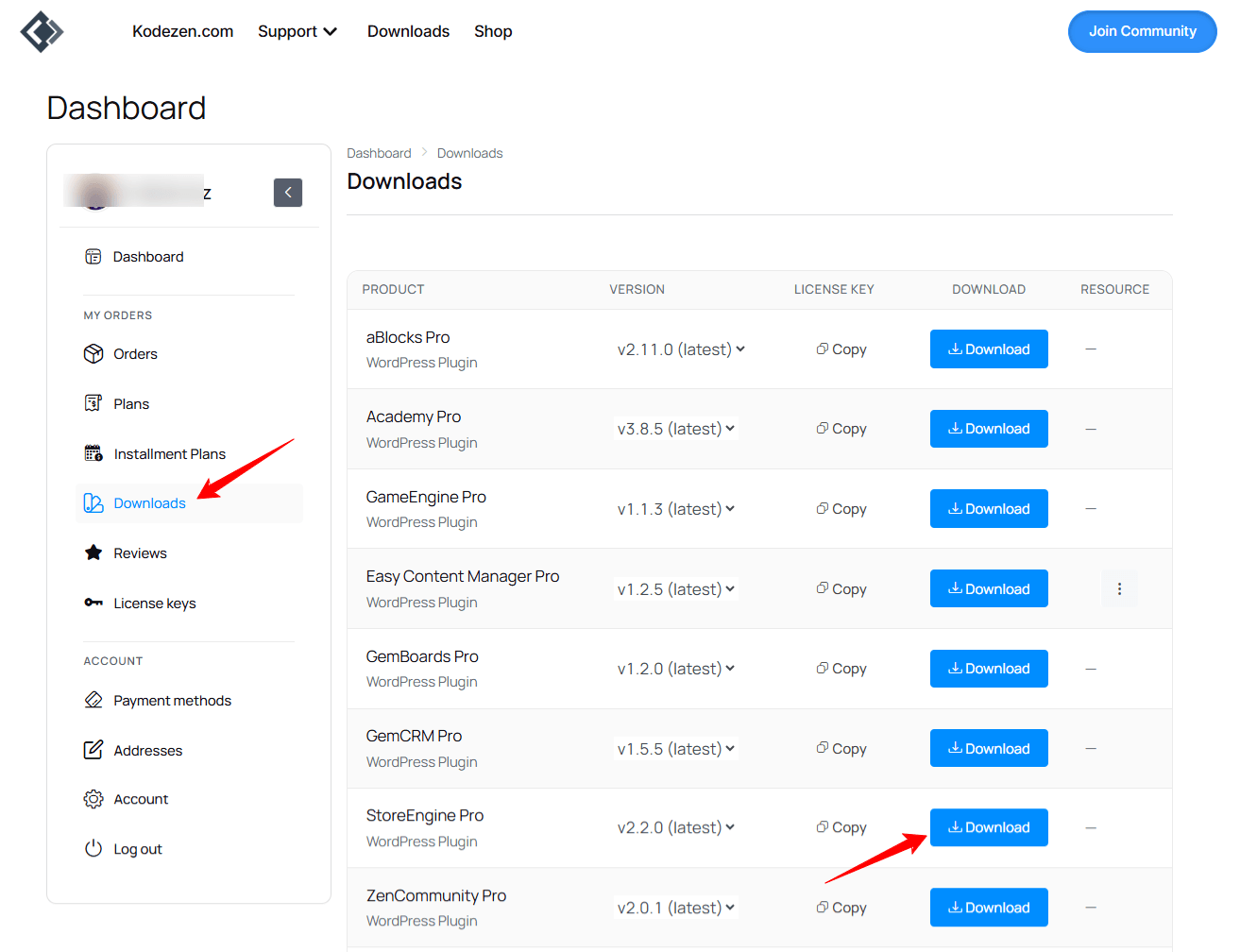
Step 3: Upload and Install StoreEngine Pro in WordPress
StoreEngine Free is already active on your site. You will now install StoreEngine Pro as a separate, additional plugin alongside it. Do not remove or deactivate the Free version during this process.
- Log in to your WordPress admin panel.
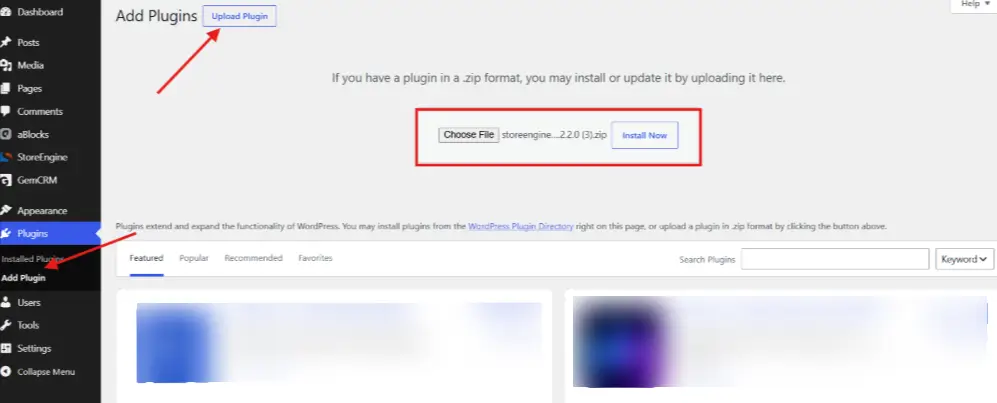
- Navigate to: Plugins → Add New Plugin
- Click the “Upload Plugin” button at the top of the page.
- Click “Choose File” and select the StoreEngine Pro ZIP file you downloaded from your Kodezen dashboard. Then click “Install Now”.
- After installation is complete, click “Activate Plugin”.
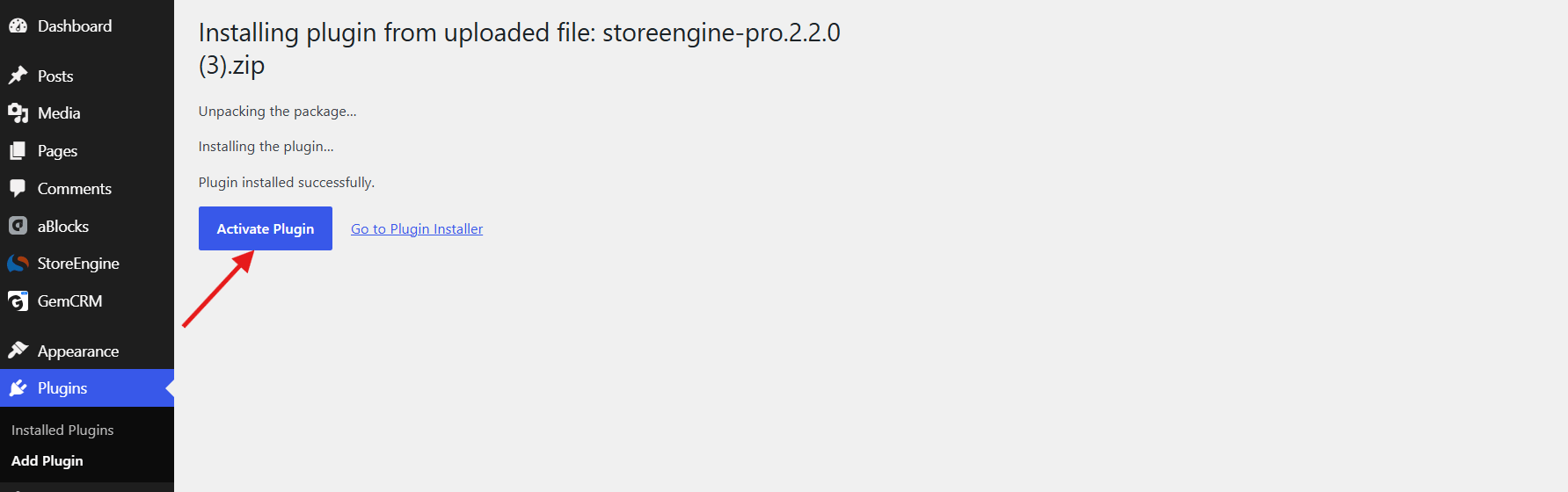
After this step, go to Plugins → Installed Plugins. You should see both StoreEngine and StoreEngine Pro listed, and both showing as Active.
Step 4: Copy Your StoreEngine Pro License Key
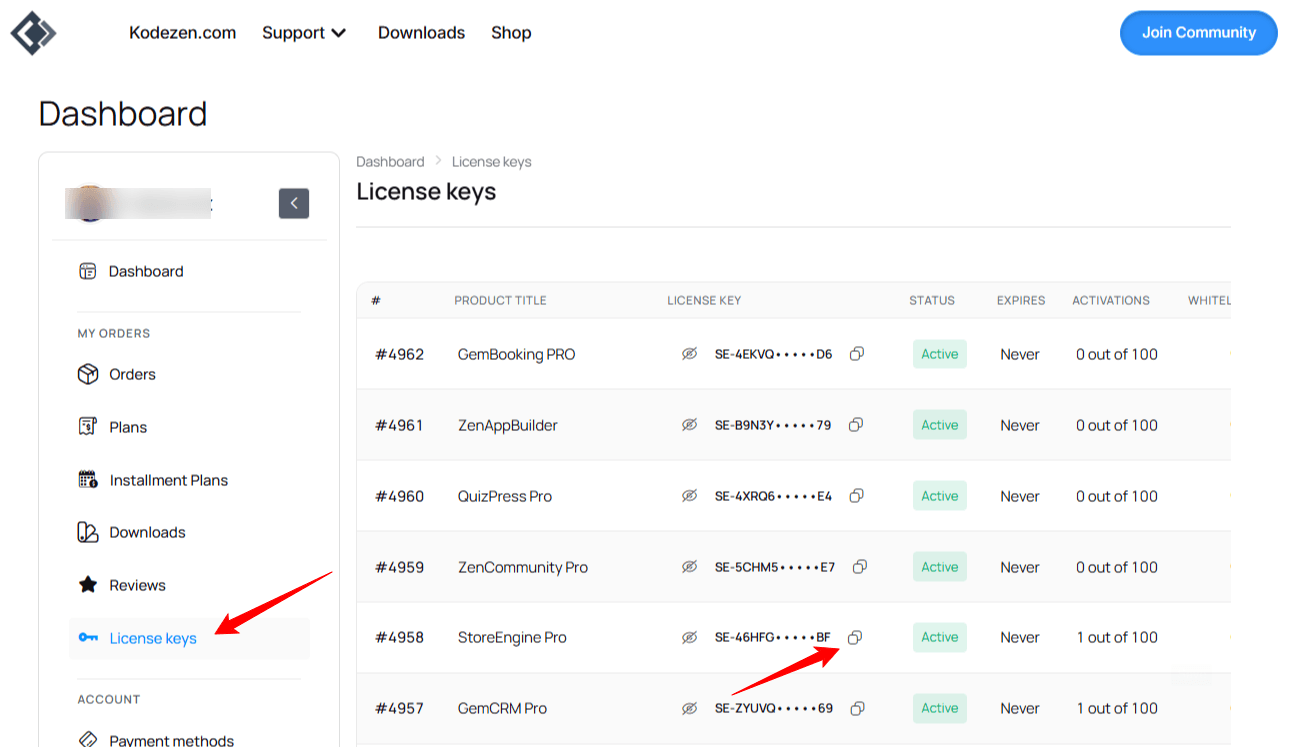
Retrieve your license key from your Kodezen account.
- Return to your Kodezen account at store.kodezen.com.
- From your dashboard, click on the License Keys section in the sidebar.
- Your StoreEngine Pro License Key will be displayed on this page. Click to copy it.
Your license key is a unique alphanumeric string. Do not share it publicly or use it on more sites than your plan allows.
Step 5: Enter and Activate the License Key in WordPress
This is the final step. You will paste your license key inside the StoreEngine settings in WordPress to unlock all Pro features.
- In your WordPress admin sidebar, click StoreEngine.
- From the StoreEngine menu, click License. The path is:
StoreEngine → License - You will see a License Key input field on this page. Paste the license key you copied from your Kodezen dashboard.
- Click the “Activate License” button.
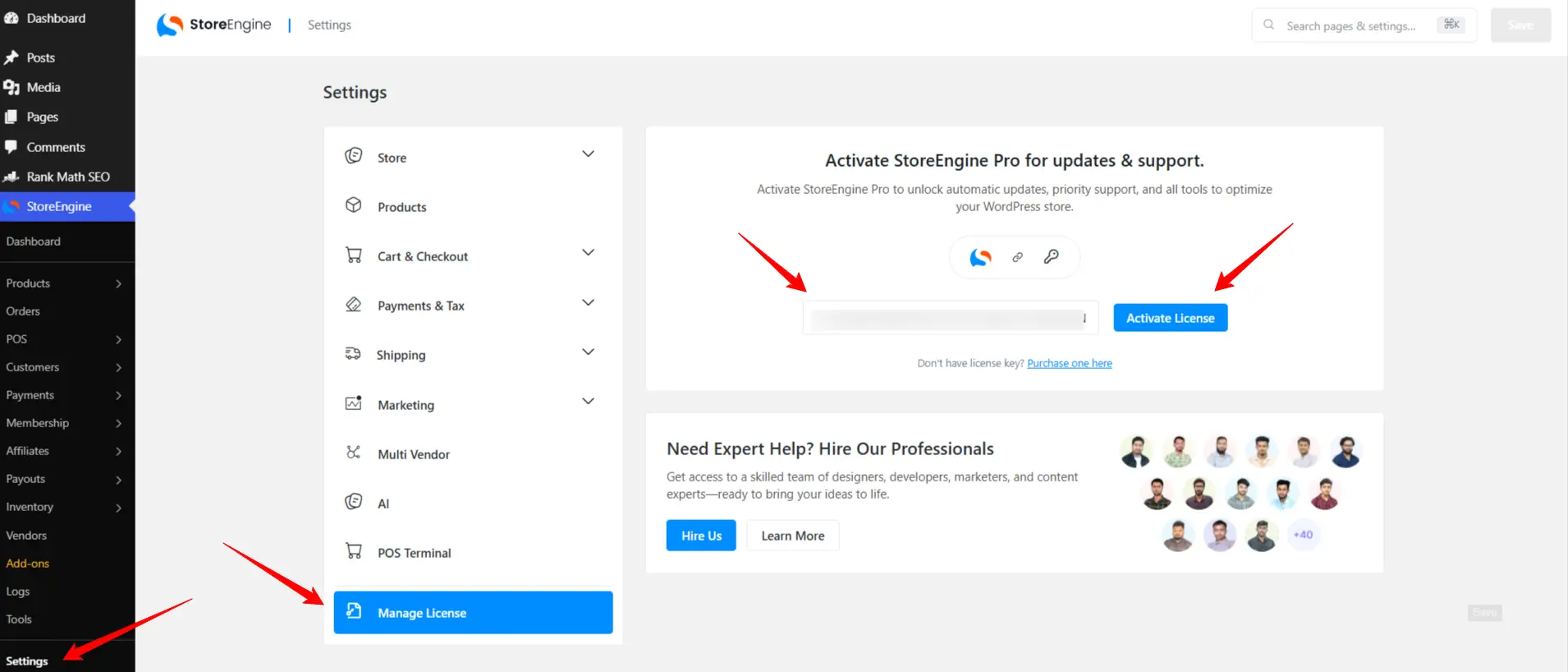
Your StoreEngine Pro license is now activated. All Pro features are unlocked — including subscriptions and installment billing, affiliate management, memberships and content access, digital downloads with license control, order bumps and funnels, cart abandonment recovery, multi-currency, multi-vendor marketplace, Point of Sale (POS), invoicing and tax management, and advanced analytics.
Troubleshooting
“License Key Invalid” Error
- Make sure you copied the full license key with no extra spaces or line breaks.
- Confirm that you are activating the license on the correct WordPress site URL associated with your purchase.
- If the issue persists, contact Kodezen support at kodezen.com/support.
Pro Features Not Visible After Activation
- Go to Plugins → Installed Plugins and confirm that both StoreEngine and StoreEngine Pro are listed as Active.
- Try deactivating and reactivating both plugins, then revisit the License page to check the activation status.
Cannot Log In to Kodezen Dashboard
- Use the exact login credentials from your Kodezen welcome email.
- If you have forgotten your password, use the “Forgot Password” option on the Kodezen login page.
- Contact Kodezen support if you did not receive a welcome email after purchase.
Need Help?
If you need further assistance, reach out through any of the following channels:
- Documentation: storeengine.pro/docs
- Video Tutorials: www.youtube.com/@StoreEngine
- Facebook Community: https://www.facebook.com/groups/1689587158579792
- Support Portal: storeengine.pro/supports