


What it does: Shows your prices in each visitor’s local currency using live exchange rates. A shopper in Germany sees euros, a shopper in the US sees dollars — automatically. This is entirely a Free add-on.
Good to know: Currency conversion is for display only. Every order is still charged in your store’s base currency. Shoppers see a converted price to help them decide; the actual charge happens in your main currency.
Turn it on
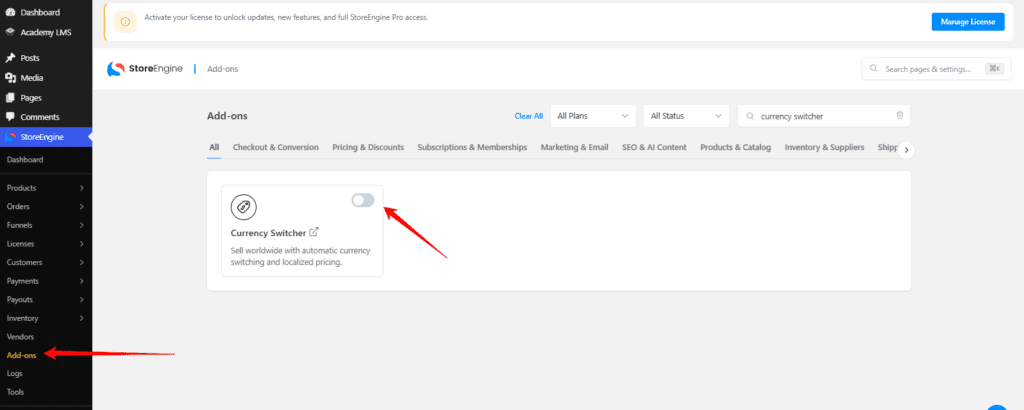
- Go to StoreEngine → Add-ons.
- Turn on the Currency Switcher.
Its settings appear as a section inside StoreEngine → Settings (there’s no separate menu). On activation it fetches exchange rates for you straight away.
Add the currencies you want to sell in
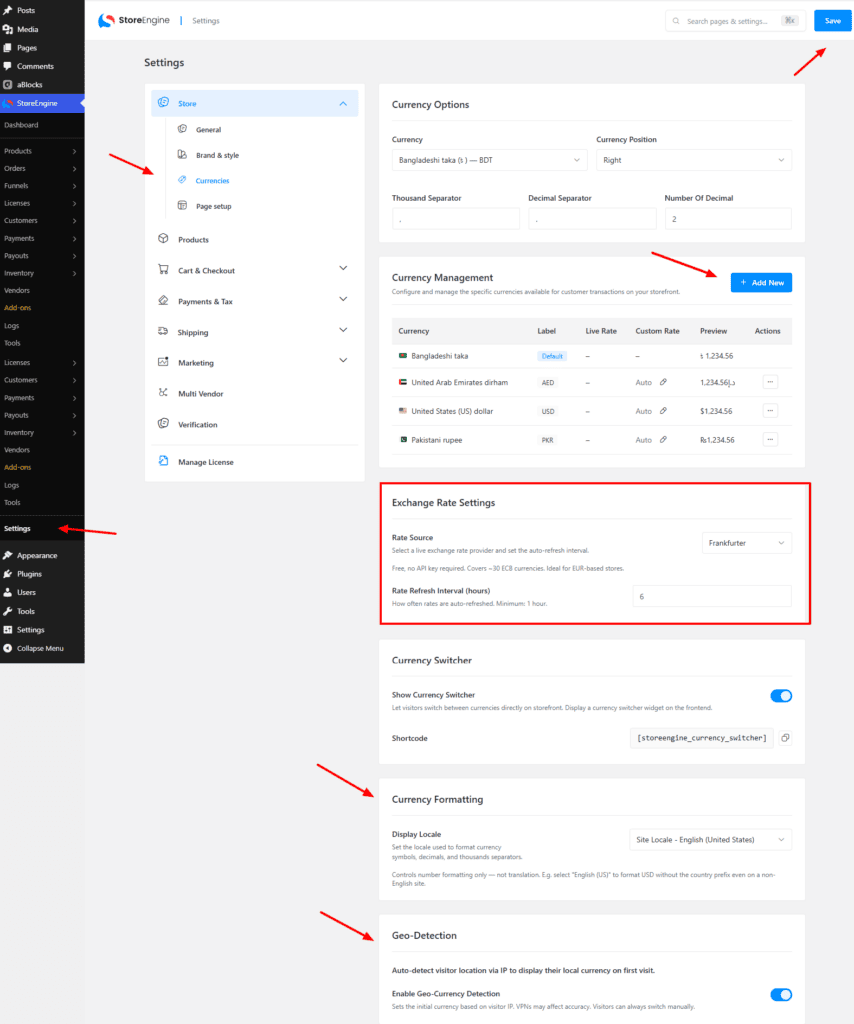
- Open the Currency Switcher settings.
- Click Add Currency, search the list, and pick a currency to add. Repeat for each one.
- Each currency shows a badge:
- Auto — it uses the live exchange rate.
- Manual — you’ve set your own fixed rate (e.g. a rate your bank gave you). Click Reset to auto rate to go back to live rates.
Your base currency is set in StoreEngine’s core Currency options — that’s the one you actually get paid in.
Choose where the rates come from
Under Rate Source, pick the service that provides exchange rates:
|
Source |
Notes |
|
Frankfurter (default) |
Free, no API key needed. ~30 major currencies. Great for EUR-based stores. |
|
Open Exchange Rates |
The free plan covers 170+ currencies. Needs a free App ID from openexchangerates.org. |
|
Exchangerate-API |
161 currencies, 1,500 requests/month free. Needs an API key. |
|
CurrencyBeacon |
150+ currencies, 5,000 requests/month free. Needs an API key. |
If your chosen source needs a key, paste it into the matching field. Only the active source’s key is used.
Rate Refresh Interval (hours) controls how often rates update automatically (default: every 6 hours). There’s also a Refresh now button to update immediately.
Other settings
- Enable Geo-Currency Detection — automatically pick a visitor’s currency from their country on first visit. (After that, their choice is remembered for 30 days.)
- Show Currency Switcher — whether the dropdown appears on your storefront.
- Display Locale — optional number-formatting style (e.g. de_DE). Leave blank to use your site’s language.
Number formatting (currency position, decimals, thousand/decimal separators) comes from StoreEngine’s core Currency Options — set those there.
Show the switcher on your store
The currency dropdown (labelled Currency) can appear three ways:
- Automatically — it’s placed in your shop page header and single-product header out of the box.
- Shortcode — drop [storeengine_currency_switcher] into any page, post, or widget area.
- Your theme developer can render it in a template.
When a shopper picks a currency, the cart is cleared, their choice is saved, and the page reloads with converted prices.
How the currency is decided
For each visitor, StoreEngine picks the currency in this order:
- A ?currency= value in the page’s link (handy for campaigns).
- Their saved choice (cookie, remembered 30 days).
- Their country, detected by location (if geo-detection is on).
- Your store’s base currency.
Troubleshooting
- Prices aren’t converting — make sure you’ve added the currency in settings and that a rate source is selected.
- A rate looks wrong — click Refresh now, or set a Manual rate for that currency.
- The switcher isn’t showing — check Show Currency Switcher is on, or place the [storeengine_currency_switcher] shortcode yourself.