


The Inventory add-on lets you track stock levels, view a full movement history, receive low-stock alerts, and print barcode labels. It is the foundation for Multi-Location, POS, Purchase Orders, and Returns.
Plan: Free Add-on: Inventory Where: StoreEngine → Inventory
What You Can Do
- See all tracked products and current stock levels in one dashboard.
- Manually adjust stock — set, add, or remove quantity — with a reason and note.
- View a full movement history: every sale, return, correction, and received delivery.
- Get a daily email when products fall below their low-stock threshold.
- Store a barcode on any product or variation, bulk-generate barcodes, and print barcode labels — all free.
Step 1 — Turn On Inventory
- Go to StoreEngine → Add-ons.
- Find Inventory and toggle it on.

Inventory add-on toggle — StoreEngine → Add-ons
| Note: Products you already track keep their current quantities. A new Inventory menu appears in the sidebar with Stock, Movements, and Barcode Labels sub-pages. |
Step 2 — Track Stock on a Product
Open any product for editing and scroll down to the Stock section. You will see the following fields:
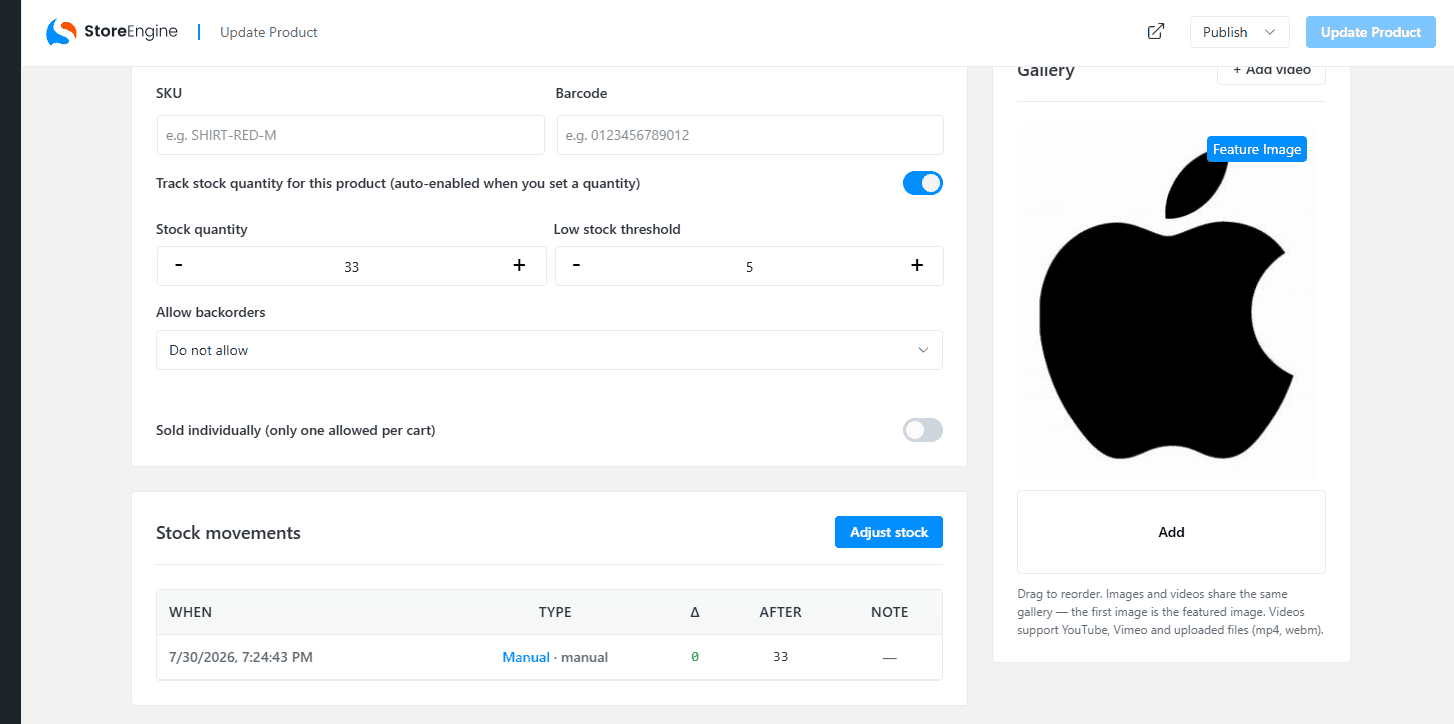
Stock section in the product editor
- Enter a SKU and Barcode if needed (click the … button to auto-generate).
- Toggle on Track stock quantity for this product — this auto-enables when you set a quantity.
- Enter the Stock quantity.
- (Optional) Set a Low stock threshold — the level at which the product is flagged as running low.
- Set the Stock status — In stock, Out of stock, or On backorder.
- Each variation (e.g. size, color) has its own SKU, Barcode, Cost, and stock tracking fields. Changes to one variation’s stock do not affect other variations.
- Save.
| Note: The Cost per unit field in this section belongs to the Cost & Profit Tracking add-on. It is used to track profit margin — not part of stock management. See the Cost & Profit Tracking documentation for details. |
Step 3 — Adjust Stock Manually
When you need to correct stock after a count, receive goods, or write off damaged items, use the Adjust Stock feature so your history stays accurate.
- Go to StoreEngine → Inventory → Stock.
- Find the product in the list — you can filter by Low stock only to focus on items that need restocking.
- Click Adjust in the Actions column.

StoreEngine → Inventory → Stock — click Adjust next to any product
- In the Adjust stock popup, choose an Action: Set to (overwrite to exact number), Add (increase), or Remove (decrease).
- Enter the Quantity.
- Choose a Reason: Manual, Received, Damaged, Return, or Correction.
- (Optional) Add a Note for your records.
- Click Apply.
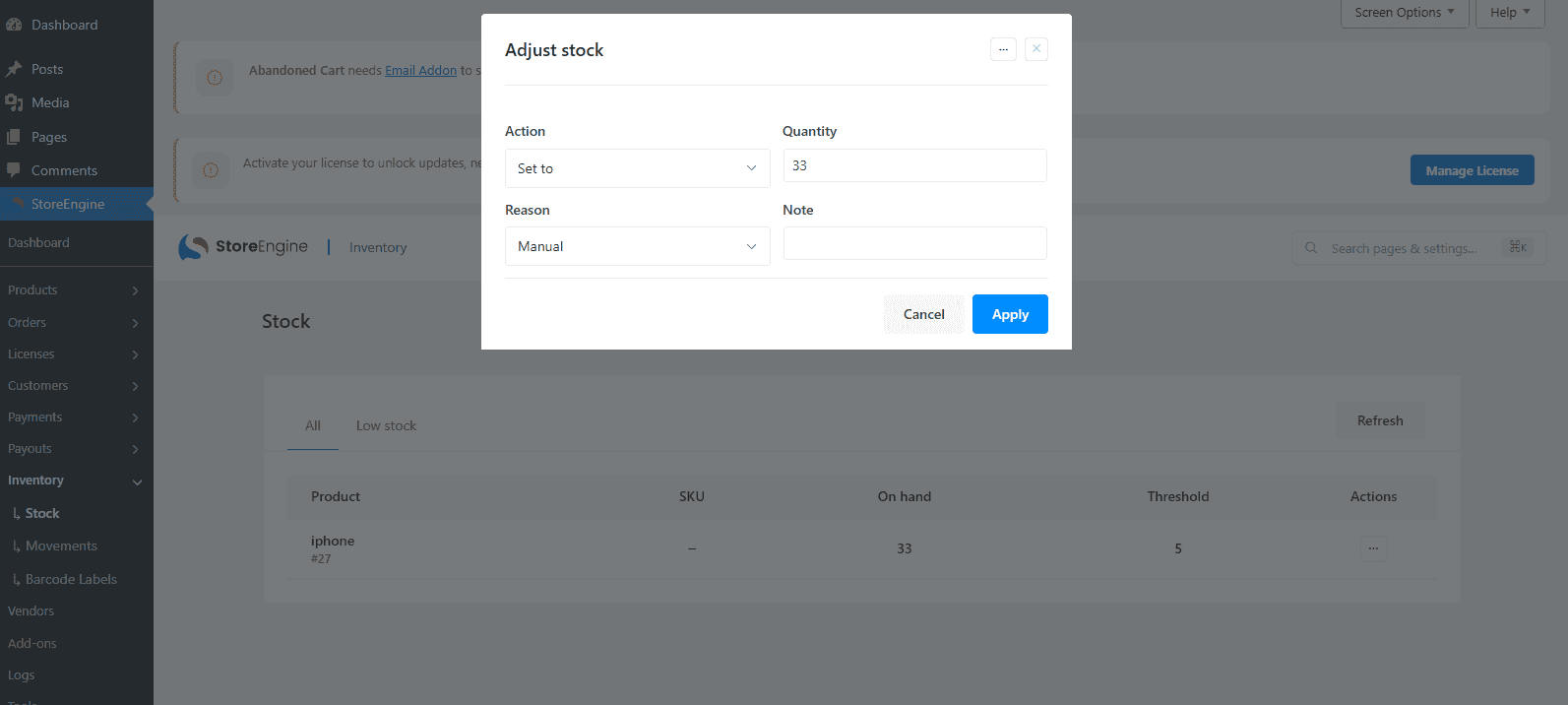
Adjust stock popup — set the action, quantity, reason, and note
| Note: Every adjustment is logged automatically with the before/after quantity, reason, note, and who made the change. You can review the full history under StoreEngine → Inventory → Movements. |
Barcodes
Every product and variation gets a Barcode field when Inventory is on. You can type or scan a code into it directly in the product editor.
To create barcodes in bulk, use the Generate barcodes button inside the product editor under the variations section. To print labels, go to StoreEngine → Inventory → Barcode Labels, paste a list of SKUs or barcodes, and print directly from your browser — no special software or fonts needed.
Low-Stock Email
StoreEngine sends a nightly digest email listing all products below their low-stock threshold. By default the email goes to your site admin email address. Set a low-stock threshold on each product to make sure the right items show up in the alert.
Troubleshooting
|
Problem |
What to Check |
|
A product is not in the Inventory dashboard |
It does not have Track stock quantity turned on. Enable it on the product. |
|
Stock did not drop after an order |
Stock deducts when an order reaches paid status, not when it is first created. |
|
Low-stock email never arrives |
Confirm the product has a low-stock threshold set and your site can send email (check SMTP settings). |
|
Barcode field is missing |
Make sure the Inventory add-on is switched on. |
|
Adjust button is not visible |
Go to StoreEngine → Inventory → Stock. The Adjust button appears in the Actions column of the stock list. |