


You can move your tax rates in and out of StoreEngine with a CSV file. Use it to back up rates, or to edit many rates in a spreadsheet.
How to Import and Export Tax Rates in StoreEngine?
Step 1: Find the CSV Buttons
To start, go to StoreEngine → Settings → Tax and scroll to Store Tax.
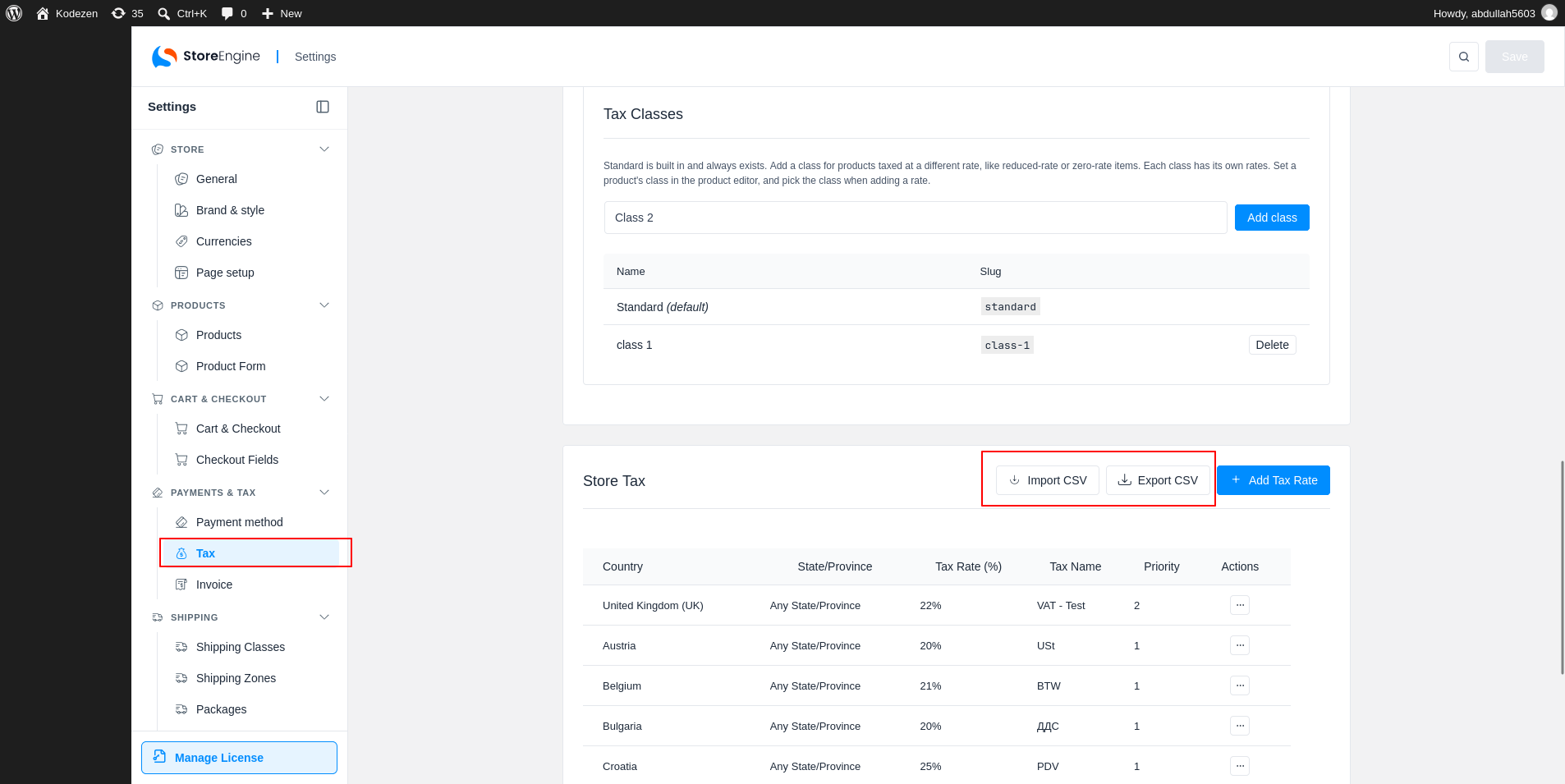
Step 2: Export Tax Rates
Click Export CSV (2). Your browser downloads a file named like storeengine-tax-rates-2026-10-12.csv. It holds every rate.
Step 3: Import Tax Rates
Click Import CSV (1) and choose a CSV file. The first row must be a header. A column named Rate % is required. The other columns are:
|
Column |
Meaning |
|
Country Code |
Two letter country code |
|
State Code |
State or province code |
|
Postcode / ZIP |
Optional postcode |
|
City |
Optional city |
|
Tax Name |
Name of the rate |
|
Priority |
Rate priority |
|
Compound |
1 or 0 |
|
Shipping |
1 to tax shipping, 0 for not |
|
Tax Class |
Class slug, such as standard |
|
Shipping Rate |
Optional separate rate for shipping |
Column names are not case sensitive, and unknown columns are ignored. A row with the same country, state, tax class, name and priority as an existing rate is skipped.
After the Import
When the import ends, a message shows how many rates were added and how many were skipped. If some rows had errors, it says so.