


A shipping class groups products that need the same shipping price, such as fragile or bulky items. Flat Rate shipping can then charge a different extra price for each class.
How to Set Up Shipping Classes in StoreEngine?
Step 1: Add a Shipping Class
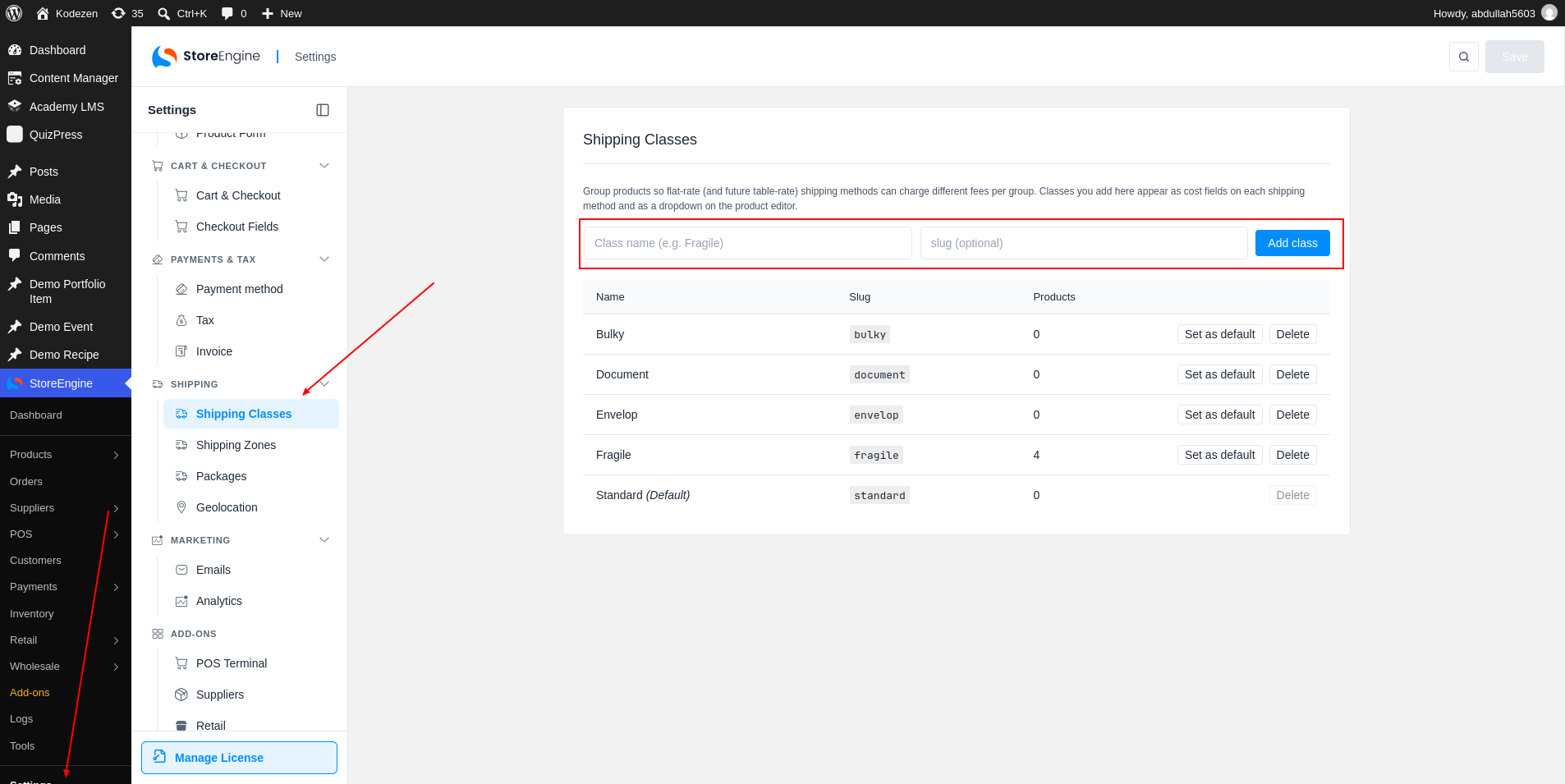
To start, go to StoreEngine → Settings → Shipping Classes. Type a name in the first box. The second box, slug (optional), lets you set the slug yourself. Click Add class.
Manage the Class List
The list below shows each class with its Slug and the number of Products in it. Click Delete to remove a class. Products keep their reference to a deleted class until you save them again.
Step 2: Assign a Class to a Product
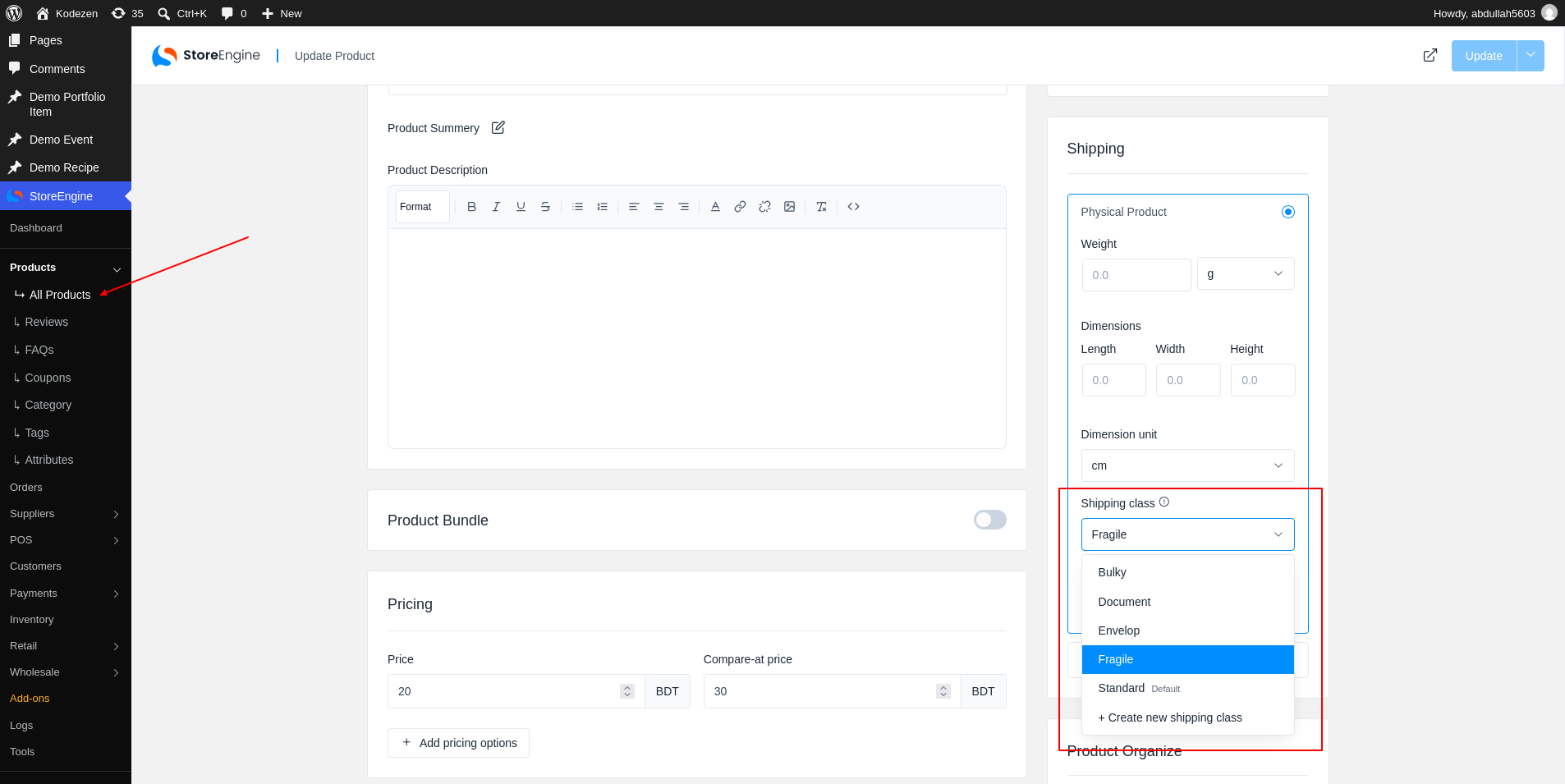
To put a product in a class, open the product. In the Physical Product box, choose a class from the Shipping class. You can also pick + Create new shipping class here to add one without leaving the page.
Step 3: Use Classes in Flat Rate
Each class now has its own cost field in the Flat Rate method. See the Flat Rate Shipping guide.