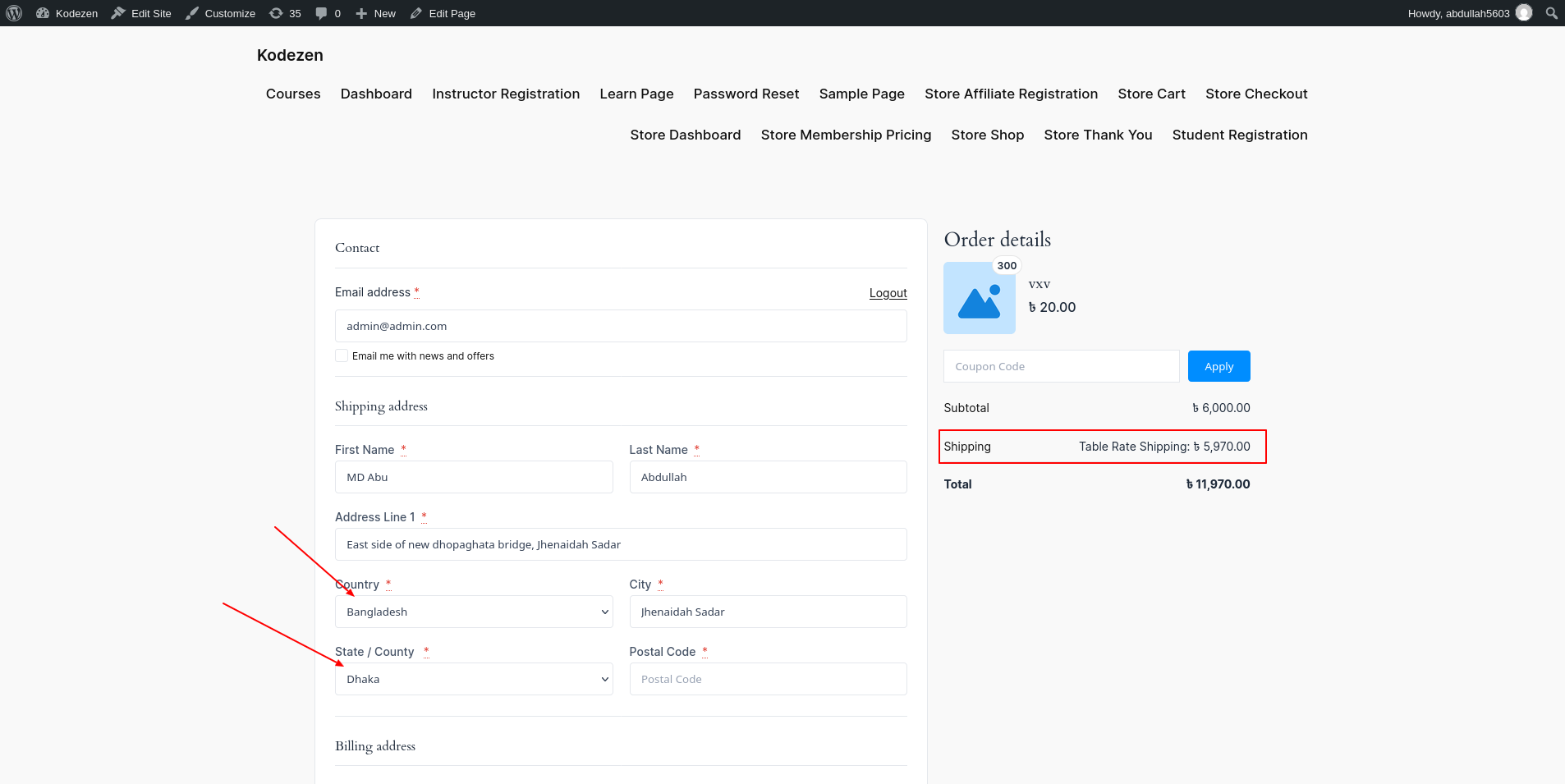
Table Rate shipping lets you set the shipping cost from a table of ranges. The cost can depend on the weight, size, number of items or subtotal of the order.
How to Set Up Table Rate Shipping in StoreEngine?
Step 1: Add the Table Rate Method
To start, go to StoreEngine → Settings → Shipping Zones and open the zone you want. Click Add Method (or Add Another Method if the zone already has one).
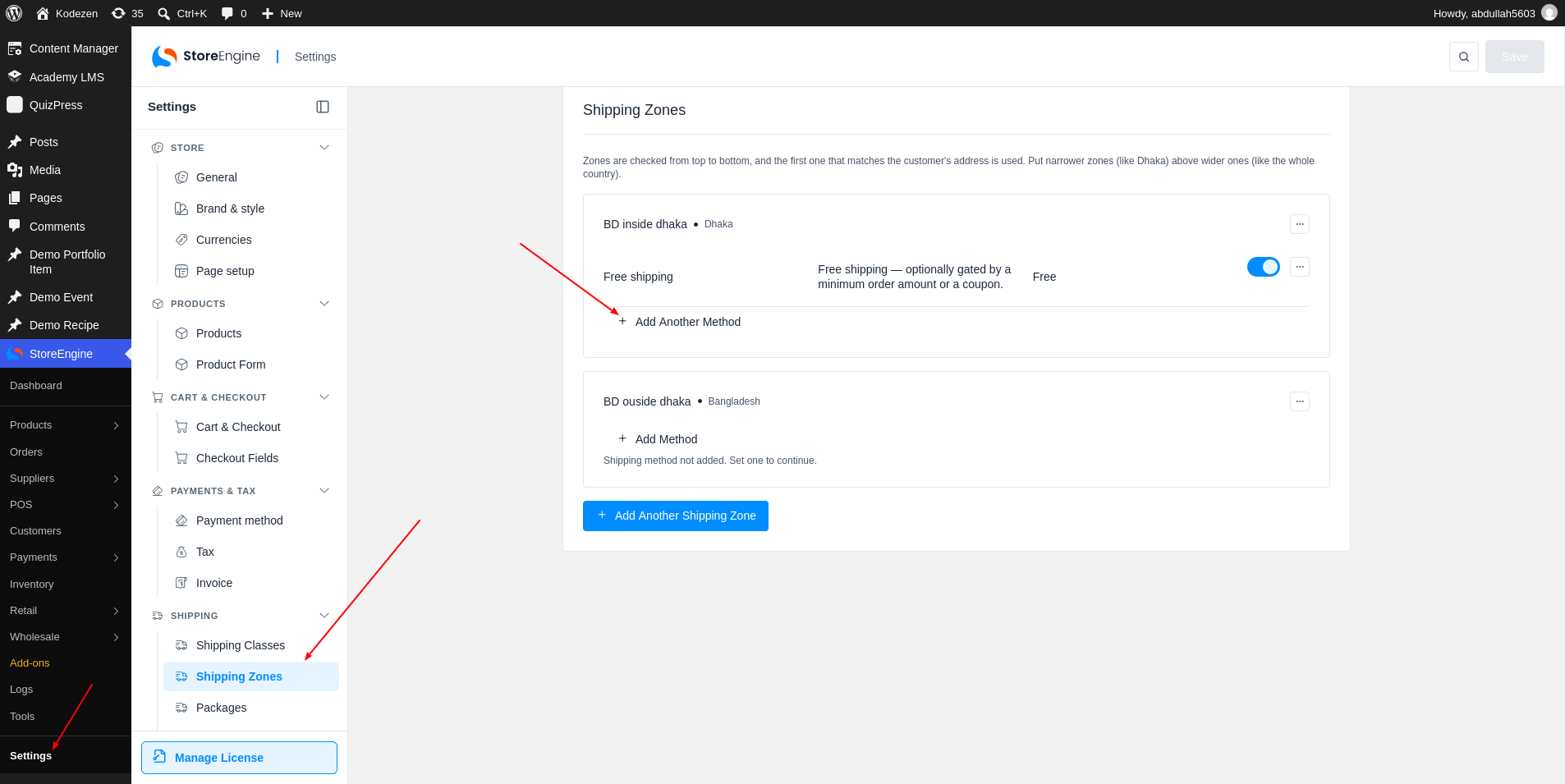
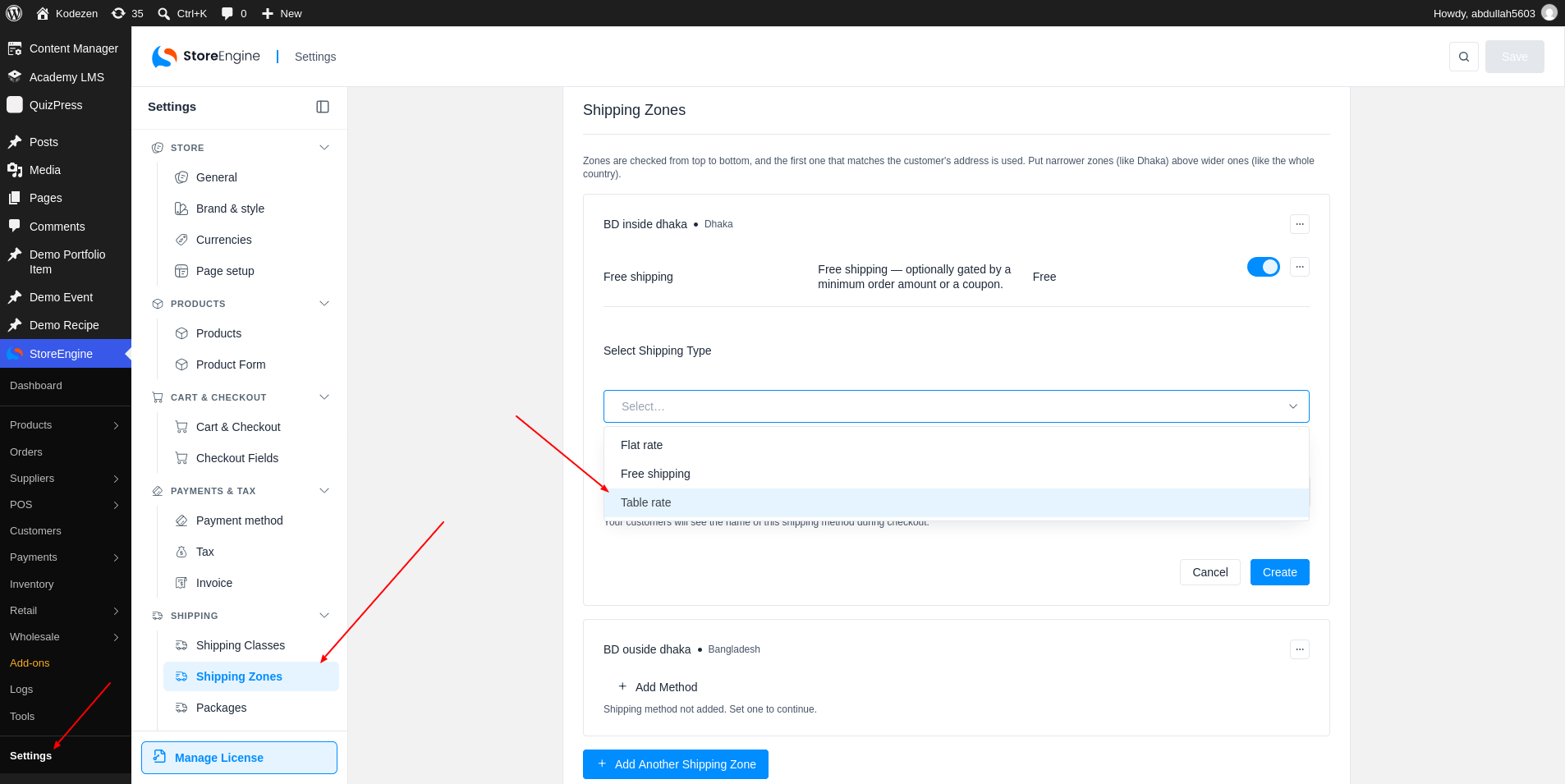
Open the Select Shipping Type list and choose Table rate.
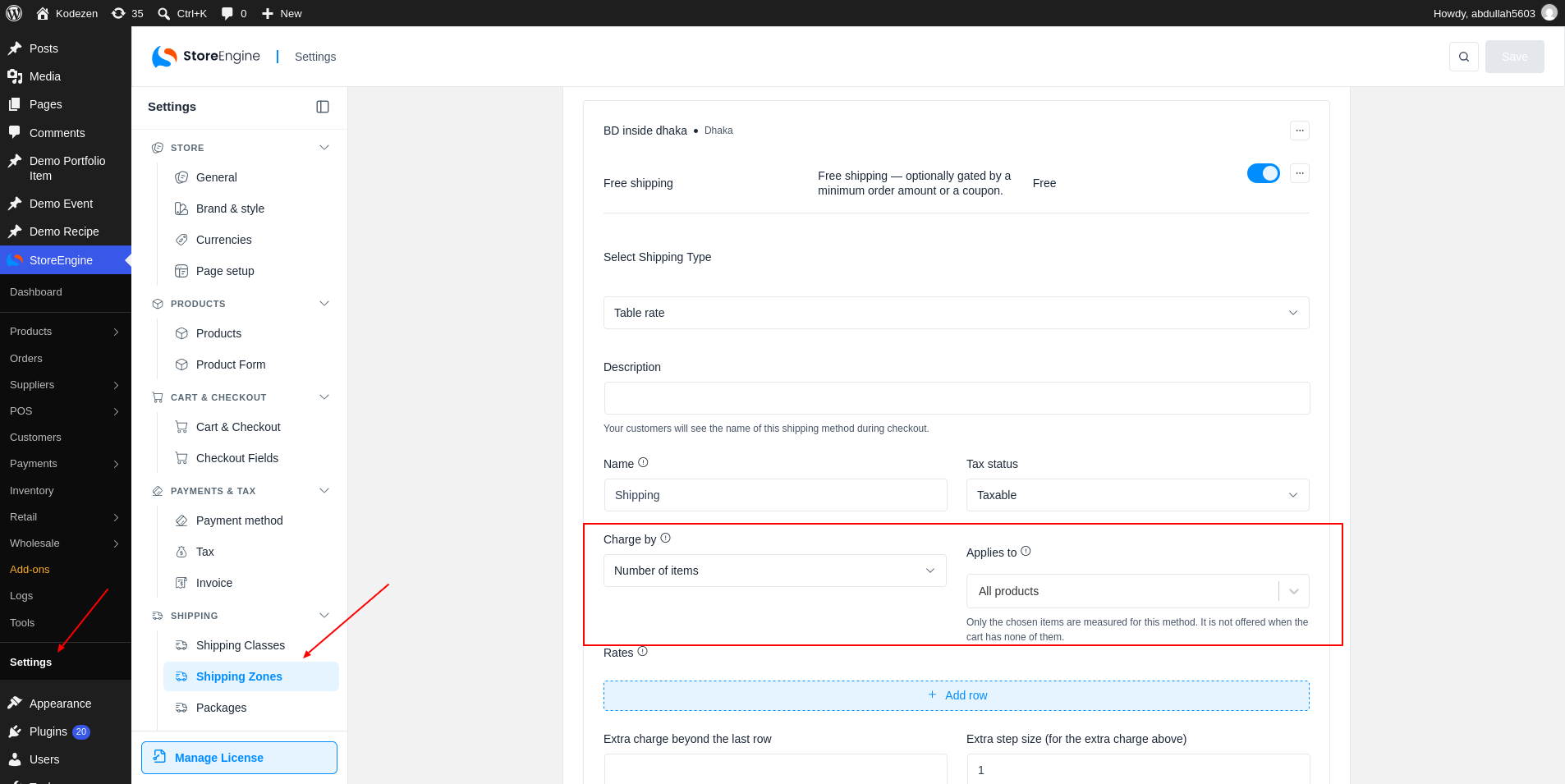
Step 2: Choose What the Table Measures
This opens the method settings. Enter a Name, which customers see at checkout. Then set two options:
Step 3: Set the Rates
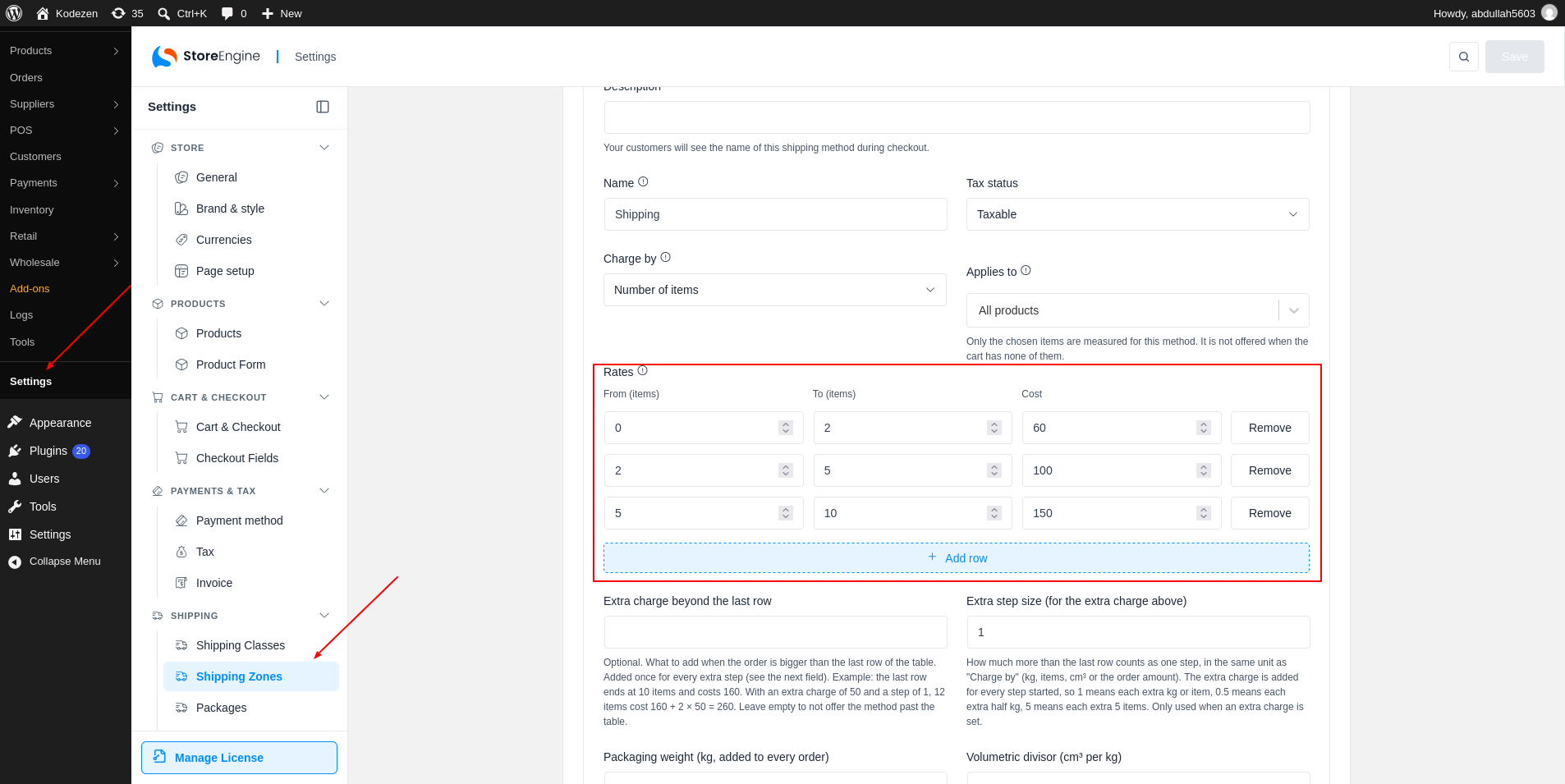
Now fill the Rates table (1). Click Add row and enter From, To and Cost. A row applies from its From value up to, but not including, its To value. Leave To empty for no upper limit. If no row matches the order, the method is not shown at checkout.
For example, with the rows below, an order of 1.6 kg costs 100.
|
From (kg) |
To (kg) |
Cost |
|
0 |
1 |
60 |
|
1 |
5 |
100 |
|
5 |
10 |
150 |
Extra Charge for Heavier Orders
Use Extra charge beyond the last row (2) for heavier orders. It is added for every extra step past the last row, and Extra step size sets the size of one step.
With a charge of 30 and a step of 1, a 12 kg order costs 150 + 2 × 30 = 210. Leave the extra charge empty to hide the method for bigger orders.
Charge a Price per Unit
To charge a flat price per unit, such as 50 per kg, skip the rows and fill only Extra charge beyond the last row.
A method needs at least one rate row or an extra charge. Without one, it cannot be saved.
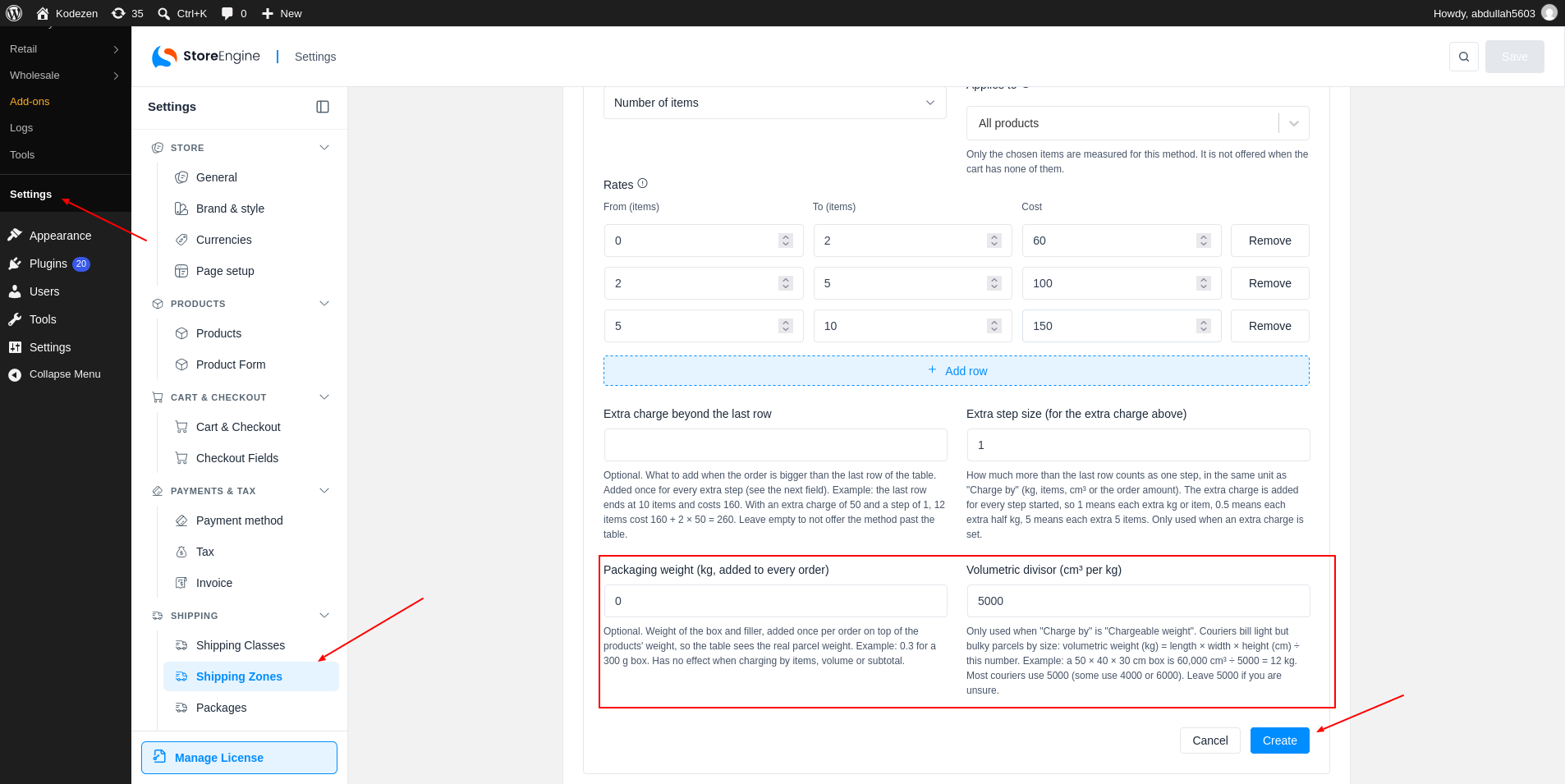
Step 4: Set Packaging Weight and Chargeable Weight
Two more fields help with accurate weights.
Step 5: Save and Check at Checkout
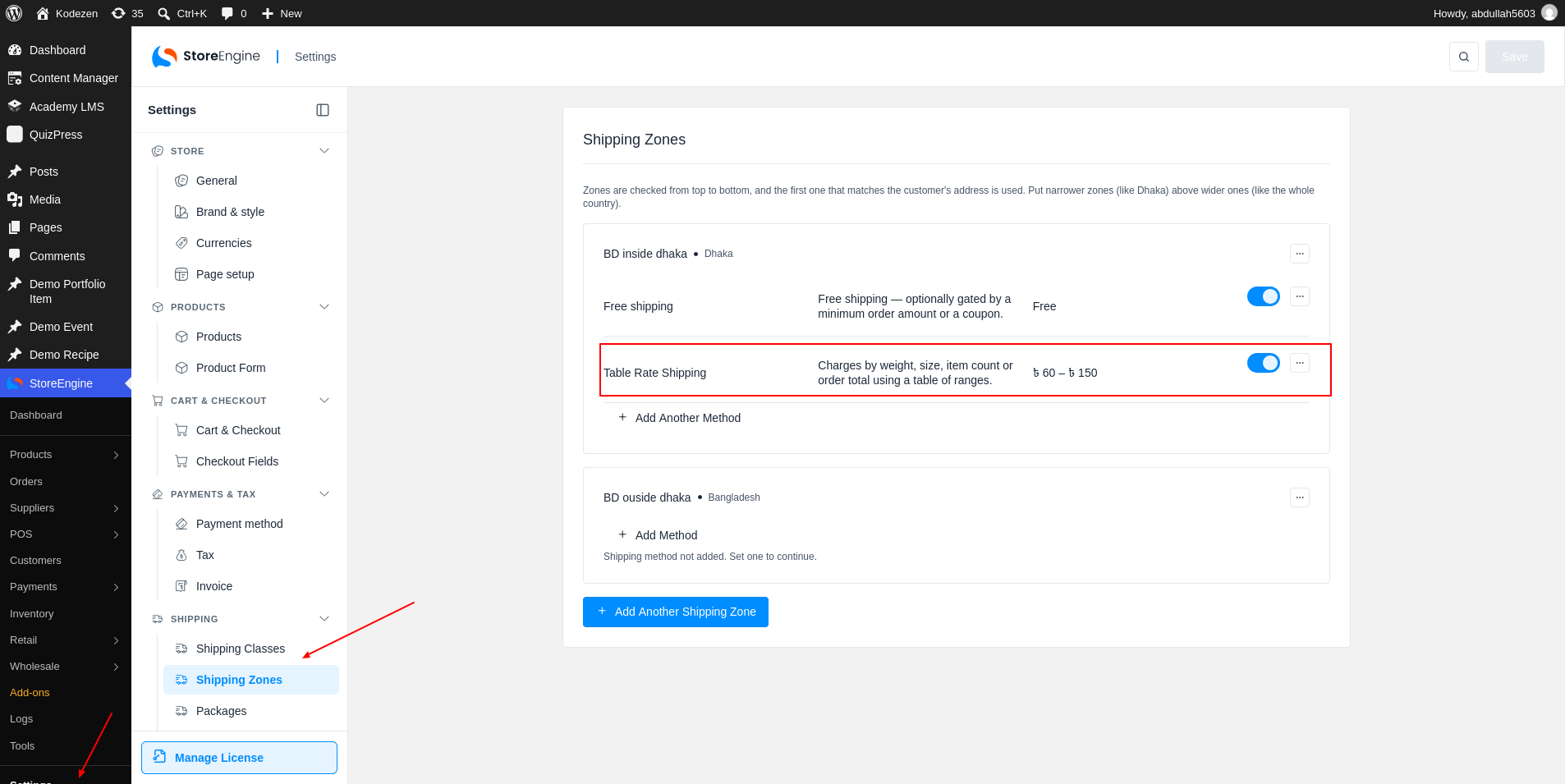
Click Create. The method now shows in the zone with its lowest and highest cost.
At checkout, the customer sees the cost that matches the order. Here, a Winter Jacket (1.2 kg) and a Leather Wallet (0.4 kg) weigh 1.6 kg, so the cost is 100.