A package is an extra fee added to an order as its own line. Use it for gift wrap, packaging or handling. The fee comes from a table of ranges, for example by number of items or weight.
How to Set Up a Package in StoreEngine?
Step 1: Add a Package
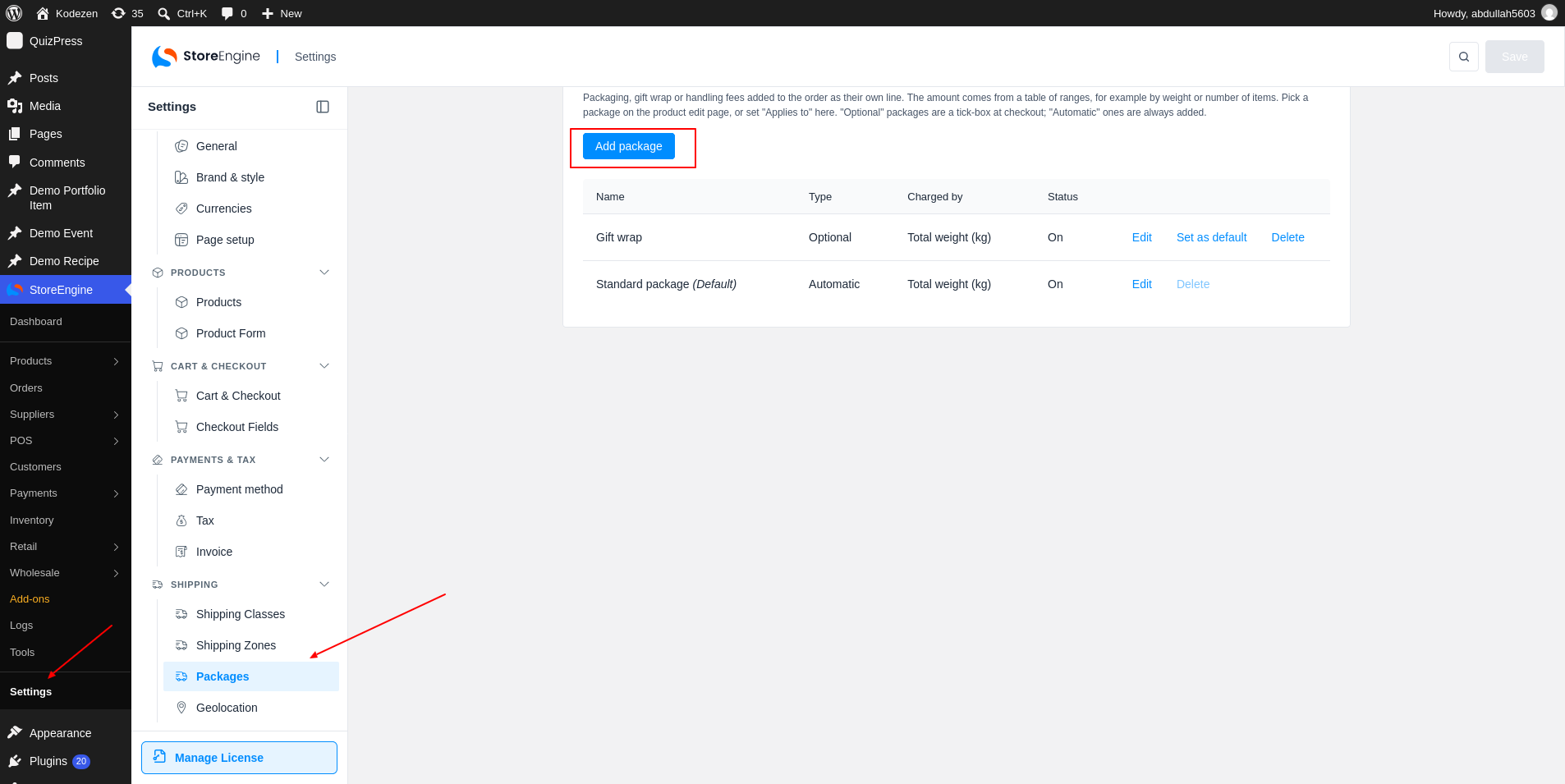
To start, go to StoreEngine → Settings → Packages and click Add package. Your packages are listed with their Type, what they are Charged by and their Status.
Step 2: Choose the Type and Charge
Enter a Name, which customers see, and an optional Description. Then choose the Type:
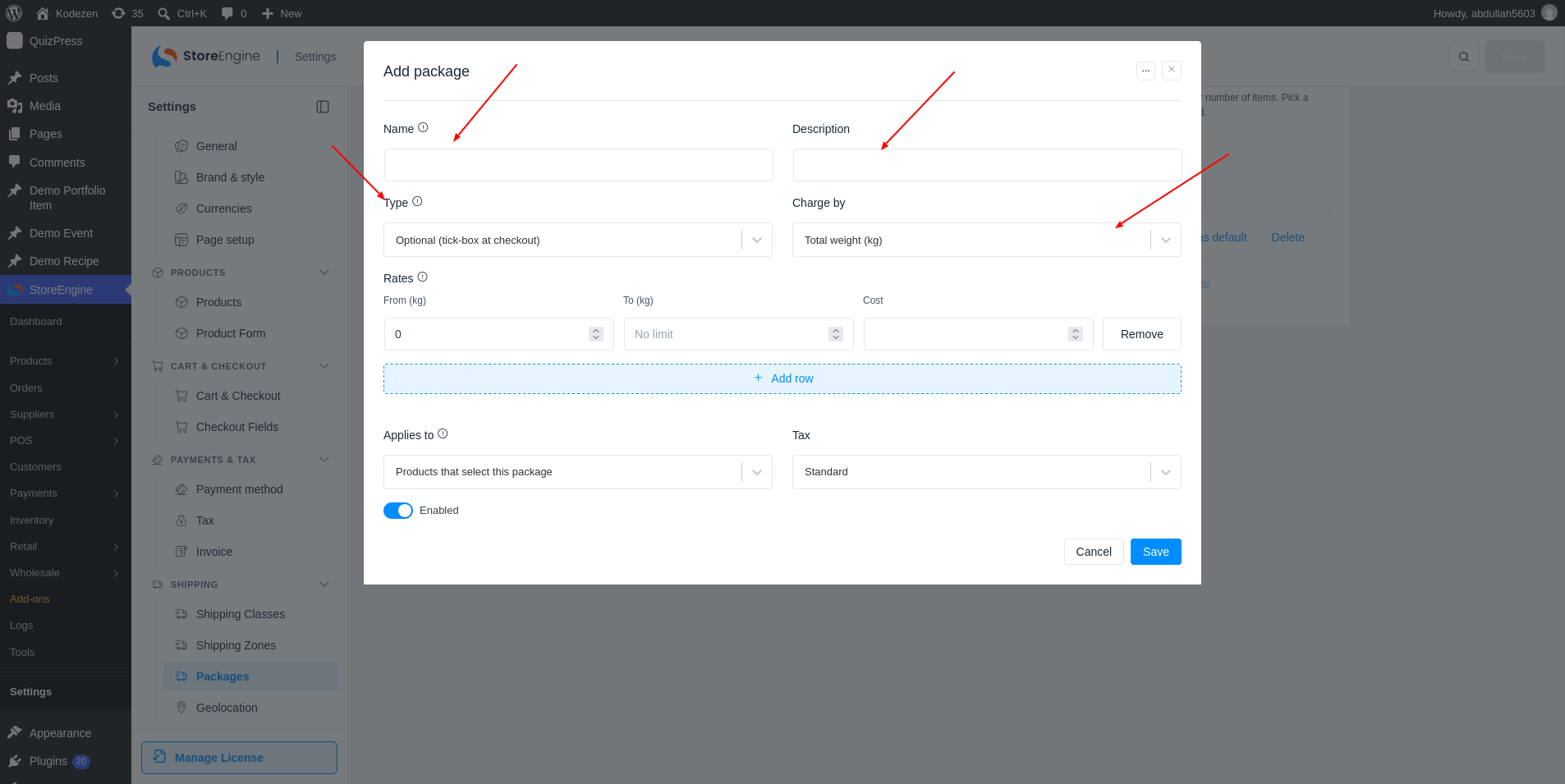
Charge by sets what the rates are matched against: Total weight (kg), Chargeable weight (kg), Total volume (cm³), Number of items or Order subtotal (excl. tax).
Step 3: Set the Rates
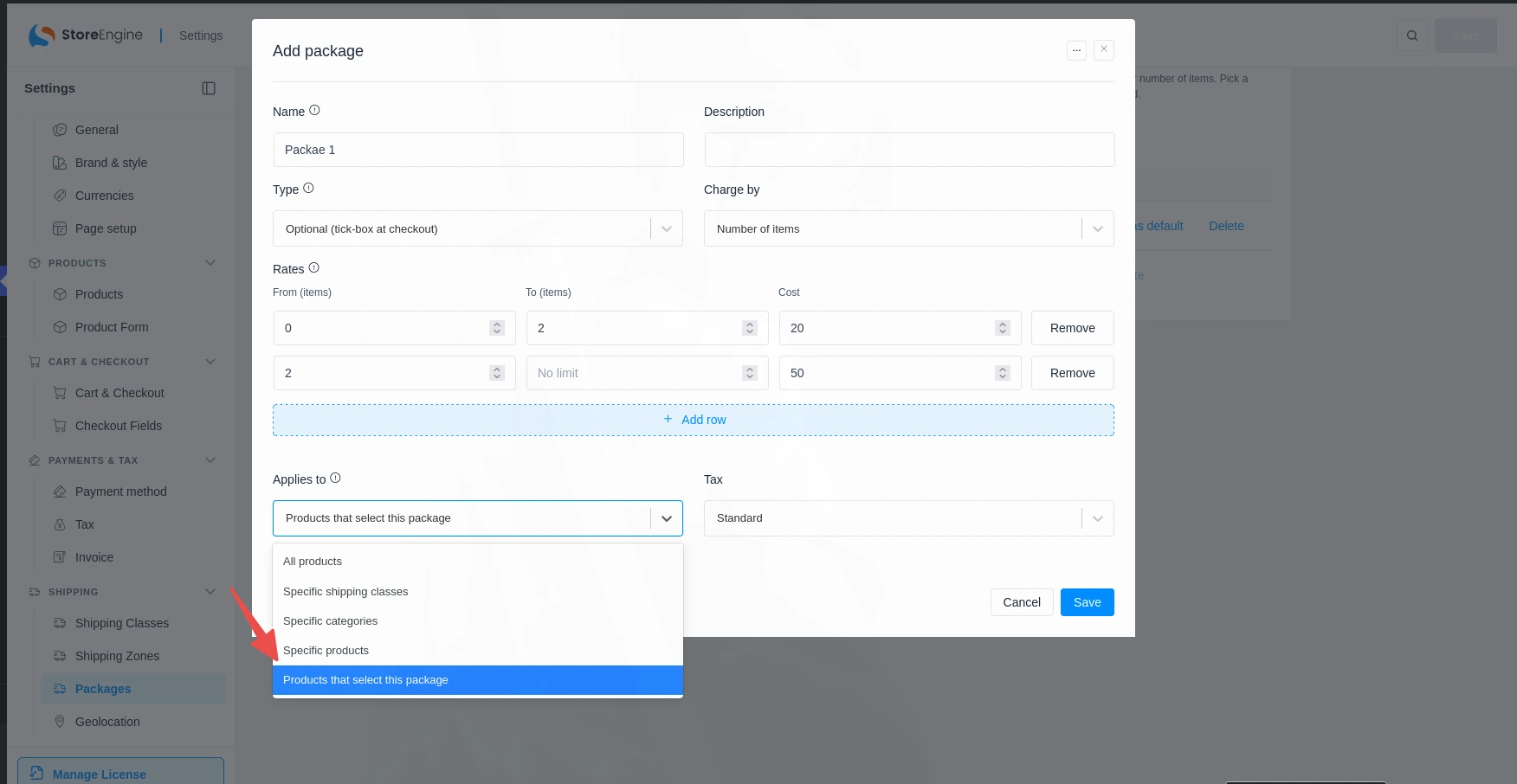
Fill the Rates table (1). A row applies from its From value up to, but not including, its To value. Leave To empty for no upper limit. If no row matches, the fee is not added. Use Applies to (2) to choose which products get the package, and Tax (3) to set how the fee is taxed.
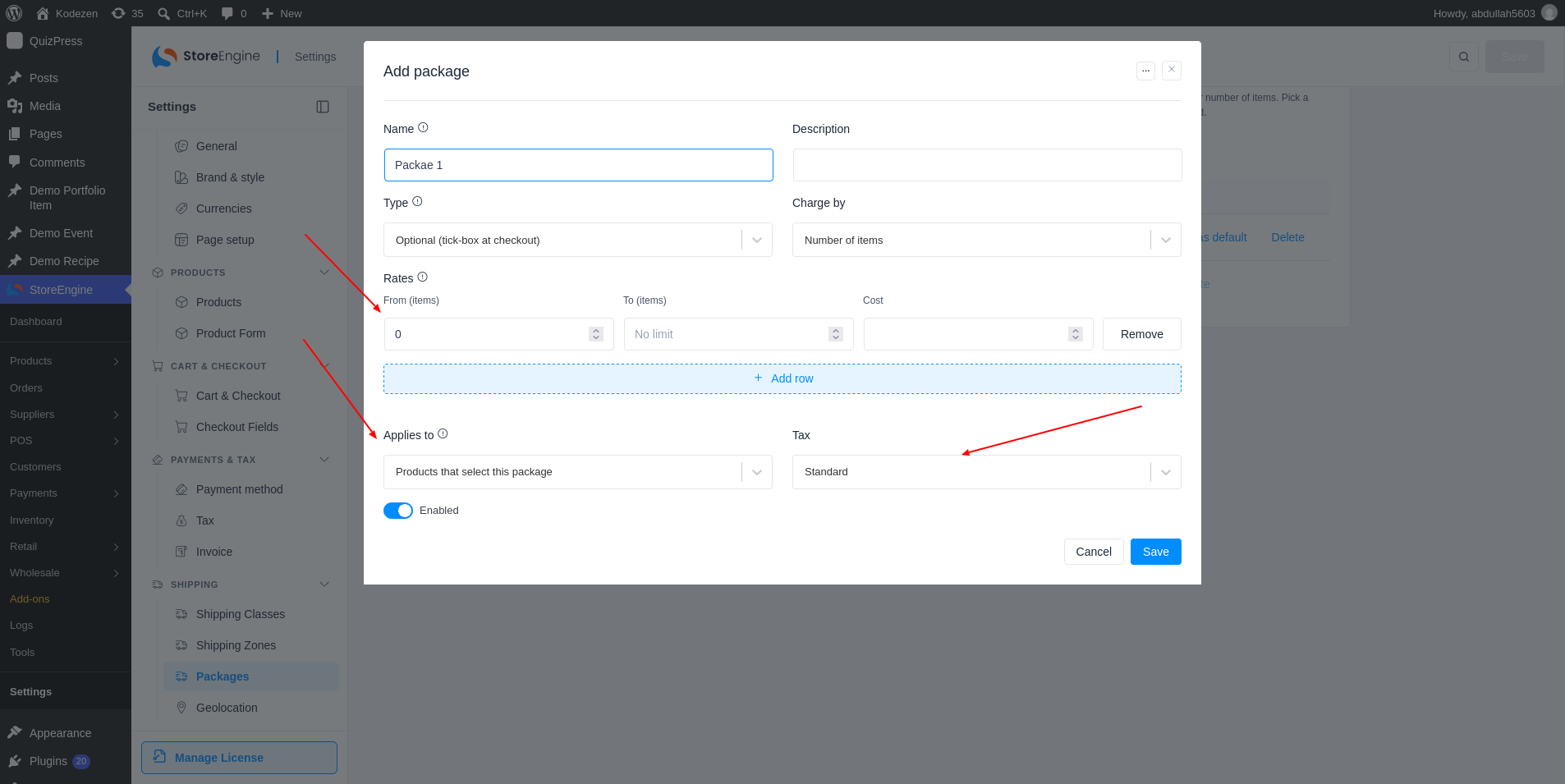
Keep Enabled on and click Save.
Step 4: Attach a Package to a Product
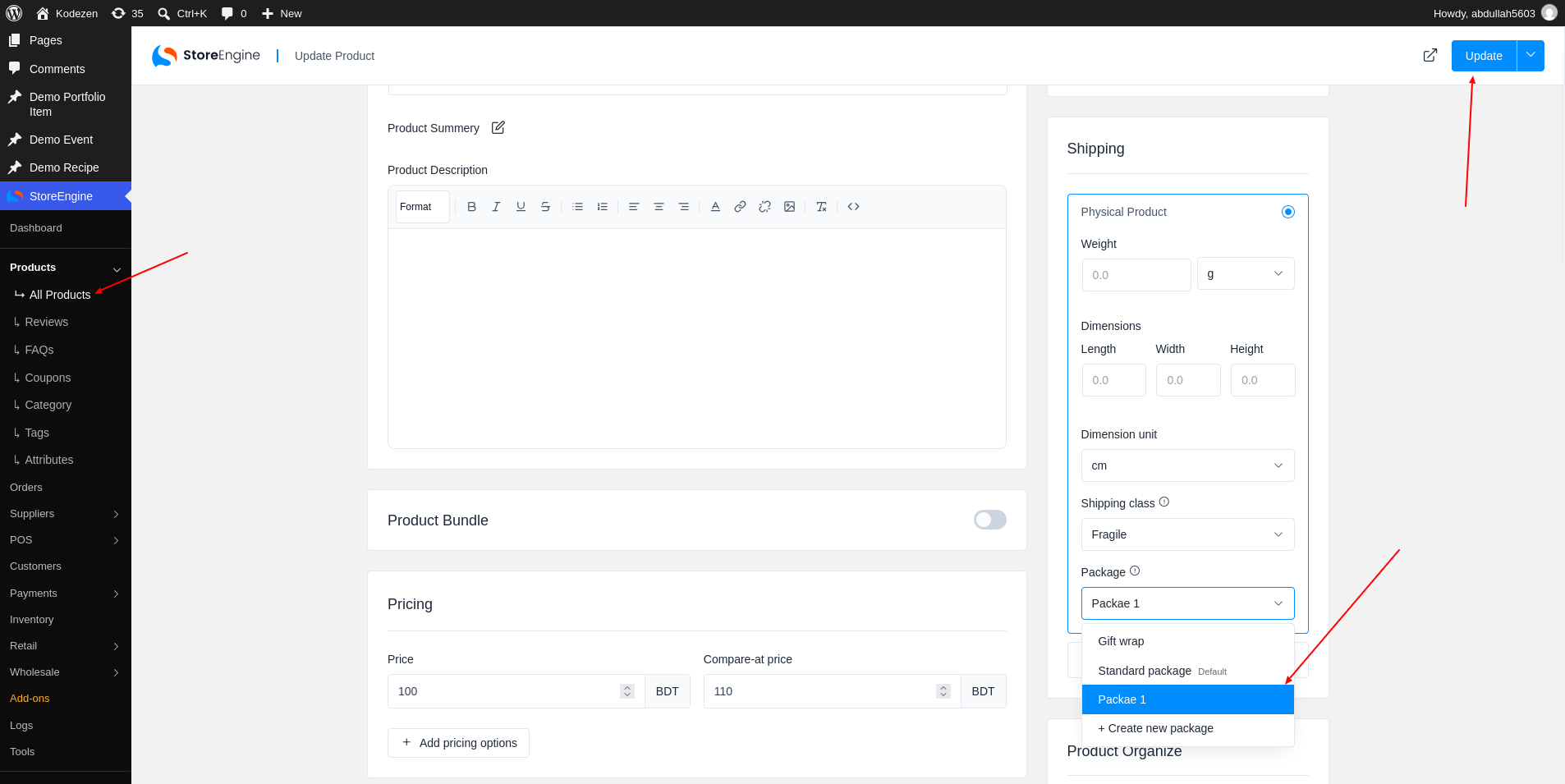
To attach a package to one product, open the product and pick it in the Package field of the Physical Product box. For this, Applies must stay on Products that select this package.
Step 5: See It at Checkout
At checkout, an optional package shows under Extras with its price.