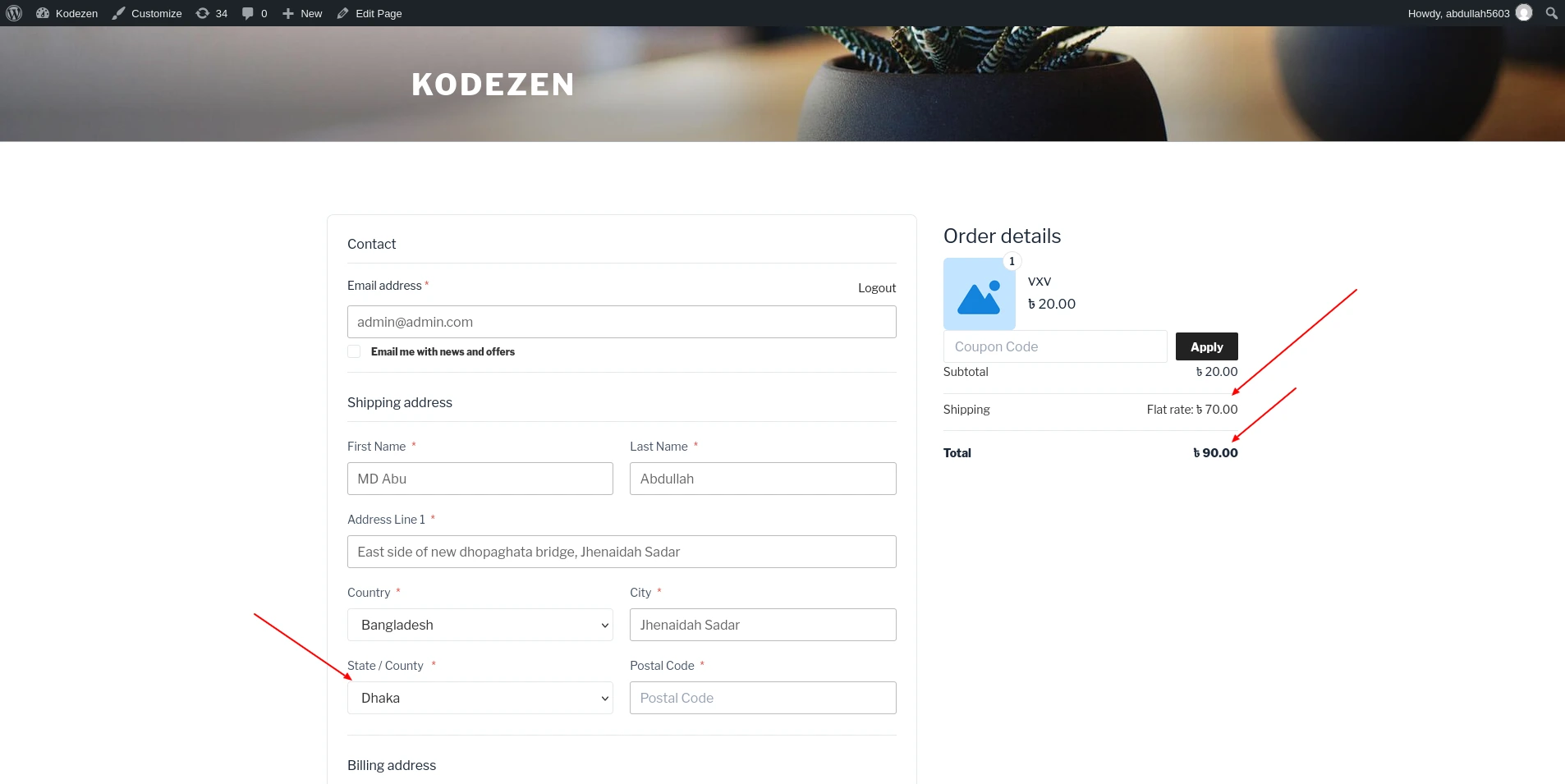
Flat Rate charges a fixed price for shipping. You can also add an extra price for products in a shipping class.
How to Set Up Flat Rate Shipping in StoreEngine?
Step 1: Add the Flat Rate Method
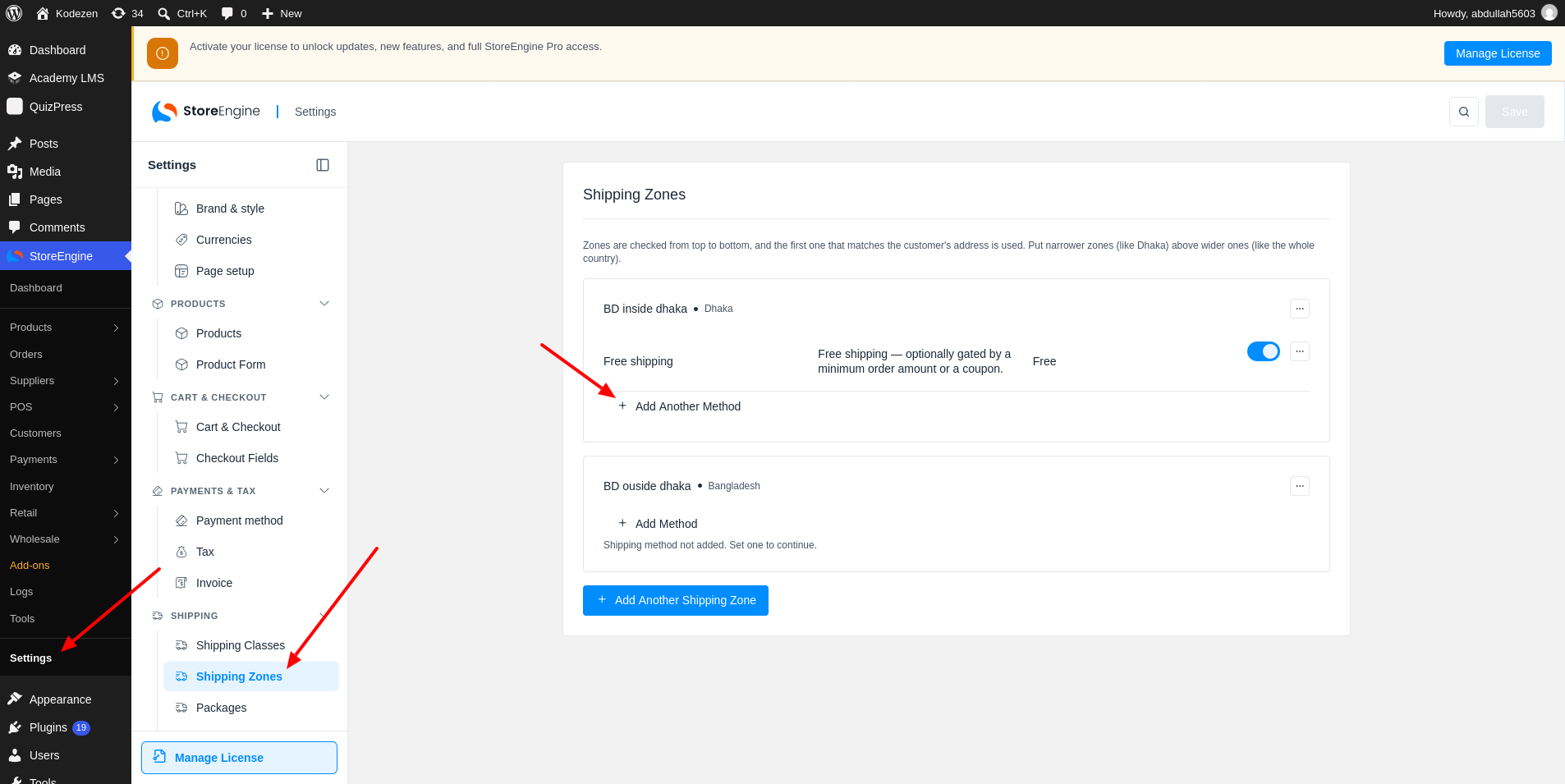
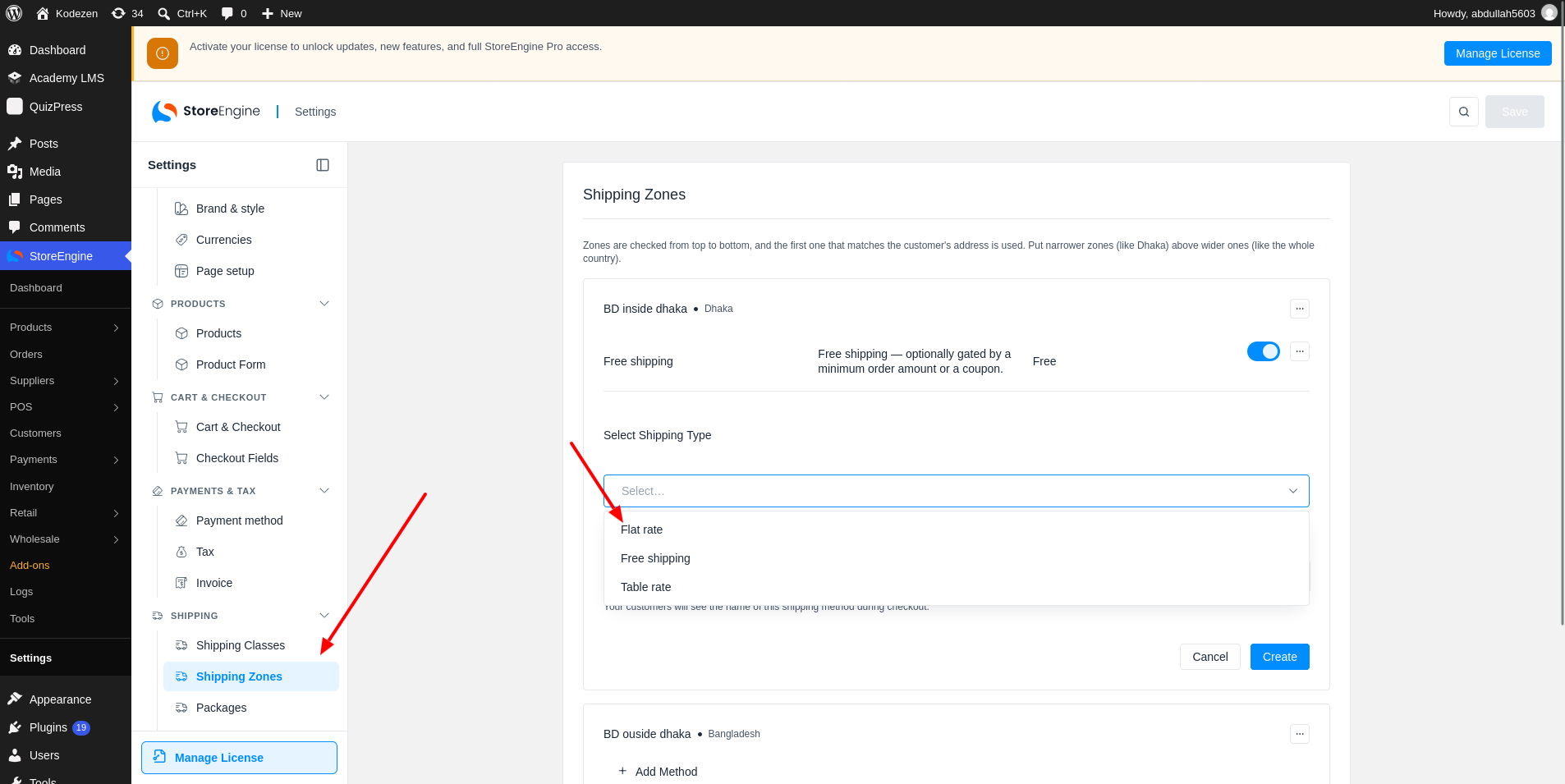
To start, go to StoreEngine → Settings → Shipping Zones. Open a zone, click Add Another Method, and choose Flat rate.
Step 2: Set the Cost
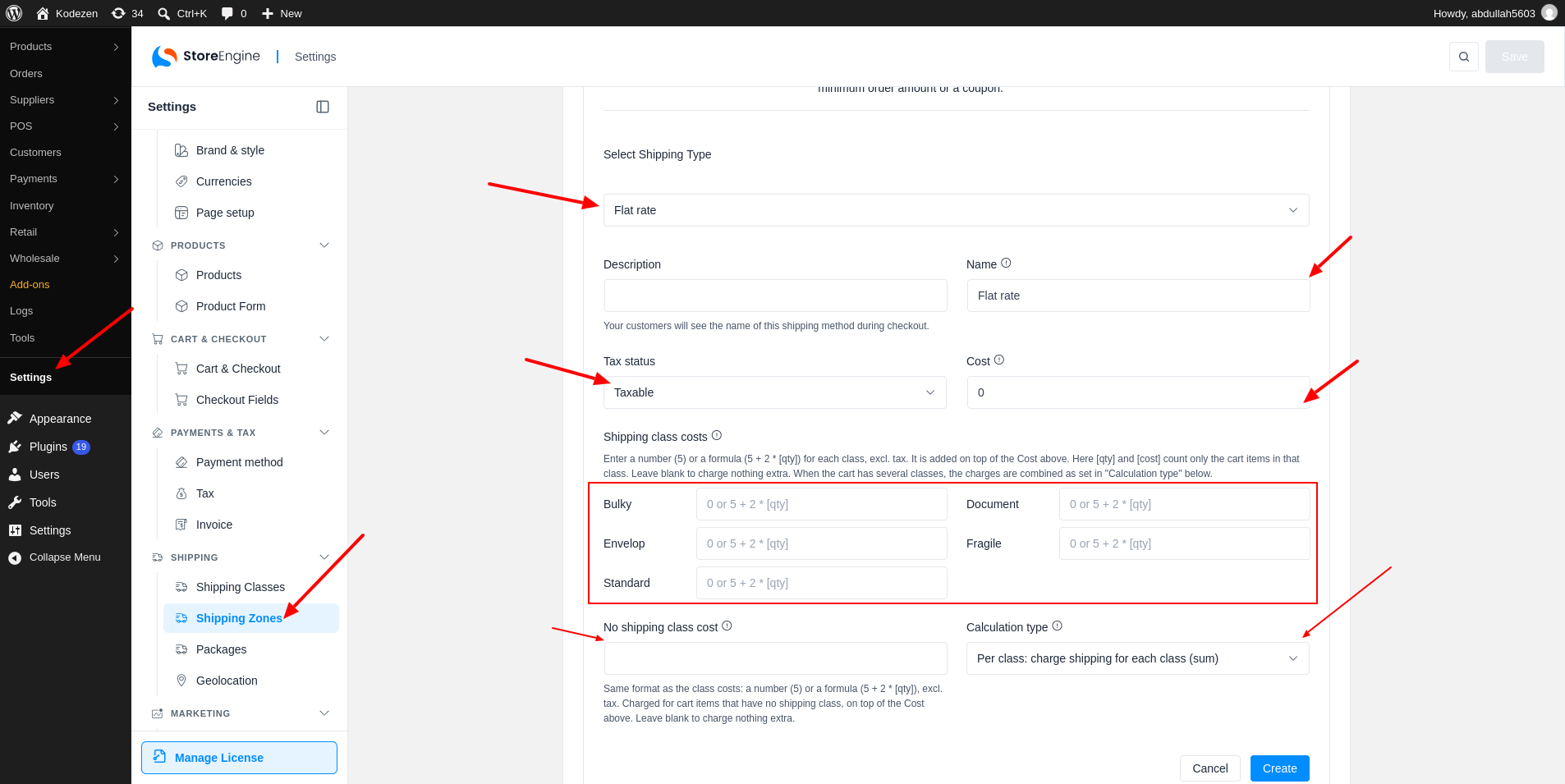
Enter a Name, which customers see at checkout. Set Tax status to Taxable or None. Then enter the Cost.
Cost Formulas
The Cost can be a plain number, such as 50. It can also be a formula. Use [qty] for the number of items and [cost] for the total price of the items. For example, 10 * [qty] charges 10 for each item. To charge a percentage, use [fee percent=”10″ min_fee=”20″ max_fee=””].
Step 3: Set Shipping Class Costs
The Shipping class costs section shows one box for each shipping class. Enter the extra price for that class. It is added on top of the Cost. Leave a box empty to charge nothing extra. In a class formula, [qty] and [cost] count only the items in that class.
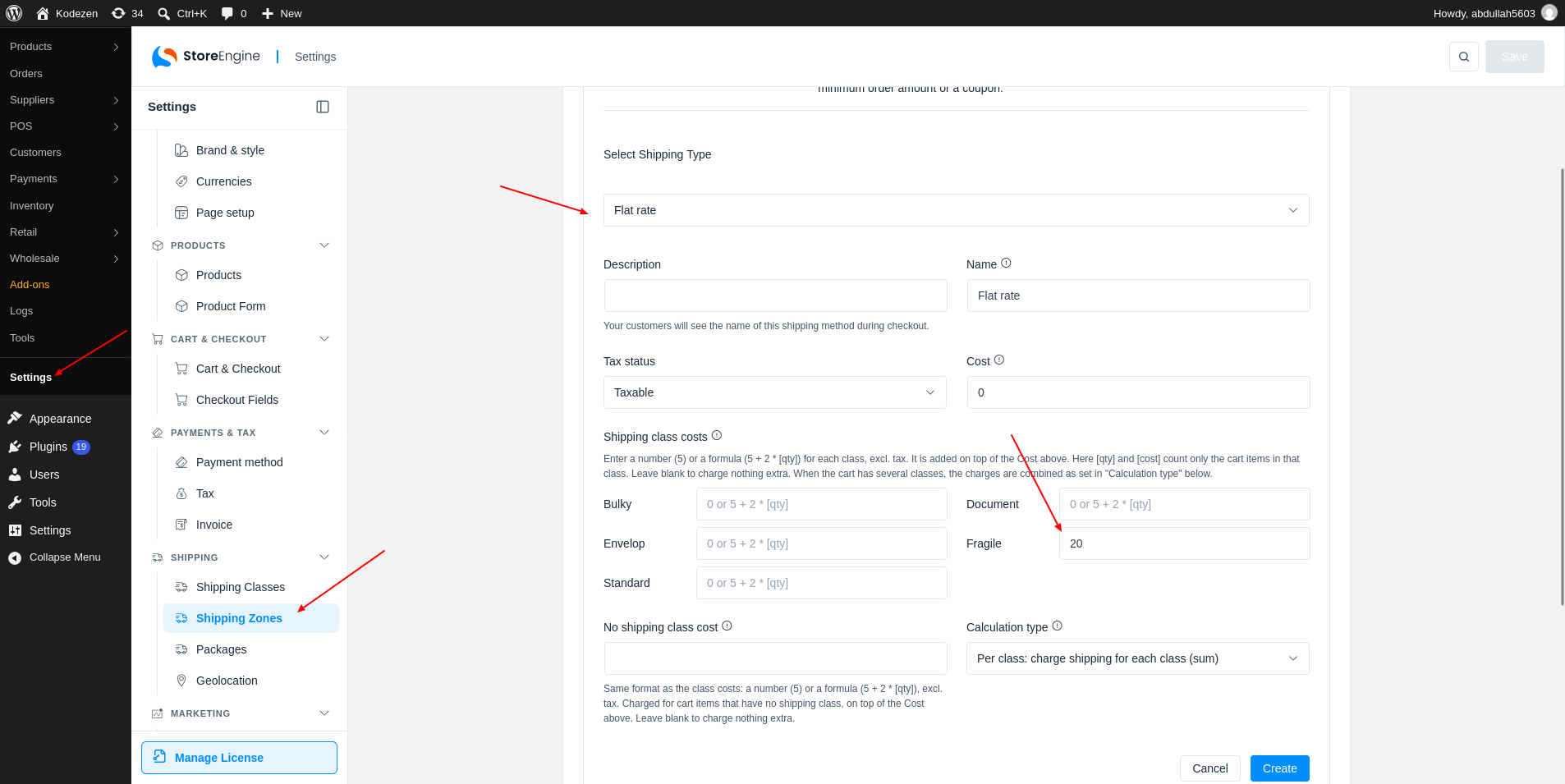
More Class Options
Two more options sit below the class costs.
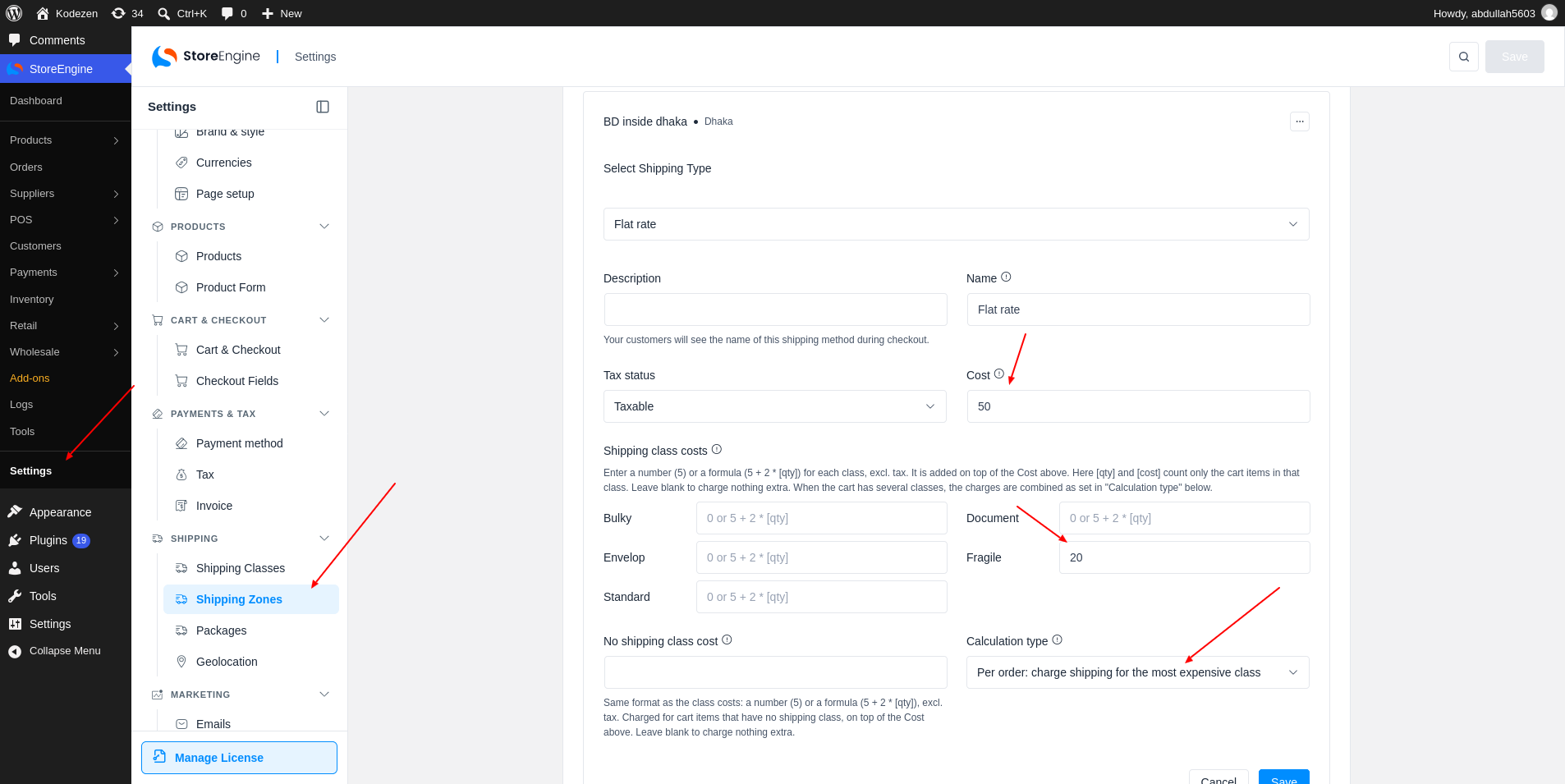
Step 4: Save and Check at Checkout
Click Create. At checkout, the customer sees the method with its price. Here, the cost is 50, plus 20 for the Fragile class, so the price is 70.