


Shipping can be taxed too. You choose how the tax on shipping is worked out, and whether a rate applies to shipping at all.
How to Set Up Shipping Tax in StoreEngine?
Step 1: Choose the Shipping Tax Class
To start, go to StoreEngine → Settings → Tax and open Shipping tax class.
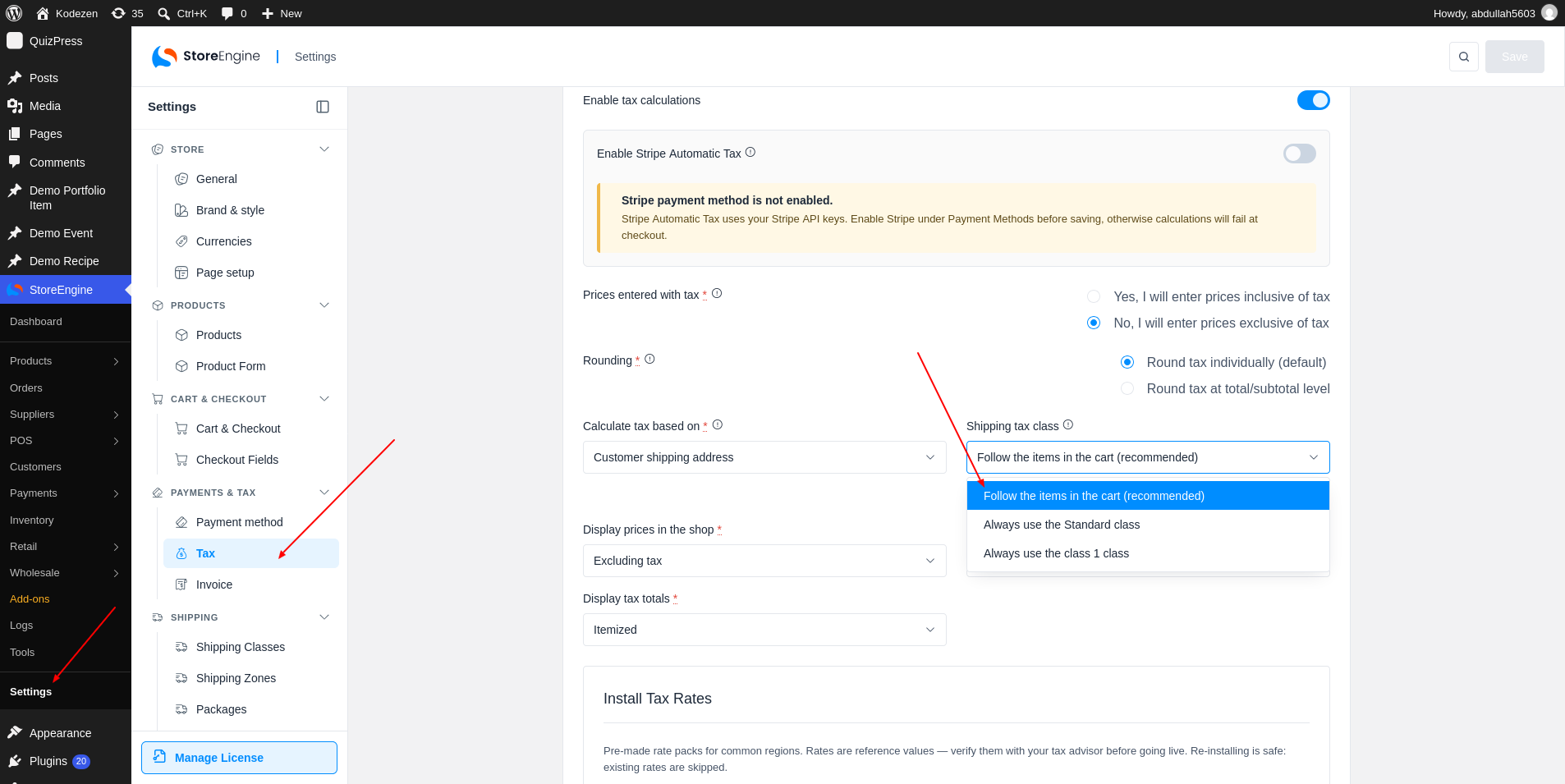
Choose Follow the items in the cart (recommended) to tax shipping like the products in the cart. If the cart mixes tax classes, the shipping cost is split between them by item value. Each part is then taxed at its own class rate.
Example
For example, shipping is 10. The cart has a 50 item taxed at 5% and a 50 item taxed at 20%. Shipping is split into 5 and 5. The first 5 are taxed at 5% and the second 5 at 20%.
Use One Fixed Class
Open the list to pick one fixed class instead. All shipping then uses that class rate.
Step 2: Set Shipping Options for Each Tax Rate
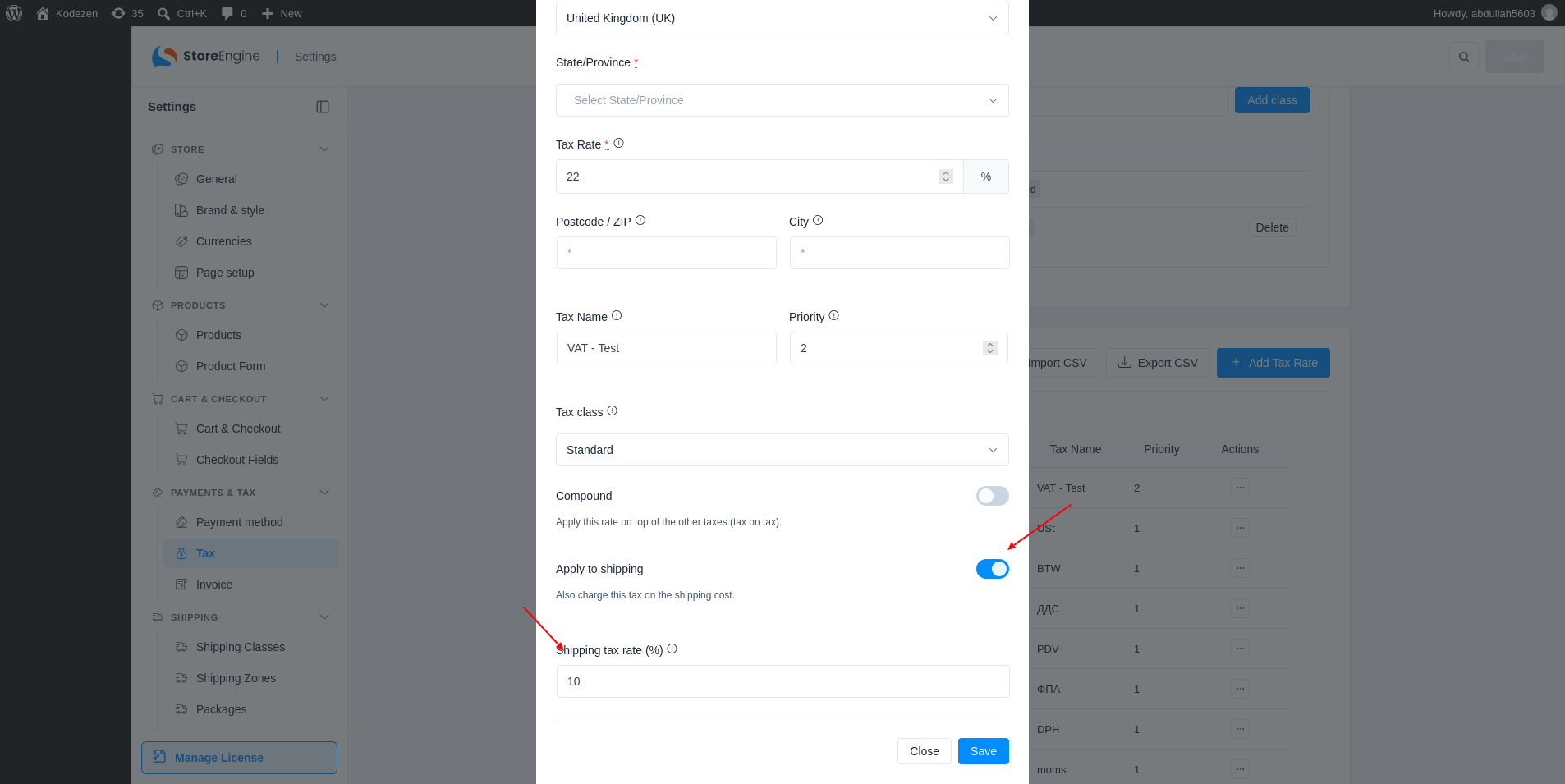
Each tax rate has its own shipping options. Open Add Tax Rate or edit a rate:
Step 3: Set the Tax Status of a Shipping Method
Each shipping method also has its own Tax status. Set it to None to leave that method untaxed.