


The Invoice add-on creates a PDF invoice for any order. Customers can download it, and you can attach it to emails.
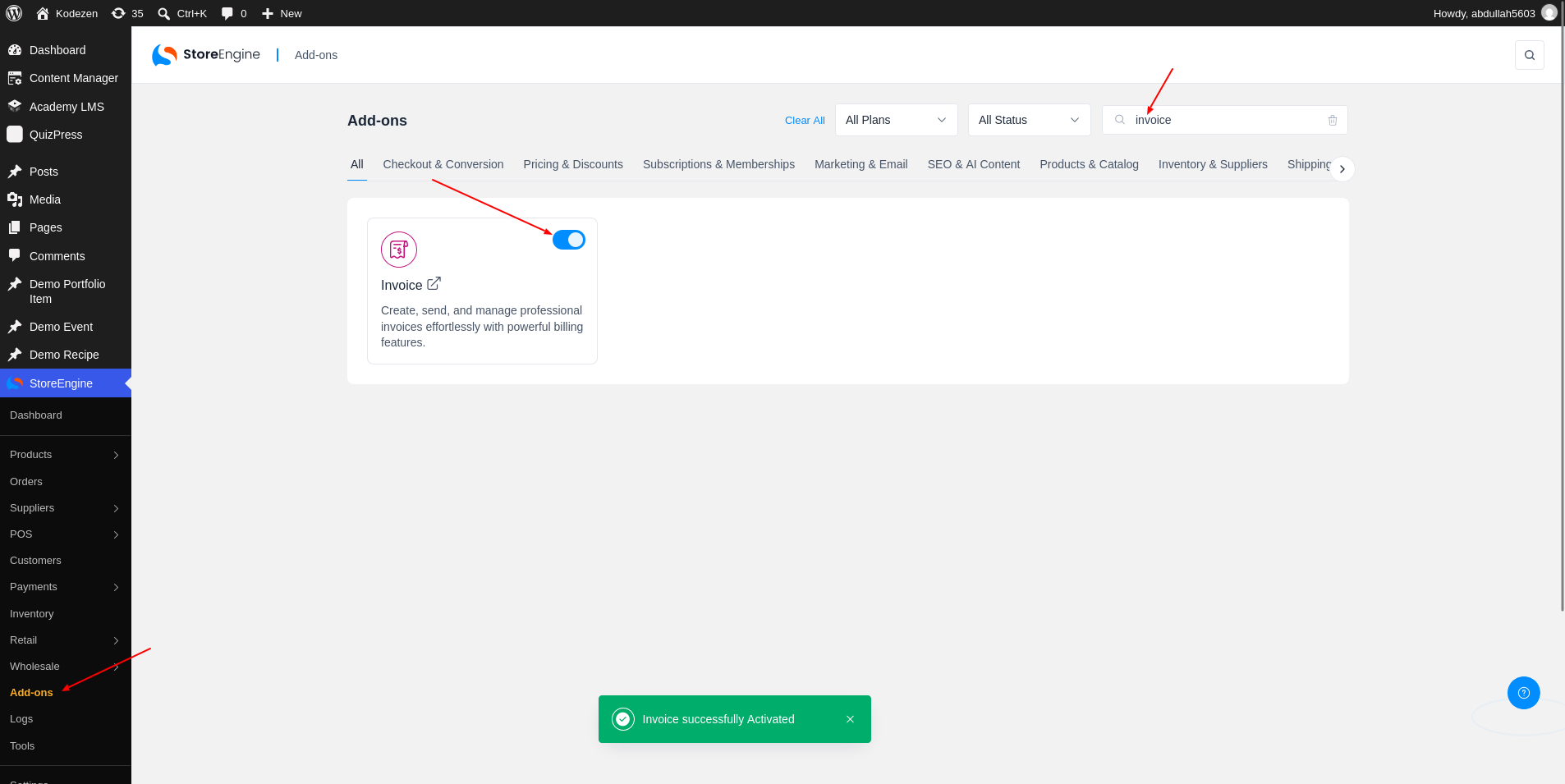
How to Set Up the Invoice Addon in StoreEngine?
Step 1: Activate the Invoice Addon
To start, go to StoreEngine → Add-ons and turn on Invoice. Then open StoreEngine → Settings → Invoice. If the font is missing, click Download fonts first. The PDF cannot be made without it.
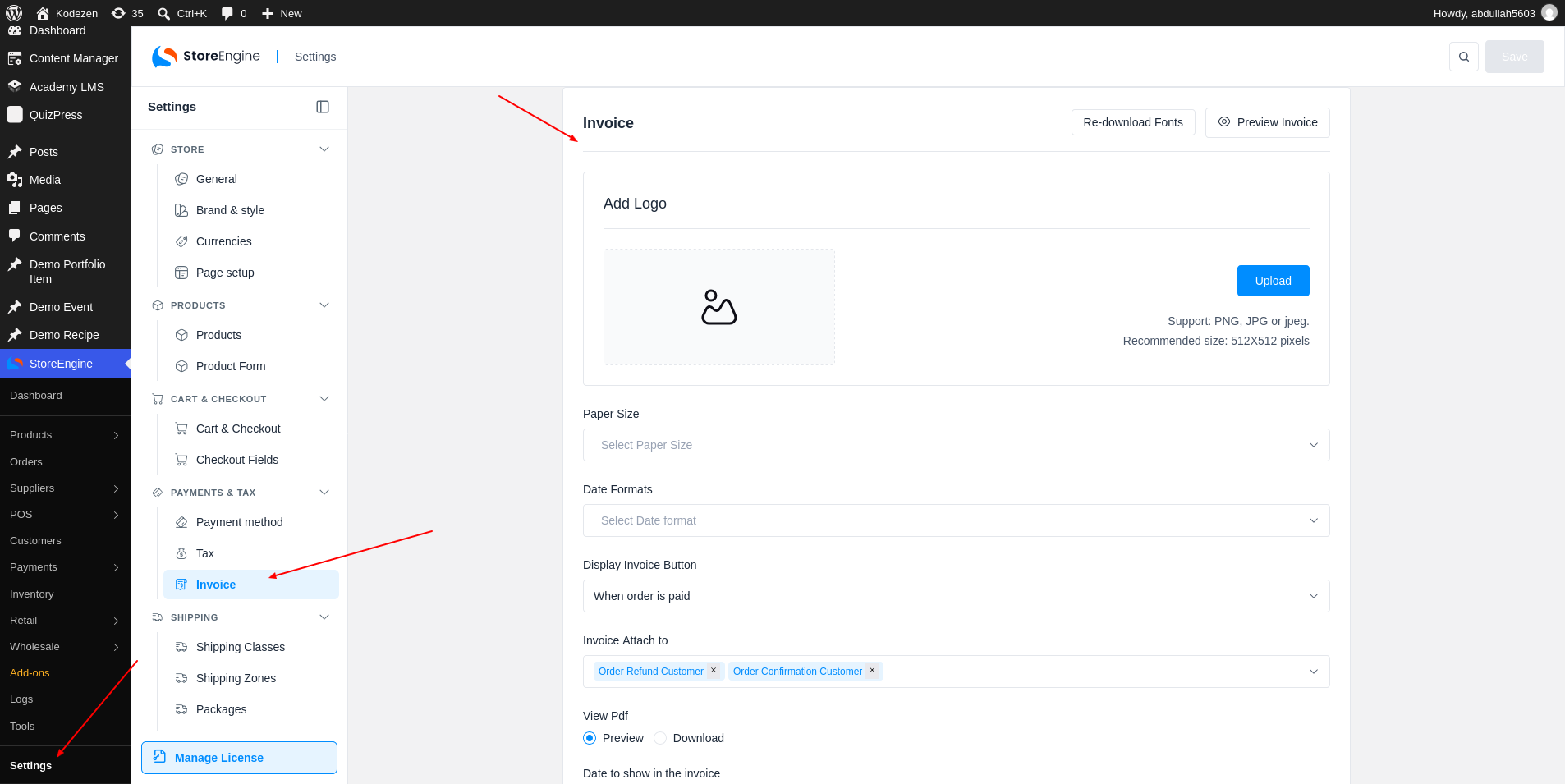
Step 2: Customize Invoice Settings
Set up the invoice here:
Click Save. Use Preview Invoice to check how it looks.
For German invoices, the Legal / Germany (§14 UStG) section has Invoice numbering and Seller legal details.
Step 3: Check the Invoice Layout
The invoice has a clean new layout. It shows your store name, the invoice number and date, From and Bill to details, an order summary with the payment method and Payment Status, the items with Qty, Unit price and Amount, and the totals.
Step 4: Create an Invoice for an Order
Open an order. In the Invoice box, click View Invoice (1) to see the PDF. Click Send Invoice to Customer to email it. Sending needs the Email add-on.
The same box has View Packing Slip (2) and View Delivery Note (3). See the Packing Slip and Delivery Note guide.