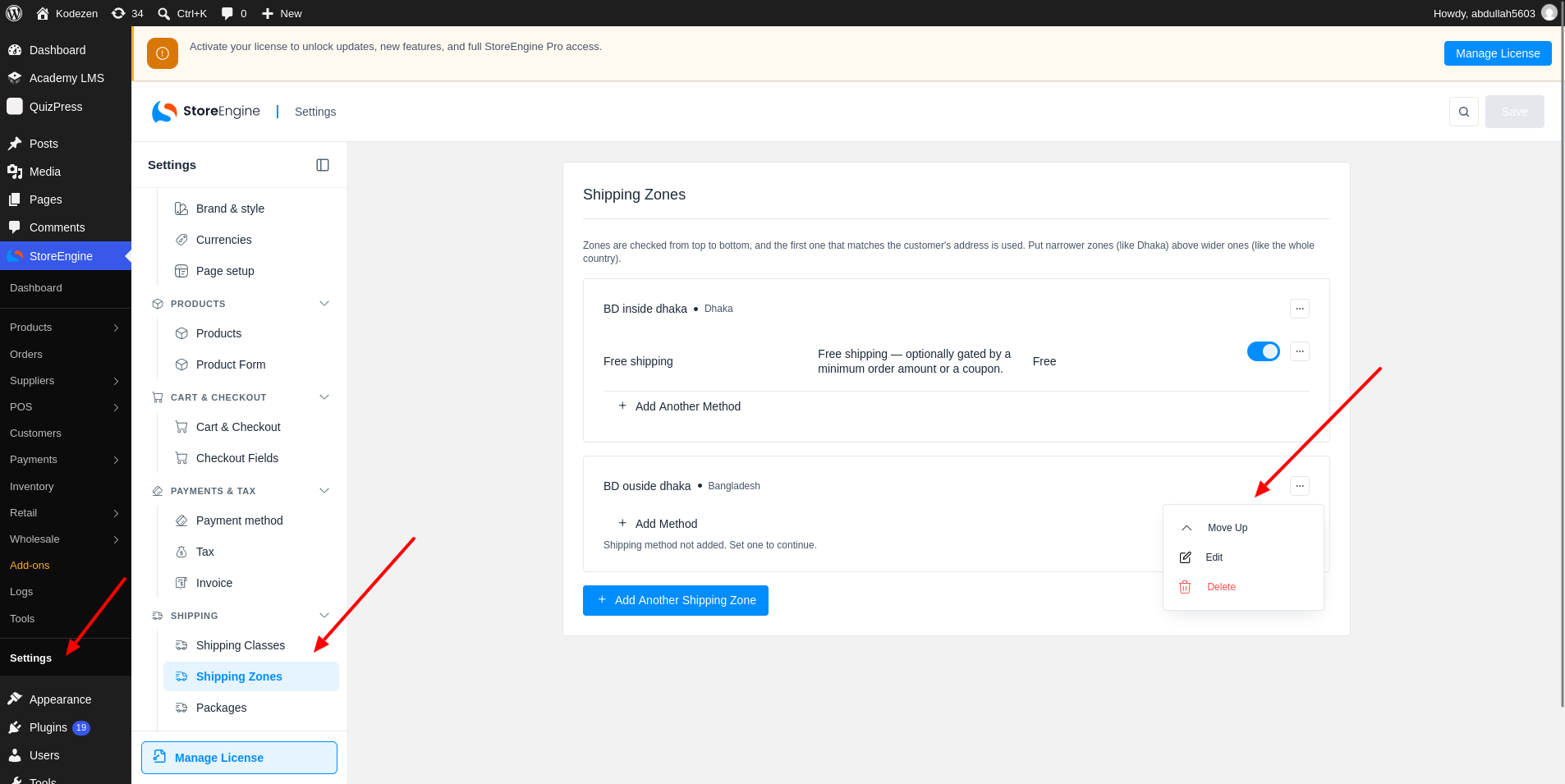
A shipping zone is a group of places you deliver to. Each zone has its own shipping methods and prices.
How to Set Up Shipping Zones in StoreEngine?
Step 1: Check How Zones Are Matched
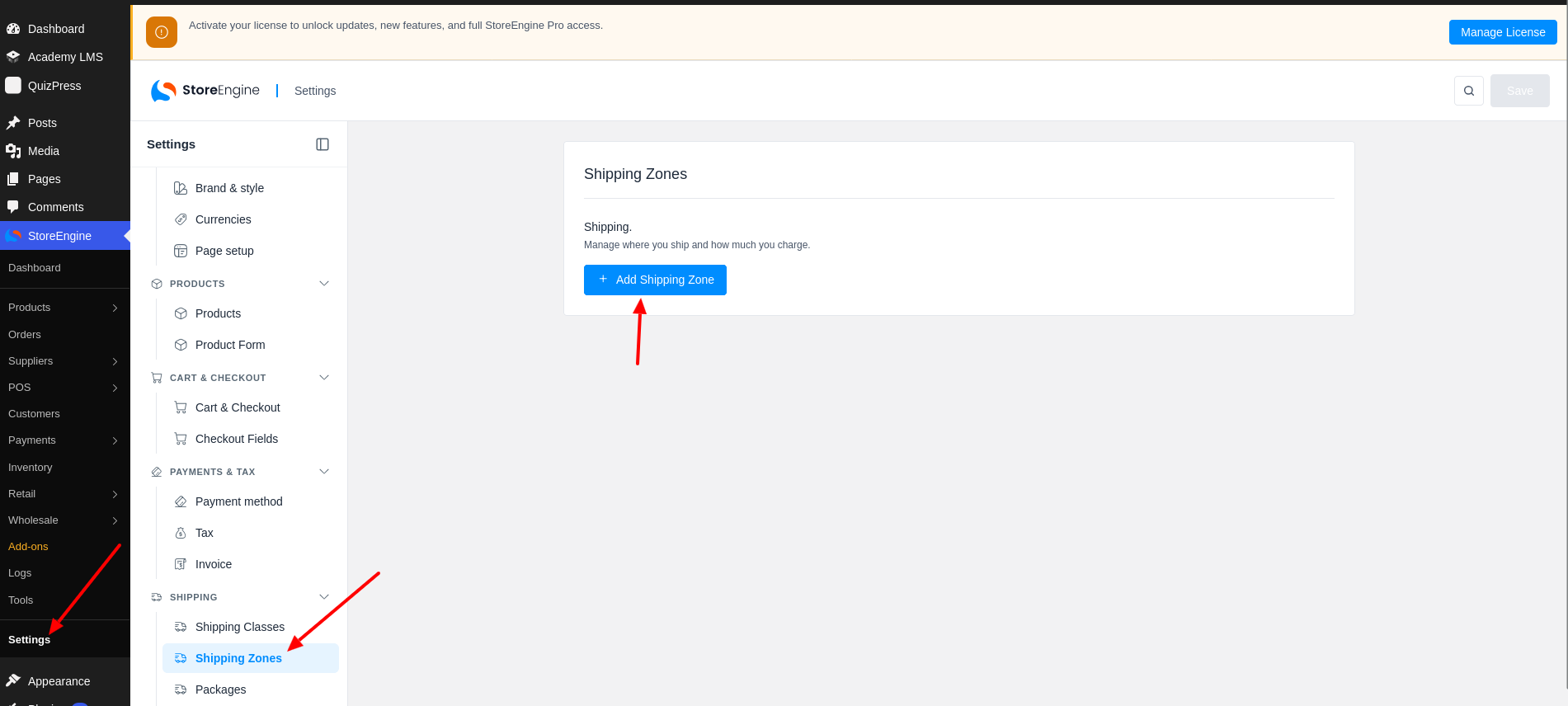
To start, go to StoreEngine → Settings → Shipping Zones. Zones are checked from top to bottom, and the first zone that matches the customer’s address is used. Put narrow zones (like one city) above wide ones (like a whole country).
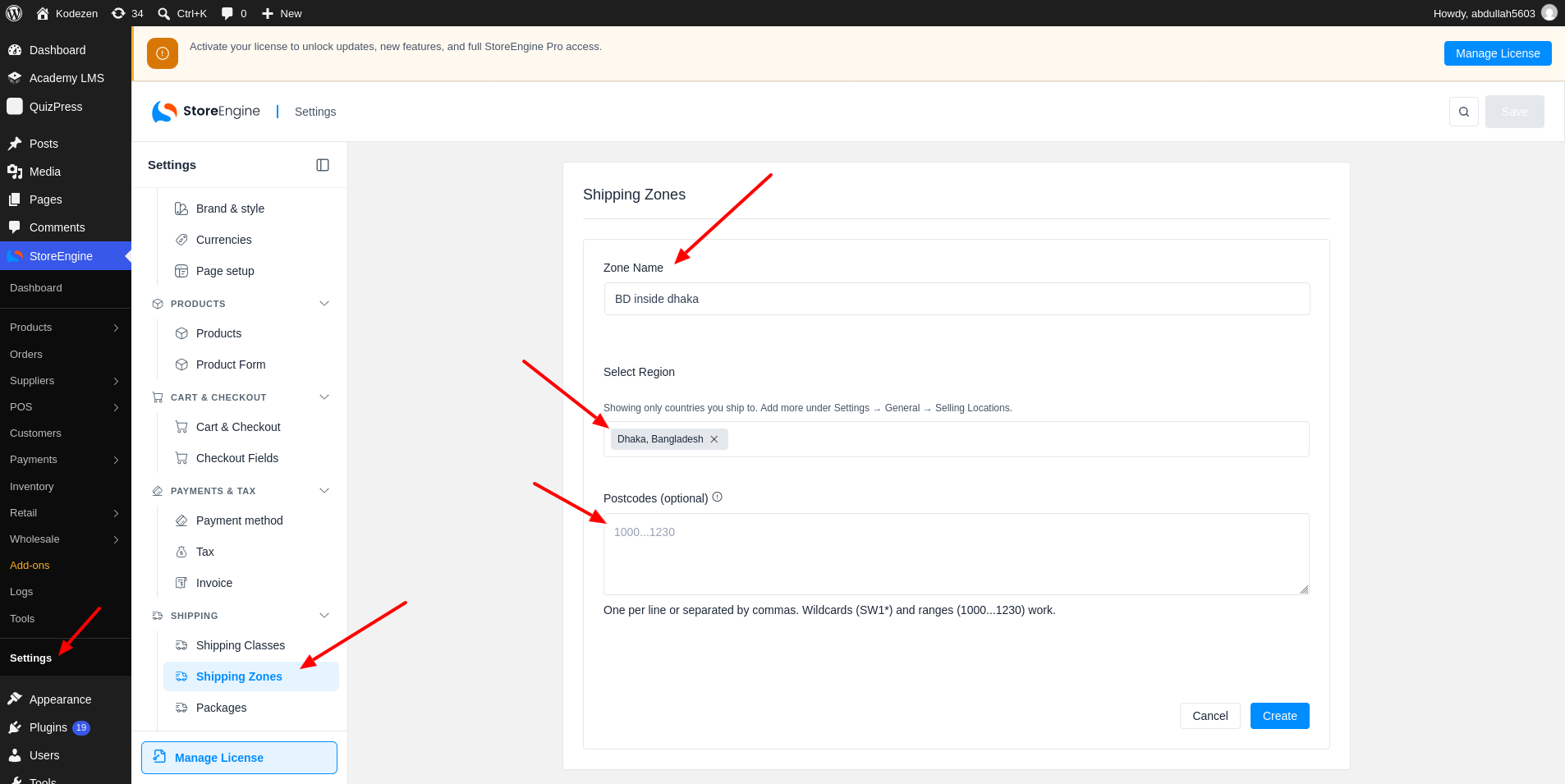
Step 2: Add a Shipping Zone
Click Add Another Shipping Zone. Enter a Zone Name (1). Under Select Region (2), choose the places for this zone. Only countries you ship to are listed. You can add more under Settings → General → Selling Locations. To limit the zone to some postcodes, use Postcodes (optional) (3). Write one per line or separate them with commas. Wildcards like SW1* and ranges like 1000…1230 work.
Click Create. New zones are added at the bottom of the list.
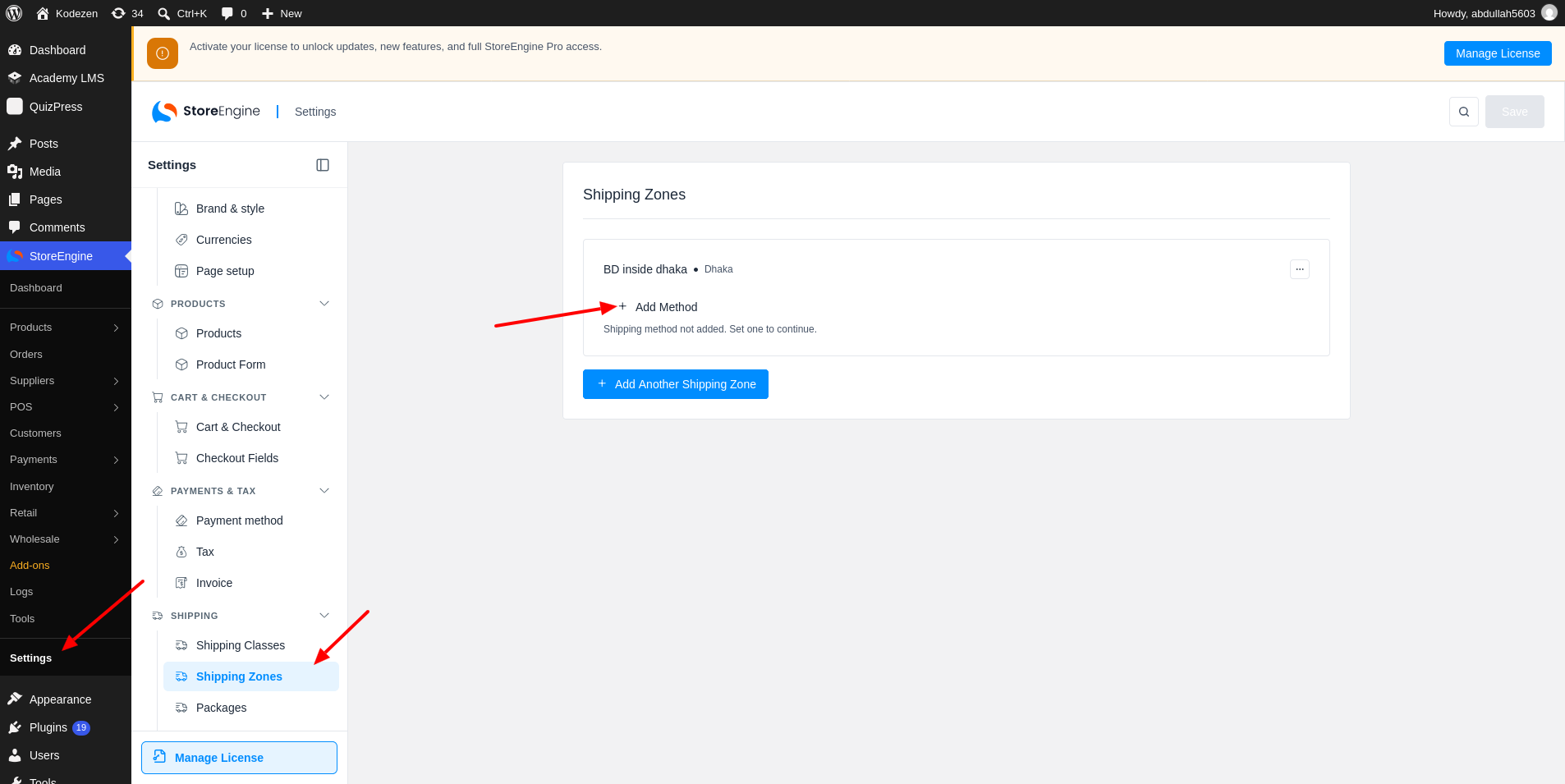
Step 3: Add a Shipping Method
Next, add a shipping method to the zone. Click Add Another Method and open the Select Shipping Type list. You can choose Flat rate, Free shipping or Table rate.
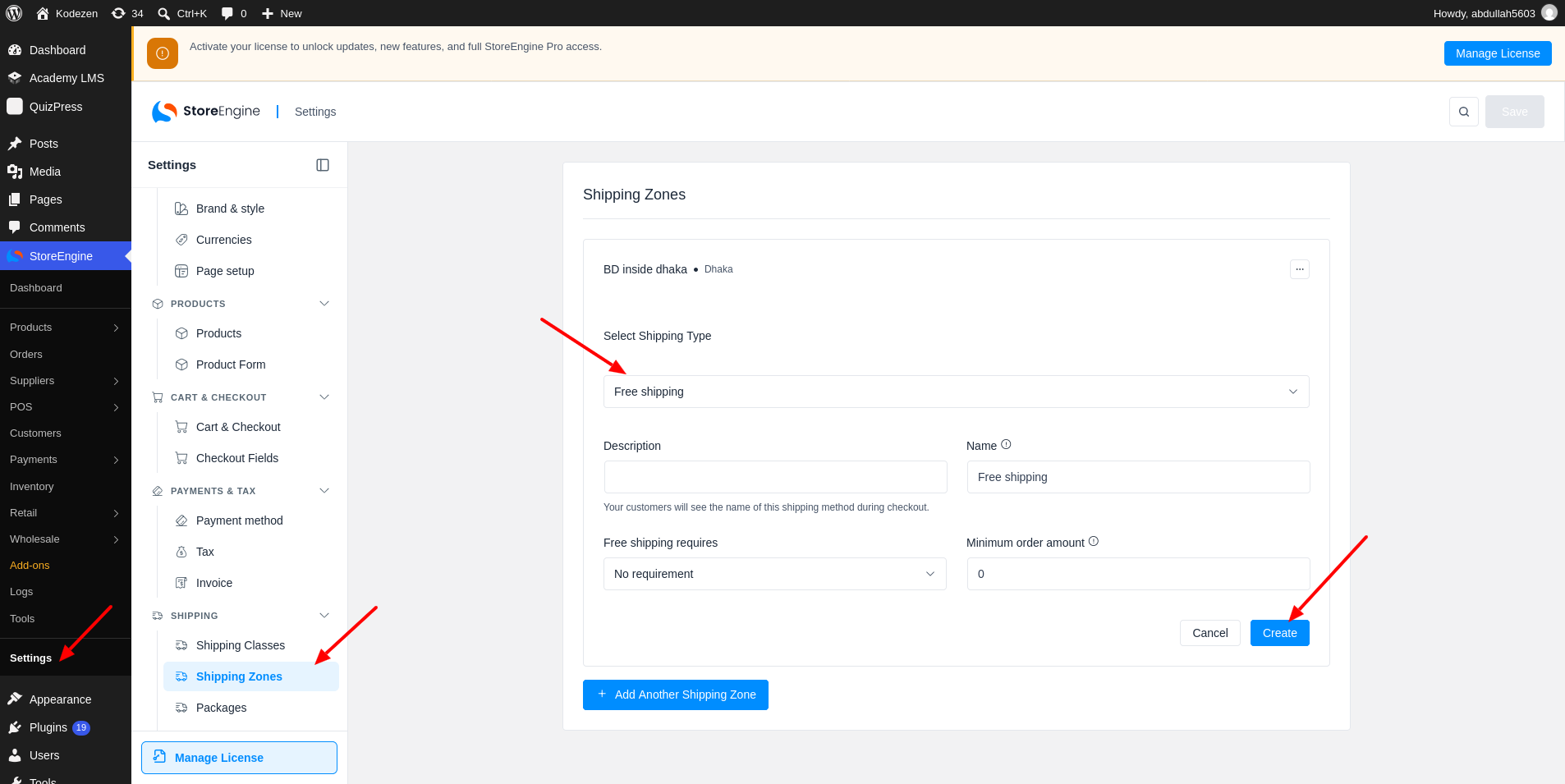
Turn Methods On or Off
Each method has a switch (1) to turn it on or off, and a menu (2) to edit or delete it. You can add many methods to one zone, and the customer picks one at checkout.
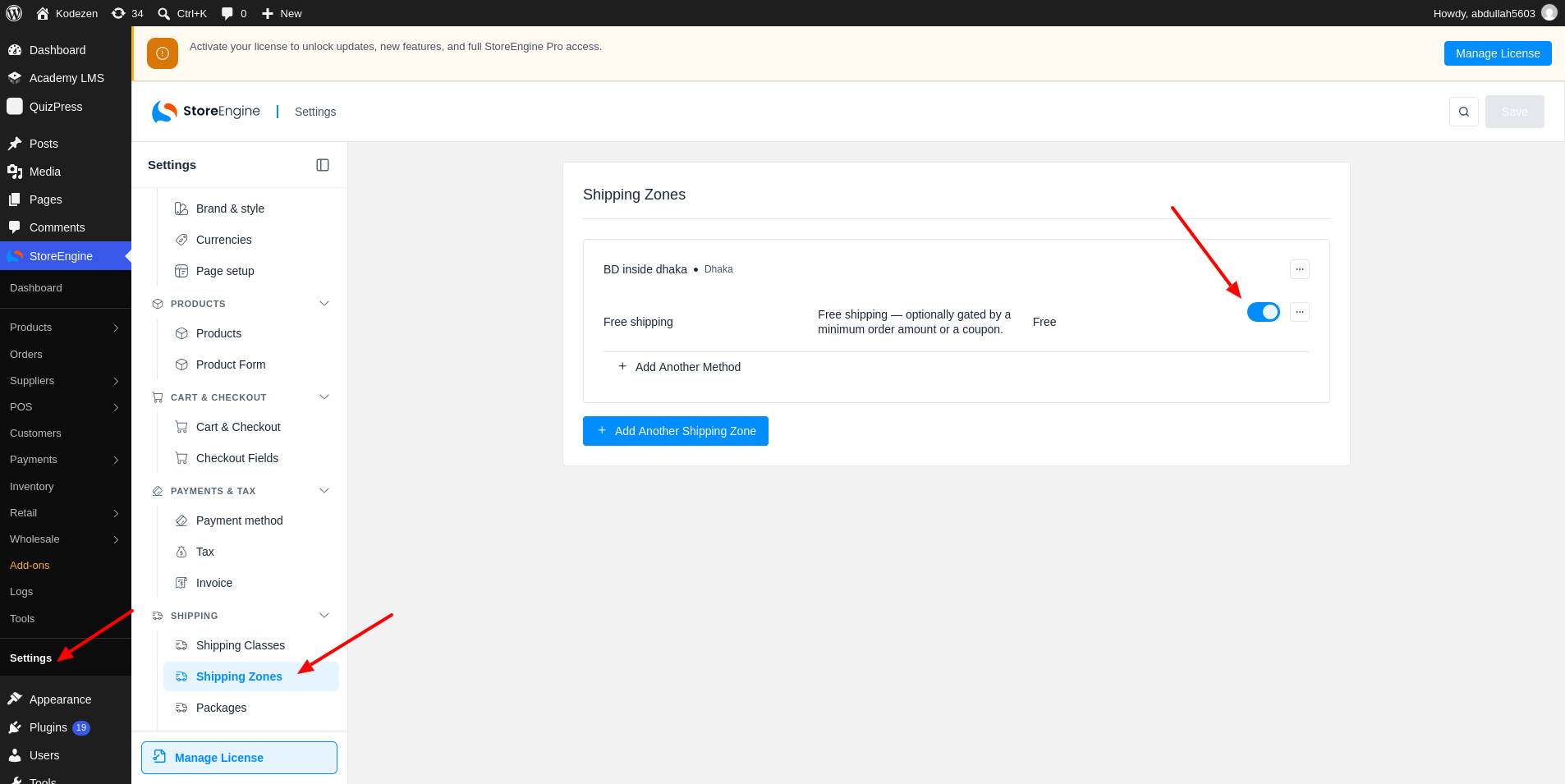
Managing Shipping Zones & Methods
Use the menu (1) on a zone to Move up, Move down, Edit or Delete it.