


StoreEngine can work out tax for every order. You choose how prices are entered and shown, then add tax rates for the places you sell to.
How to Set Up Tax in StoreEngine?
Step 1: Turn On Tax
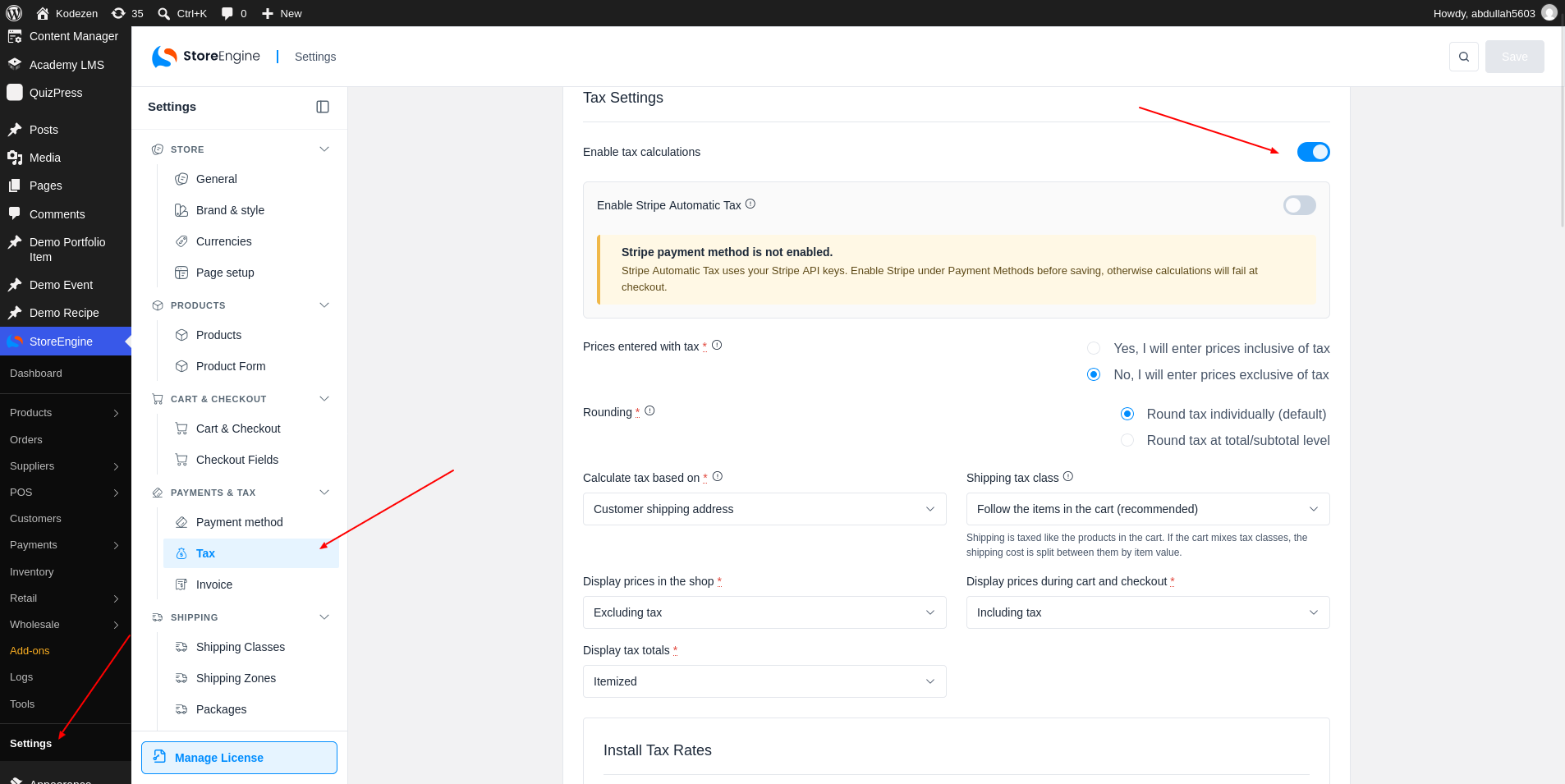
To start, go to StoreEngine → Settings → Tax and turn on Enable tax calculations.
Step 2: Set How Prices Work
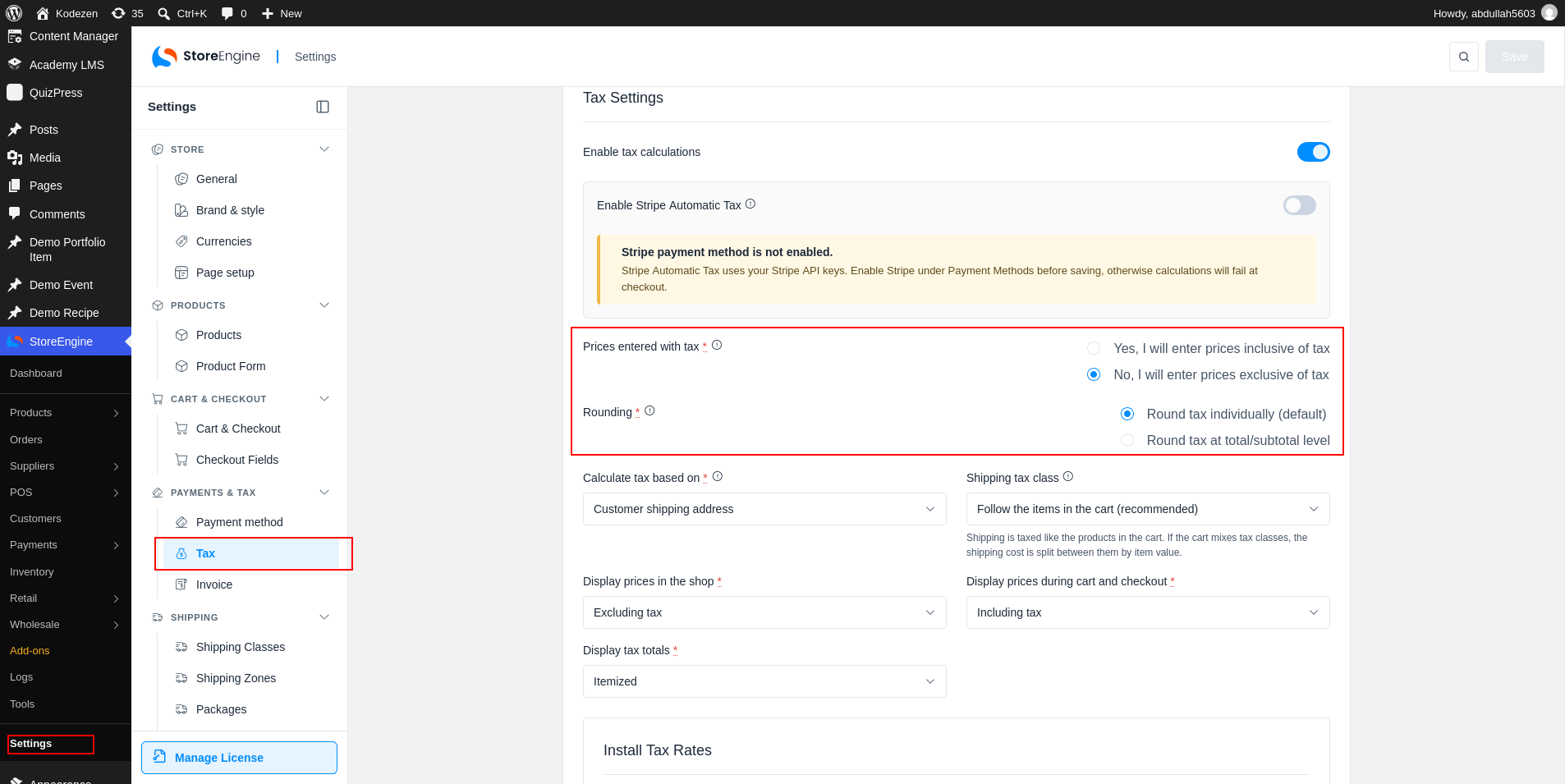
First, decide how prices work:
Step 3: Choose Where Tax Is Calculated and Shown
Then set where tax is worked out and how it is shown:
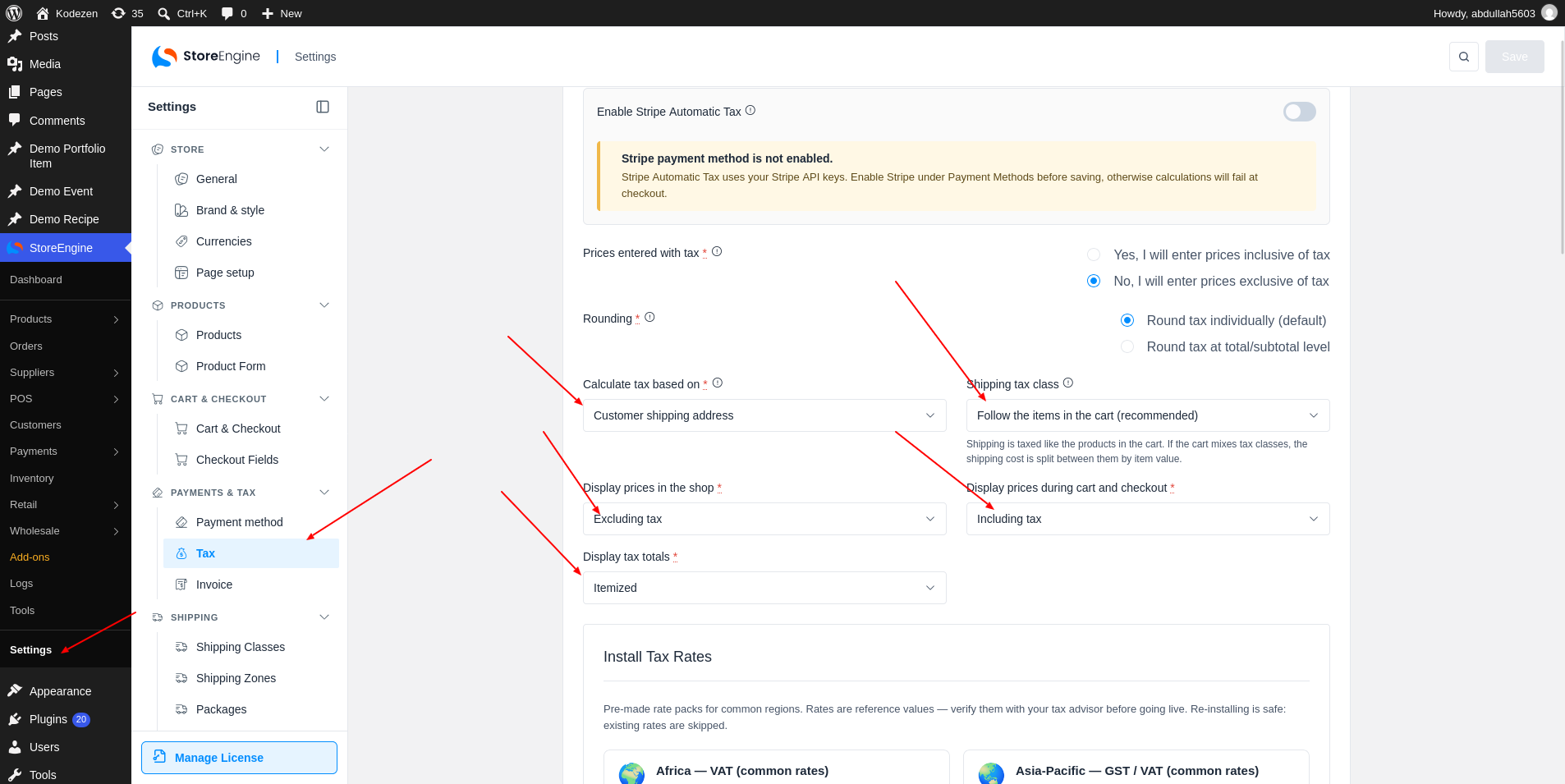
The Shipping tax class setting is covered in the Shipping Tax guide.
Step 4: Add a Tax Rate
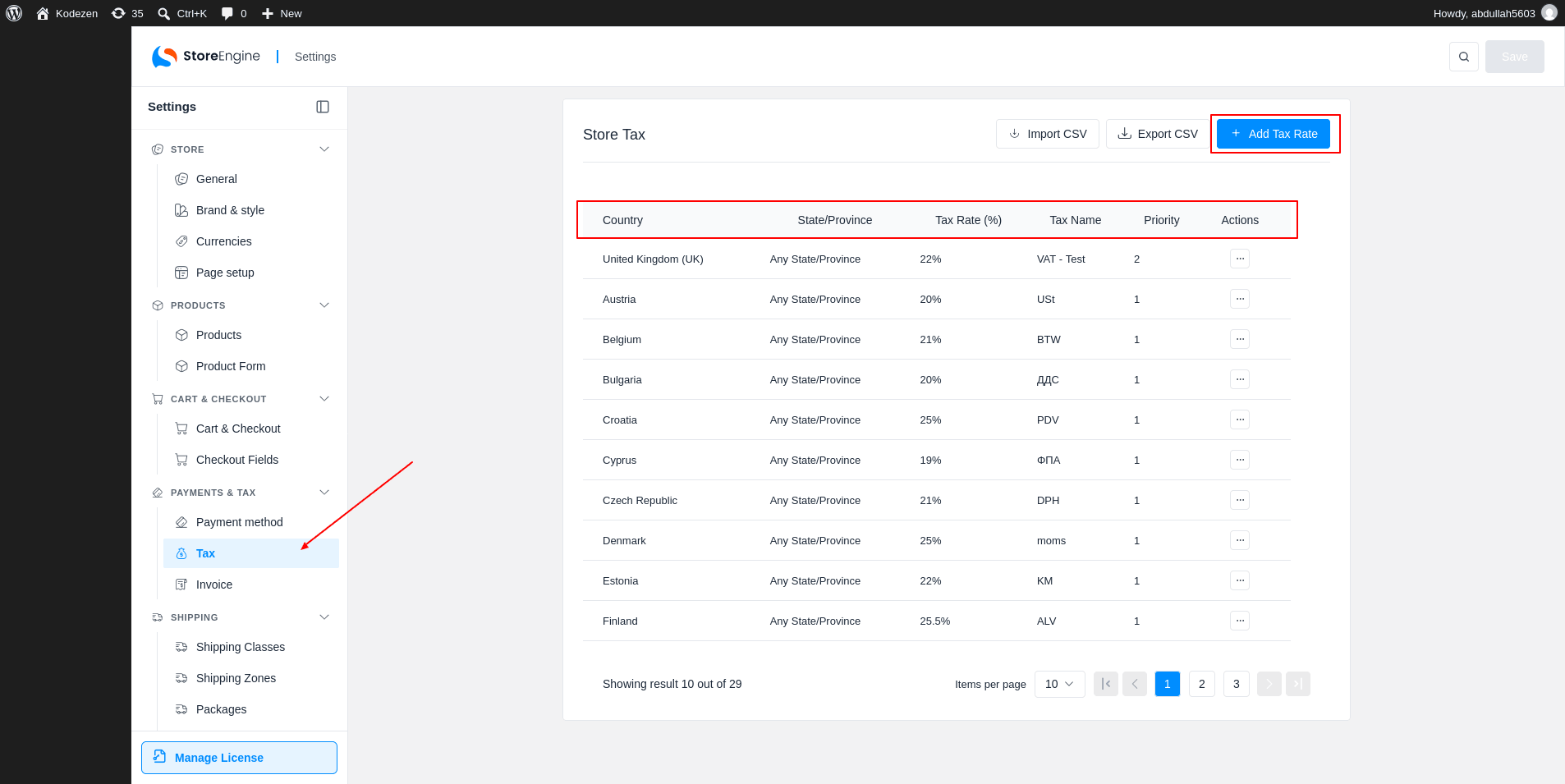
Scroll to Store Tax (the rates list) and click Add Tax Rate (1). The list shows each rate with its Country, State/Province, Tax Rate (%), Tax Name and Priority (2).
Tax Rate Fields
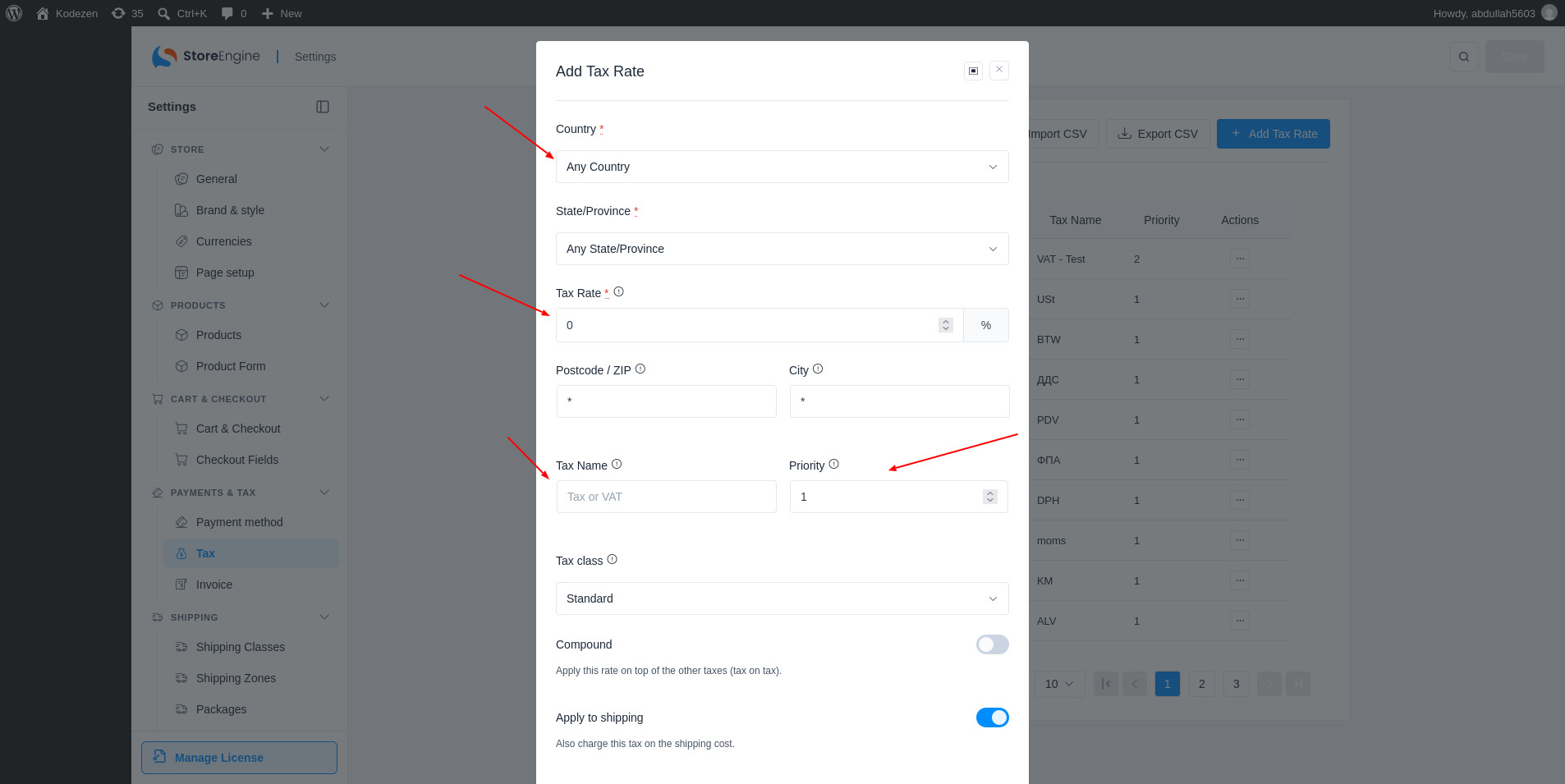
In the form, choose a Country (1) and a State/Province. Enter the Tax Rate (2) as a percentage. Use Postcode / ZIP and City to limit the rate to some places. Use * for any.
Give the rate a Tax Name such as VAT. Priority (3) matters when more than one rate matches an address: only one rate per priority is used. To charge two taxes in one area, give them different priorities. Pick the Tax class (4) the rate applies to.
Turn on Compound to apply the rate on top of other taxes. Apply to shipping charges the tax on the shipping cost too. Click Save.
Edit or Delete a Tax Rate
To change or remove a rate, use the ··· menu on its row and choose Edit or Delete.