









StoreEngine provides an Installment Plan Feature. This feature allows students to pay course fees in multiple installments instead of a full one-time payment. This makes courses more accessible for students and makes managing payments easier. Admins and instructors can set the number of installments, due dates, and payment reminders, while students can easily track completed and pending installments from their dashboard.
Step 1: How to activate the Installment Plan Addon
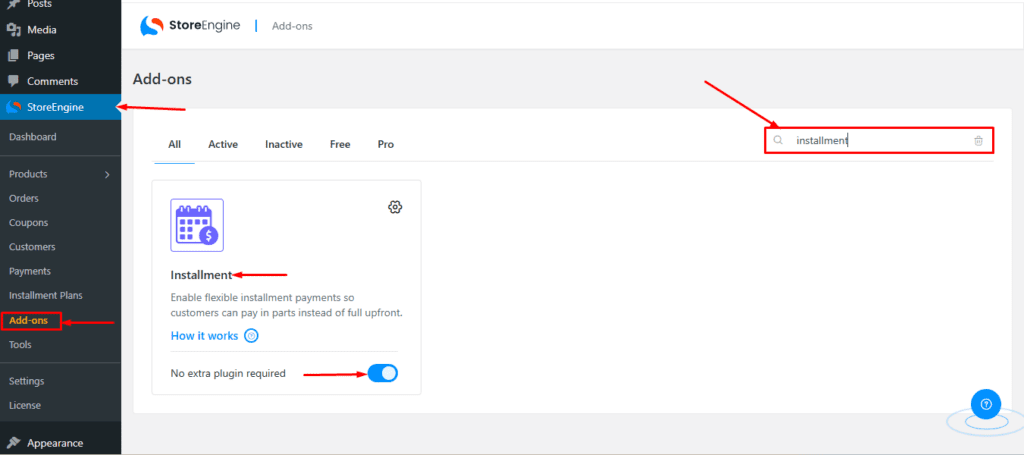
Go to your StoreEngine Addons section and use the search bar to find the Installment Plan Addon. Activate it, and after that, you will see the Installment Plan option in your StoreEngine menu.
Step 2: Configure the Installment Feature
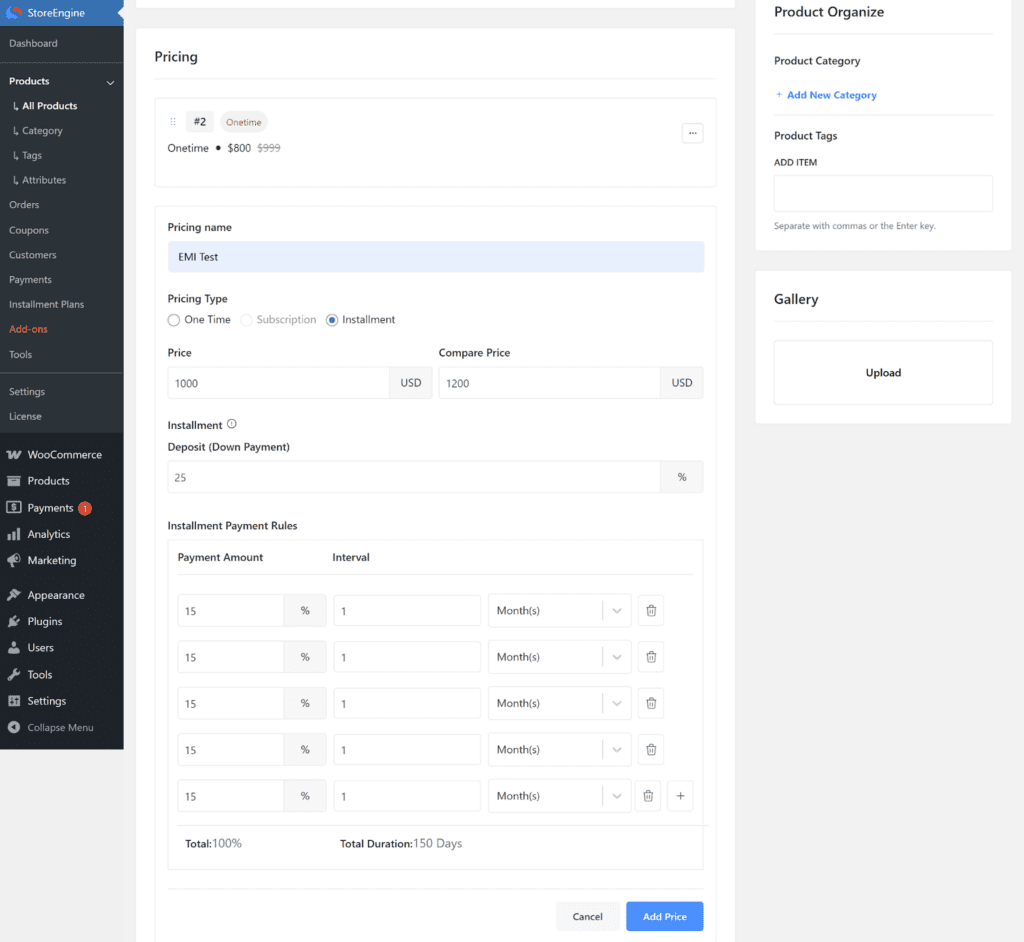
Go to your Product section, create a new product or edit an existing one, and open the Pricing section.
- Select Installment Plans under Pricing Type and enter a pricing name.
- Enter your Product Price and Compare Price.
- Set the Deposit (Down Payment) amount for the first payment.
- Configure remaining installments under Installment Payment Rules, specifying percentages and schedule (day/week/month/year). Ensure the total adds up to 100%.
- Optionally, set a One-Time Payment alongside the installment plan.
Tax Information
StoreEngine seamlessly supports Tax Calculation for Installment Payments, ensuring that taxes are correctly applied to each installment based on your store’s existing tax settings.
Please note: Coupon discounts and shipping charges are not currently compatible with installment payments. These features are planned and will be supported in future updates.
Step 3: View on Frontend
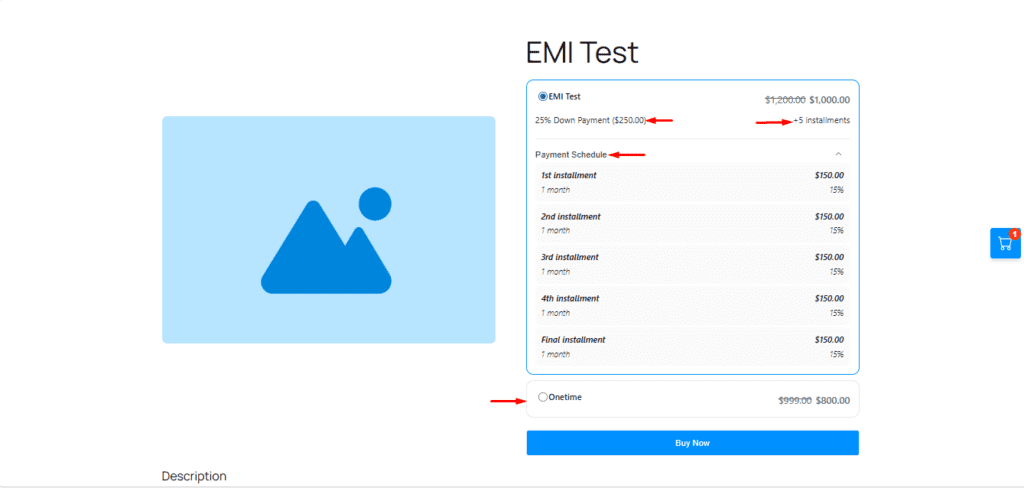
Go to the Store Shop page and select a product.
- You can see the first payment, remaining installments, and the total number of installments.
- If a One-Time Price is set, users can choose to pay either as a one-time payment or via the installment plan.
Step 4: Thank You Page Interface
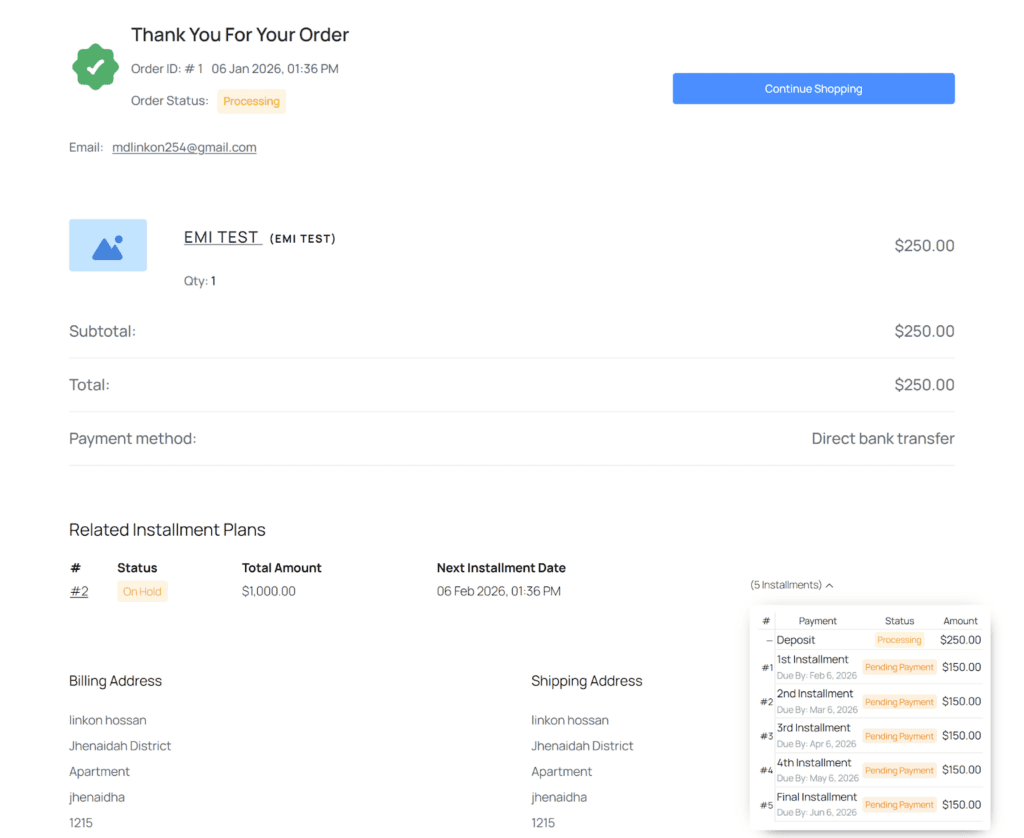
On the Thank You page, users can view:
- Details of purchased products and the amount paid
- Related Installment Plans section showing cart status, total amount, next installment payment, and remaining unpaid installments
Step 5: After Completing the Order
In the Installment Plan section under the Store Dashboard, users can see the status of their purchased product:
- ID (#): Product ID
- Item: Product name
- Date: Purchase date
- Next Installment: Next payment date
- Payment: Completed and unpaid installments
- Status: Current product status
- Total: Total product price under installment
- Actions: View details, make a payment, or cancel a payment
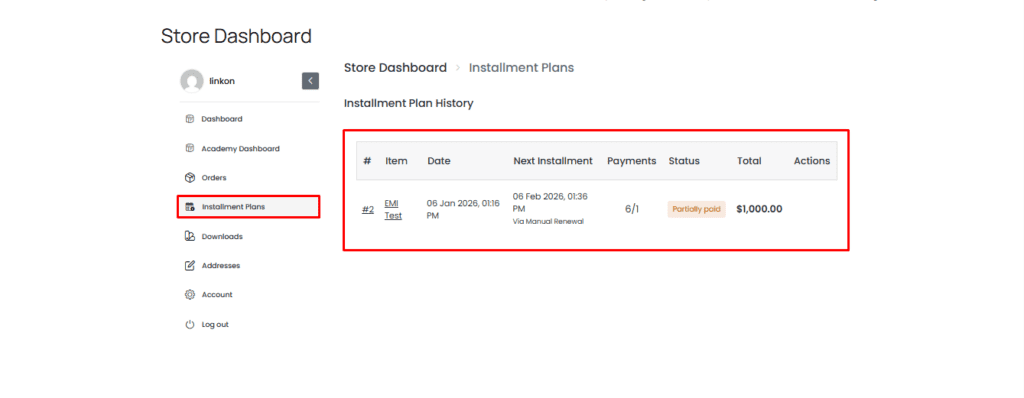
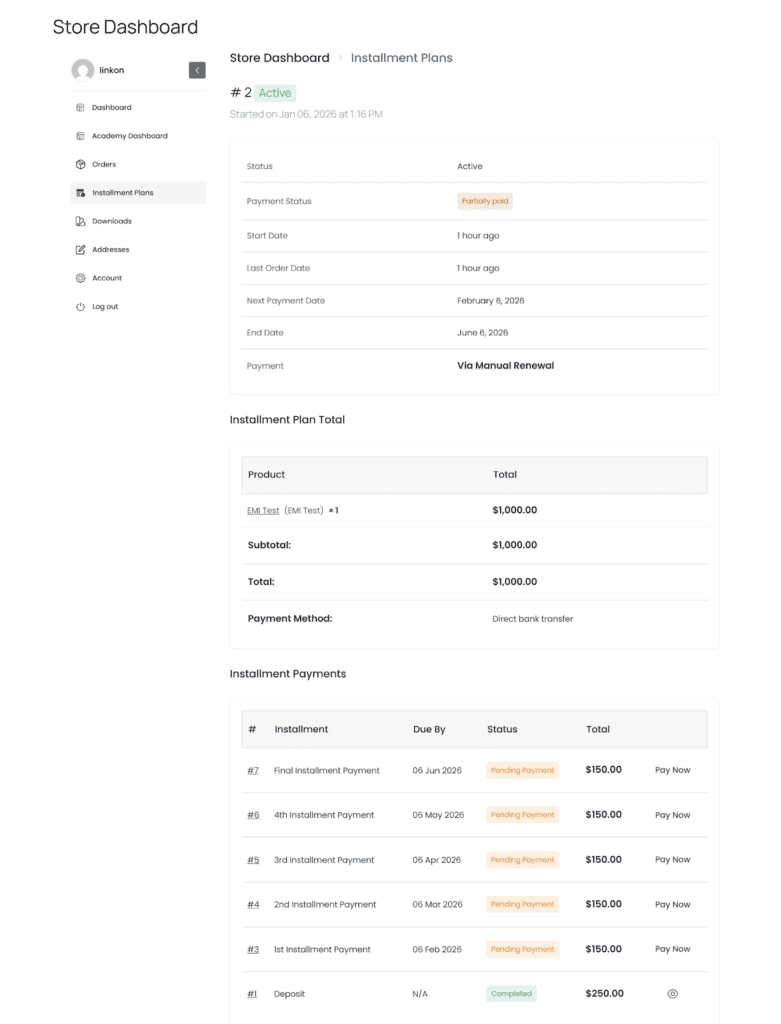
Clicking on the Product ID will redirect you to the product’s Installment Details Page, where you can see:
- Product Status: Shows Active once your first Deposit (Down Payment) has been fully paid.
- Installment Plan Total: Displays the product name, total price, and payment method.
- Installment Payments: Allows you to pay any remaining installments instantly or according to your predefined schedule. Simply click Pay Now next to any unpaid installment to make a payment.
StoreEngine’s Installment Plan Addon provides a simple, user-friendly way for students to pay in flexible installments while giving admins full control over pricing, schedules, and payment tracking. From activation to product setup, frontend display, checkout, and dashboard management, the addon ensures a smooth experience for both students and administrators.