









The StoreEngine Thank You Payment Instructions shortcode allows you to display payment instructions on the Store Thank You page after a customer completes an order. This shortcode is useful when you want to show additional payment information depending on the selected payment method.
For example, if a customer selects Cash on Delivery, Bank Transfer, or another manual payment method, you can use this shortcode to display instructions explaining how the payment will be completed.
Shortcode
[storeengine_thankyou_payment_instructions]Adding this shortcode will automatically display the payment instructions associated with the customer’s selected payment method.
What This Shortcode Does
The StoreEngine Thank You Payment Instructions shortcode dynamically displays payment instructions based on the payment method used during checkout.
This shortcode:
- Displays payment instructions after a successful order
- Shows method-specific instructions (e.g., bank transfer details)
- Appears only on the Thank You (Order Confirmation) page
- Automatically retrieves the correct order information
This ensures customers clearly understand what they need to do next to complete their payment.
Where It’s Commonly Used
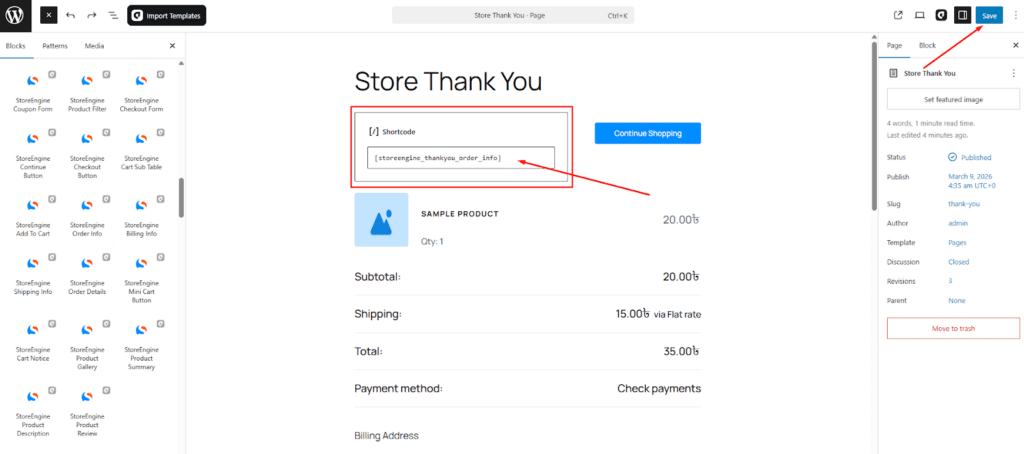
This shortcode is designed to be used on the Store Thank You (Order Confirmation) page.
Store Thank You Page
You can place the shortcode alongside other StoreEngine Thank You shortcodes such as:
- Order information
- Order details
- Billing and shipping details
- Continue shopping button
This helps create a complete and informative order confirmation page.
Frontend Output
On the frontend, the shortcode displays the payment instructions message related to the selected payment method.
For example:
- Instructions for Cash on Delivery
- Bank account details for Direct Bank Transfer
- Any additional instructions configured in the payment settings

These instructions appear immediately after the order confirmation message so customers know what action to take next.
Usage Example
You can add the shortcode anywhere on the Thank You page.
[storeengine_thankyou_payment_instructions]It works best when placed near:
- The order confirmation message
- The order summary
- The order details section
Placing it close to the confirmation message ensures customers easily notice the instructions.
Using with aBlocks
You can also display payment instructions using aBlocks, without manually adding a shortcode.
Steps to Add Using aBlocks
- Open your Store Thank You page in the block editor.
- Click the ➕ (Add Block) button.
- Search for aBlocks.
- Insert the aBlocks → StoreEngine Payment Instructions block.
- Place the block where you want the payment instructions to appear.
- Click Update or Publish.
Best Practices
To ensure a clear checkout experience, consider these tips:
- Place payment instructions near the order confirmation message
- Keep them visible above the order details
- Use them primarily for manual payment methods
- Avoid placing them too far down the page
This helps customers quickly understand what they should do after placing an order.
Summary
The storeengine_thankyou_payment_instructions shortcode allows you to display payment-related instructions on the Store Thank You page. It automatically shows instructions based on the selected payment method, helping customers understand how to complete their payment after checkout. This improves clarity, reduces confusion, and ensures a smoother post-purchase experience.